Managing Auto-Generated Payment Drafts?
Learn how Lynk automatically creates payment drafts before enrollments end, and how to review, send, or discard them to streamline renewal collections.
Written by Swathi N
To help coaches collect fees on time and reduce manual follow-ups, Lynk automatically creates payment requests for students with active enrollments.
These requests first appear as Drafts, allowing you to review, edit, send, or discard them before any payment link is shared with students or parents.
This gives you full control over renewal collections while saving time on repetitive payment management.
How and When Drafts Are Created
Lynk automatically generates payment drafts based on a student’s active enrollment timeline.
A draft is created when either of the following happens first:
7 days before the current enrollment ends
Before the final 2 sessions of the enrollment
Once triggered, the draft becomes visible in your dashboard for review.
Where to Find Payment Drafts
To access all auto-generated drafts:
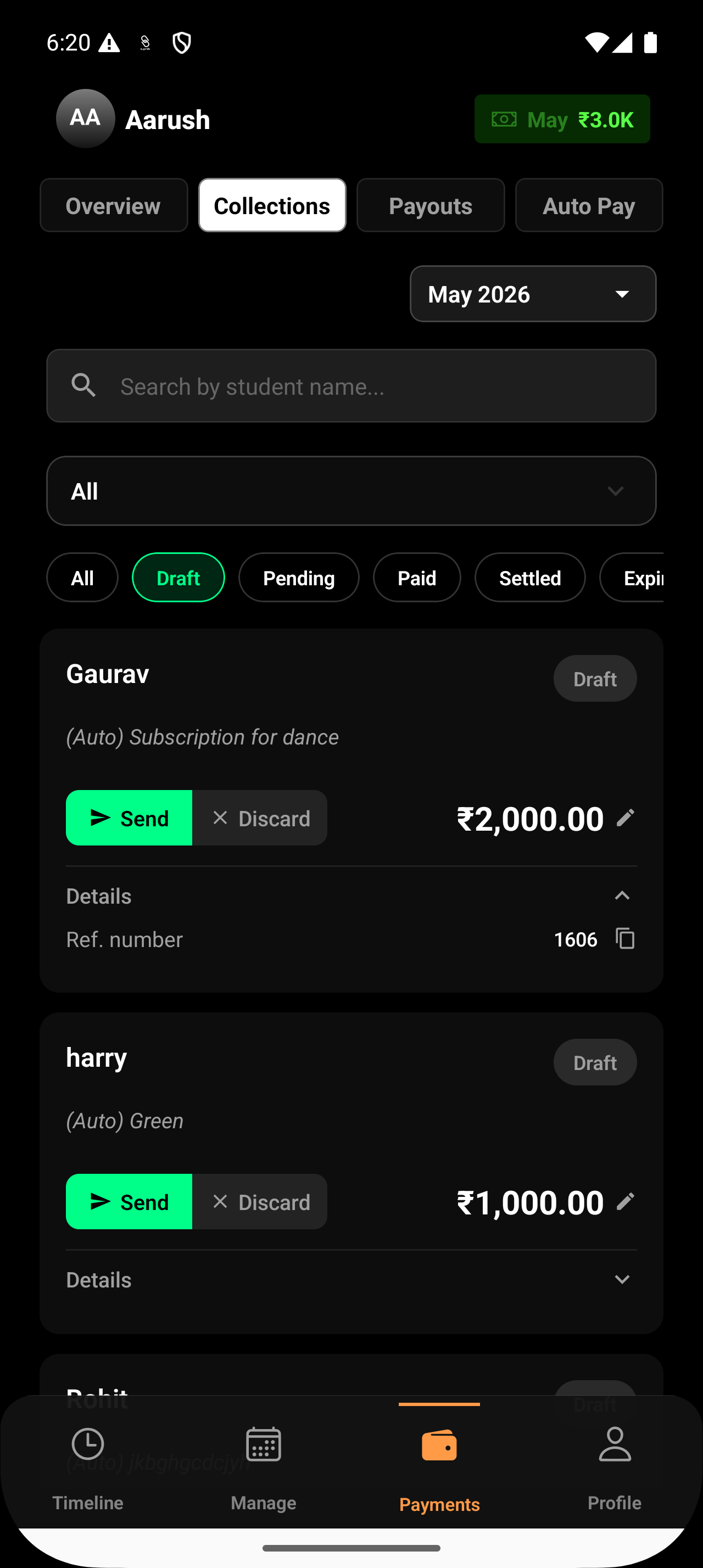
Step 1: Open Collections
Navigate to the Collections tab from your Payments dashboard.
Step 2: Select the Draft Filter
Under the payment status filters:
All
Draft
Pending
Paid
Settled
Expired
tap on Draft.
Step 3: Review Draft Requests
You will now see all system-generated payment requests awaiting action.
Each draft displays:
Student name
Enrollment plan
Requested amount
This allows you to quickly verify payment details before sending the request.
Actions You Can Take
Each draft supports two actions depending on the student’s enrollment status.
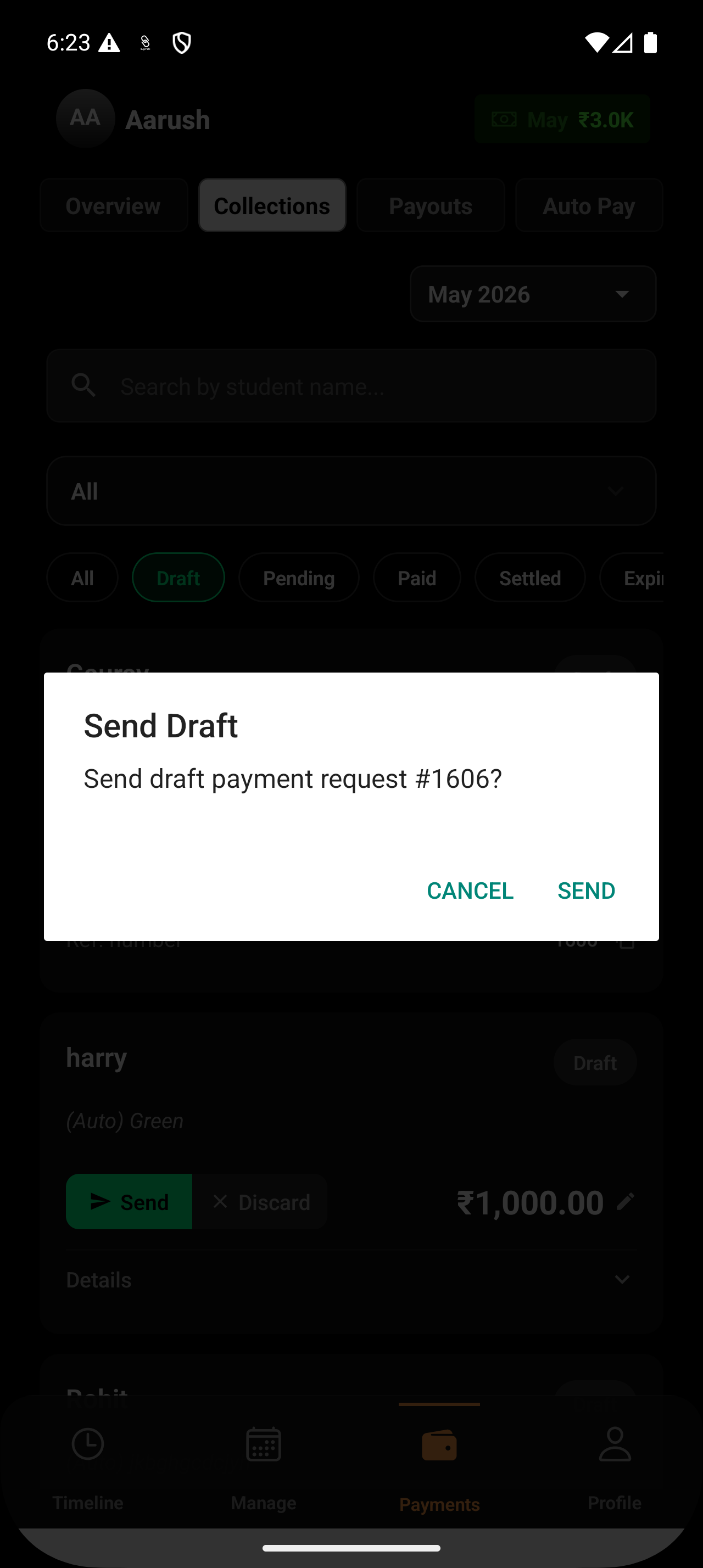
Send Draft
If the student is continuing classes and the payment details are correct:
Tap the Send button
The payment request becomes active instantly
A secure payment link is automatically shared with:
Student
Parent
via:
SMS
WhatsApp
Once sent:
The request moves to the Pending section
The payment flow officially begins
Discard Draft
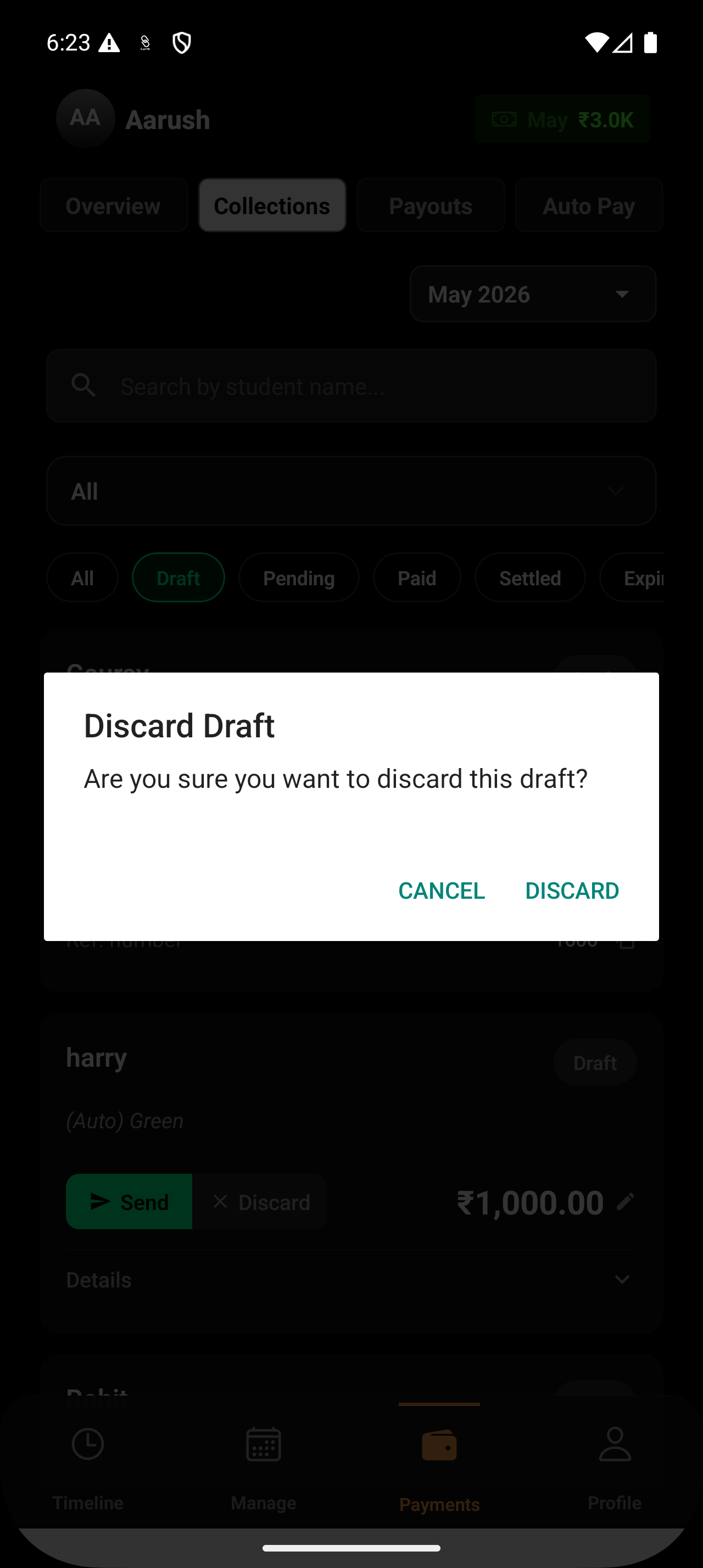
If the payment request is no longer needed, tap Discard.
This may apply when:
The student is taking a break
Enrollment is discontinued
You want to create a different custom payment request
Once discarded:
The draft is deleted
No payment link is sent
No notification is triggered for the student or parent
Why Drafts Are Useful
Auto-generated drafts help coaches:
Reduce manual payment tracking
Stay ahead of enrollment renewals
Avoid missed collections
Review payment details before sending
Maintain better control over recurring fee requests
By preparing requests automatically while still requiring coach approval, Lynk balances automation with flexibility.
Conclusion
Auto-generated payment drafts help streamline recurring collections by preparing renewal requests automatically while still giving coaches complete control before sending them to students or parents.