How to Request a UPI Payment?
Learn how to send payment requests using auto-generated drafts or manual requests, and track UPI Direct payments from request to settlement.
Written by Swathi N
Lynk makes it easy for coaches to collect payments through UPI Direct — a zero-cost payment collection flow that allows you to receive payments directly without platform transaction fees.
You can request payments in two ways:
Sending an auto-generated draft
Manually creating a new payment request
Both methods help you track collections seamlessly within the platform.
Method 1: Sending an Auto-Generated Draft
To simplify recurring collections, Lynk automatically prepares payment drafts based on active student enrollments.
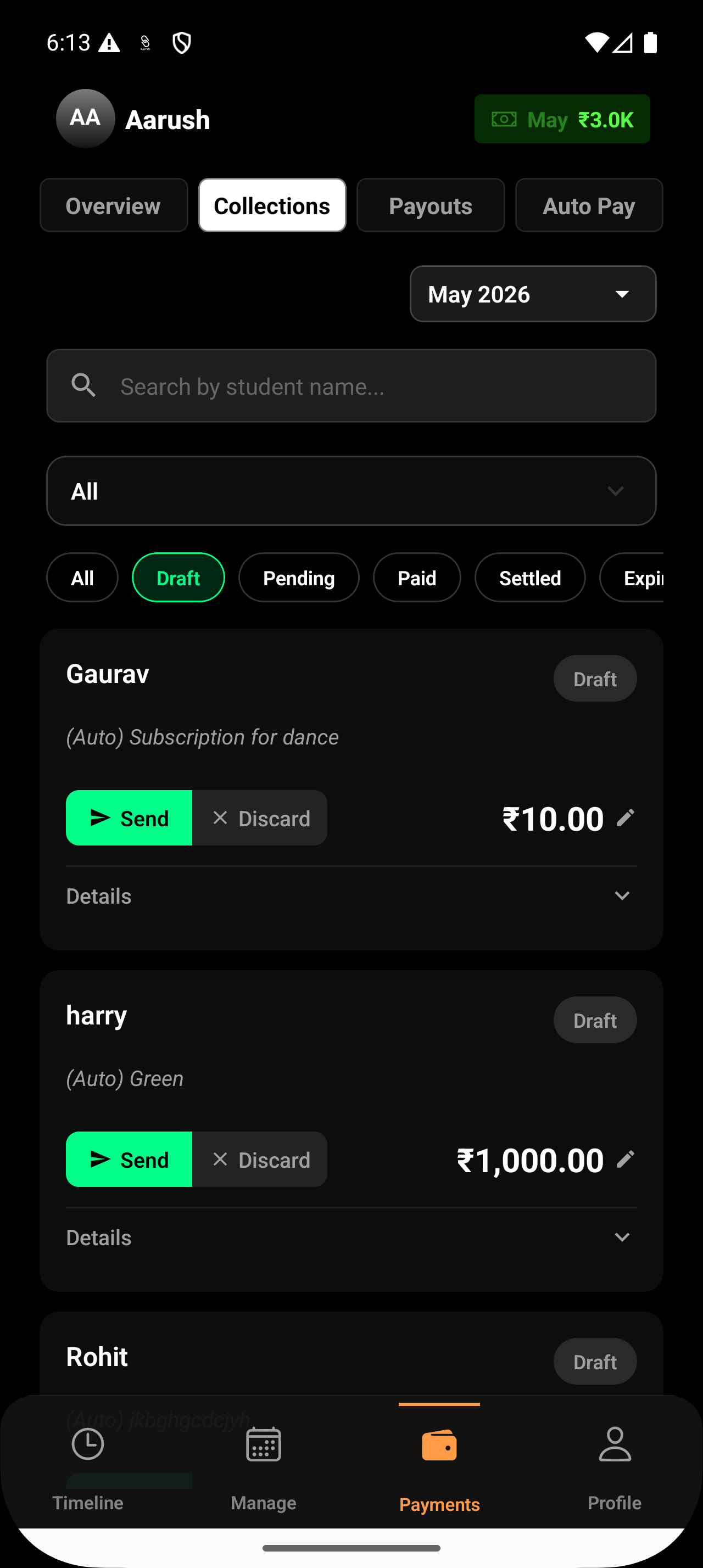
When Are Drafts Created?
The system automatically creates a draft:
7 days before a student’s enrollment expires, or
Before the final 2 sessions of the enrollment
These drafts help ensure renewal collections are not missed.
How to Send a Draft Payment Request
Step 1: Open Collections
Navigate to the Collections tab from your dashboard.
Step 2: Open Drafts
Select the Draft filter to view all auto-generated payment requests.
Step 3: Review Request Details
Check the:
Student name
Enrollment plan
Requested amount
You can make edits if required before sending.
Step 4: Send or Discard
Choose one of the following actions:
Send → Instantly sends the payment request to the student
Discard → Removes the draft if payment is no longer required
Once sent, the request moves to the Pending state.
Method 2: Manually Creating a Payment Request
You can also create a custom payment request anytime outside the regular enrollment cycle.
This is useful for:
Workshop fees
One-time classes
Material charges
Custom coaching sessions
Late fee collections
How to Create a Manual Payment Request
Step 1: Tap “Request Payment”
From your payment dashboard, tap the Request Payment button.
Step 2: Select the Student
Use the search bar to find and select the correct student from your roster.
Step 3: Enter Payment Details
Add the following information:
Amount → Enter the payment amount
Description (Optional) → Mention what the payment is for Example:
“June Dance Workshop”
“Advanced Yoga Sessions”
“Monthly Tuition Fee”
Step 4: Review Fee Details
You will see a payment breakdown confirming that:
UPI Direct payments have zero platform fees
You receive the full requested amount
Step 5: Generate the Request
Tap to create and send the payment request.
The request is immediately shared with the student and parent.
What Happens After Sending a Request?
Once a payment request is sent — either through a draft or manual creation — Lynk automatically manages the next steps.
Instant Delivery
The payment link is automatically shared with:
The student
The parent
via:
SMS
WhatsApp
This ensures faster visibility and quicker collections.
24-Hour Link Expiry
Each payment link remains active for 24 hours from the time it is generated.
If payment is not completed within this period:
The link expires automatically
The student can no longer use it for payment
In this case, you can generate a fresh payment request anytime.
Tracking Payment Status
After sending:
The request appears under the Pending section in Collections
You can track payment progress directly from the dashboard
The request will continue through the payment lifecycle until it reaches Settled.
Conclusion
UPI Direct makes fee collection simple, transparent, and zero-cost for coaches. With auto-generated drafts, manual payment requests, and clear payment tracking, Lynk helps you manage collections smoothly and efficiently.