How to create an Auto Payment request
Steps to create autopay and let Lynk trigger payment requests automatically.
Written by Sumit Kapoor
Introduction
Auto Pay requests allow you to automate recurring payment collections without manually creating payment requests every time. Once configured, Lynk automatically triggers payment requests and reminders based on the schedule you define.
This is especially useful for:
Monthly fee renewals
Class-count–based billing
Ongoing programs where payments follow a predictable pattern
Auto Pay reduces follow-ups, avoids missed payments, and ensures a smoother collection cycle.
Where Auto Pay Lives
Auto Pay is available under the Payments section of the app.
Navigation path:
Payments → Auto Pay
From here, you can create, view, and manage all your automated payment reminders.
How Auto Pay Reminders Work
When you create an Auto Pay reminder:
Lynk monitors the selected schedule (monthly or class-based)
A payment request is automatically generated at the right time
The payment link is sent to the student via WhatsApp and SMS
Standard payment link rules apply (validity, reminders, expiry)
You don’t need to manually trigger or resend requests unless required.
Steps to Create an Auto Pay Reminder
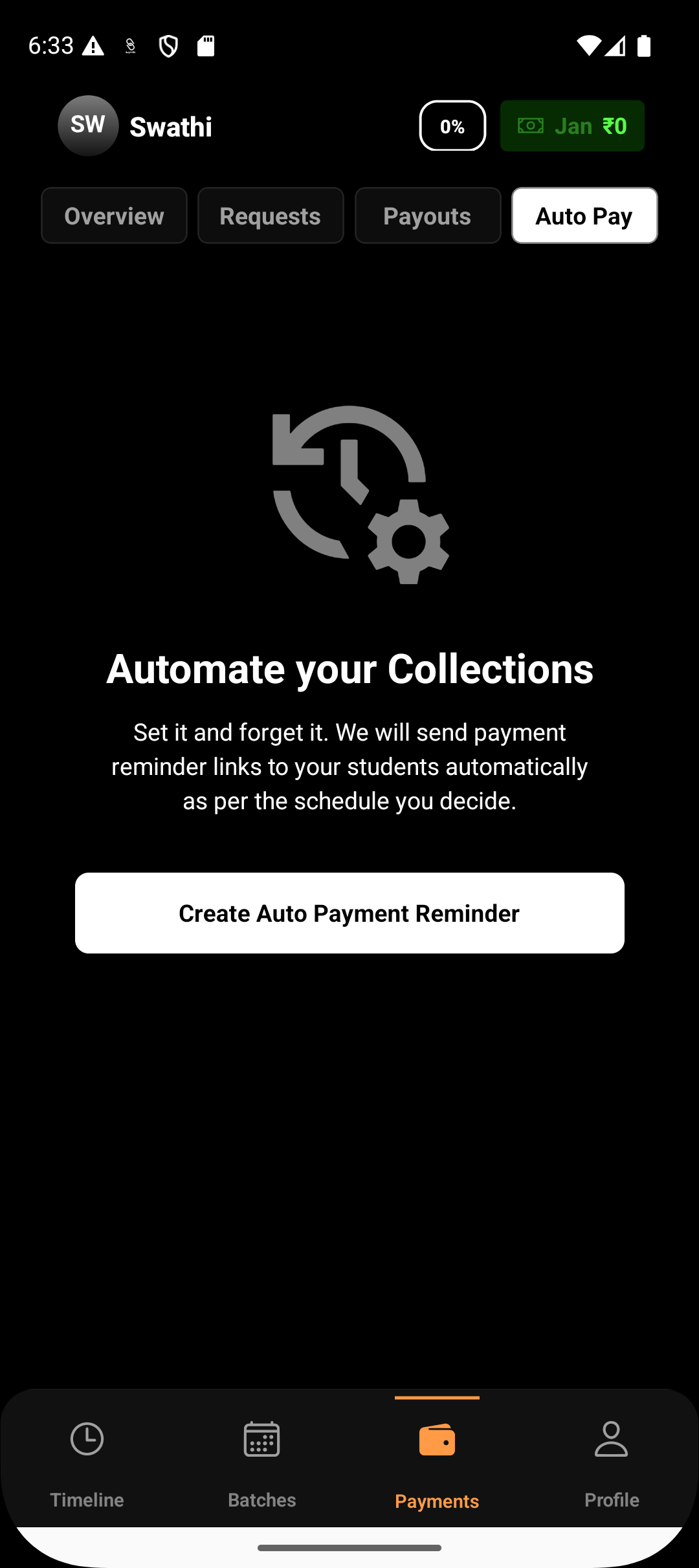
1. Go to Auto Pay
Open the Payments tab and select Auto Pay.
Tap Create Auto Reminder to begin.
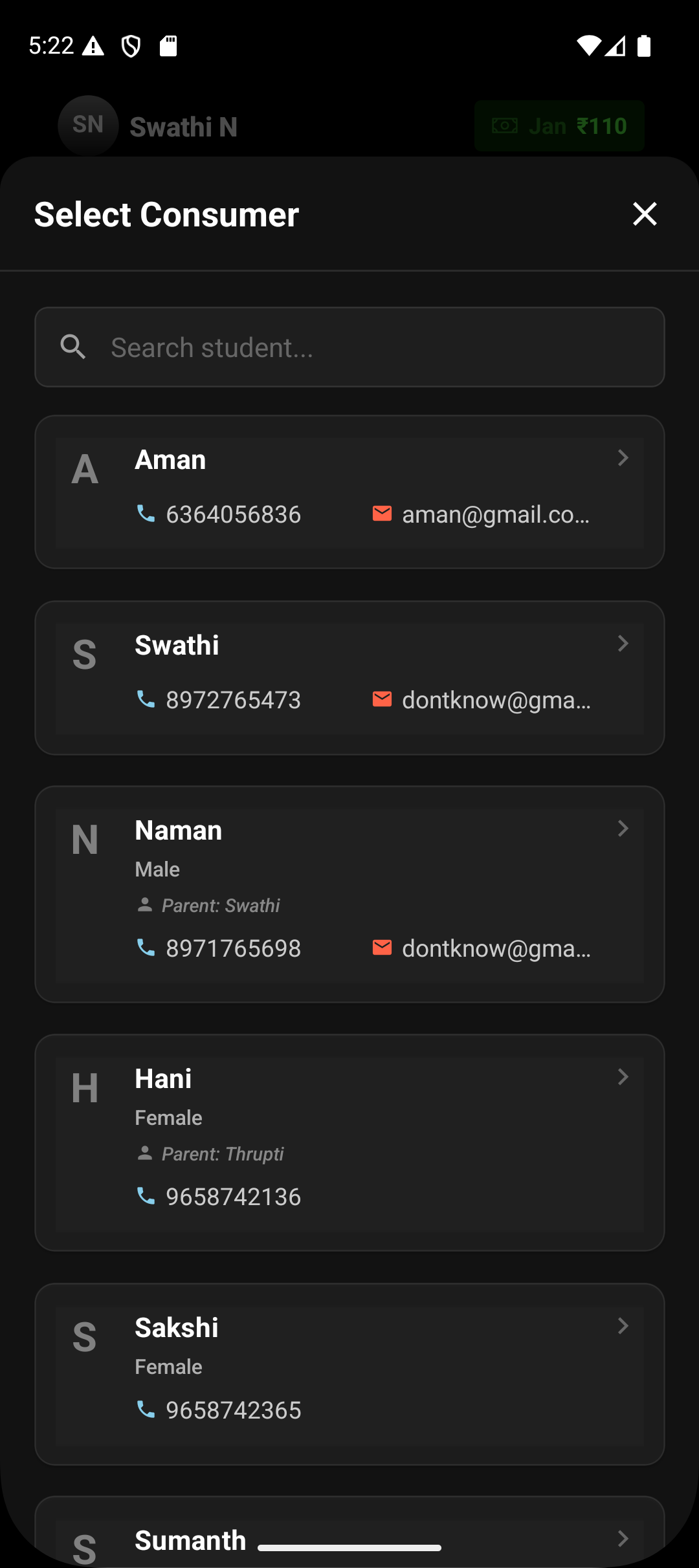
2. Select the Student
Choose the student for whom the automated payment reminder should be set up.
Auto Pay works only for students already linked to your account.
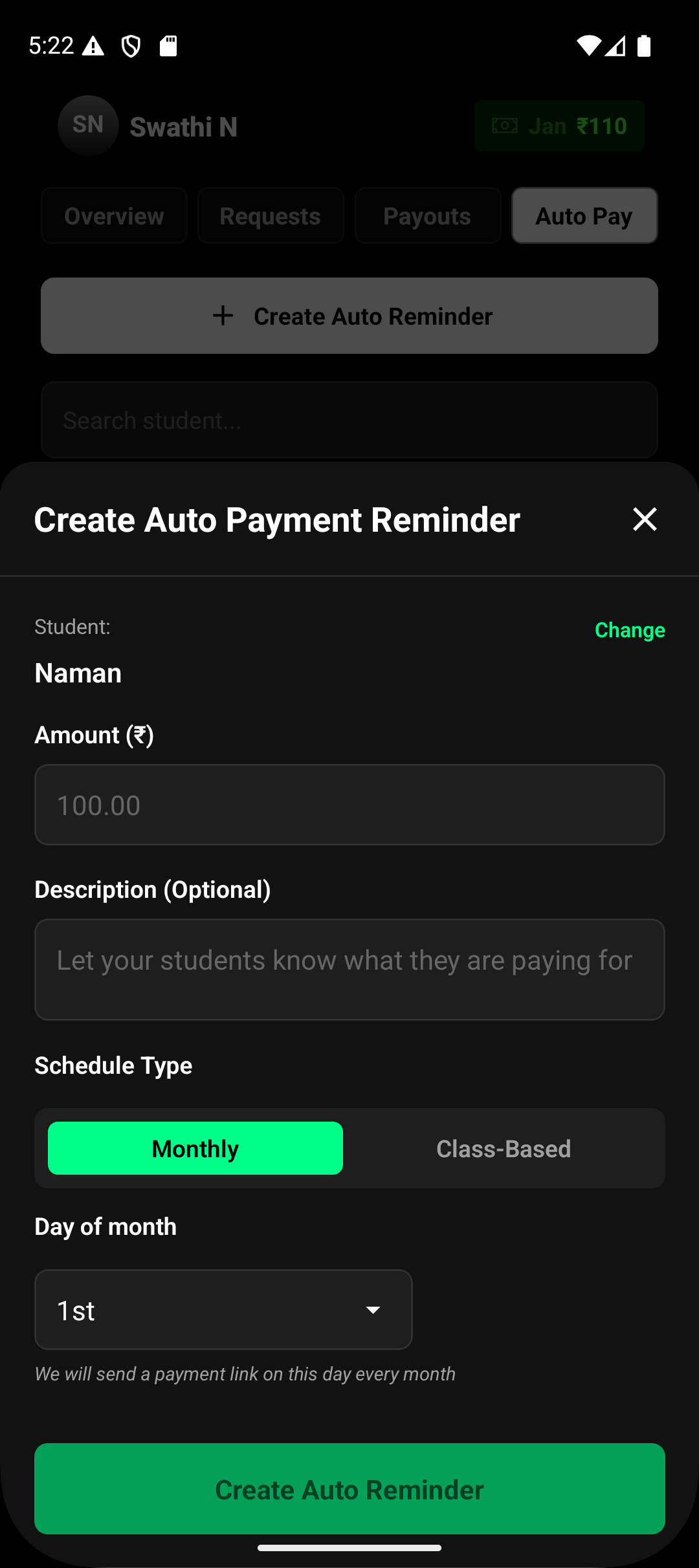
3. Choose the Schedule Type
Select how often the payment should be triggered:
Monthly – Ideal for fixed monthly fees. Simply select day of the month the payment request should be raised
Class-Based – Ideal when billing depends on the number of classes attended.
For monthly, the payment request is raised at 10am on the morning of the day of the month specified in monthly auto pay.
For class-based billing, Lynk tracks the class count attended and triggers the payment the next day at 10am after the final class attended.
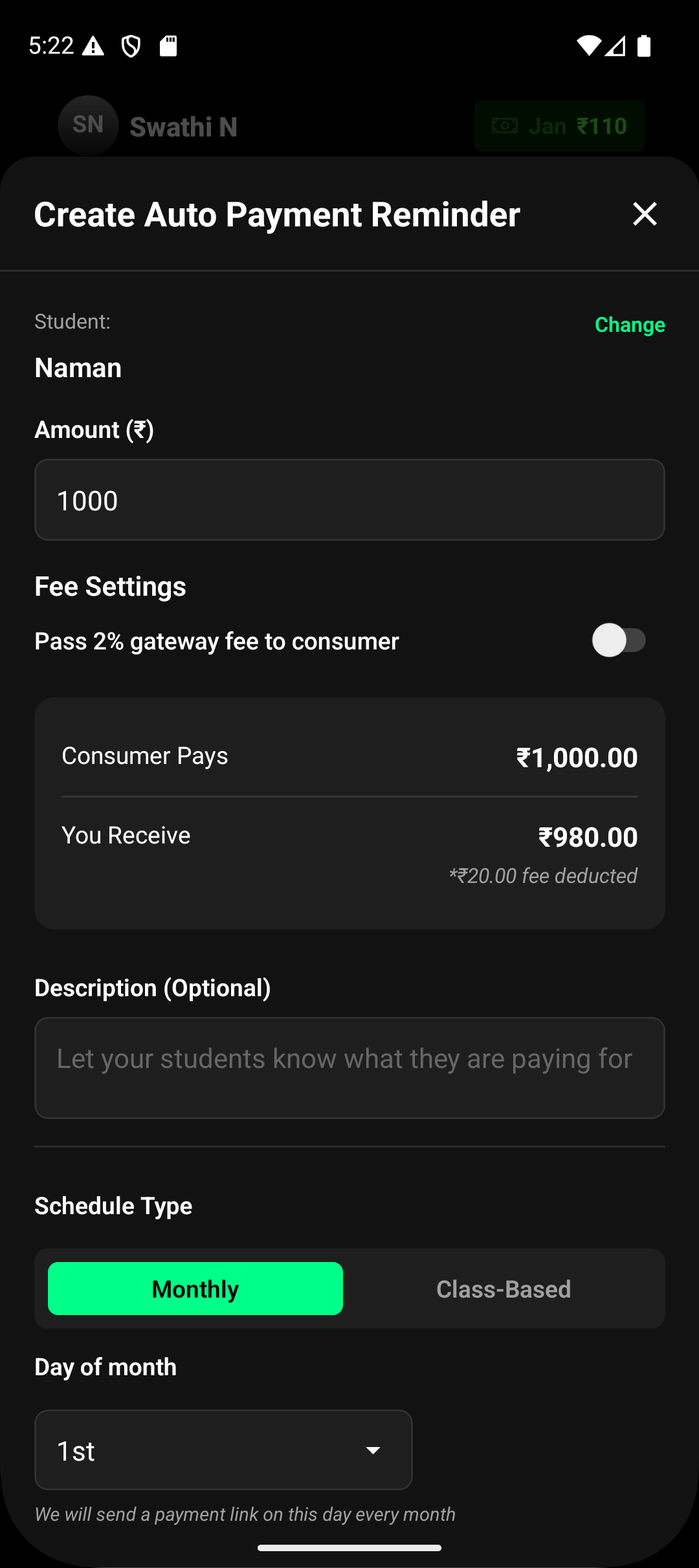
4. Set Amount and Fee Handling
Enter the payable amount and choose how the 2% gateway fee is handled:
Pass the fee to the student
Absorb the fee yourself
The consumer payable amount and your net settlement amount are shown clearly before creation.
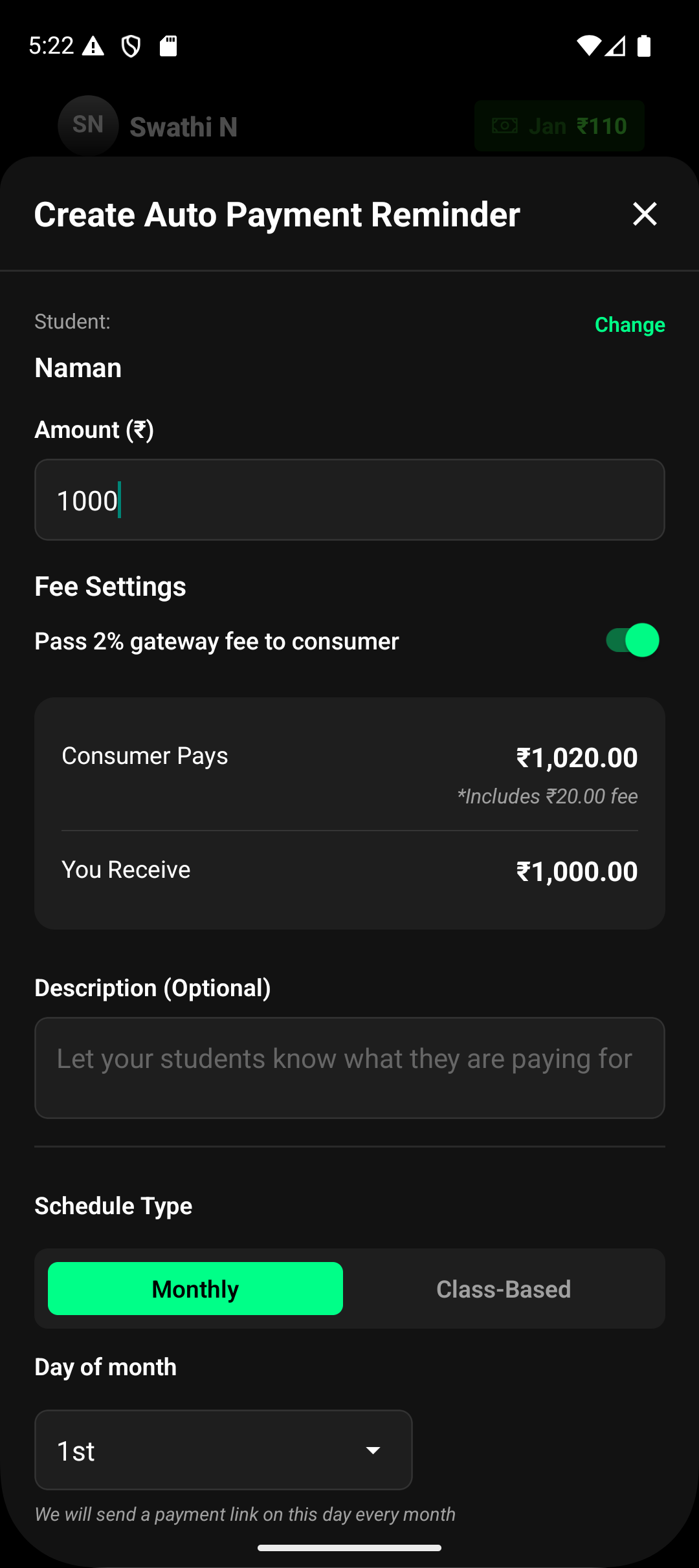
5. Create the Auto Pay Reminder
Once all details are set, tap Create Auto Reminder.
That’s it — Lynk will now handle payment triggering automatically based on your chosen schedule.
What Happens After Creation
Payment requests are auto-generated at the scheduled time
Payment links are sent via WhatsApp and SMS
The requests appear under Payments → Requests
You can track status as Pending, Paid, Settled, or Expired
You stay in control, without repetitive manual work.
Summary
Auto Pay reminders simplify recurring collections by automating payment requests. Once set up, Lynk ensures payments are triggered on time, making it ideal for monthly fees or class-based billing with zero manual effort.