How to edit, pause, resume, or delete Auto Pay
Auto Pay is fully controllable—you can update, pause, resume, or remove auto pay requests anytime.
Written by Sumit Kapoor
Introduction
Auto Pay requests in Lynk are designed to be flexible. Once created, you are not locked into them permanently. You can modify amounts or descriptions, temporarily pause requests, resume them when needed, or delete them entirely—based on how your billing or coaching setup changes.
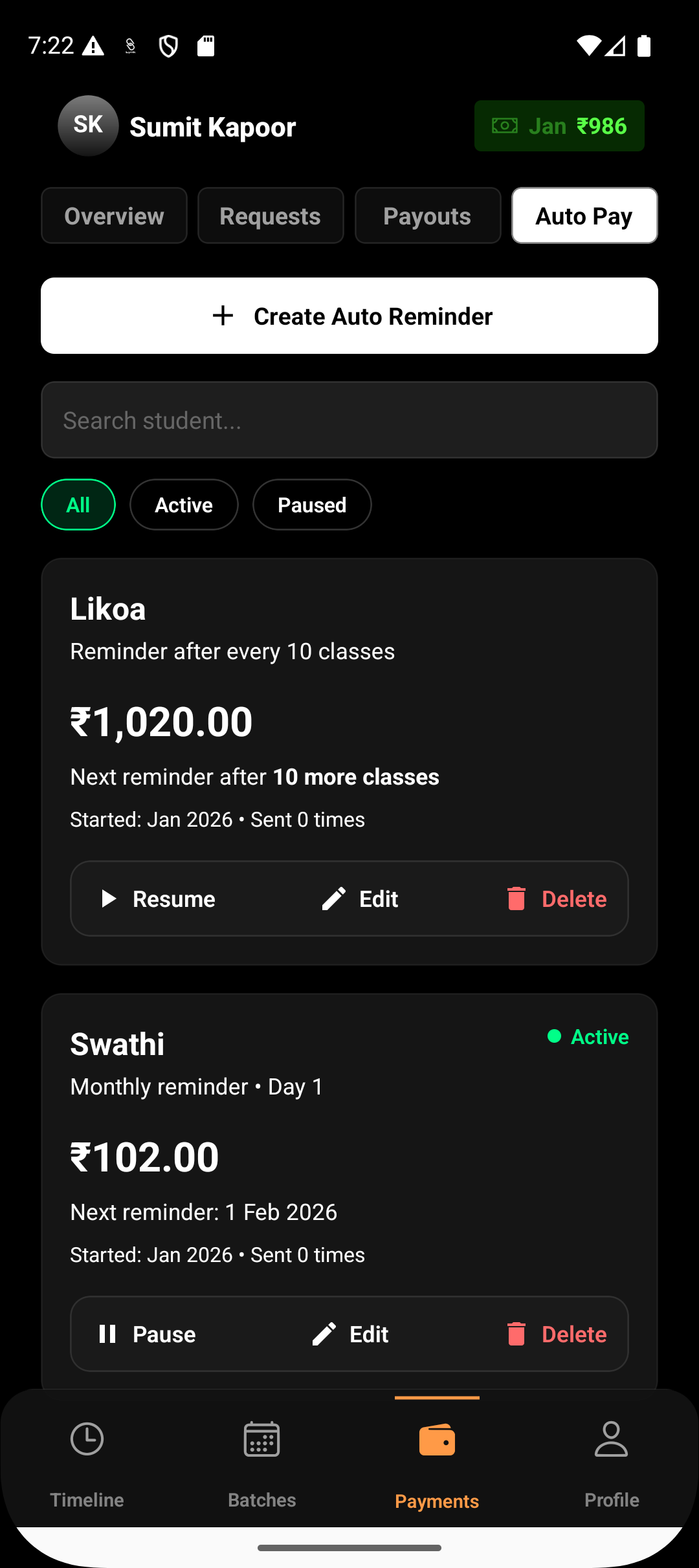
All controls are available directly inside the Payments → Auto Pay section.
Where to Manage Auto Pay Reminders
Go to the Payments tab.
Open Auto Pay.
Locate the student’s Auto Pay reminder from the list.
Use the available actions: Edit, Pause/Resume, or Delete.
Editing an Auto Pay Reminder
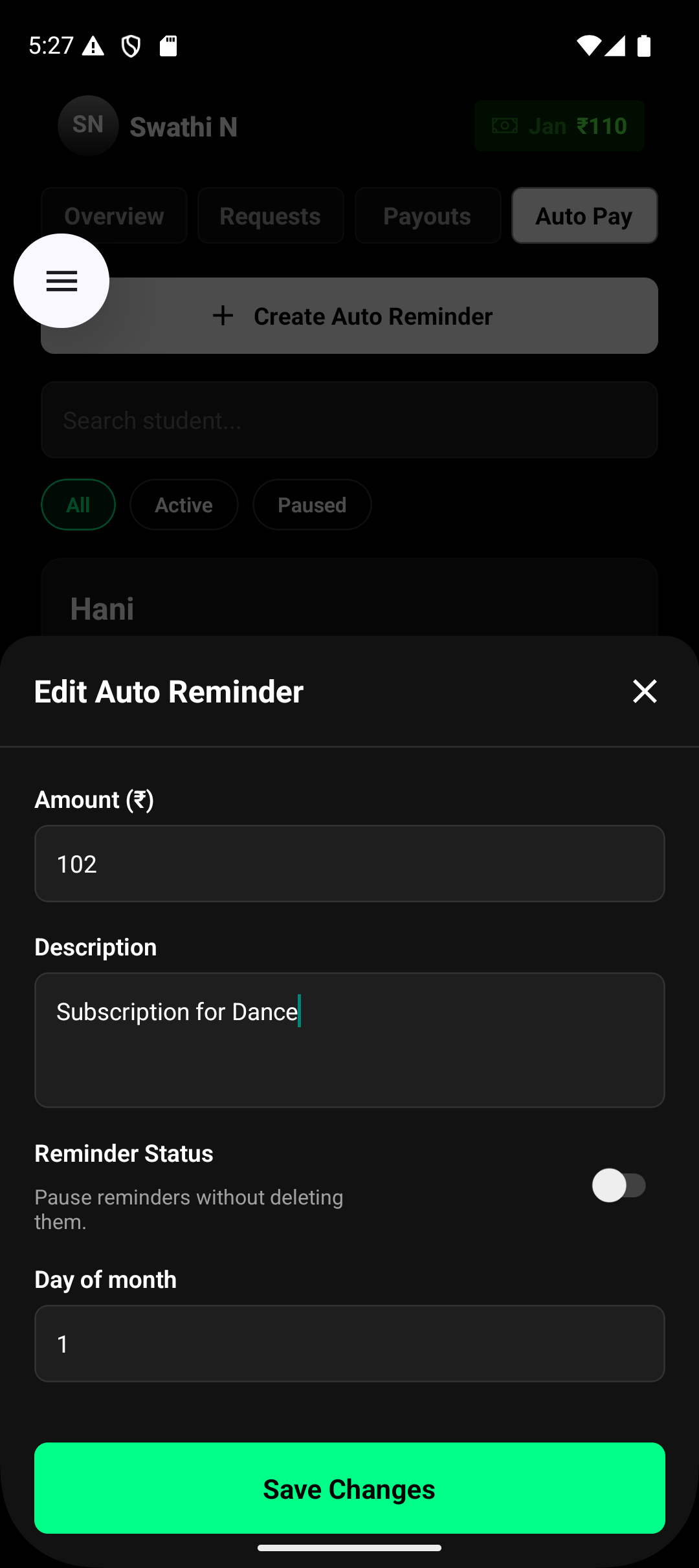
You can edit an existing Auto Pay reminder to adjust billing details.
You can update:
Amount
Description
Reminder status (active or paused)
Schedule details (for monthly reminders)
Note:
Reminder type (Monthly or Class-based) cannot be changed once created.
For class-based reminders, the class count logic remains fixed because it is linked to attendance tracking.
After making changes, tap Save Changes to apply them.
Pausing an Auto Pay Reminder
If you want to temporarily stop reminders without deleting them:
Tap Pause on the reminder.
When paused:
No payment links or reminders are triggered.
The reminder remains saved and can be resumed later.
This is useful during breaks, holidays, or temporary pauses in classes.
Resuming an Auto Pay Reminder
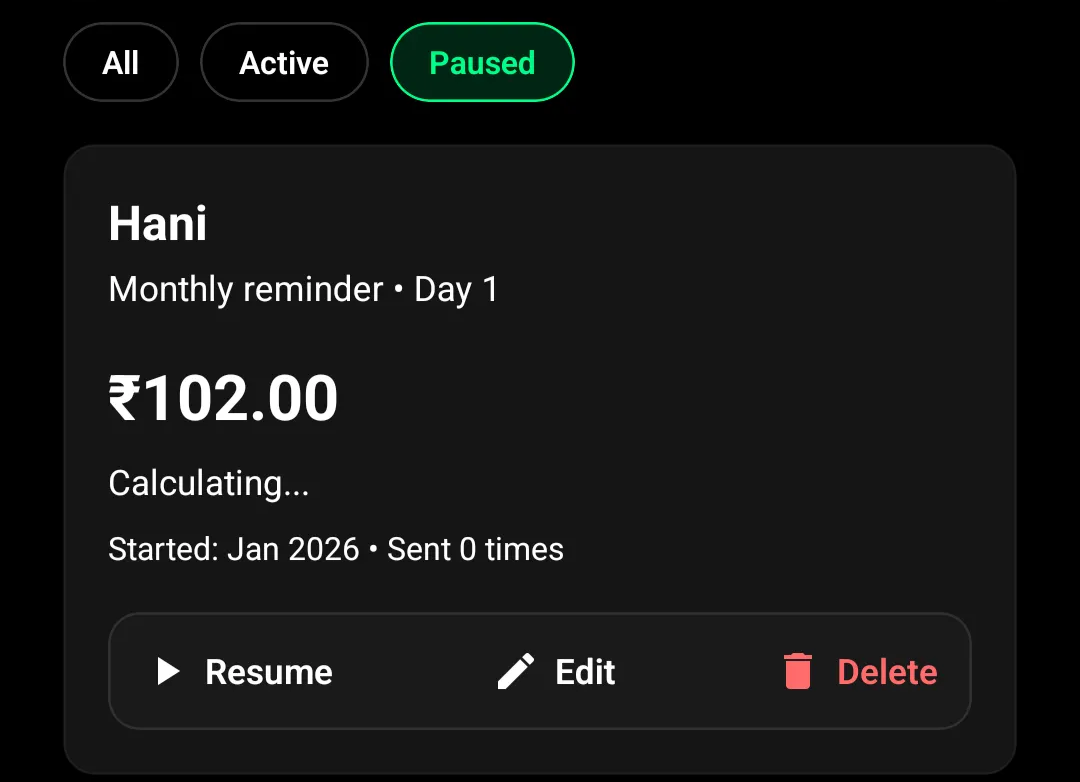
To restart a paused reminder:
Tap Resume on the paused Auto Pay entry.
Once resumed:
Lynk continues tracking schedules or attendance.
The next reminder is triggered based on the original rule.
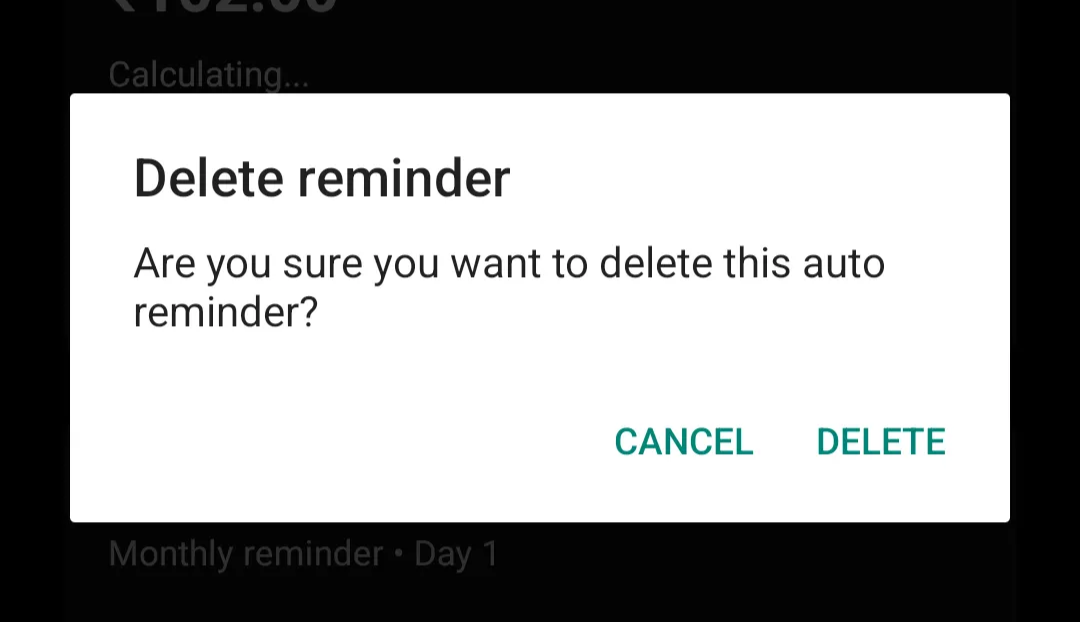
Deleting an Auto Pay Reminder
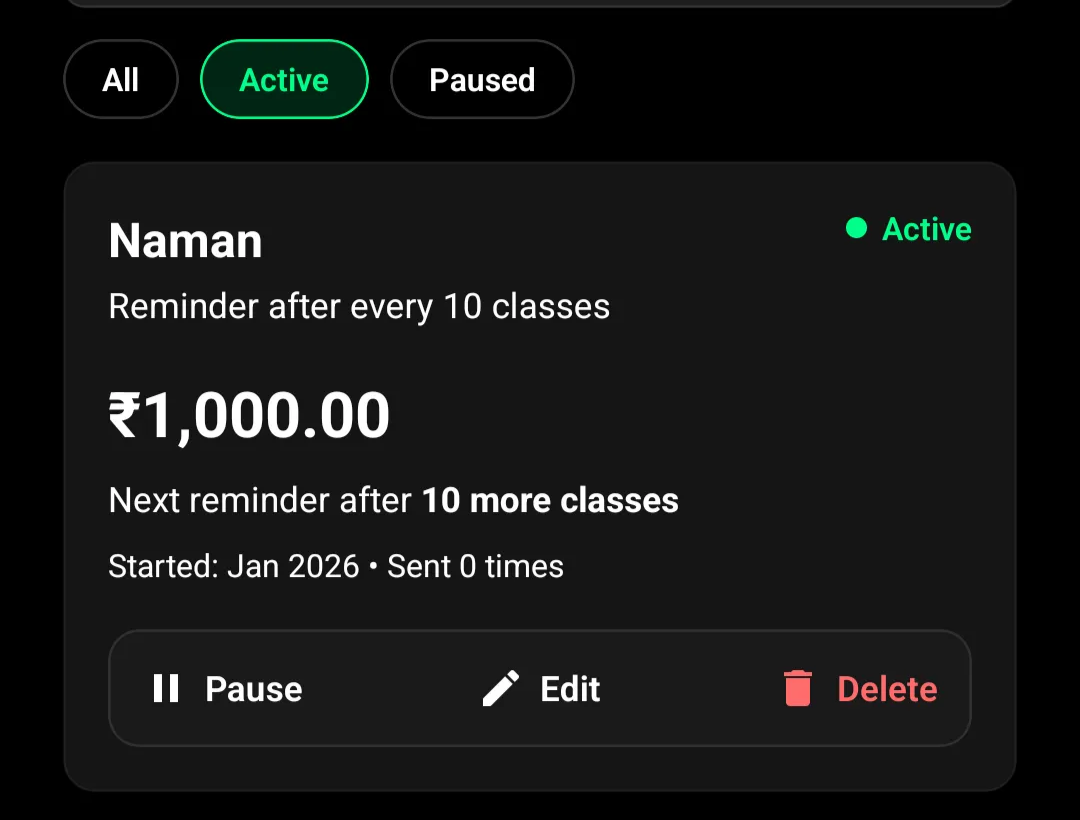
If the reminder is no longer needed:
Tap Delete.
Deleting:
Permanently removes the Auto Pay rule.
Stops all future reminders for that student.
This action cannot be undone.
Summary
Auto Pay in Lynk gives you full control even after setup—edit when details change, pause when billing is on hold, resume when ready, or delete when it’s no longer required.