Managing your Auto Pay
Track, update, and control all your automated payment reminders in one place.
Written by Swathi N
Lynk Tower provides a dedicated Auto Pay section where you can manage all your ongoing payment reminders—whether created manually or generated from store purchases.
Where to Manage Auto Pay
Go to the Payments tab
Open the Auto Pay section
Here, you can view all your active and paused payment reminders in one place.
Understanding Auto Pay Types
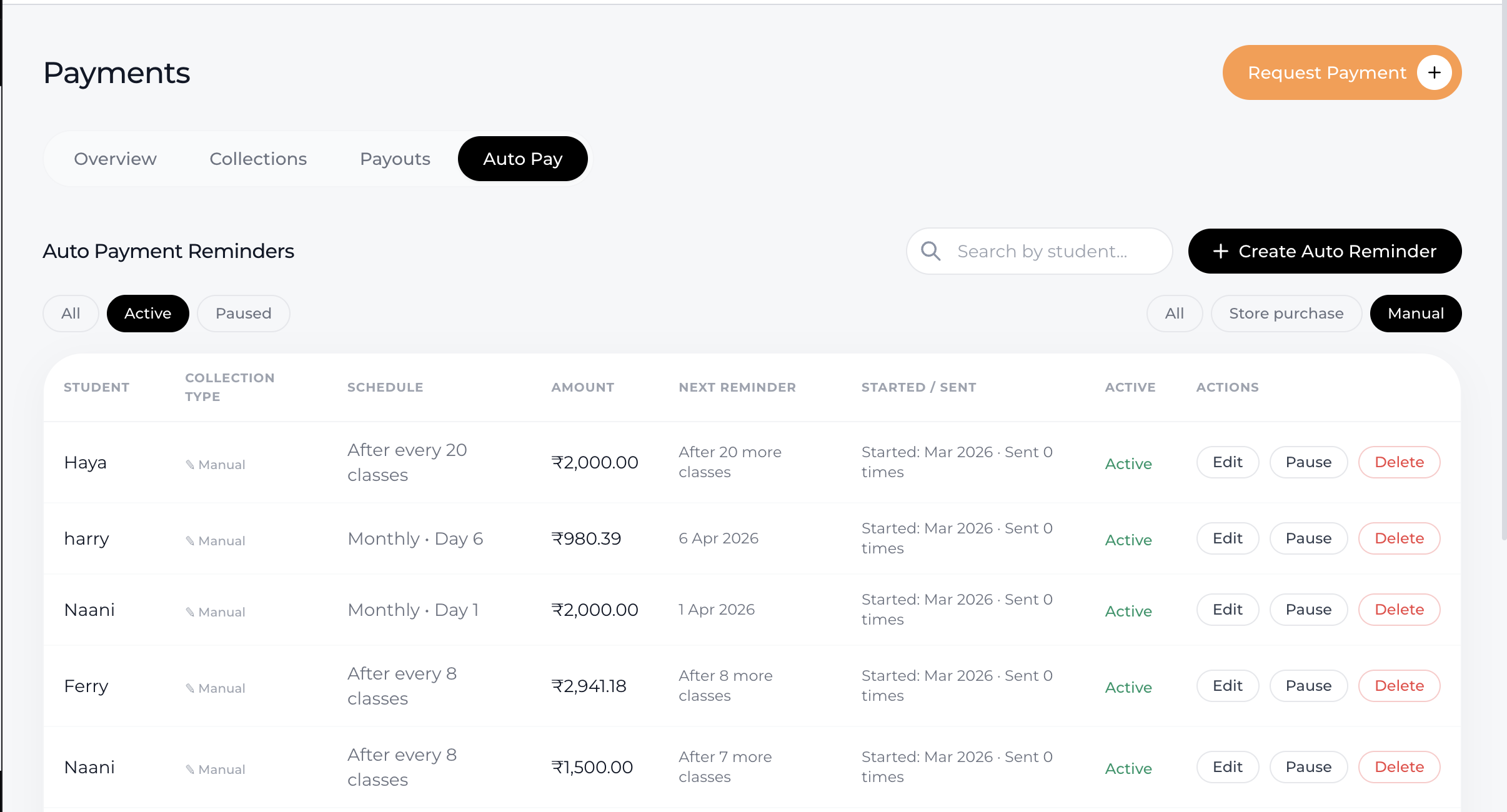
Manual Auto Pay
Created by the coach/admin
Can be set:
From the Auto Pay tab using Create Auto Reminder
While creating a payment request
Store Purchase Auto Pay
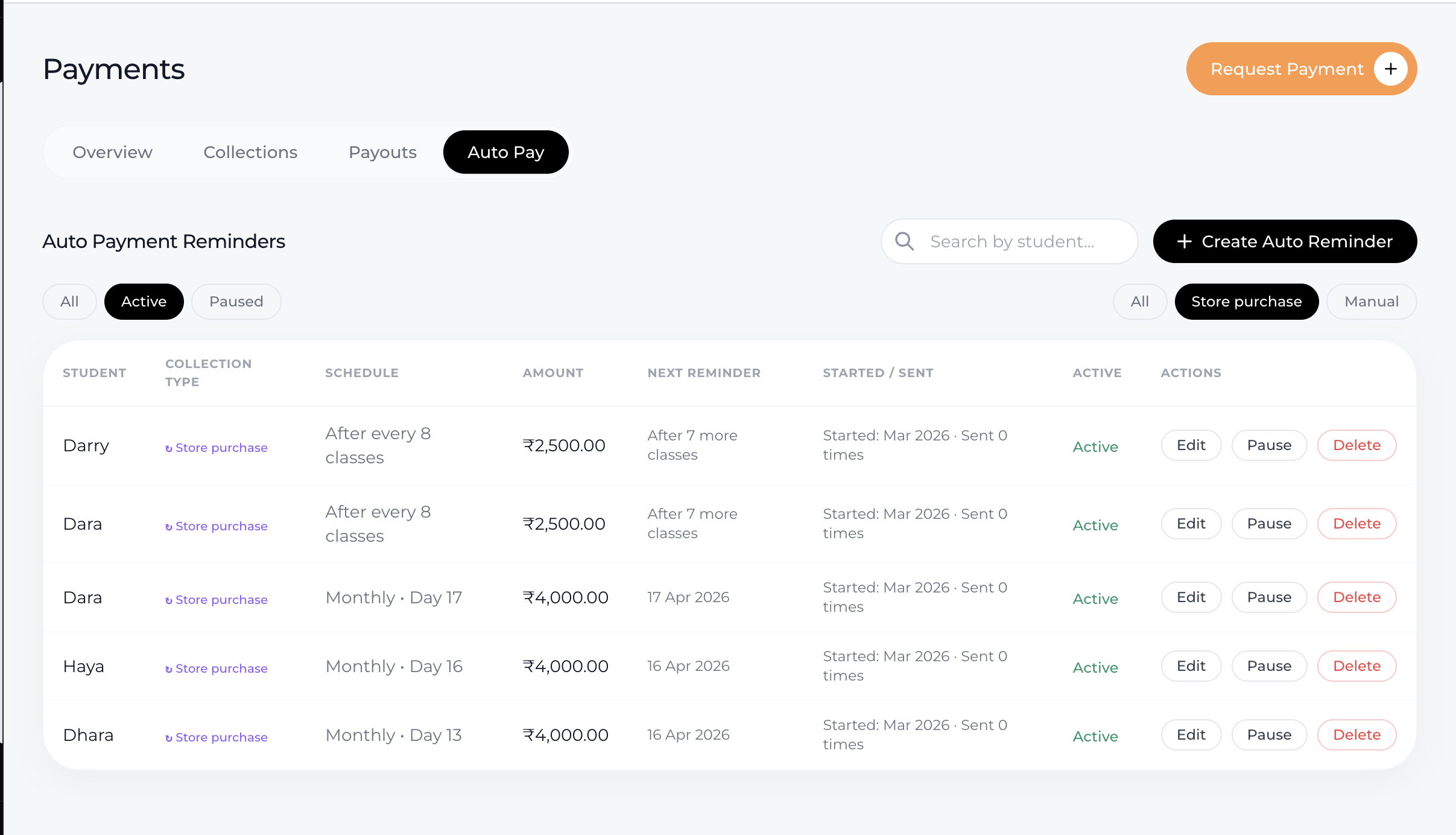
Automatically created when a student subscribes via your website
Based on the selected pricing plan
Works for:
Session-based plans → Triggered after sessions are completed
Duration-based plans → Triggered when the plan ends
Actions You Can Perform
For each auto payment reminder, you can:
Edit → Update amount, schedule or status
Pause → Temporarily stop reminders
Resume → Restart paused reminders
Delete → Remove the reminder completely
Using Filters
Status Filters
Active → Currently running reminders
Paused → Temporarily stopped reminders
Type Filters
Manual → Created by you
Store Purchase → Created automatically from website subscriptions
Why This Matters
Helps you stay organized with recurring payments
Separates manual reminders from automated subscriptions
Gives full control over payment schedules
Reduces missed or delayed payments
Quick Tips
Use Manual Auto Pay for custom payment setups
Monitor Store Purchase Auto Pay for subscription renewals
Pause reminders instead of deleting if temporarily not needed
Conclusion
With Lynk Tower’s Auto Pay management, you can easily control all recurring payments—whether manual or automatic. This ensures smooth collections, better organization, and a hassle-free payment experience.