How to create and send a new payment request
Easily collect payments from students with a few simple steps.
Written by Swathi N
Lynk Tower allows you to manually request payments by selecting a student, setting the amount, and customizing payment details—all in one place.
When to Use Payment Requests
Collect fee for batch or session
Send one-time payment requests
Request pending or overdue payments
Manage manual payments outside subscriptions
Steps to Create a Payment Request
Go to the Payments tab in Lynk Tower
Click on Request Payment
Search and select the student
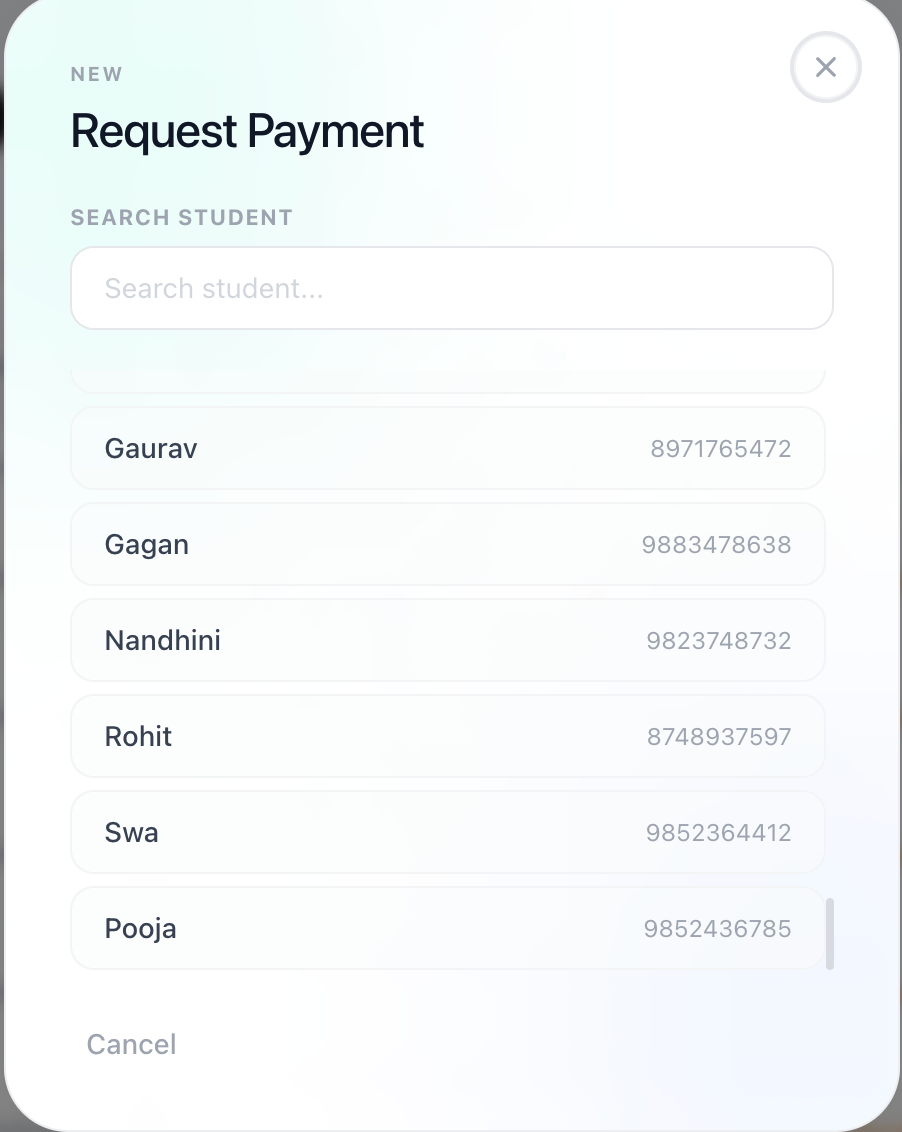
4. Enter the payment details
Fill in Payment Details
Once the student is selected, complete the following:
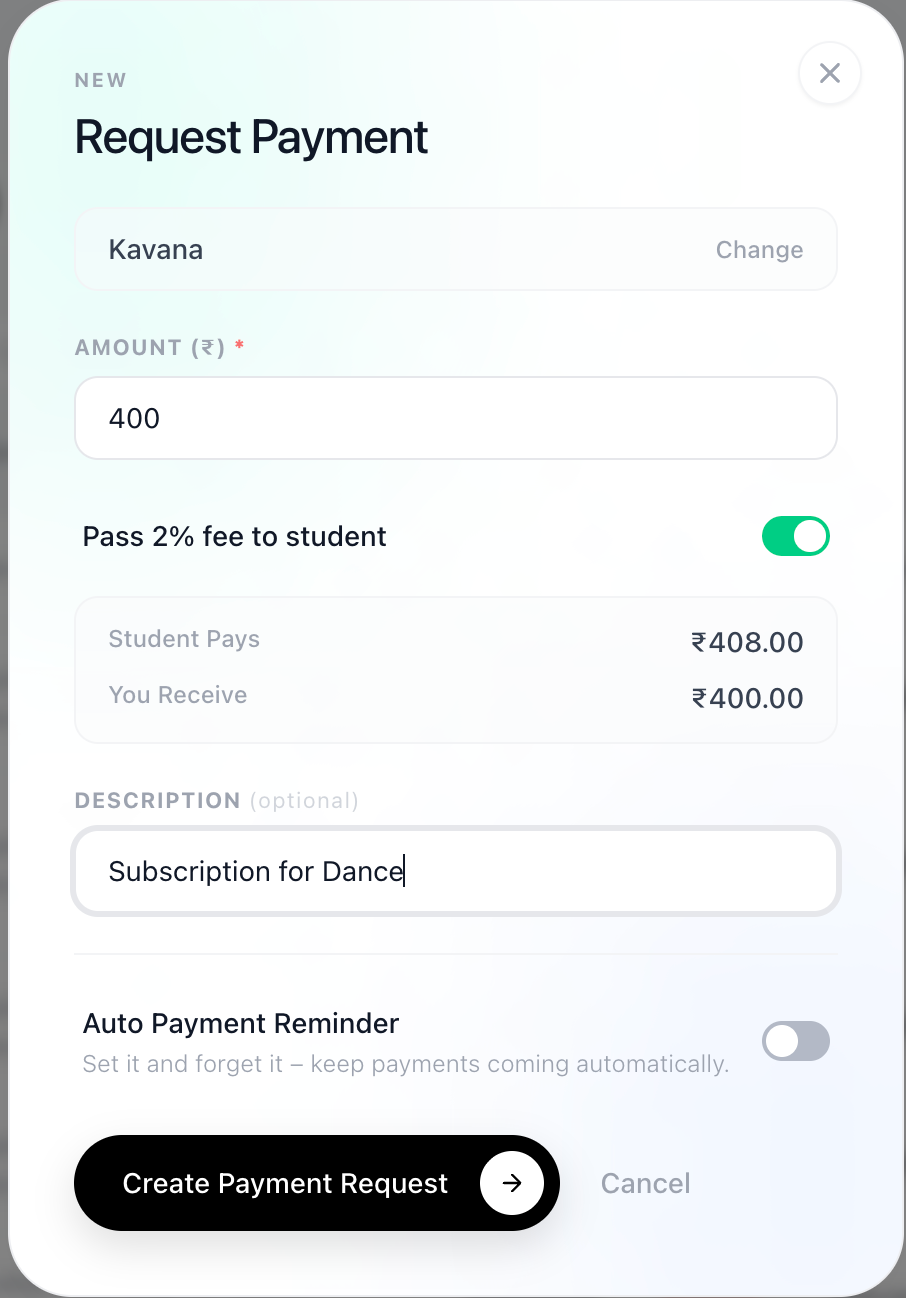
Amount
Enter the amount you want to request
Gateway Fee Option
Choose who will pay the payment gateway fee
You (coach/academy)
Student
Description (Optional)
Add a note (e.g., Dance subscription for March)
Auto Payment Reminder
Enable to send automatic reminders for pending payments
Send the Request
Click Create Payment Request
The request is sent to the student instantly
What Happens Next
Student receives the payment request
They can complete the payment online
You can track the payment status in the Payments tab
Best Practices
Always add a clear description for better tracking
Use auto reminders to reduce follow-ups
Double-check the amount before sending
Conclusion
With Lynk Tower, sending payment requests is quick and seamless. Whether it’s a one-time fee or a regular payment, you can manage collections efficiently and stay on top of your finances.