How to Access Session Messaging
Learn how to access session-specific message templates to quickly send updates, equipment lists, and study materials to all students and parents attending a class.
Written by Swathi N
Lynk’s Session Messaging feature allows you to quickly send updates, instructions, or materials to all attendees of a specific session—without switching to external apps.
Use this feature to keep communication clear, timely, and session-specific.
Step-by-Step Guide
Step 1: Open Your Schedule
Open the Lynk app
View your daily schedule in Timeline tab
This shows all your upcoming sessions for the day.
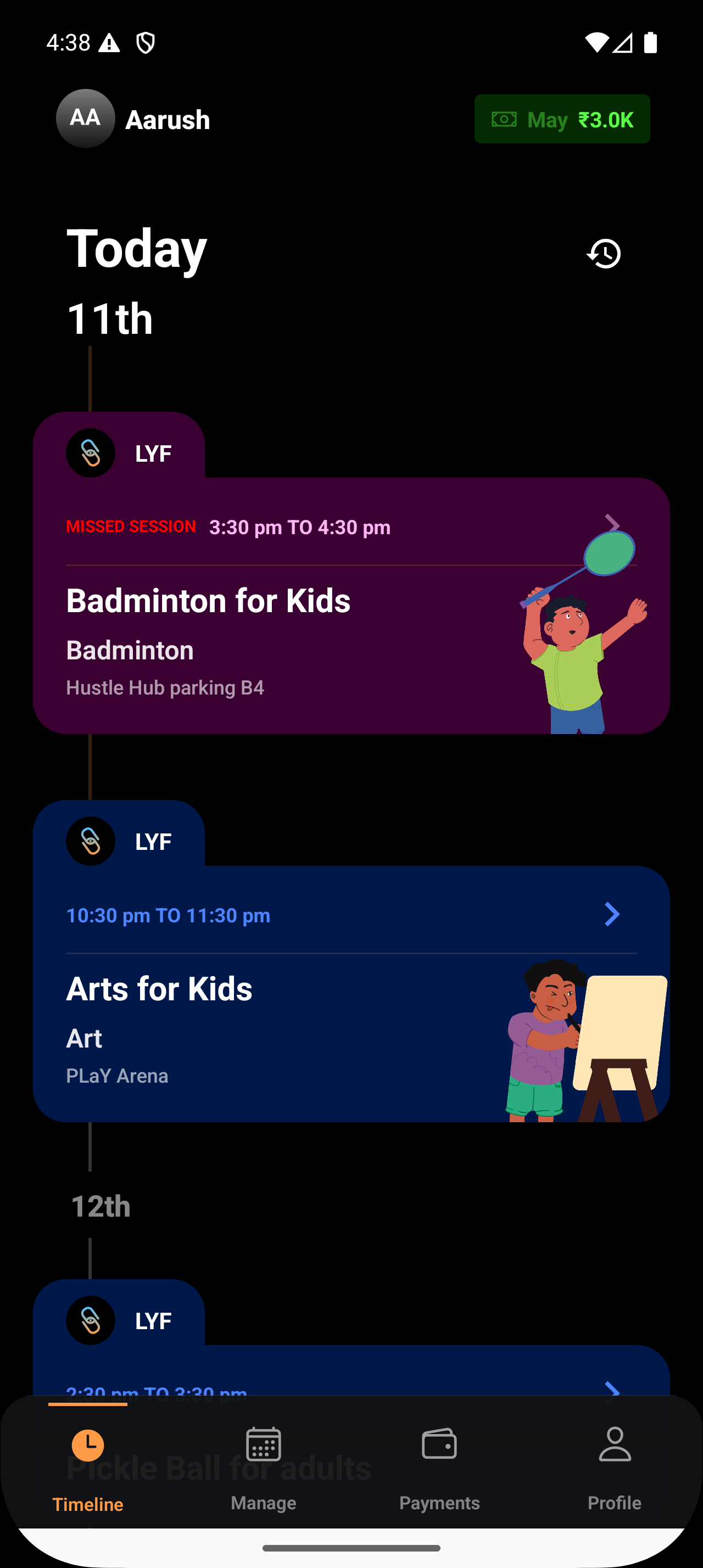
Step 2: Select a Session
Tap on the session you want to communicate (e.g., “Dance – In Person”)
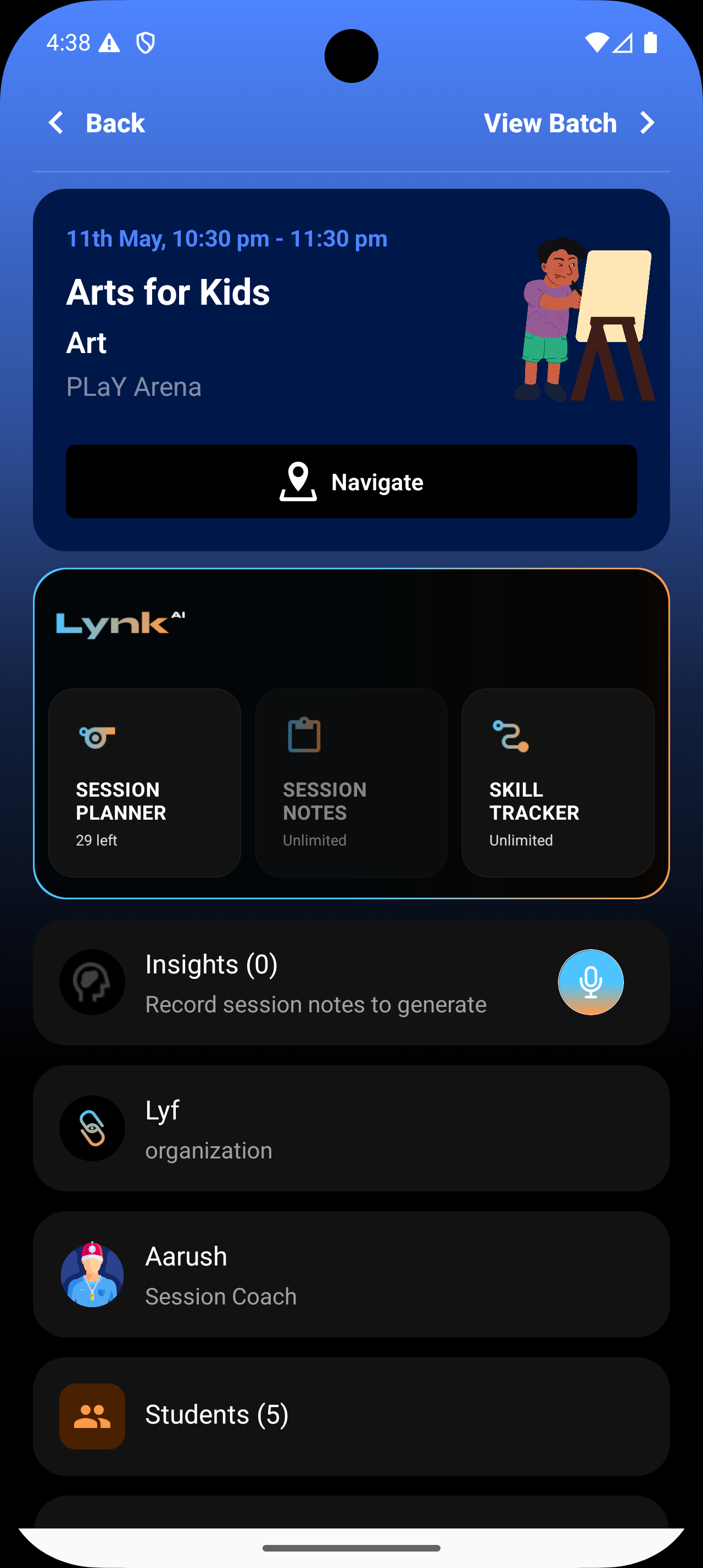
This opens the session details screen.
Step 3: Go to the Messages Section
Scroll down on the session card
Locate the Messages section
This is where all session-specific communication is managed.
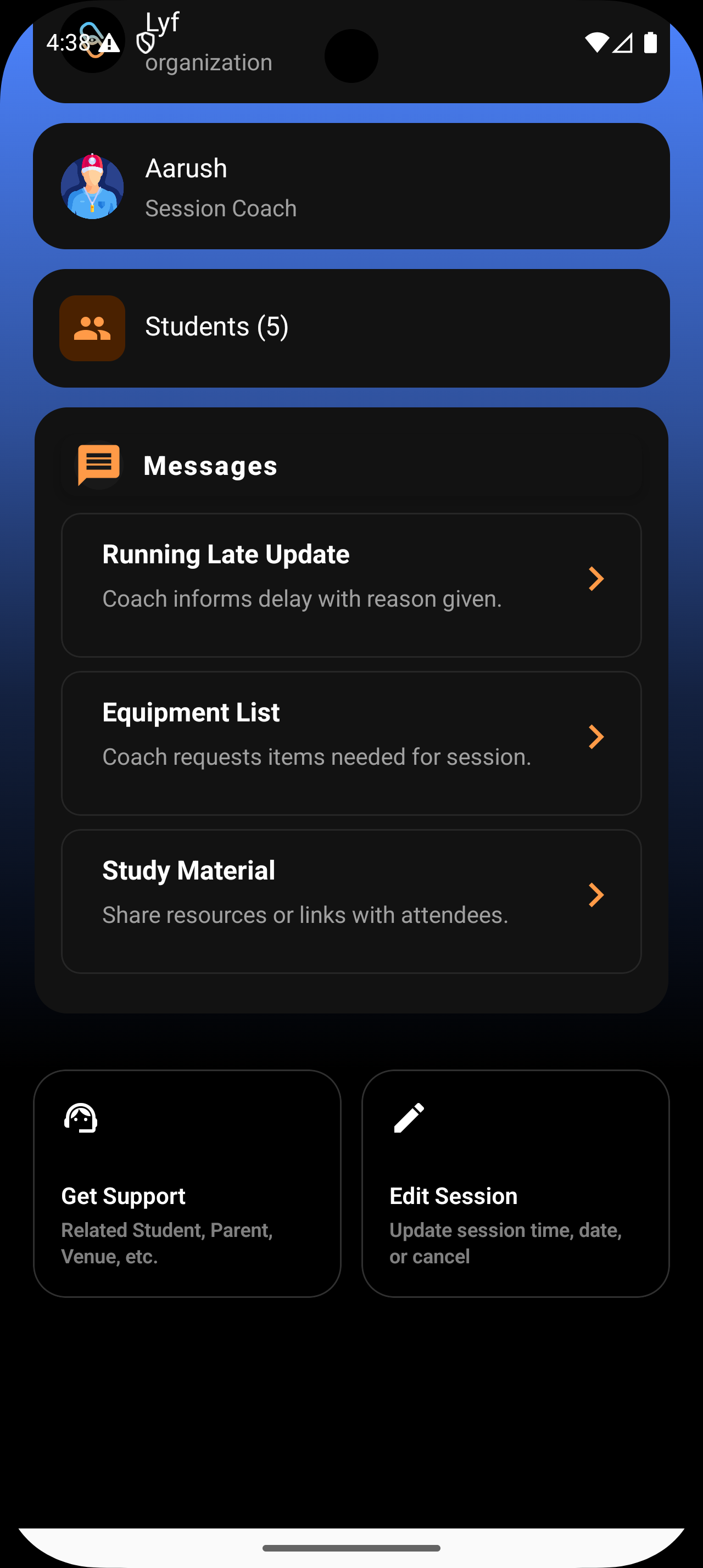
Step 4: Choose a Message Template
Lynk provides ready-to-use templates to help you send messages quickly and consistently.
Select the template that fits your need:
Running Late Update: Inform students and parents about delays, including the reason
Equipment List: Share what students need to bring for the session
Study Material: Send resources such as files, images, or links
What Happens Next
The selected template opens as a draft message
You can edit or customize it before sending
The message is delivered directly to all relevant attendees
Summary
To access Session Messaging in Lynk:
Open your schedule
Select a session
Scroll to the Messages section
Choose and customize a template
This feature helps you manage communication efficiently—keeping students and parents informed, prepared, and aligned for every session.