Requesting Specific Items using the "Equipment List"
Learn how to send a structured equipment reminder so students and parents know exactly what materials to bring for the session.
Written by Swathi N
Ensuring students come prepared is key to running smooth and effective sessions. With Lynk’s Equipment List message template, you can quickly send a standardized reminder about materials or items students need to bring—so everyone arrives ready to participate.
Why Use the Equipment List Feature
Sending an equipment reminder helps you:
Avoid delays caused by missing materials
Ensure all students are equally prepared
Maintain consistency across sessions
Reduce last-minute clarifications from parents or students
Step-by-Step: Sending an Equipment List
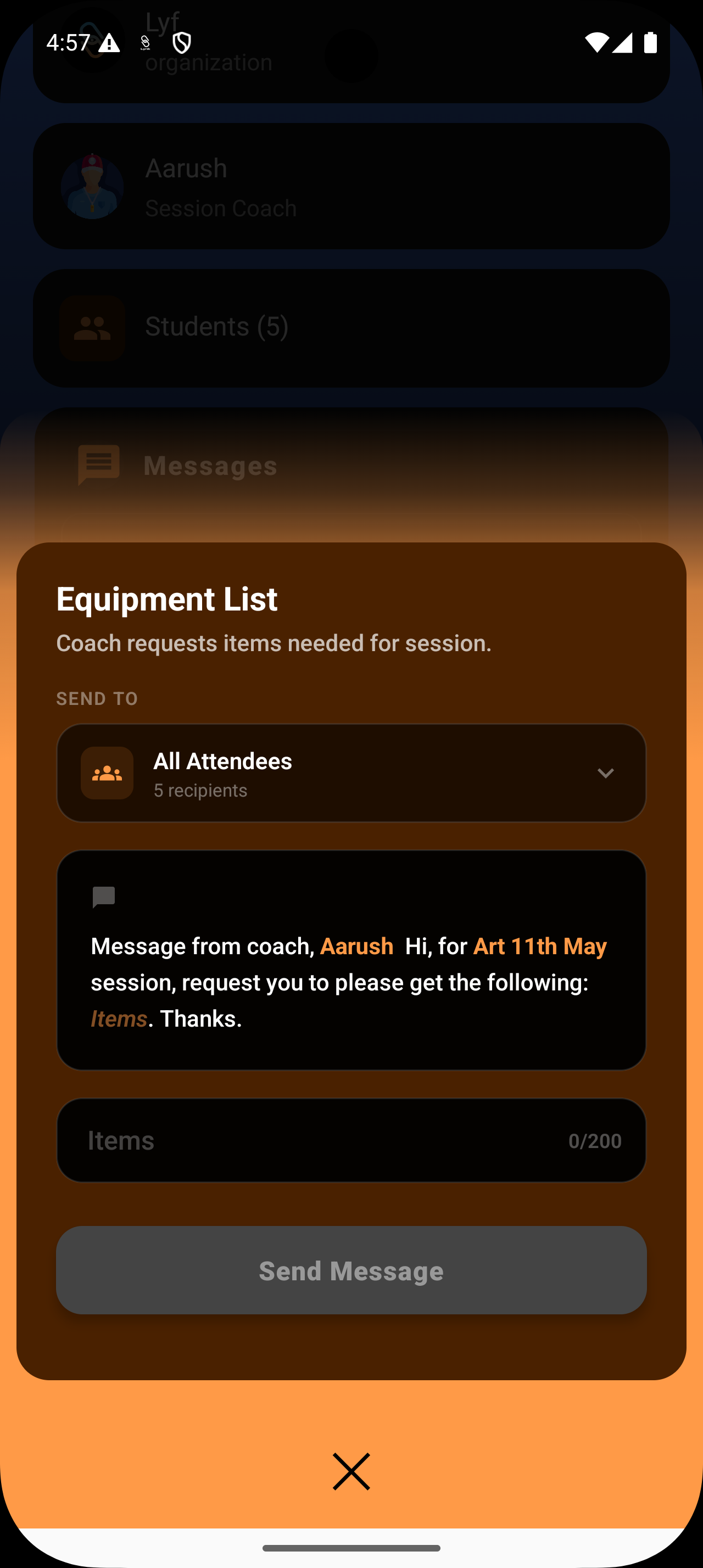
1. Open the Equipment List Template
Go to your scheduled session from the home screen
Scroll down to the Messages section
Tap on Equipment List
This opens a pre-formatted message designed for item requests.
2. Select Your Audience
At the top of the screen, choose who should receive the message:
All Attendees (default)
Or specific groups such as:
Regular students
Trial students
This ensures the request reaches only the relevant participants.
3. Enter the Required Items
The template will already be structured—you just need to add the list of items.
Tap the Items field
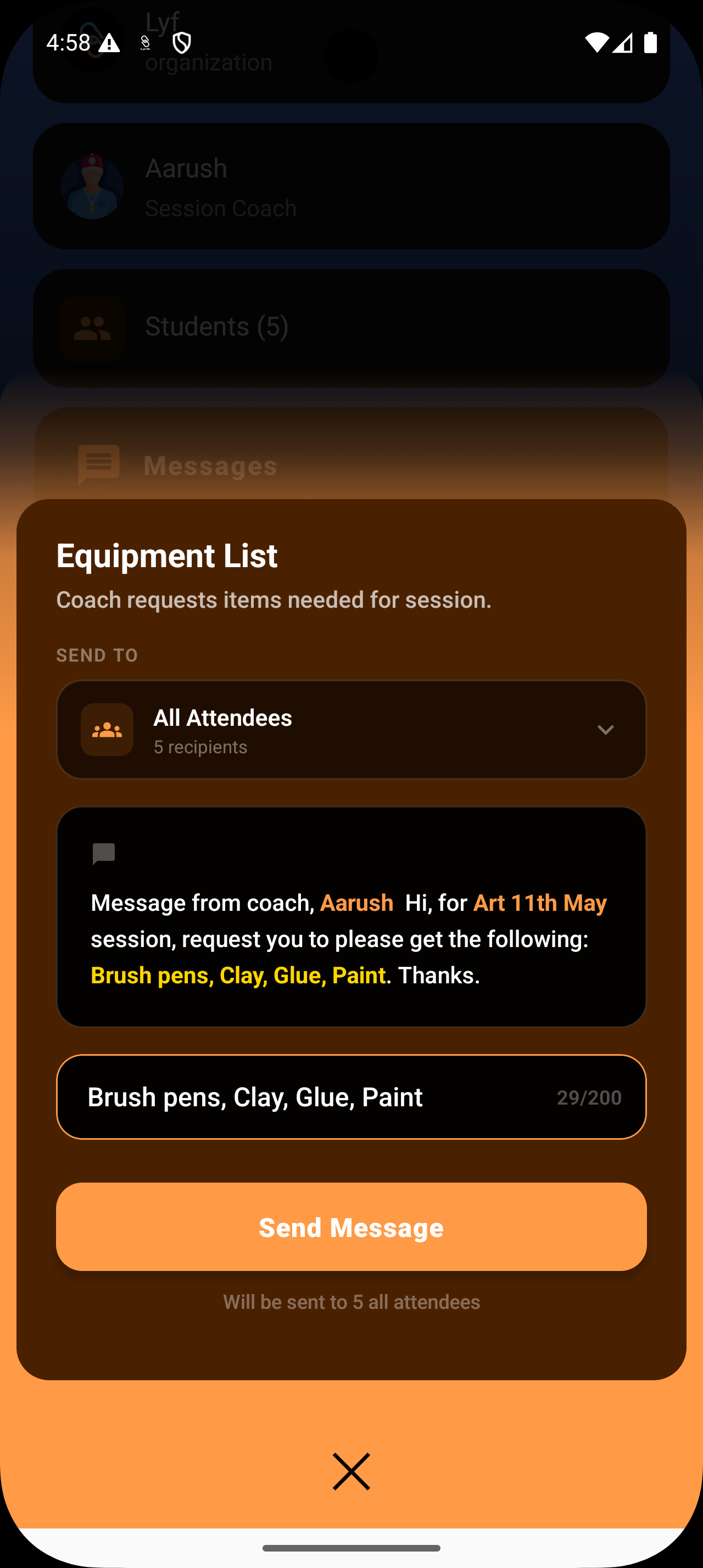
Enter materials separated by commas*(e.g., Pencil box, eraser, colours, paintbrush)*
Things to note:
You have a 200-character limit
A live preview updates as you type, showing how the message will appear
4. Review the Message Preview
Check the preview section above
Ensure the list is clear and complete
Make edits if needed before sending
5. Send the Request
Tap Send Message
Once sent:
A confirmation message appears
The reminder is delivered to selected attendees
Summary
The Equipment List feature makes it easy to request materials in a structured and professional way. By selecting your session, adding required items, and sending a quick message, you ensure every student is prepared, informed, and ready to learn.