How to Send a "Running Late" Notification
Learn how to quickly notify students and parents when you’re running late by sending a structured delay update with the expected delay time and reason.
Written by Swathi N
Delays can happen unexpectedly—but clear communication ensures your sessions continue smoothly. Lynk’s Running Late Update feature helps you quickly notify students and parents if you’re running behind schedule, reducing confusion and keeping everyone informed before the session begins.
Why Use Running Late Notifications
Sending a timely update helps you:
Set the right expectations before the session starts
Avoid unnecessary waiting or missed attendance
Maintain professionalism and trust with parents and students
Step-by-Step: Sending a Running Late Update
1. Open the Running Late Template
Start by navigating to your upcoming session.
Open the session from your schedule
Scroll down to the Messages section
Tap on Running Late Update
This opens a pre-filled message template designed for quick updates.
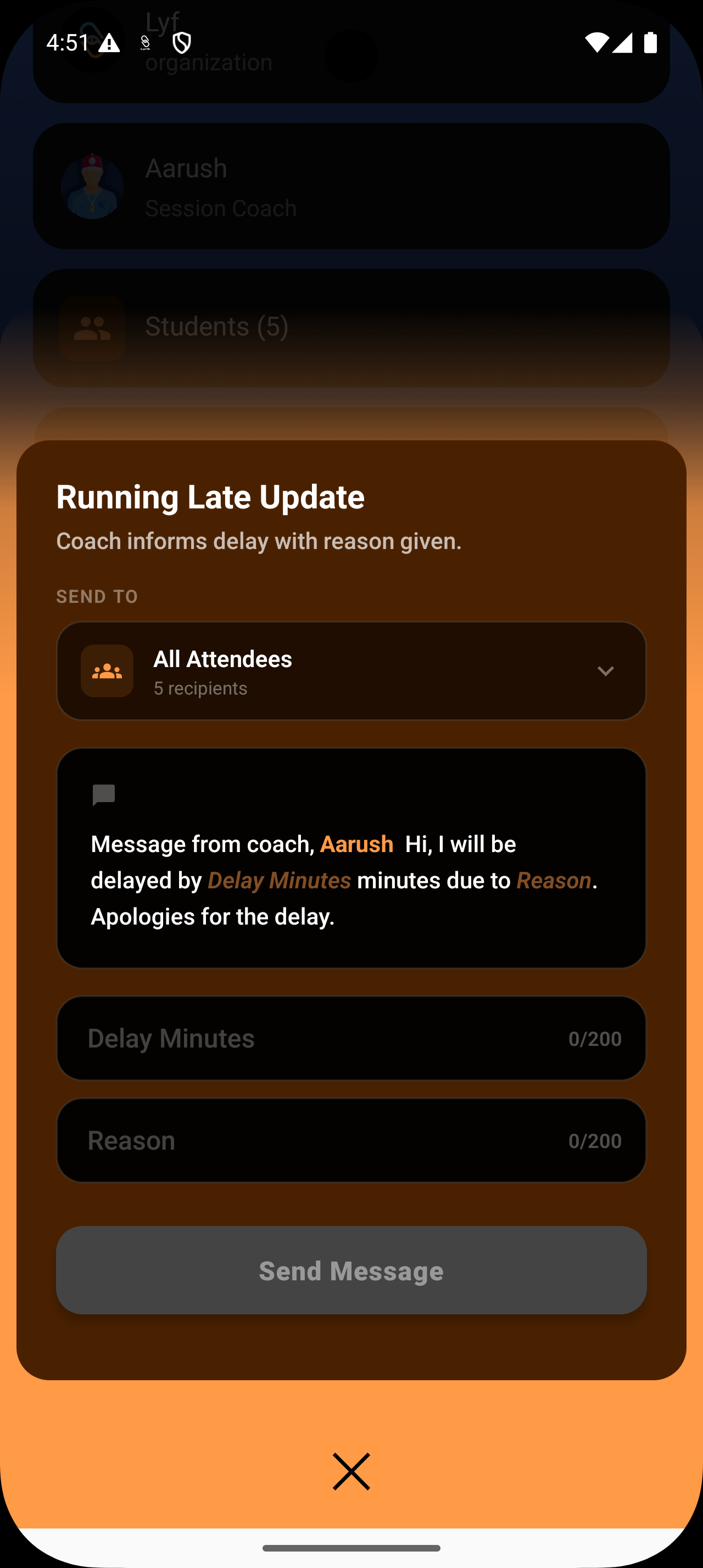
2. Select Who Should Receive the Message
At the top of the screen, you’ll find the Send To option.
By default, the message is set to All Attendees
You can change this to a specific group, such as:
Regular students
Trial students
This ensures the message is sent only to the relevant recipients.
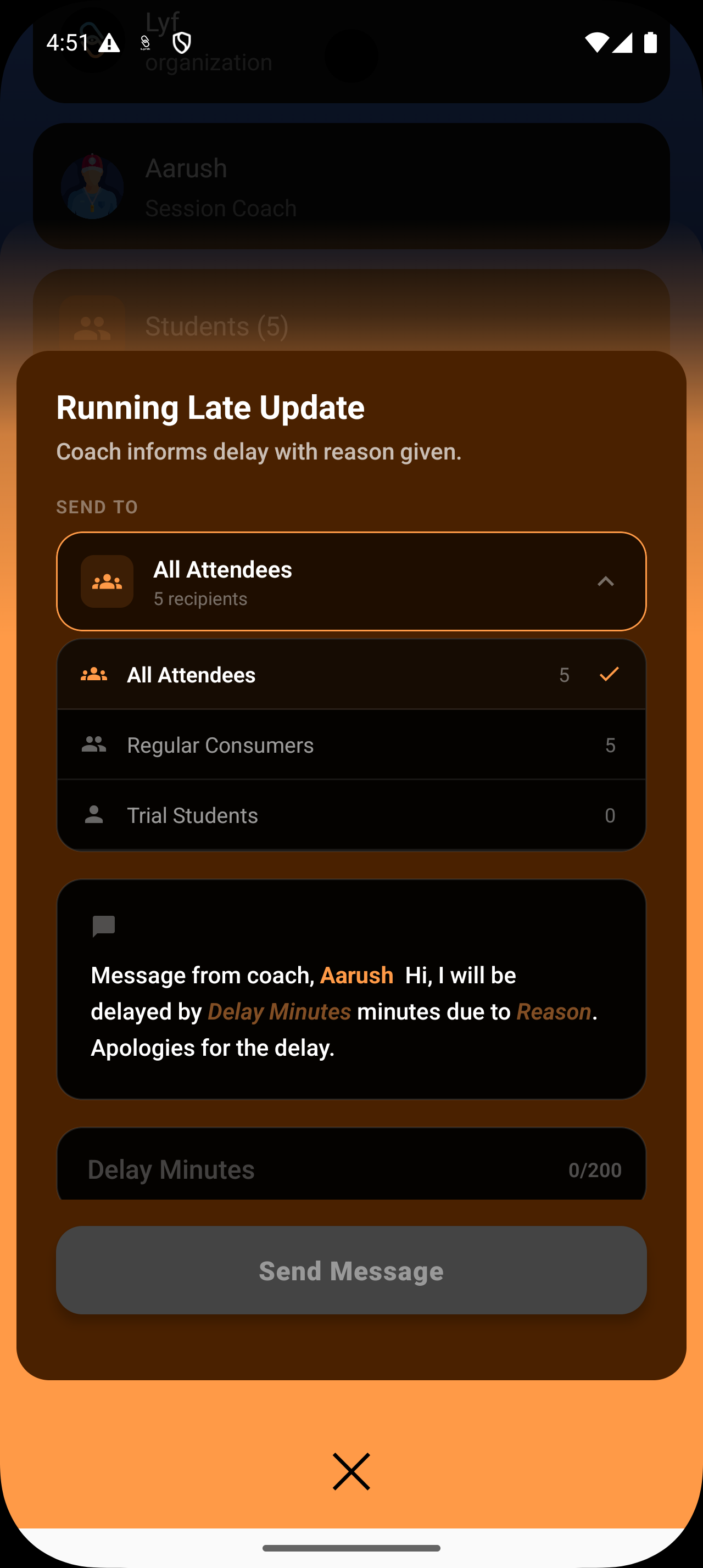
3. Enter Delay Details
The template is already structured—you just need to add a few key details:
Delay Minutes Enter how late you expect to be (e.g., 15 or 20 minutes)
Reason for Delay Provide a short explanation (e.g., Traffic, Medical issue, Previous class overran)
The system will automatically format your inputs into a clear message.
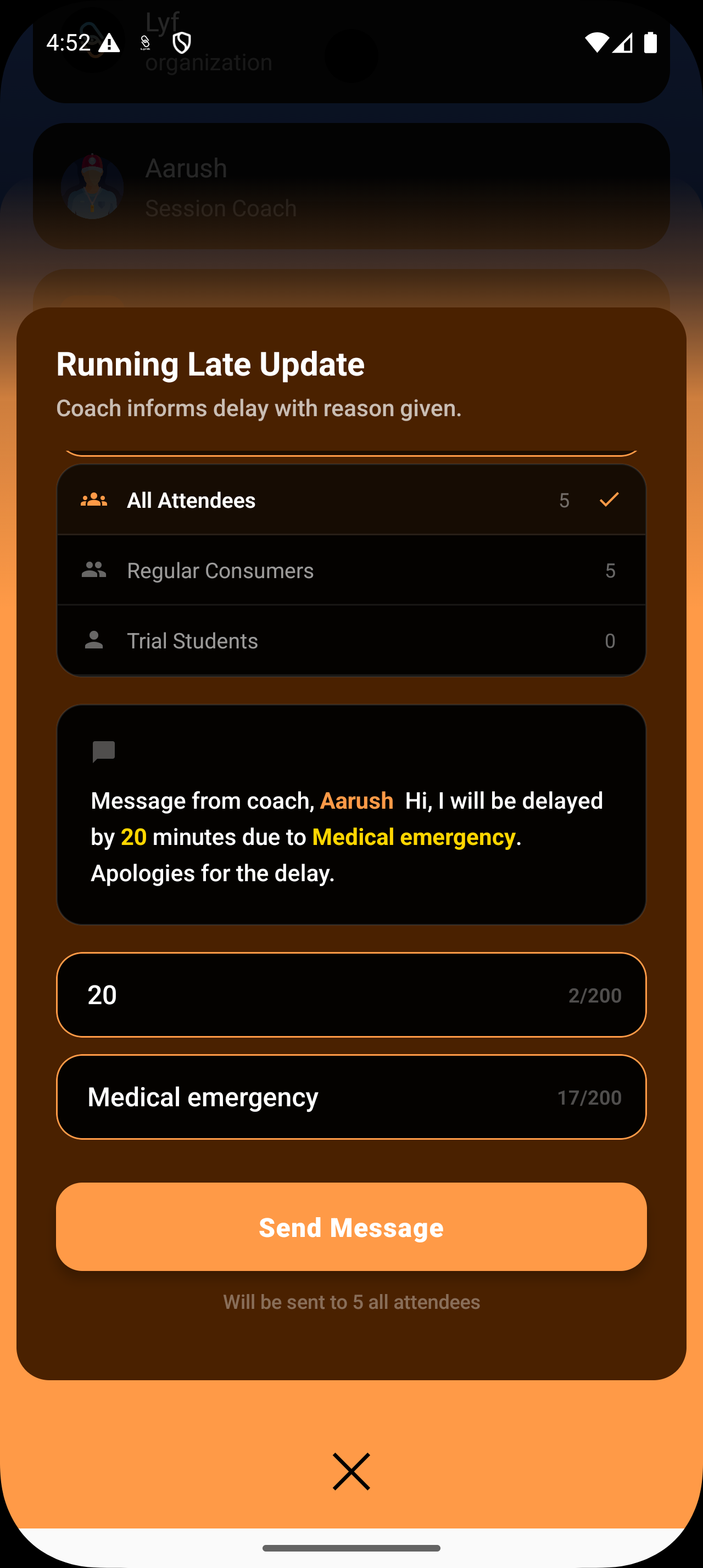
4. Review the Message Preview
As you enter the details, a live preview updates on the screen.
Check that the message reads clearly
Make any quick edits if needed
This ensures the final communication is accurate and easy to understand.
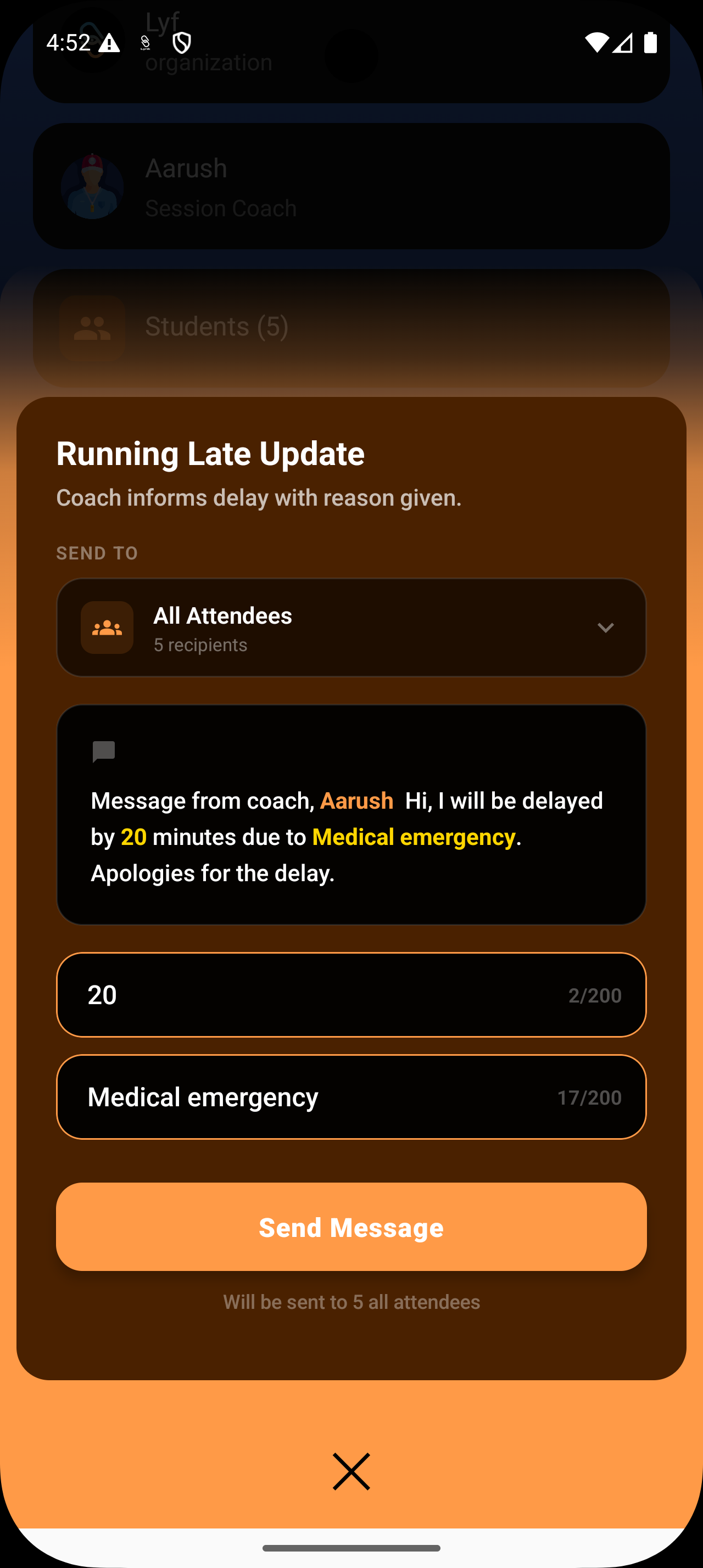
5. Send the Notification
Once everything looks good:
Tap Send Message
You’ll see a confirmation indicator showing that the message has been successfully sent to the selected recipients.
Summary
The Running Late Update feature allows you to communicate delays quickly and professionally. By selecting the session, entering delay details, and sending a structured message, you can ensure that everyone stays informed—even when schedules shift.
This simple workflow helps maintain clarity, reliability, and a better experience for both students and parents.