Sharing "Study Material" and Resources
Learn how to share files, photos, videos, and links directly with session attendees so students can access study materials and continue learning outside the classroom.
Written by Swathi N
Lynk’s Study Material feature allows you to easily share learning resources with your students—before or after a session. Whether it’s practice videos, reference documents, photos, or useful links, this feature ensures that students always have access to the materials they need to improve and stay engaged.
Why Use the Study Material Feature
Sharing resources through Lynk helps you:
Reinforce concepts taught during sessions
Provide additional practice and guidance
Keep all materials organized and accessible in one place
Improve student consistency and learning outcomes
Step-by-Step: Sharing Study Material
1. Open the Study Material Template
Navigate to your scheduled session from the home screen
Scroll down to the Messages section
Tap on Study Material
This opens a dedicated template for sharing resources.
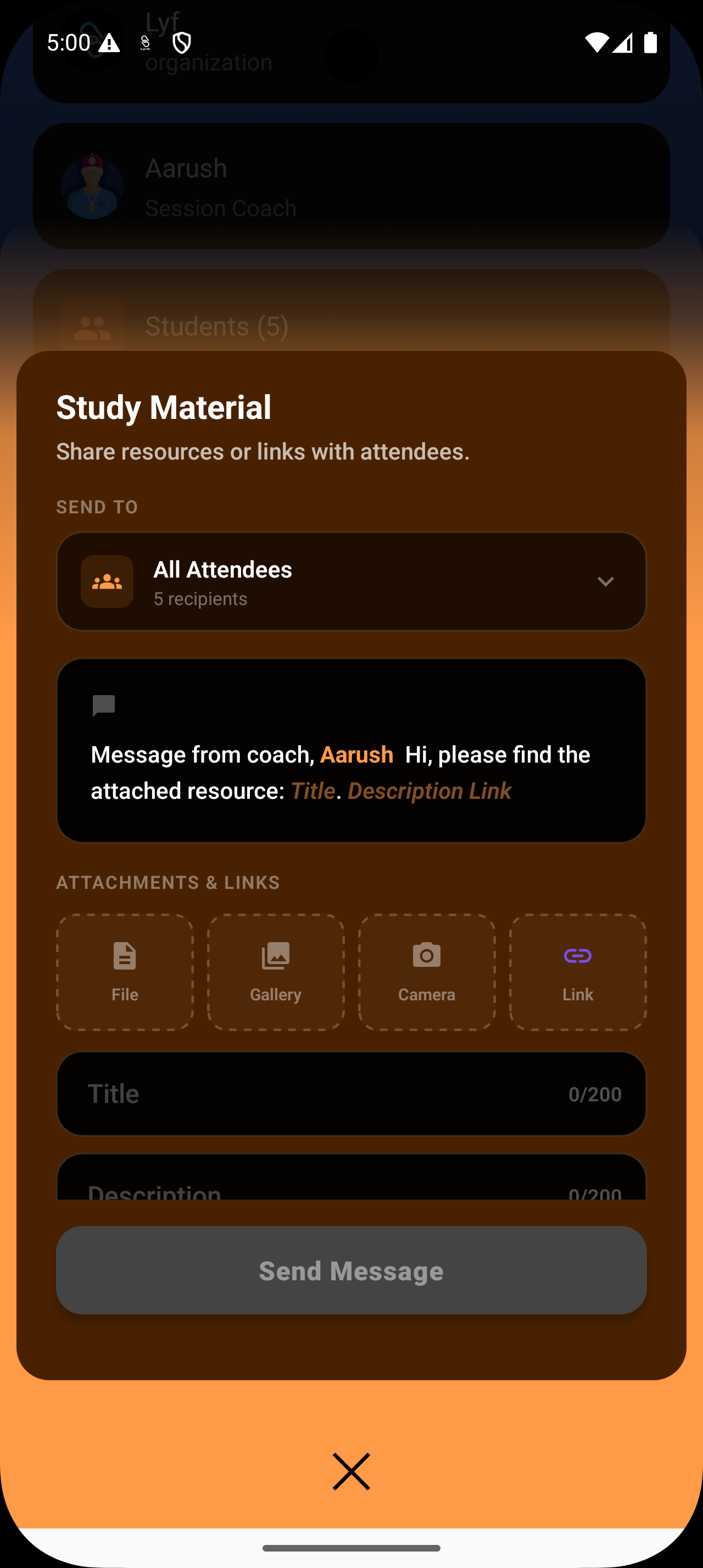
2. Select Your Audience
At the top of the screen:
Tap the Send To dropdown
Choose who should receive the material:
All Attendees
Or a specific group within the session
This ensures the right students receive the relevant content.
3. Choose How to Attach Material
Under Attachments & Links, select how you want to share your resource:
File Upload documents or PDFs from your device
Gallery Select photos or videos from your phone
Camera Capture a new photo or record a video instantly
Link Paste a URL (e.g., YouTube video, website, or shared drive)
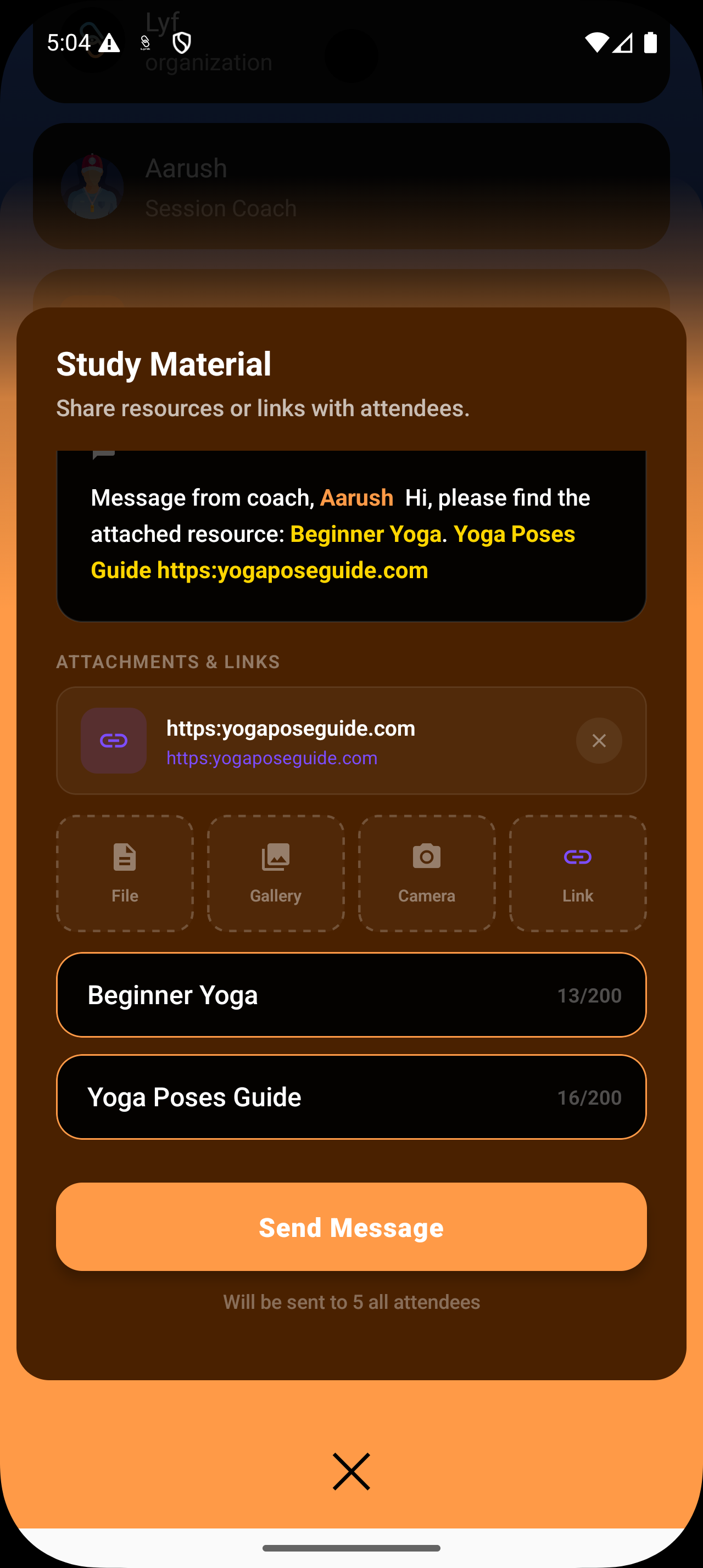
4. Add a Title
Tap the Title field and enter a clear name (e.g., “Beginner Yoga Poses Guide”)
Add a short description to provide context
Things to note:
Maximum 200 characters
A live preview updates as you type
This helps students quickly understand what the resource is about.
5. Review and Send
Check the message preview at the top
Ensure the attachment and title are correct
Then:
Tap Send Message
A confirmation message will appear, indicating the material has been successfully shared.
Summary
The Study Material feature makes it simple to share resources in a structured and professional way. By attaching files, adding a clear title, and sending them directly through the session, you ensure students are well-supported, prepared, and continuously learning beyond the classroom.