How to edit session notes?
Learn how to edit AI-generated session summaries, update student feedback, and add or remove photos to keep your Session Notes accurate and ready to share.
Written by Swathi N
Editing Session Notes in Lynk allows you to refine your session summaries, update student feedback, and enhance your notes with images. This ensures your records remain accurate, polished, and ready to be shared with students or parents.
Editing Session Summary and Highlights
You can easily update the AI-generated summaries to better reflect your session:
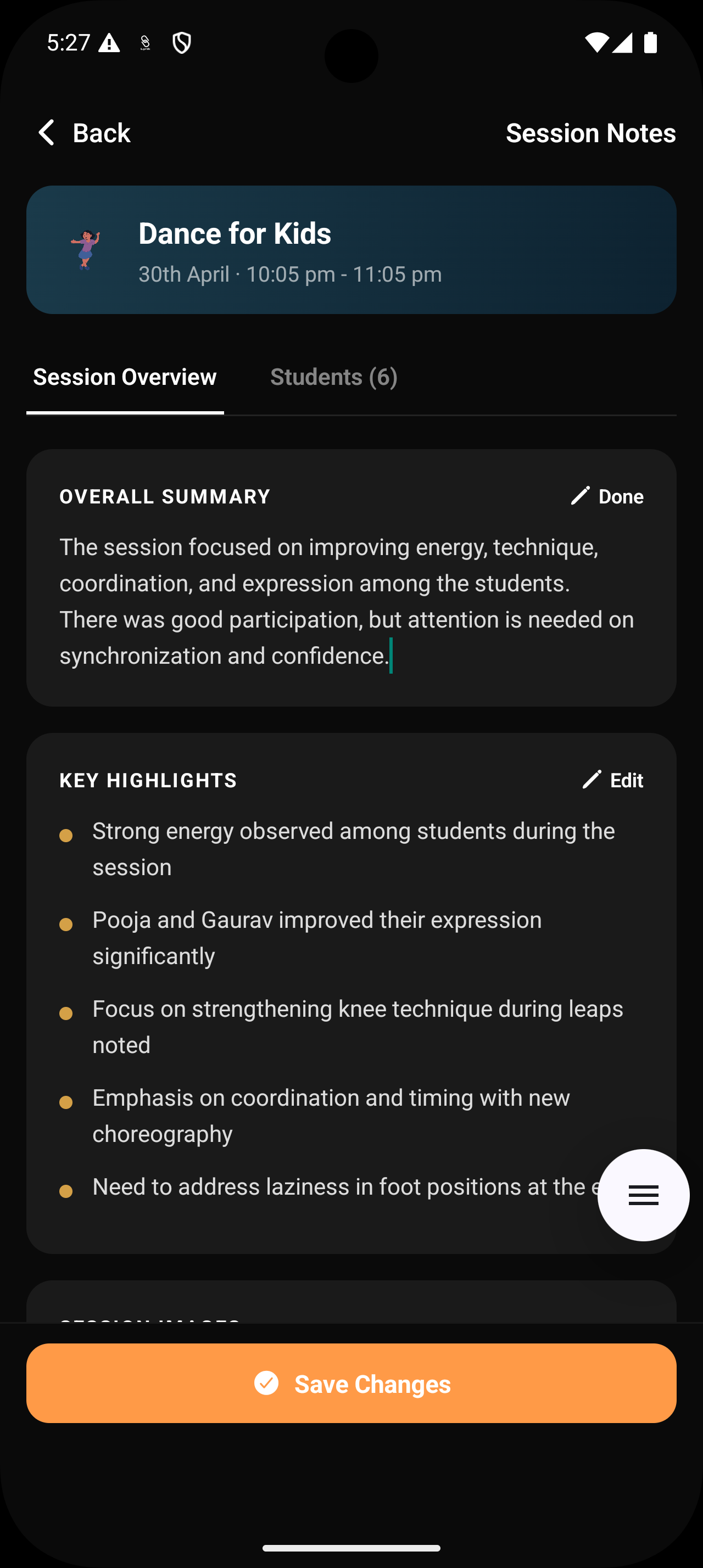
Overall Summary
Tap the Edit (pencil icon) next to the OVERALL SUMMARY section
Modify the general description of the class as needed
Key Highlights
Tap Edit next to the KEY HIGHLIGHTS section
Refine important milestones or achievements from the session
Student-Specific Notes
Navigate to the Students tab
Tap Edit on individual student cards
Update:
Feedback text
Tags (e.g., strengths or improvement areas)
Adding and Managing Images
Enhance your session notes with visual context:
Attach Photos
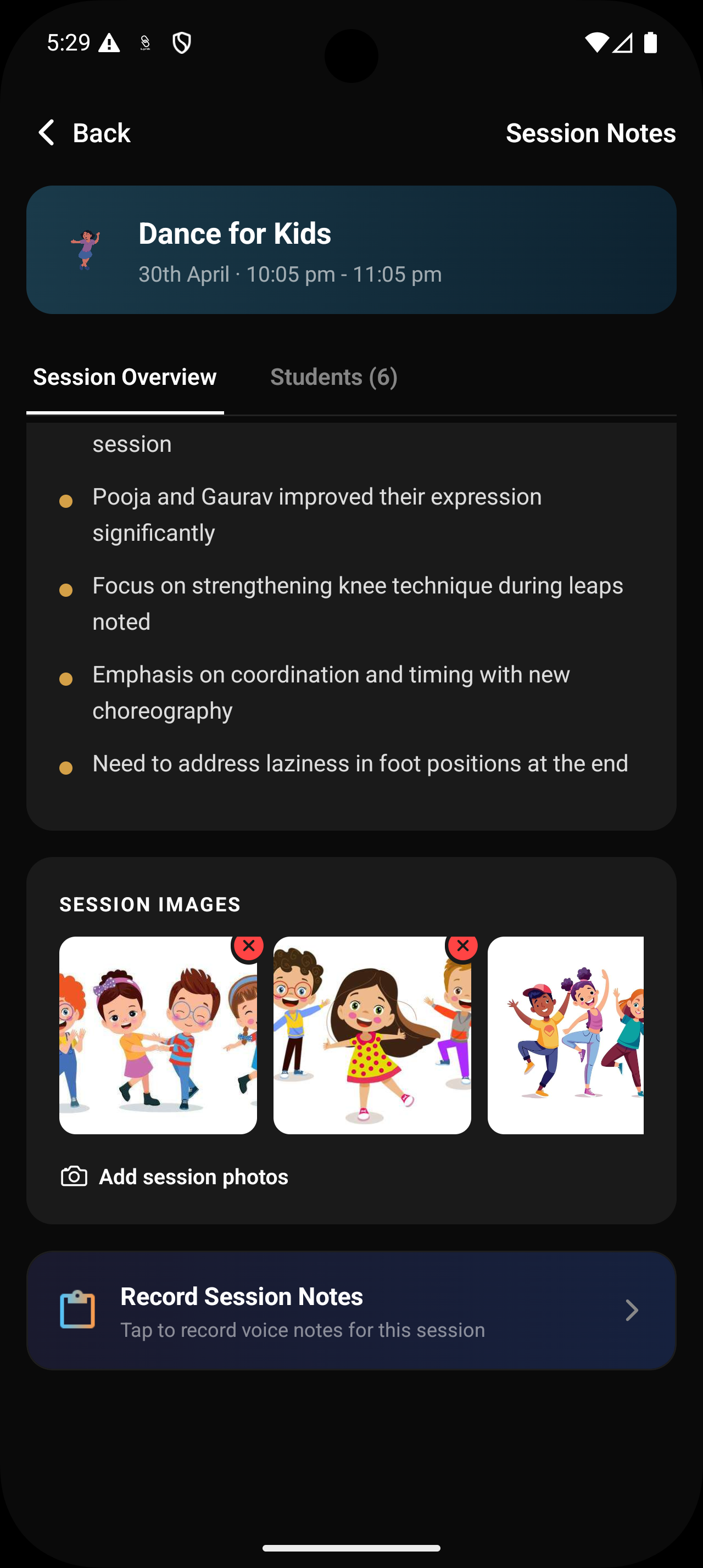
Tap Add session photos within the Session Overview
Select Media
Browse your device gallery or albums
Choose images that represent session activities or highlights
Remove Photos
Tap the (X) icon on any image thumbnail to delete it
Finalizing Your Edits
After making updates, ensure everything is saved properly:
Save Changes
Tap Save Changes at the bottom of the screen
Best Practices
Preview summaries before sharing
Keep highlights concise and meaningful
Ensure student feedback is clear and constructive
Add relevant photos to improve report quality
Summary
Editing Session Notes allows you to:
Refine summaries → Update student feedback → Add/remove images → Save changes
Keeping your notes updated ensures accurate documentation, better communication, and more professional session reports.