How to record session notes
Learn how to record voice-based Session Notes after completing a class and let Lynk AI organize them into structured summaries, student feedback, and shareable reports.
Written by Swathi N
Recording Session Notes in Lynk helps you capture student performance, attendance insights, and overall session observations in a structured and effortless way. With voice input and AI-powered organization, you can document every session quickly and turn it into meaningful feedback for future planning.
Before You Begin
Make sure your session is marked as Completed.
The Session Notes feature becomes available only after the session has been successfully completed.
Step-by-Step Guide to Recording Session Notes
1. Start Recording
Begin by capturing your thoughts through voice:
Go to your Dashboard
Open the completed session
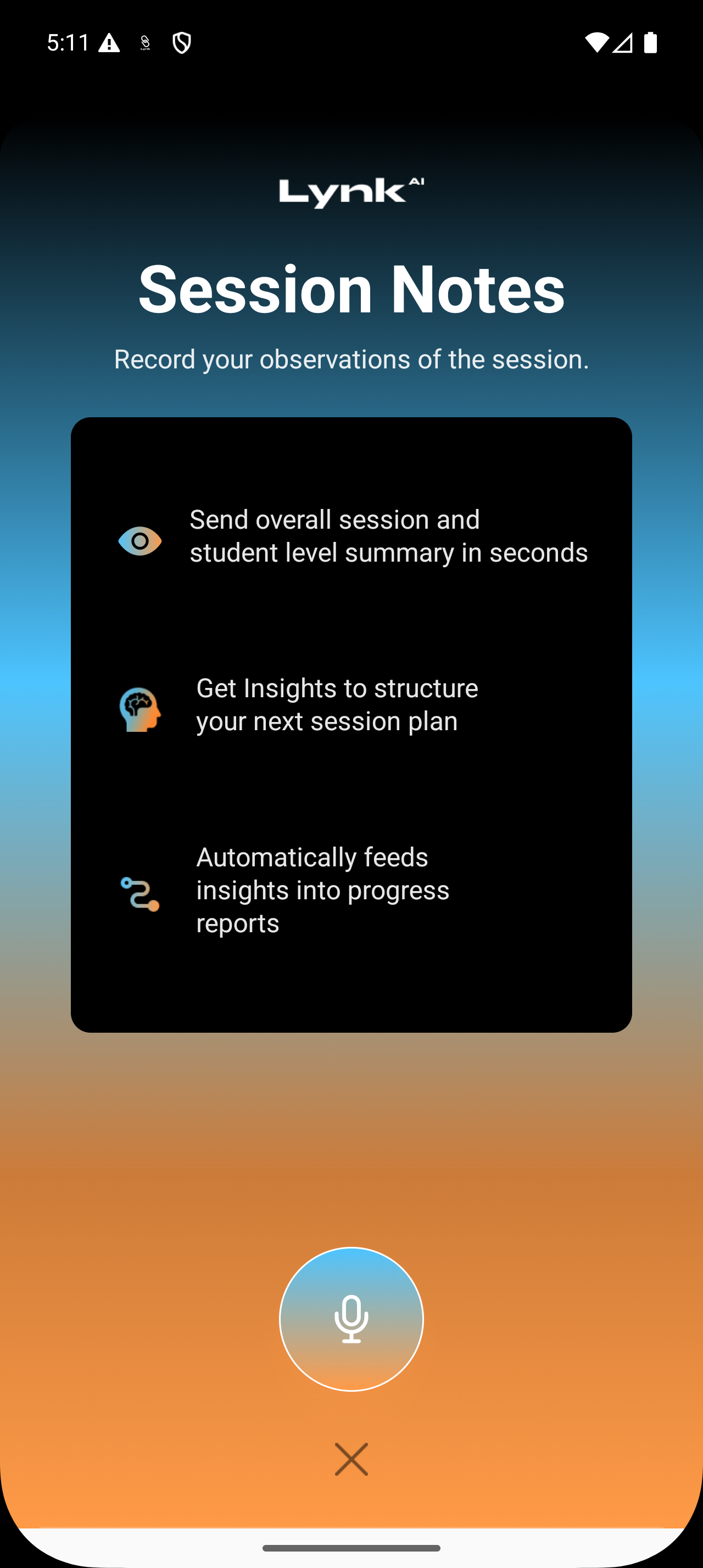
Tap on the Session Notes card and tap the microphone icon at the bottom of the screen
Start speaking naturally about:
Overall session performance
Attendance
Individual student feedback
Tip: Speak clearly and mention student names for better tagging.
2. Transcribe and Categorize
Once you stop recording:
Lynk automatically transcribes your voice note
The AI organizes it into structured sections such as:
Attendance Overview
Student Feedback
3. Review and Edit
You have full control over your notes:
Tap on any segment to:
Edit the text
Add or remove student tags
Review the AI-generated transcription for clarity
Tap Save to confirm changes
4. Refine Session Summary
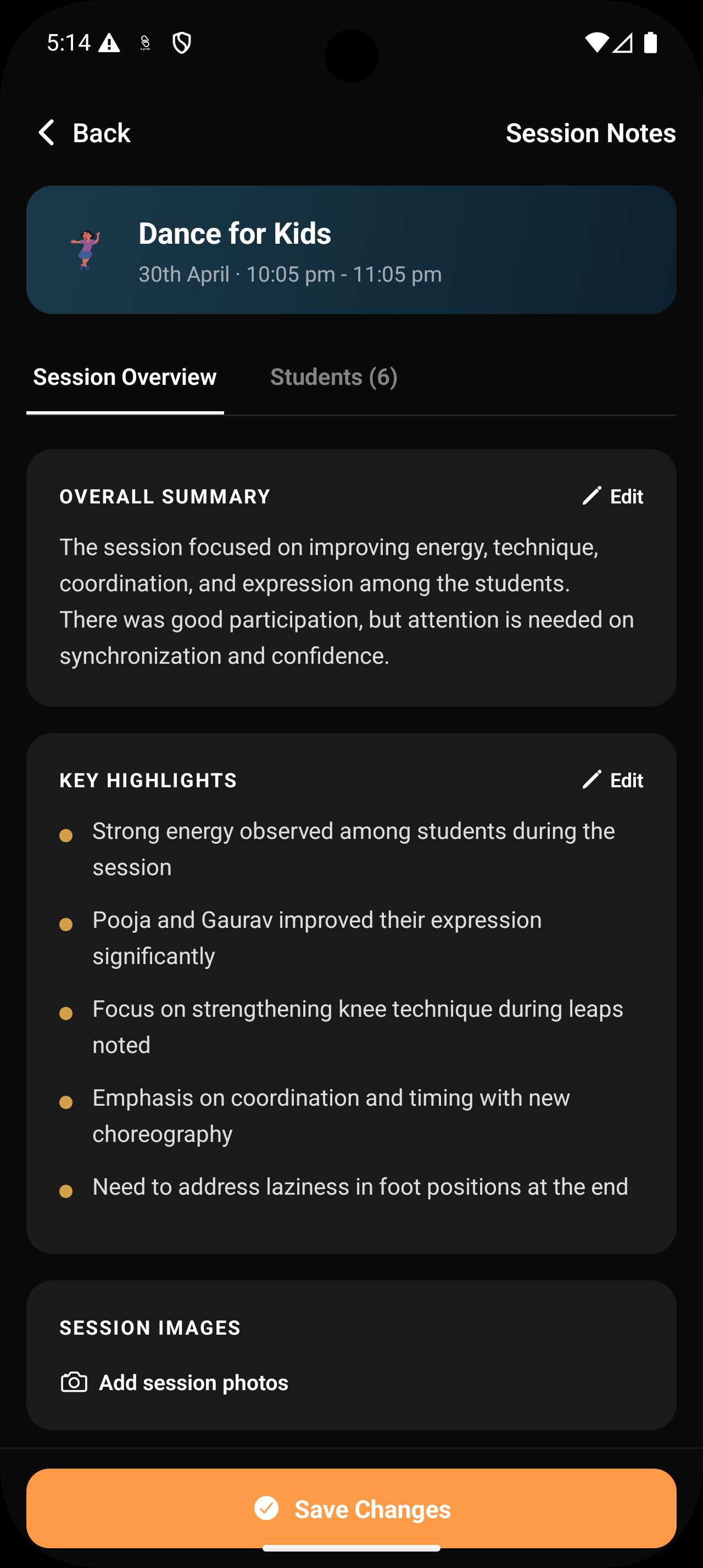
After saving your notes, Lynk automatically generates a clean session summary:
Overall Summary – A concise overview of the entire session
Key Highlights – Important takeaways and observations
You can:
Tap Edit to refine the wording
Adjust summaries to better reflect your session
4. Enhance with Media
Add visual context to your session:
Tap Add session photos
Upload relevant images from your gallery
These images will be included in the session summary
5. Preview and Share
Finalize and share your session insights:
Review the Overall Summary and Key Highlights
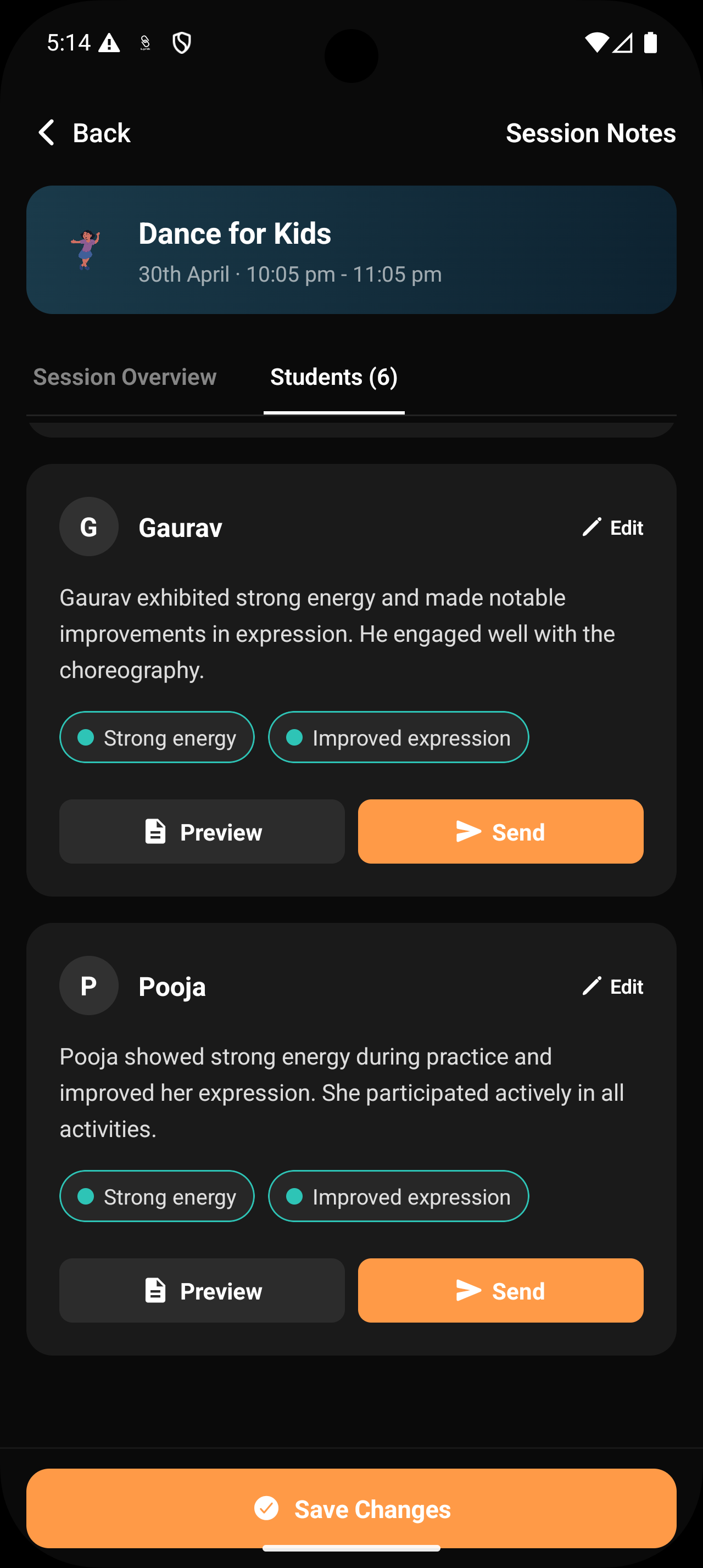
Go to the Students tab to view individual feedback
Tap:
Preview to generate a PDF report
Send to share the report via WhatsApp or other platforms
Best Practices
Record notes immediately after each session for accuracy
Mention student names clearly for better tagging
Review and refine summaries before sharing
Add photos to make reports more engaging
Summary
Recording Session Notes in Lynk is a simple, structured process:
Complete Session → Record Voice Notes → Review & Edit → Add Media → Share Report
This workflow ensures every session is documented accurately, helping you deliver better coaching, track progress effectively, and communicate insights clearly with students and parents.