Tracking the status of your payment requests
Stay on top of your payments with clear status tracking and smart filters.
Written by Swathi N
Lynk Tower helps you easily monitor every payment request—from pending collections to completed transactions—all in one place.
Where to Track Payments
Go to the Payments tab
Open the Collections section
View all your payment requests in a single list
Understanding Payment Statuses
Each payment request is categorized to help you quickly understand its progress:
Pending
Payment request has been sent
Student has not completed the payment yet
Paid
Student has successfully completed the payment
Amount is received but not yet settled
Settled
Payment has been processed and settled to your account
Final amount is credited
Expired
Payment request was not completed within the 24 hours
A new request is required
Using Filters for Better Tracking
Lynk provides filters to help you quickly find specific payments:
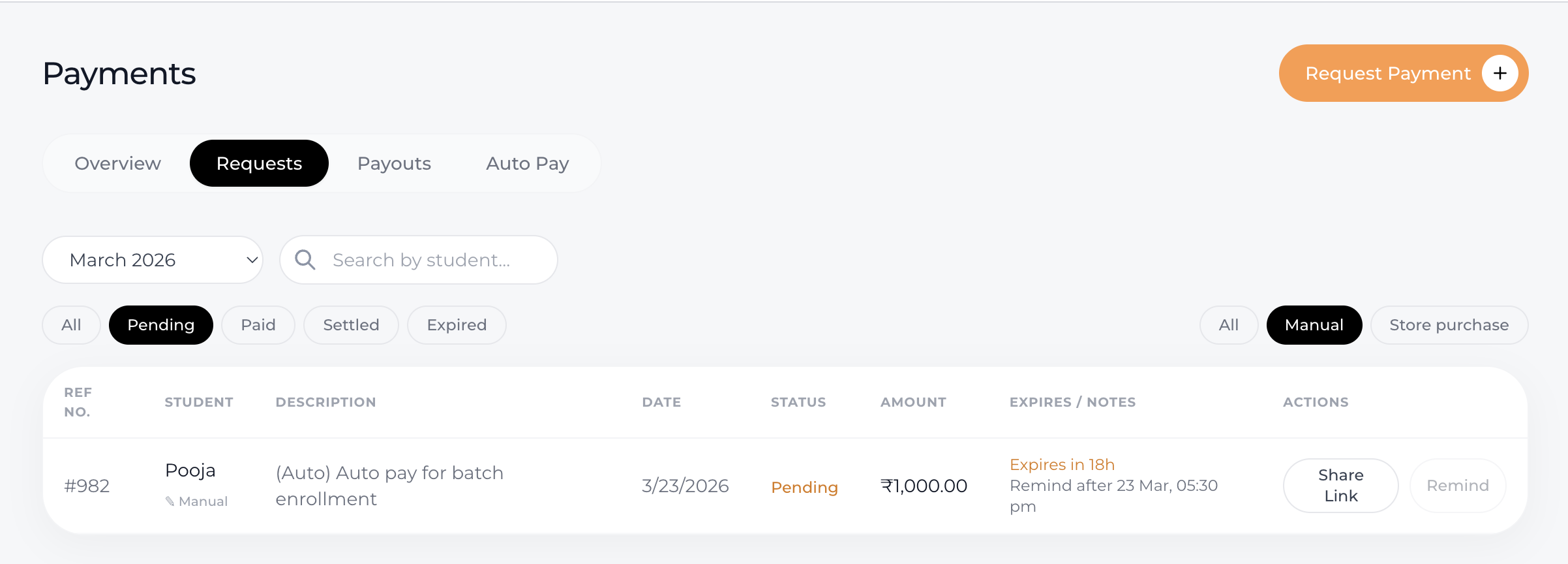
Status Filters
All
Pending
Paid
Settled
Expired
Use these to track collections and follow up easily.
Payment Type Filters
You can also filter payments based on how they were created:
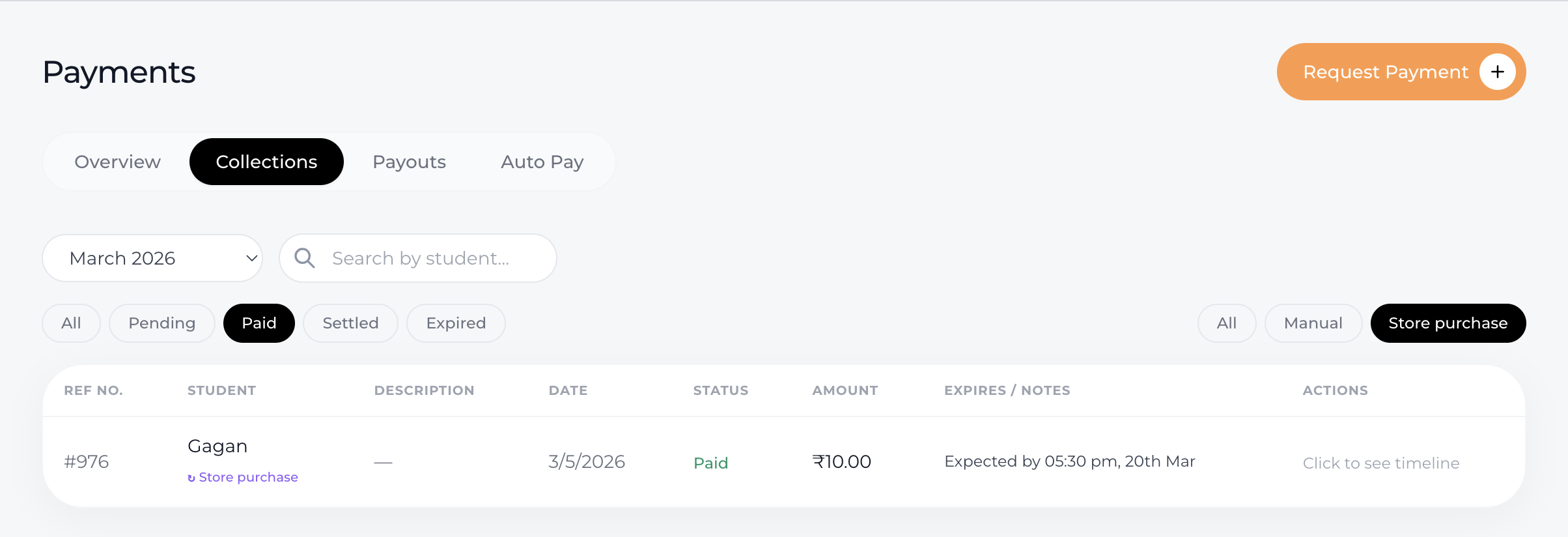
Manual Payments
Created by the coach/admin
Sent via payment links
Store Purchases
Payments made directly by students/parents
Done through your website or store page
Why This Matters
Helps you track pending payments quickly
Simplifies follow-ups with students
Gives clear visibility on completed and settled payments
Separates manual collections from online store revenue
Conclusion
With clear statuses and powerful filters, Lynk Tower makes it easy to track, manage, and organize all your payment requests—ensuring you never miss a payment.