How to track payment requests
View Requests to view all payment requests and monitor their current status in one place.
Written by Sumit Kapoor
Introduction
The Requests section is the central tracking layer for all payment links created on Lynk.
Every time you request a payment—whether manually or through Auto Pay—it appears here with its current status, expiry, and payment progress.
This ensures you always know:
Which payments are pending
Which ones are completed
Which have expired or settled
—all without manual follow-ups or external tracking.
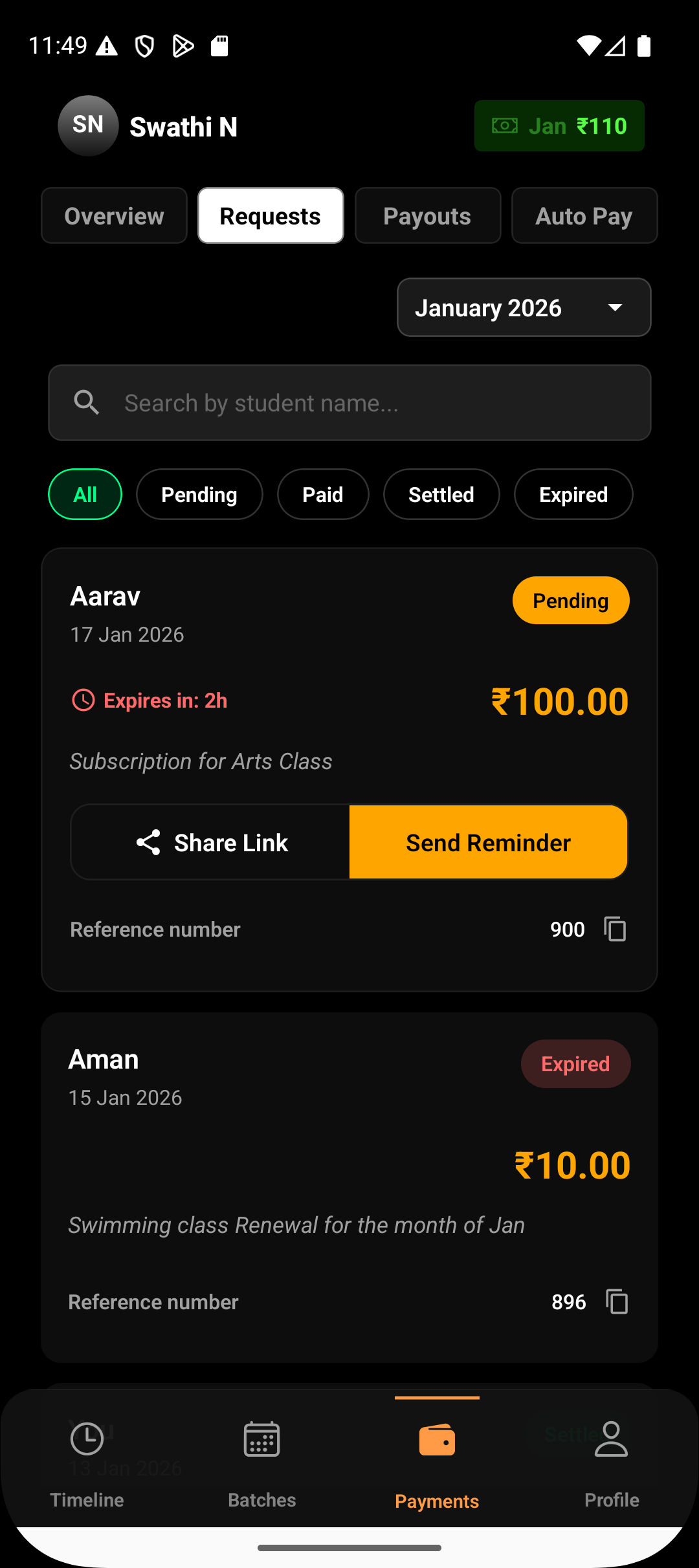
Where to Find Payment Requests
To access all your payment requests:
Payments → Requests
This section lists every payment request created for students, across all billing cycles and time periods.
Each request card shows:
Student name
Amount requested
Request date
Current status
Expiry countdown (for active links)
Understanding Payment Request Statuses
Every payment request moves through clear, system-defined states:
Pending
The payment link is active and usable.
The student has not completed payment yet.
You can share the link or send reminders while it’s pending.
Paid
The student has successfully completed the payment.
The amount is captured and awaiting settlement.
No further reminders are sent for this request.
Settled
The payment amount has been successfully settled to your linked bank account.
This indicates the payment lifecycle is fully complete.
Expired
The payment link has crossed its validity period without payment.
Expired links cannot be used again.
A new payment request must be created for the same student.
Filtering and Searching Requests
As your number of payment requests grows, Lynk provides tools to quickly locate specific ones.
You can:
Filter by status: Pending, Paid, Settled, or Expired
Search by student name to find individual requests
Switch months to review historical or current-period payments
This makes it easy to:
Identify unpaid dues
Follow up on pending requests
Reconcile settled payments
Viewing Request-Level Details
Tapping on a payment request opens the detailed view, where you can see:
Payment description
Reference number
Fee breakdown
Expiry timeline
Reminder availability and next reminder timing
This helps you understand exactly where a payment stands at any moment.
Summary
The Requests section acts as your payment tracking dashboard—giving you full visibility into every payment link, its status, and its progress. By using filters, search, and status indicators, you can confidently manage collections, follow up at the right time, and stay in control of your revenue flow.