Update Student Participation: Pause, Remove or Resume Anytime
Manage student participation with complete flexibility.
Written by Swathi N
Lynk Tower allows you to pause students temporarily, remove them from a batch, and also bring them back when needed. This helps you handle breaks, drop-offs, and re-joins seamlessly.
Why Manage Student Status?
You may want to:
Pause a student who is taking a break
Remove a student who is leaving the batch
Re-add or resume students when they return
Steps to Pause or Remove a Student
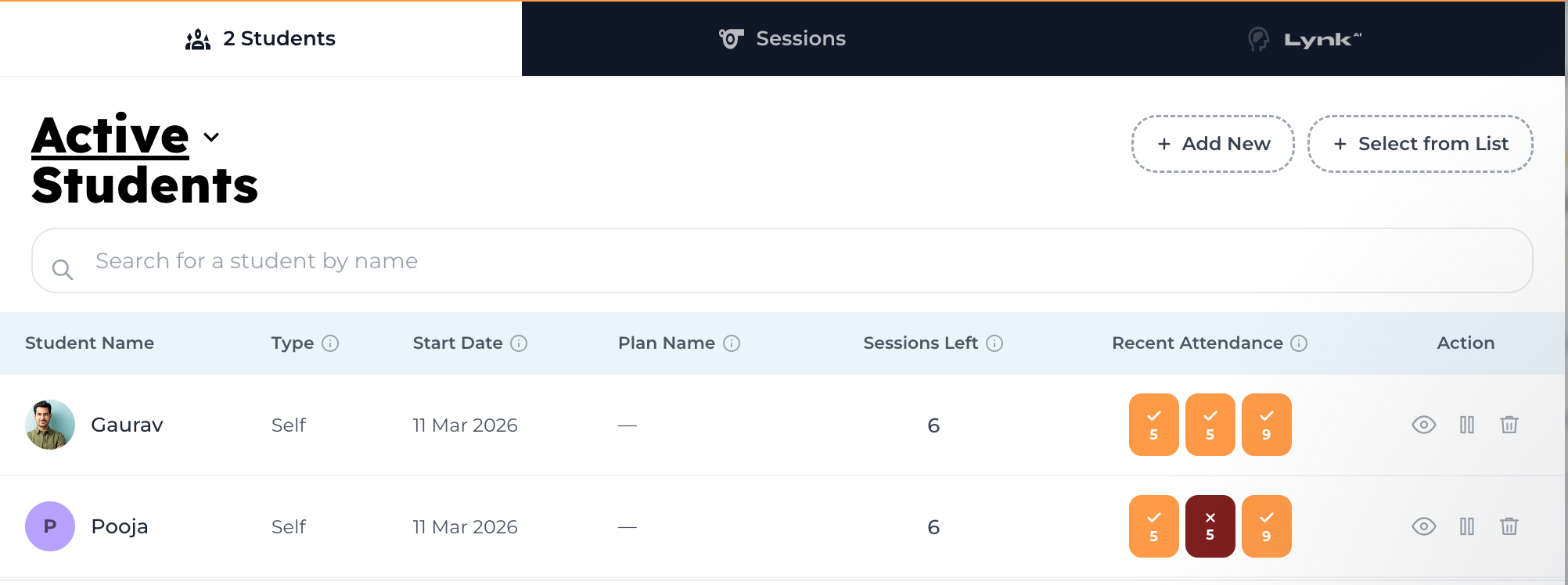
Go to the Batches tab in Lynk Tower
Open the batch card
Navigate to the Students tab
Locate the student
In the Actions column, click:
Pause icon to pause
Remove icon to remove
Pausing a Student
When you click Pause:
Select the start date
Select the end date
Click Confirm Pause

After Pausing
The student is temporarily inactive
They can resume after the selected duration
Removing a Student
When you click Remove:
Select the start date
Click Confirm Remove

After Removal
The student is removed from the batch
They won’t appear in upcoming sessions
How to Unpause a Student
In the Students tab, use the filter (top left)
Select Paused
Find the student
Click Unpause in the Actions column
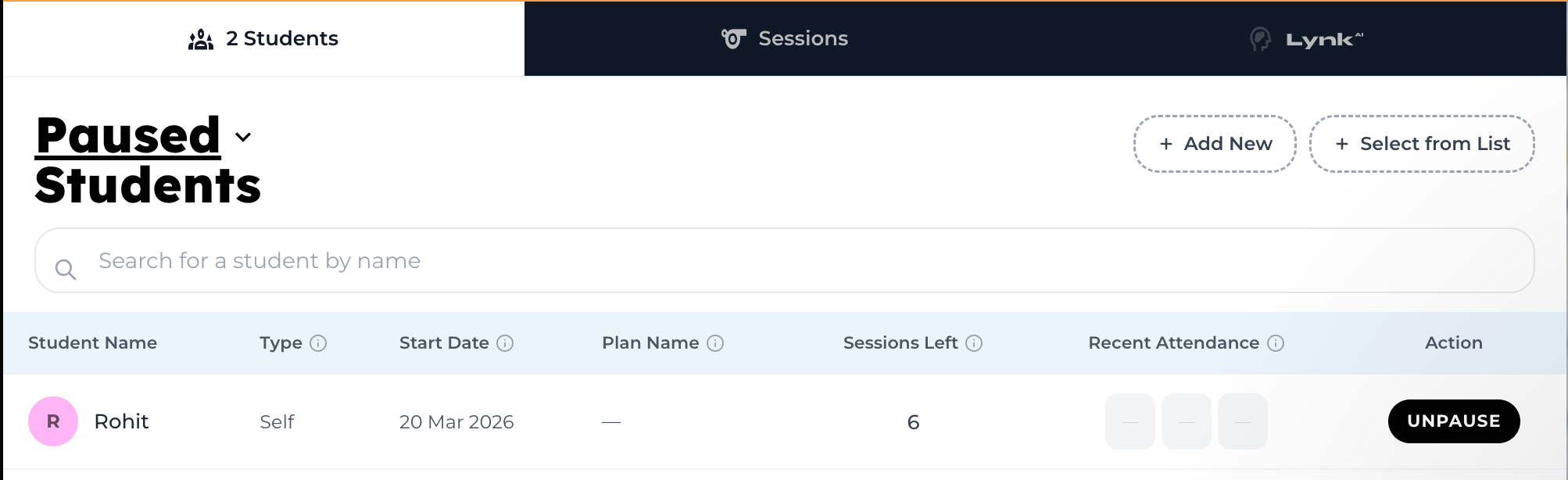
After Unpausing
The student becomes active again
They can continue attending sessions
How to Add Back an Inactive Student
In the Students tab, use the filter
Select Inactive
Find the student
Click Add Back in the Actions column
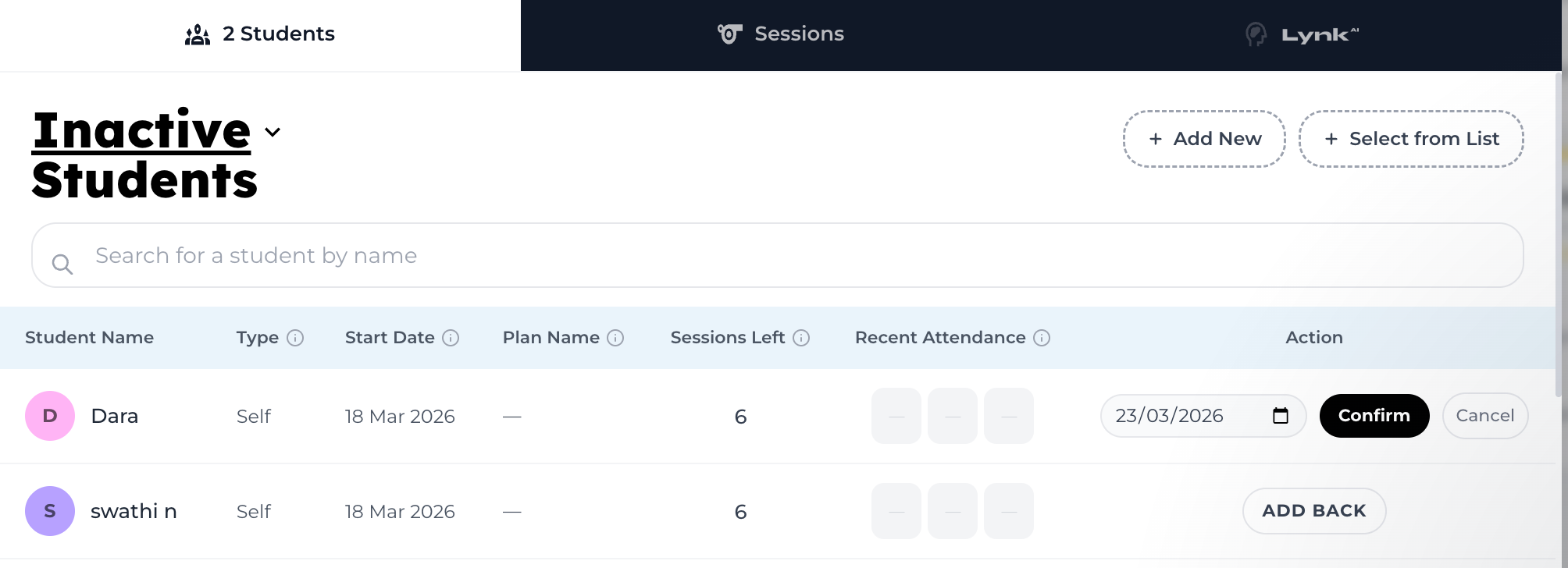
After Adding Back
The student is re-added to the batch
They become active again
Best Practices
Use Pause for temporary breaks
Use Remove for permanent exits
Use Unpause/Add Back when students return
Always verify dates before confirming
Conclusion
Lynk Tower gives you complete control over student participation. Whether pausing, removing, or re-adding students, you can manage your batches efficiently without losing track of student history.