Searching and filtering your student list
Quickly find students and track their current status.
Written by Swathi N
Lynk Tower makes it easy to manage your student list by allowing you to search, filter, and categorize students based on their activity and batch enrollment.
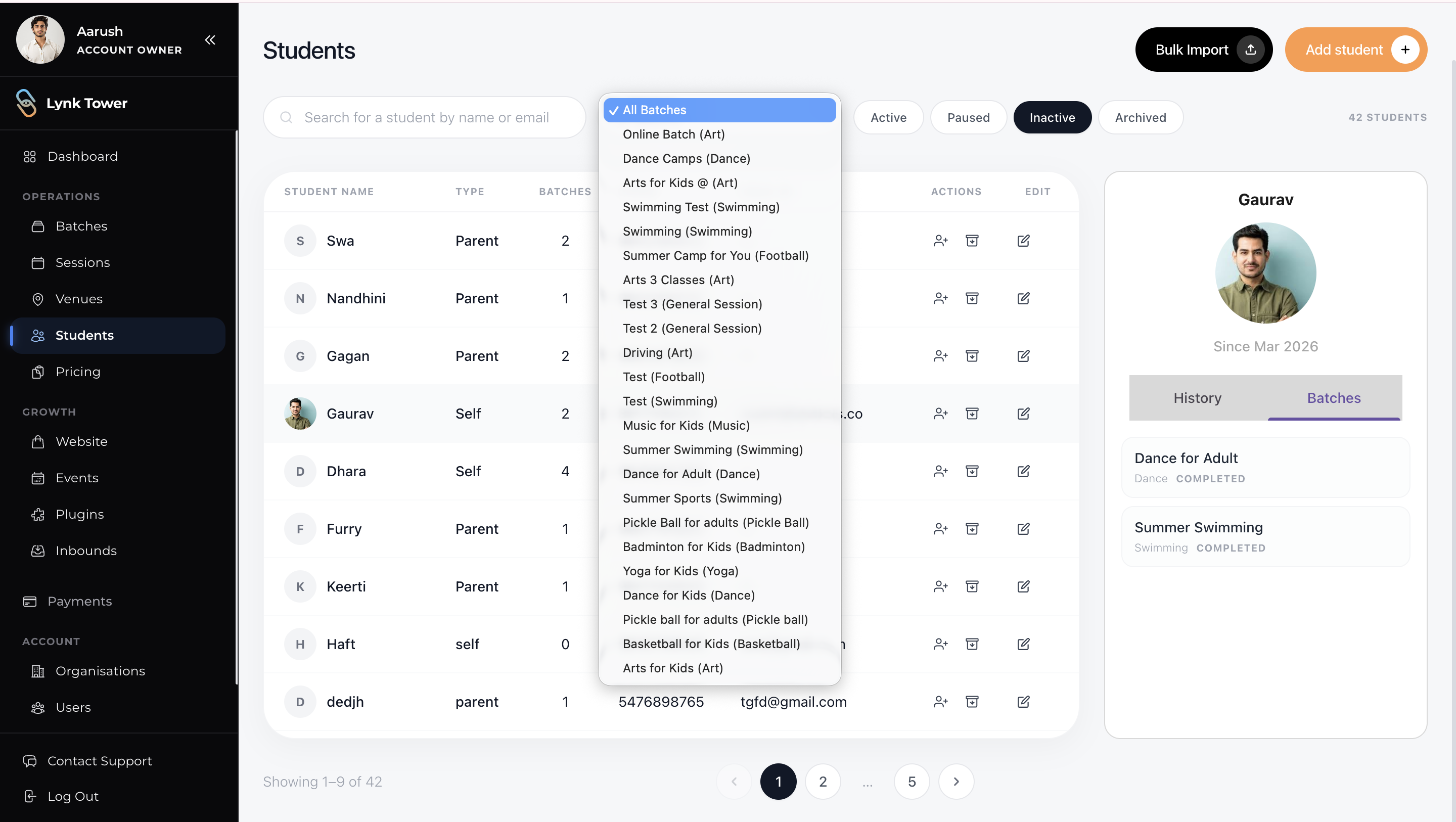
Searching for Students
Use the search bar to quickly find a specific student.
You can search using:
Student name
Parent/contact name
Phone number
This helps you instantly locate student records without scrolling through the entire list.
Filtering by Batch
Use the “All Batches” dropdown to filter students based on specific classes.
For example:
View students enrolled in Summer Swimming
Check participants of a particular batch
Manage class-wise student lists
This makes it easier to handle batch-specific operations.
Understanding Student Status
Students are categorized into three main statuses at the top of the page:
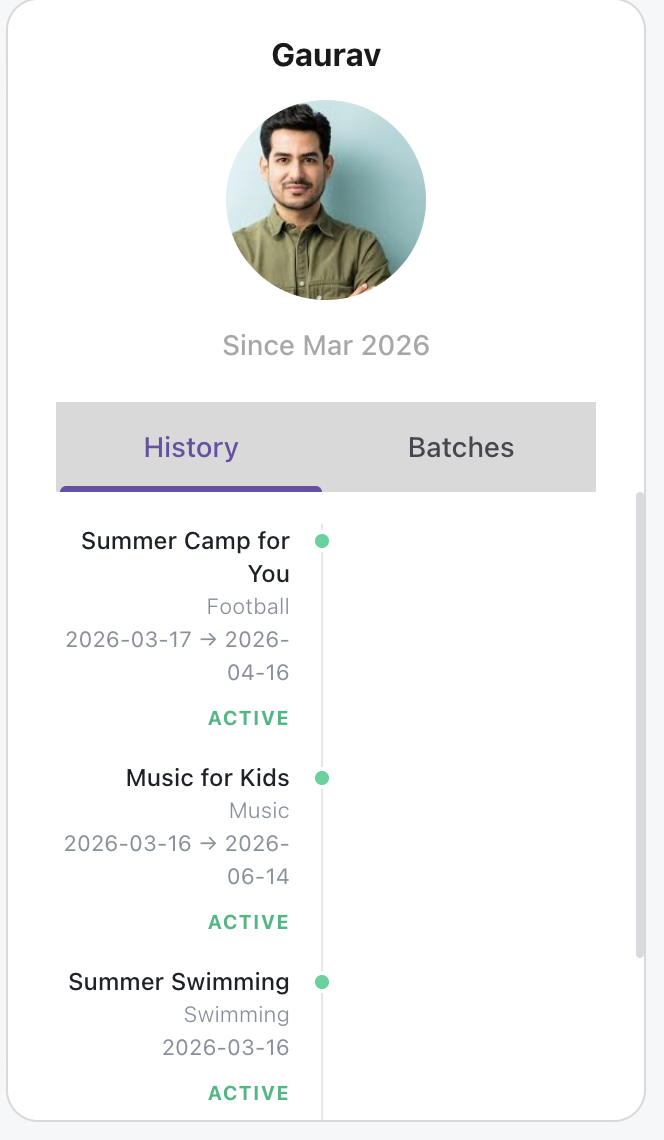
Active
Students currently enrolled in one or more batches
Actively attending sessions
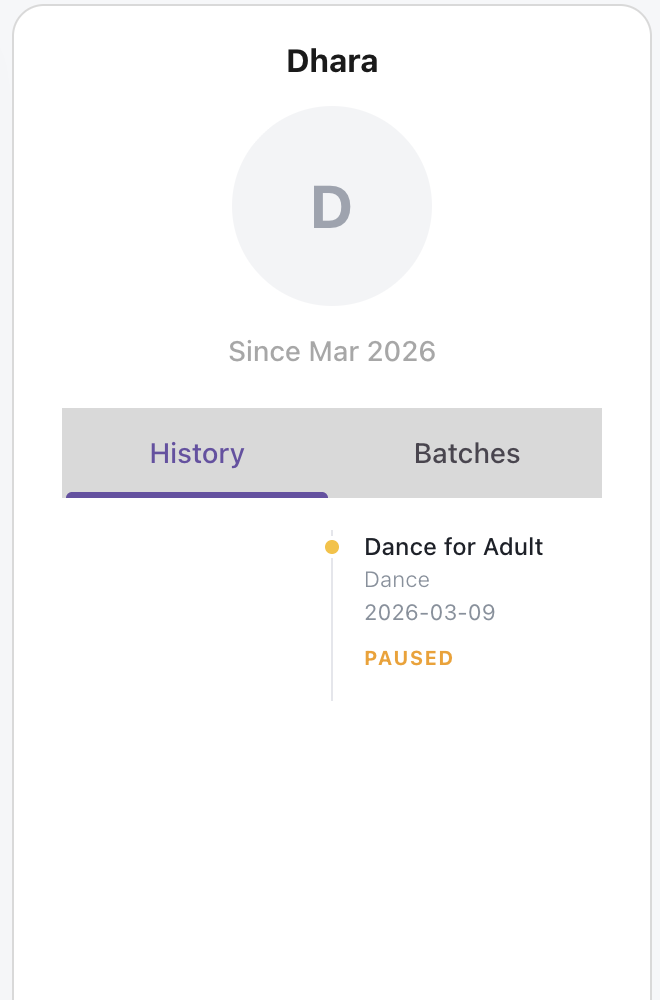
Paused
Students temporarily on a break
Will continue sessions after the pause period
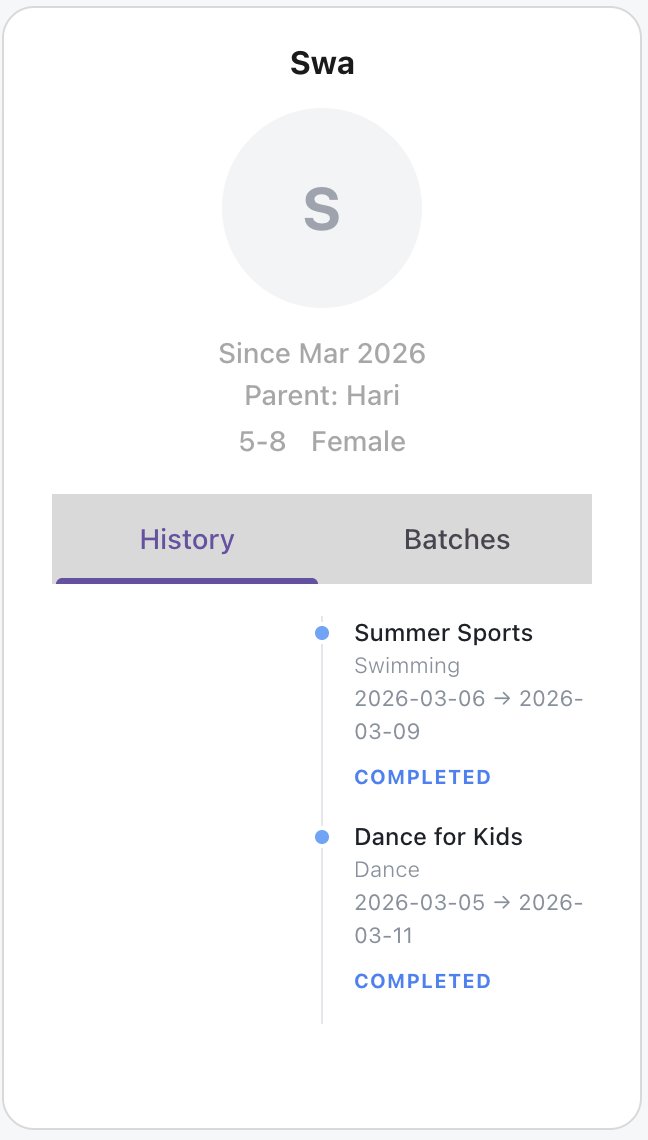
Inactive
Students not enrolled in any batch
Includes past students or newly added students not yet assigned
Why This Matters
Using search, filters, and status categories helps you:
Quickly find and manage students
Organize students batch-wise
Track engagement and activity levels
Take action based on student status
Conclusion
Lynk Tower provides simple yet powerful tools to search, filter, and categorize your students. With clear status indicators and batch-level filtering, you can manage your student base efficiently and stay organized at all times.