How to convert an Inbound Lead into an active Student
Turn a lead into a student by reviewing their details and adding them to your student list.
Written by Swathi N
In the Inbound Leads section of Lynk Tower, you may receive inquiries from visitors who are interested in joining your programs. Once you confirm that the lead wants to enroll, you can convert that inquiry into an active student profile.
Converting a lead moves their information from the Inbound section to the Students section, allowing you to manage them like any other enrolled student.
Converting a Lead to a Student
To convert an inbound lead:
Open the Inbound section.
Navigate to the Leads tab.
Locate the lead you want to convert.
Click the + Convert button on the lead card.
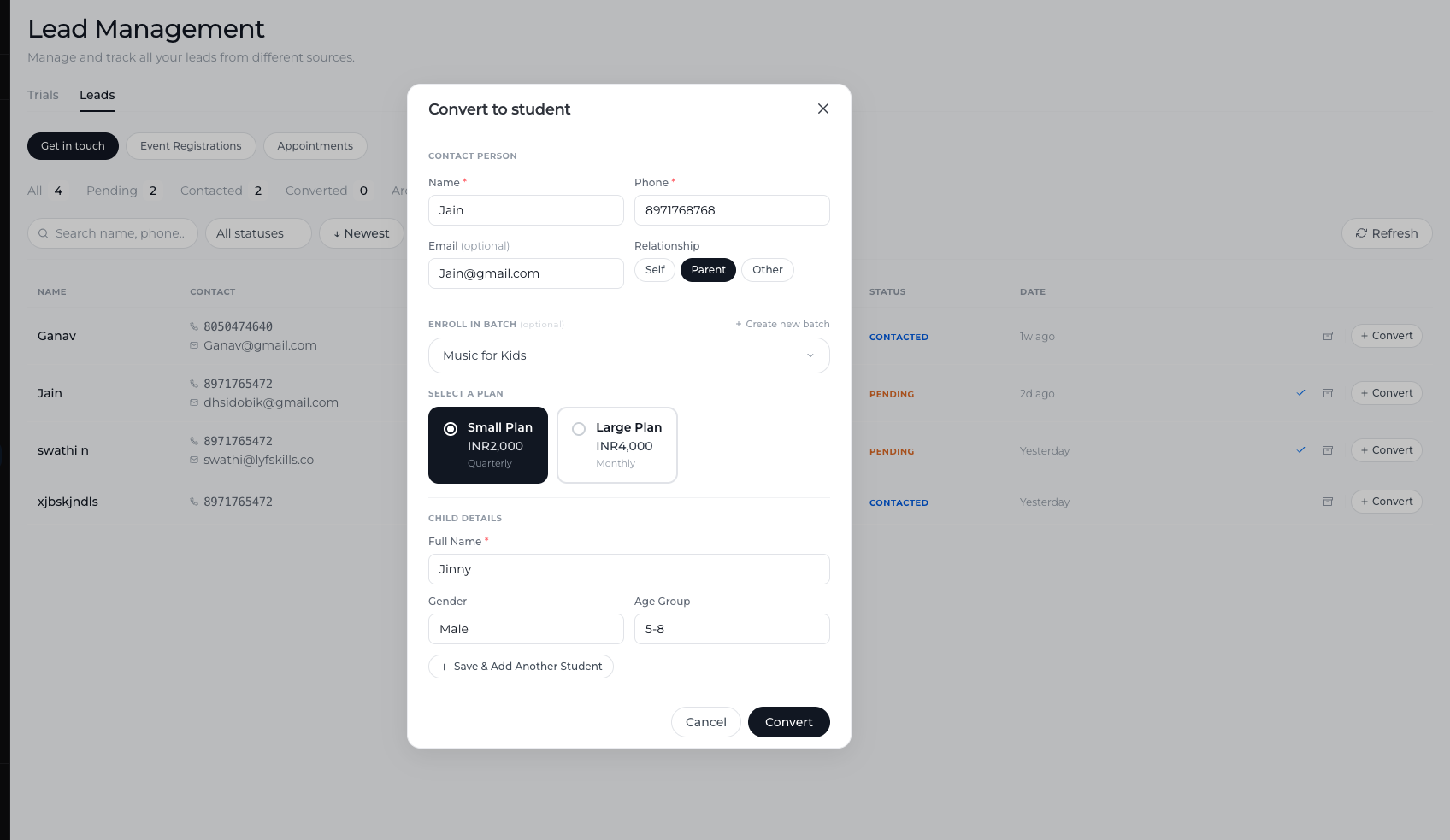
Once clicked, a conversion popup window will appear where you can review and confirm the student’s information.
Reviewing Student Details
The conversion popup allows you to review and edit the information submitted by the lead before creating the student profile.
You can verify details such as:
Name – The student or parent’s name
Phone Number – Contact number provided in the lead form
Relationship – Select whether the contact is Self, Parent, or Other
Email Address – Optional contact information
Reviewing these details ensures that the student record is accurate before adding them to your student list.
Adding Child Details
If the lead was submitted by a parent or guardian, you can add the child’s details in the same popup.
This helps create a proper student profile for the child who will be attending the classes.
Enrolling the Student into a Batch (Optional)
While converting the lead, you also have the option to directly enroll the student into a batch.
This allows you to:
Assign the student to a specific program
Place them in an existing batch
Start managing their sessions and attendance immediately
If you prefer, you can also convert the lead first and enroll them into a batch later from the Students section.
What Happens After Conversion
Once the conversion is completed:
The lead is moved to Converted status in Inbound section
A new student profile is created
The student appears in the Students section of Lynk Tower
If selected, the student is also enrolled in the chosen batch
This allows you to start managing the student’s classes, attendance, and payments.
Conclusion
The + Convert option in Lynk Tower allows you to quickly turn an inquiry into an active student. By reviewing the submitted details, adding child information, and optionally enrolling them into a batch, you can seamlessly move leads from the Inbound section into your Students list.