How to manage/remove students
Written by Sumit Kapoor
Student Status Types in Lynk
Each student falls under one of three statuses:
Active
Paused
Inactive
Each status allows specific actions to prevent accidental changes.
How to Remove or Manage Students
All student-related actions are handled from the Manage tab.
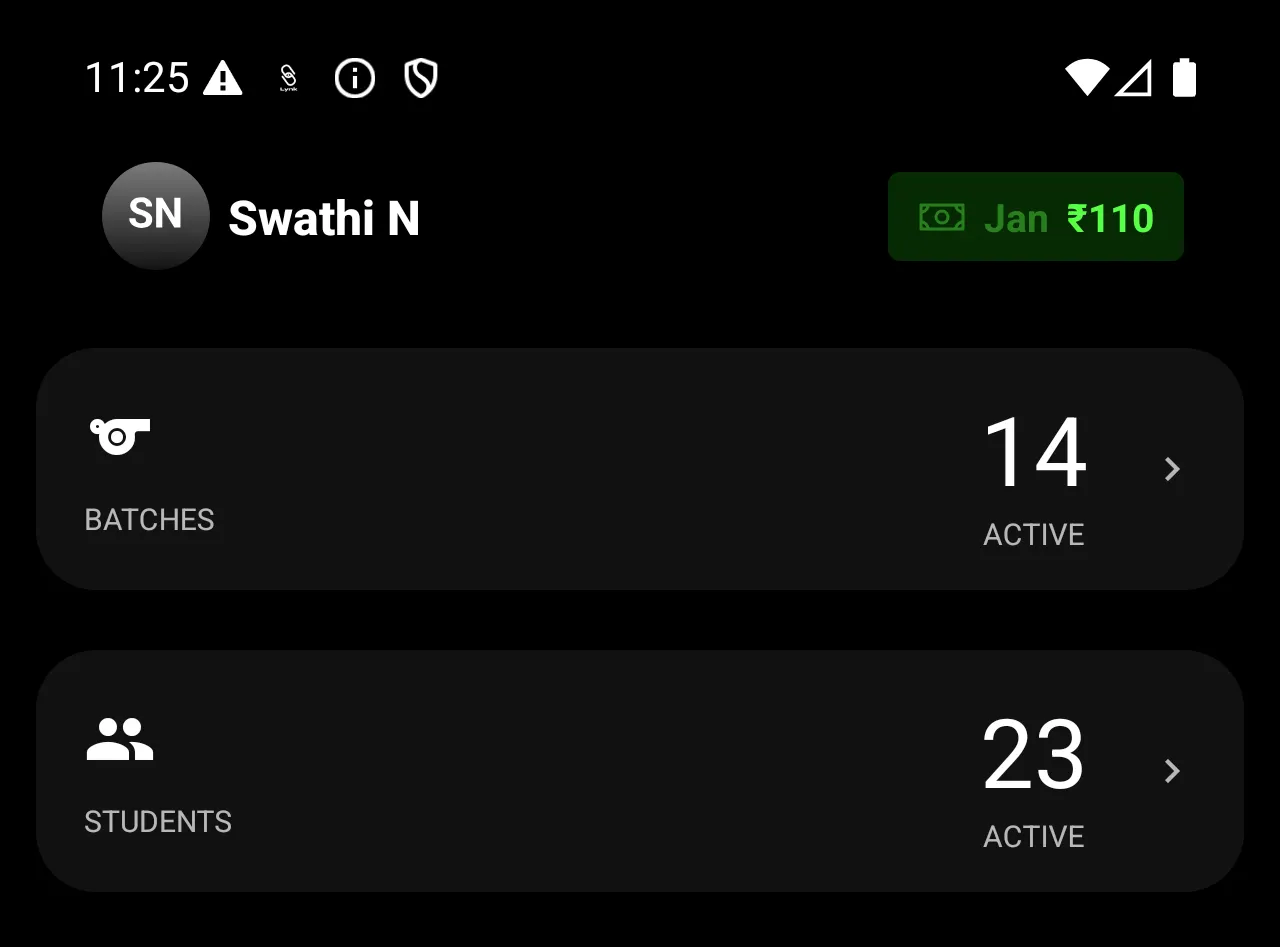
Step 1: Open Students List
Go to Manage → Students
View the full list of students
Step 2: Use Filters
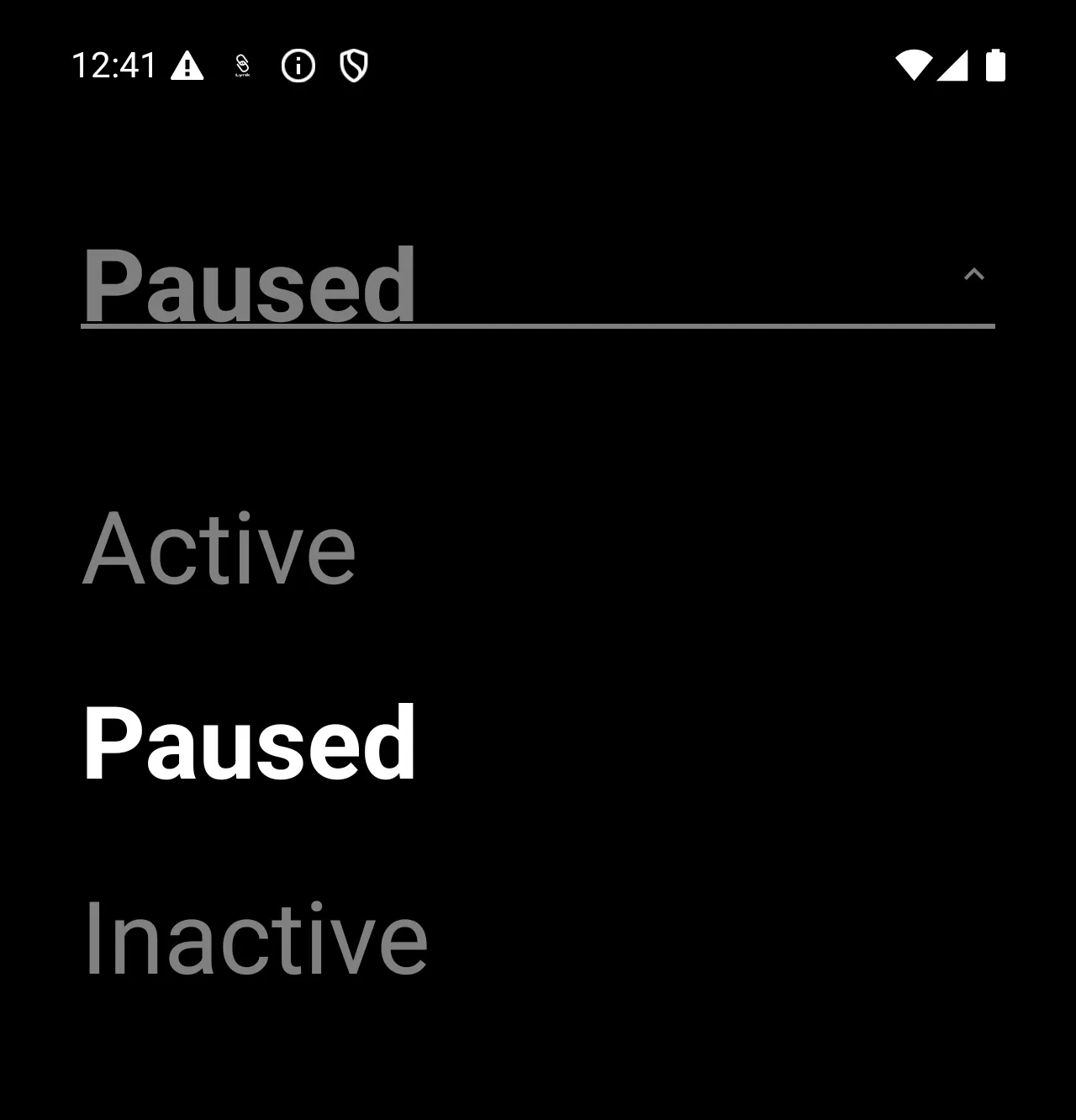
You can filter students by status:
Active
Paused
Inactive
Each status supports different actions.
Actions Available by Student Status
Active Students
For active students, you can:
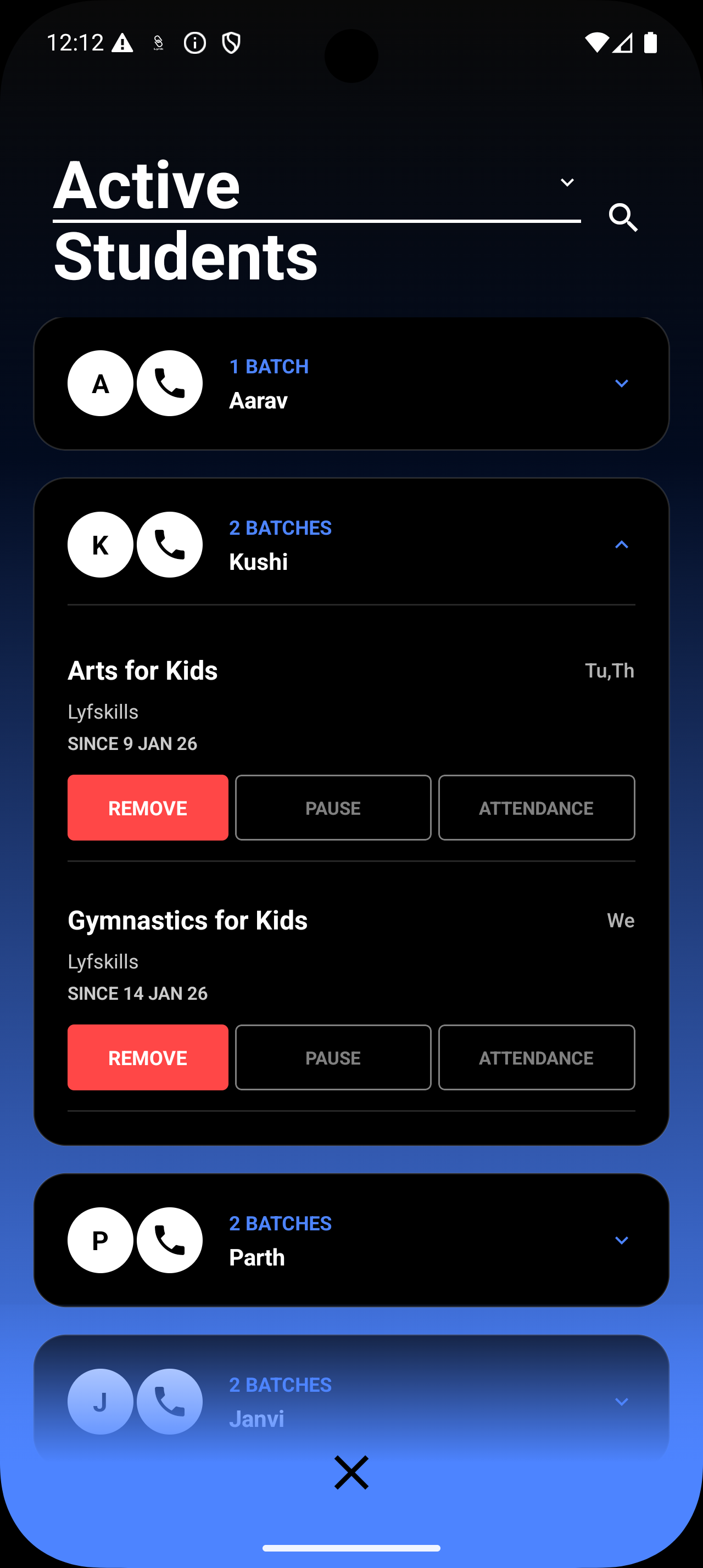
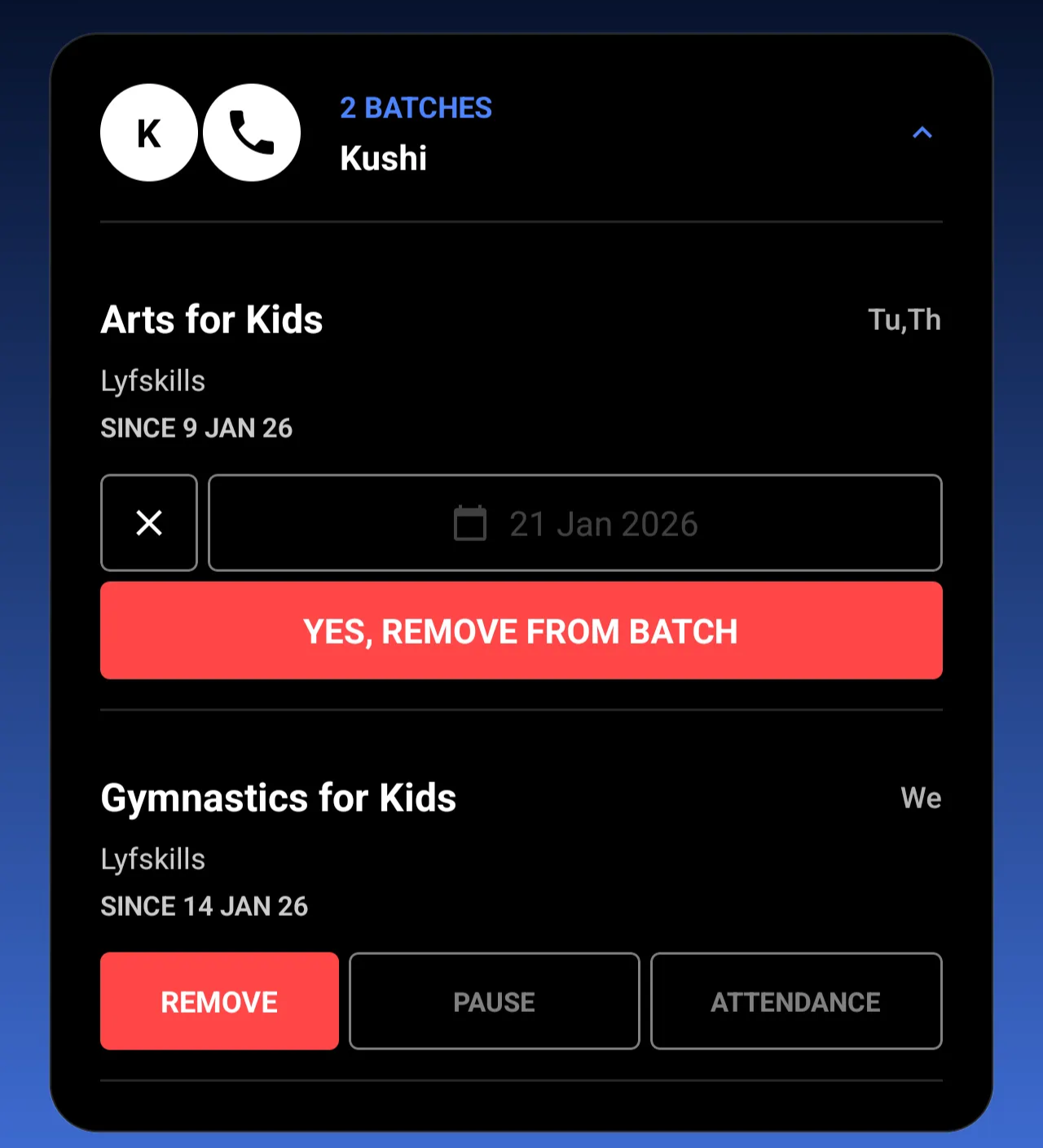
Remove the student from future sessions
Pause the student temporarily
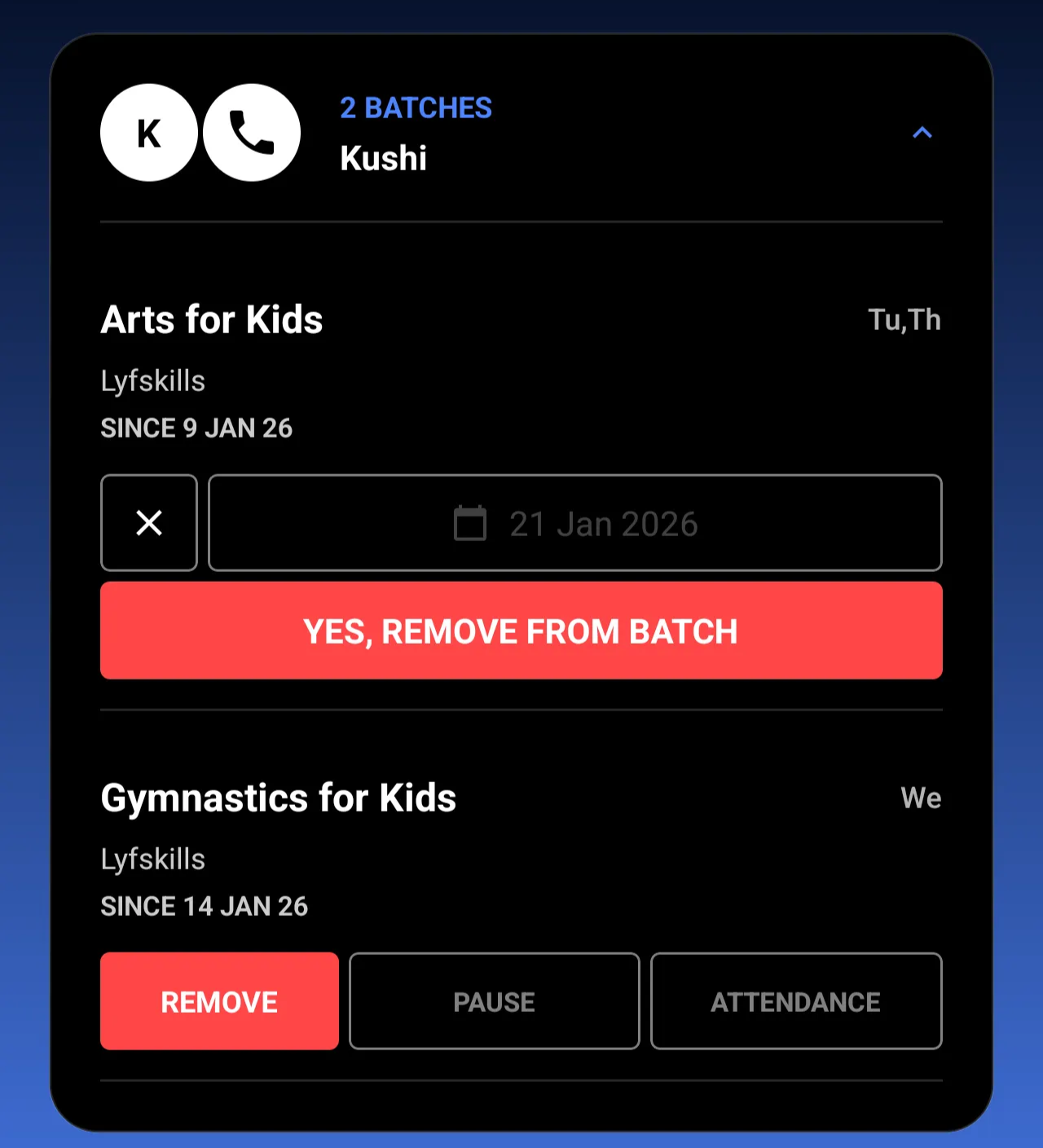
Removing an active student updates all future rosters instantly.
Paused Students
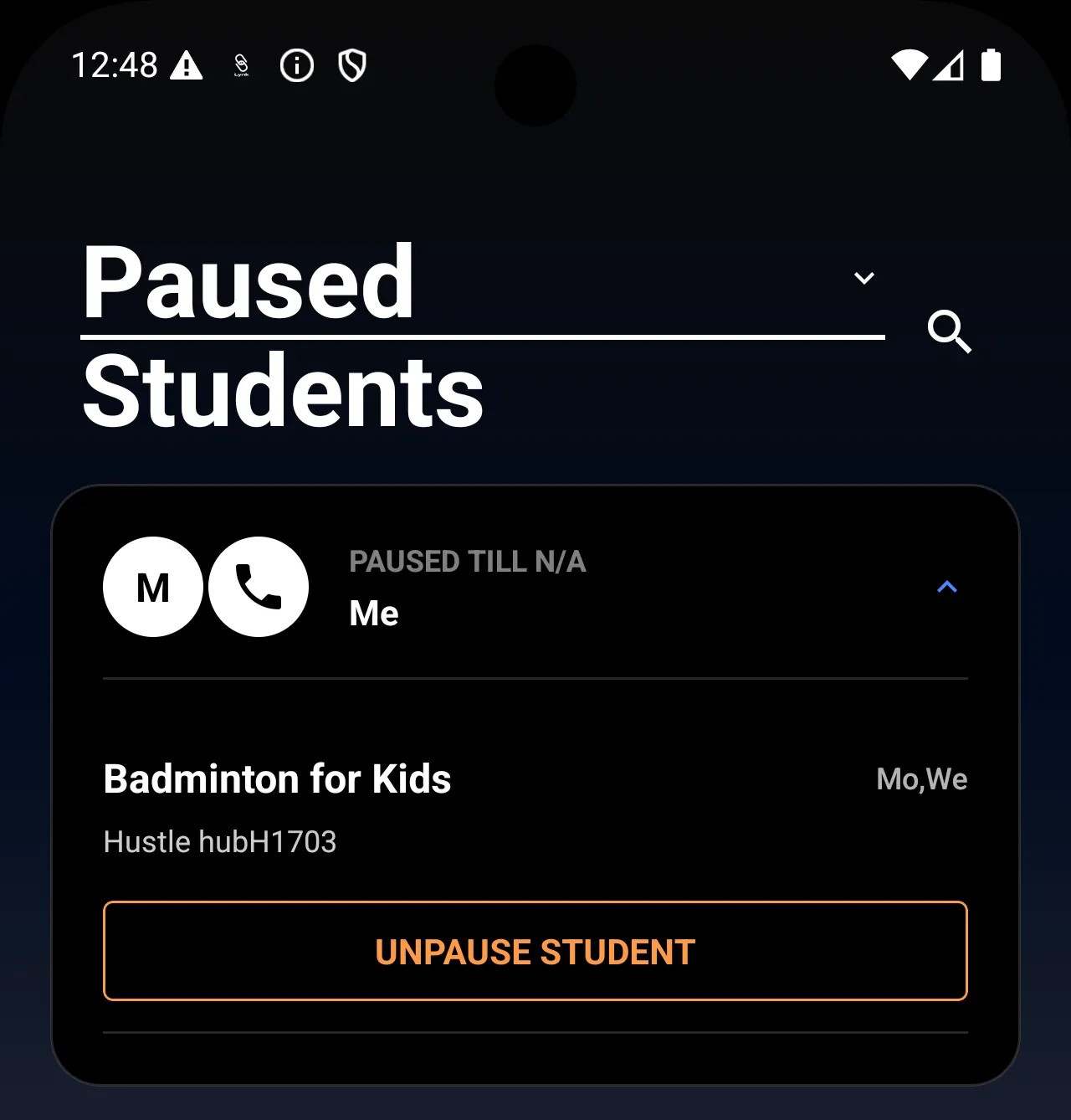
For paused students:
Their enrolled batches are visible
You have the option to Unpause Student
Unpausing restores the student to active participation in upcoming sessions.
Inactive Students
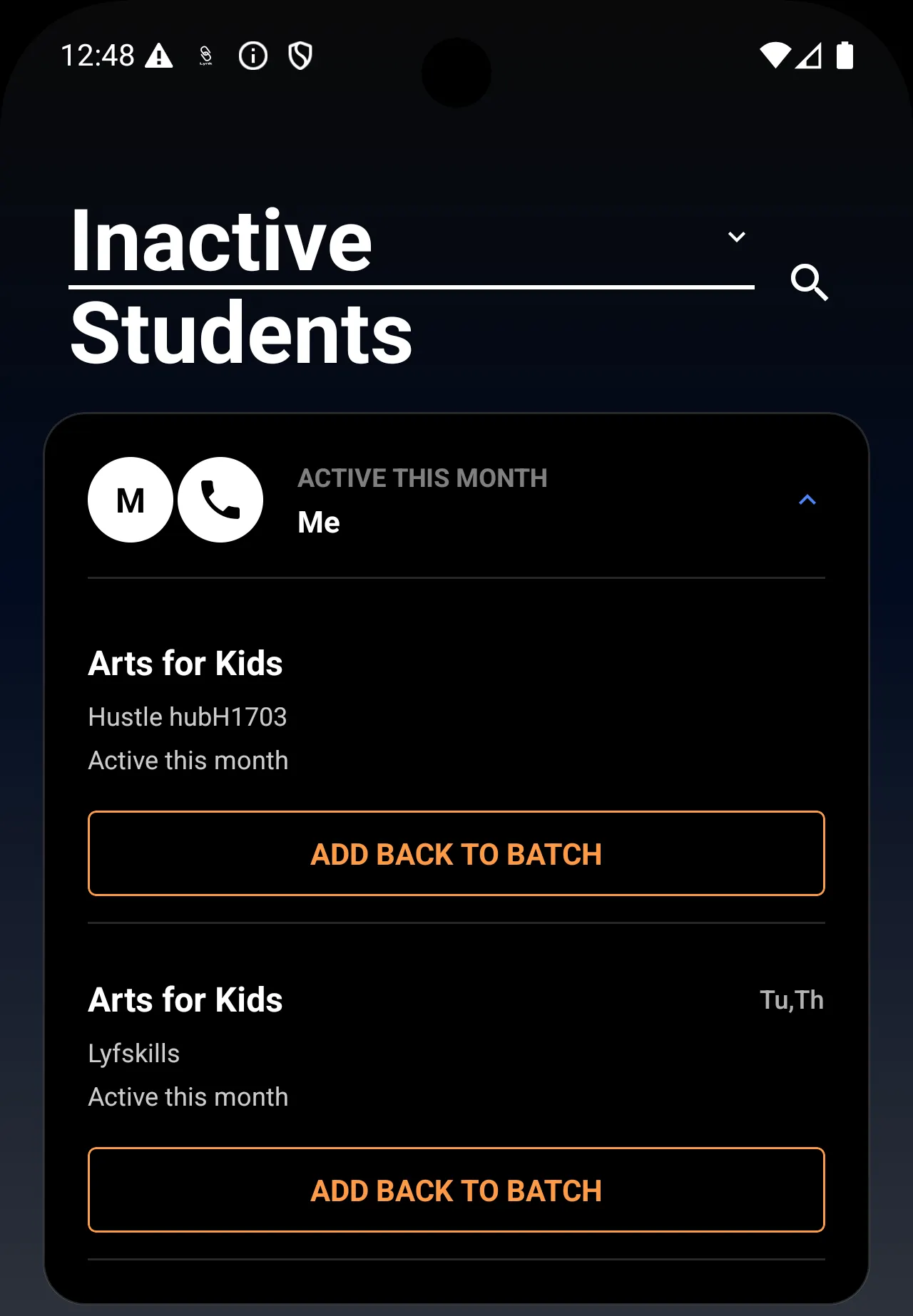
For inactive students:
Previously associated batches are shown
You can choose Add back to batch
This allows easy re-enrollment without re-entering details.
When to Remove vs Pause a Student
Remove: When the student is leaving permanently or changing batches
Pause: When the student will return after a short break
Inactive: When the student is no longer participating but may rejoin later
Choosing the correct action helps maintain clean records.
Summary
Lynk’s student management system ensures:
Clean and accurate batch rosters
Safe handling of student history
Flexible control based on participation status
With clearly defined actions for Active, Paused, and Inactive students, managing enrollments stays simple, structured, and reliable.