How to manually add a new student or parent
Easily add students and manage parent-child relationships in one place.
Written by Swathi N
Lynk Tower allows you to manually add students or parents, making it simple to manage both individual registrations and family-based enrollments.
Why Add Students Manually?
Manual entry is useful when:
You are onboarding students directly
A parent registers offline
You want to quickly add student details without import
Steps to Add a New Student or Parent
Go to the Students tab in Lynk Tower
Click on the Add Student button
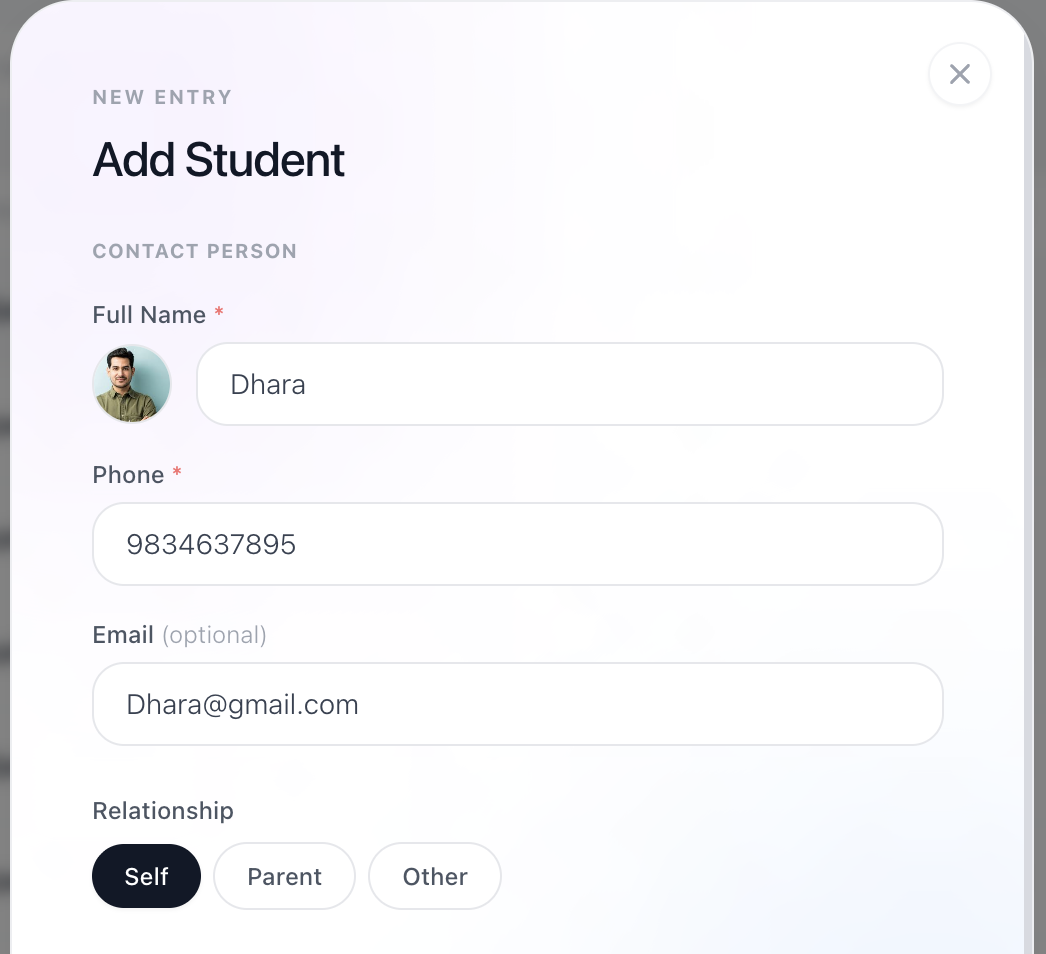
Enter the Contact Person details:
Name
Phone number
Email (optional)
Select the Relationship:
Self → The contact person is the student
Parent → The contact person is registering on behalf of a child
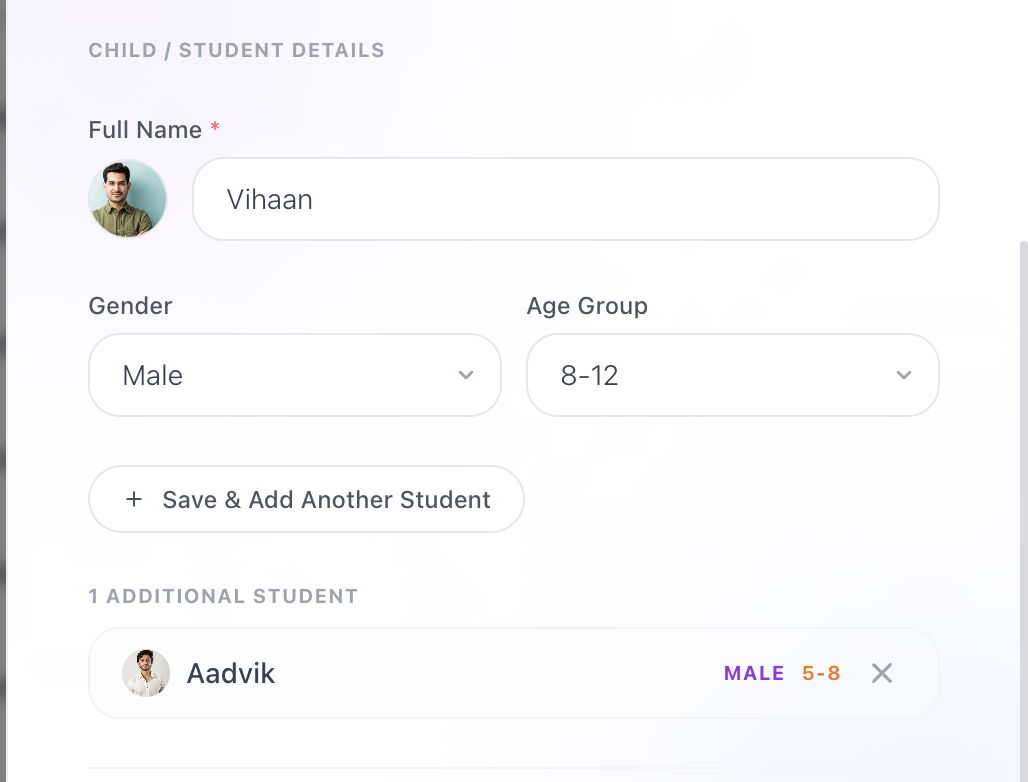
Adding Student Details
If you select Parent, you must add student details:
Student Name
Gender
Age Group
You can add multiple students under the same parent/contact, making it easy to manage siblings.
How It Works
Self → One contact = one student
Parent → One contact can have multiple students linked
This structure helps you manage both individual learners and families efficiently.
Best Practices
Ensure phone numbers are accurate for communication
Use correct relationship selection to avoid confusion
Double-check student details before saving
Conclusion
Manually adding students in Lynk Tower is quick and flexible. Whether you’re adding a single student or managing multiple children under one parent, the system keeps everything organized and easy to track.