How to bulk import a student roster
Add multiple students at once using bulk upload.
Written by Swathi N
Lynk Tower allows you to quickly import student data in bulk, saving time and effort when onboarding multiple students. You can either use the standard Lynk template or upload your own file using AI.
Why Use Bulk Import?
Bulk import is useful when:
You have a large number of students to add
You are migrating data from another system
You want to avoid manual entry
How to Start Bulk Import
Go to the Students tab in Lynk Tower
Click on the Bulk Import button
You will see two options:
Use our template
Import any spreadsheet (AI)
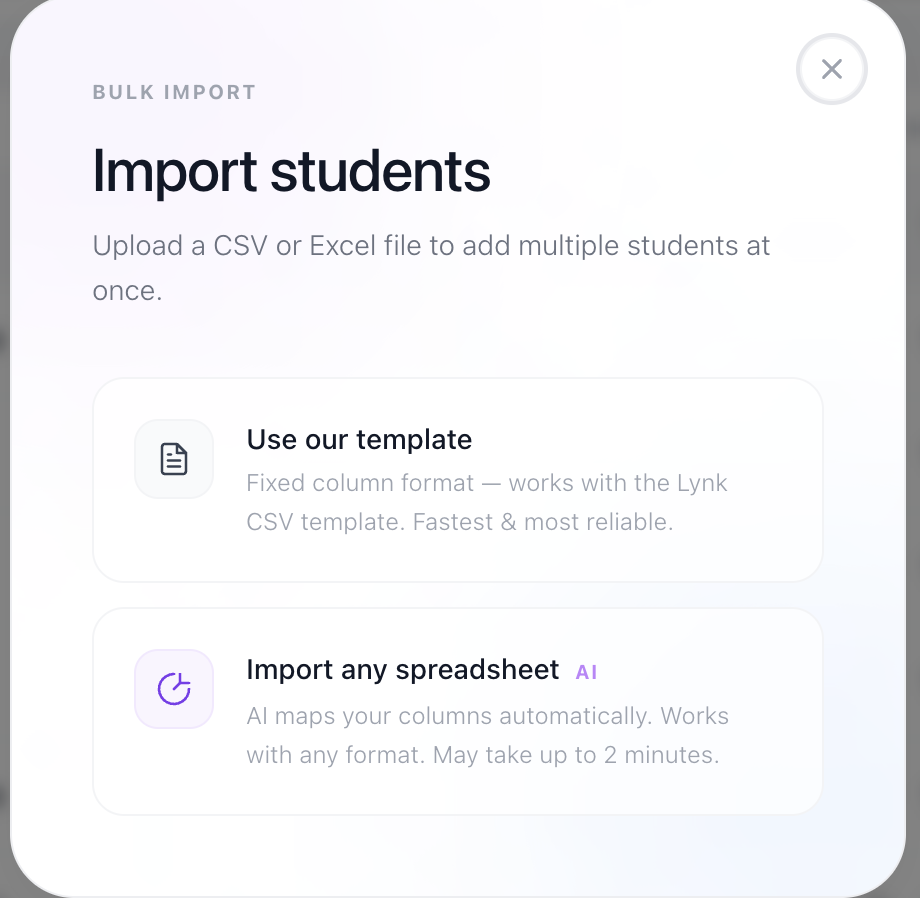
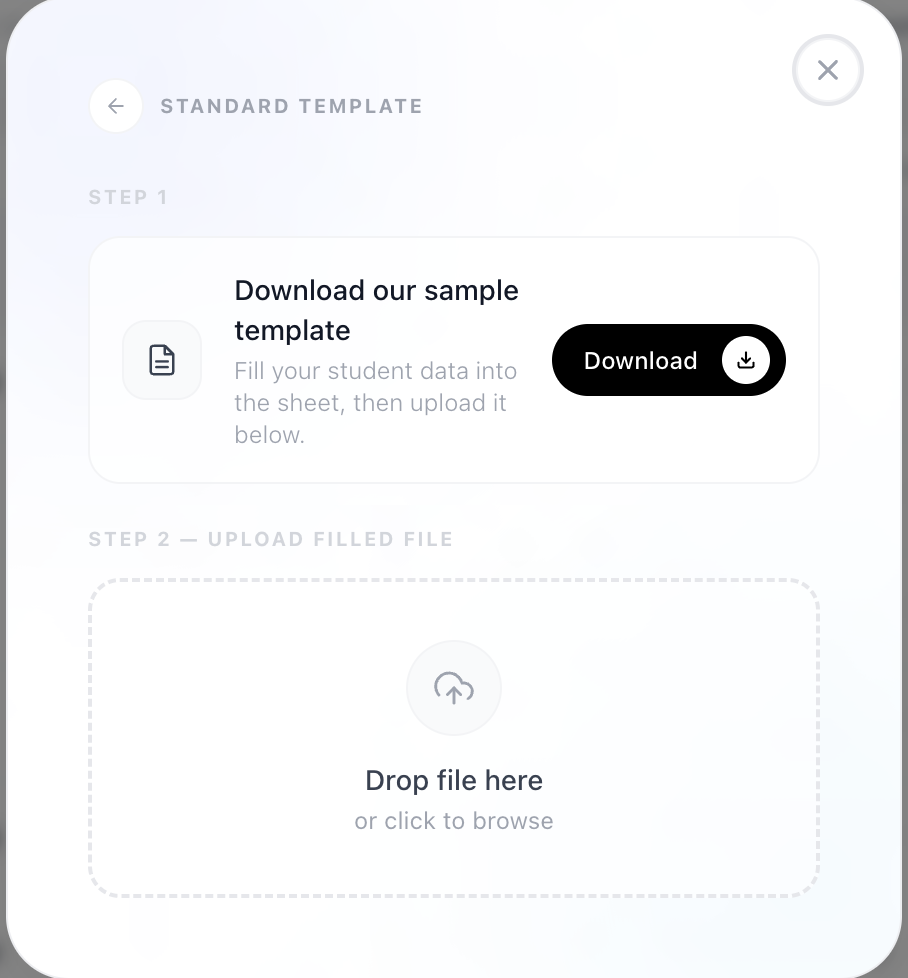
Option 1: Standard Template Upload
Use this option for a structured and error-free import.
Steps:
Download the Lynk template
Fill in student details as per the format
Save the file
Upload it back to Lynk Tower
This method ensures higher accuracy as it follows the predefined format.
Option 2: AI-Based Upload
Use this option if your data is already in a different format.
Steps:
Upload your existing spreadsheet (any format)
Lynk AI will automatically read and map the data
Review the data
Confirm the import
This method is faster and flexible, as it removes the need to reformat your data.

Key Difference
Standard Template | AI Upload |
Requires Lynk format | Accepts any format |
Manual data entry in template | Automatic data mapping |
More structured | More flexible |
Best Practices
Use the template for clean and accurate data
Use AI upload for quick migration from other systems
Always review data before final submission
Conclusion
Bulk importing students in Lynk Tower makes onboarding fast and efficient. Whether you prefer a structured template or a flexible AI-based upload, Lynk ensures a smooth and hassle-free process.