How to create a new organisation
Set up your academy structure and start managing coaches, students, and operations seamlessly
Written by Swathi N
Creating an organisation in Lynk Tower allows you to manage your academy, add coaches, and streamline operations—all in one place.
What is an Organisation?
An organisation represents your academy or coaching business within Lynk Tower.
It helps you:
Manage multiple coaches
Organise batches and students
Control access and operations centrally
Steps to Create a New Organisation
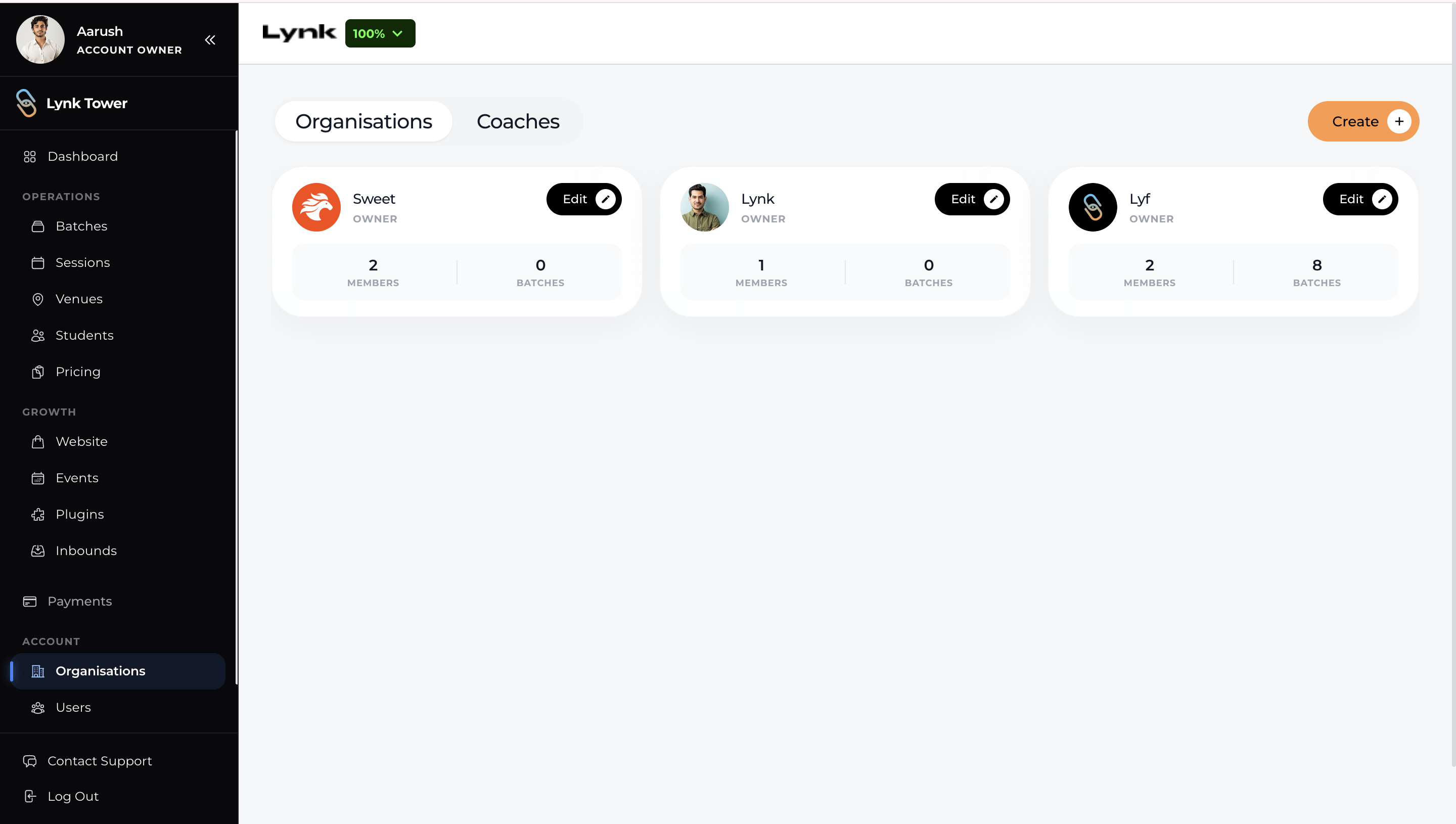
1. Go to the Organisations Tab
Log in to Lynk Tower (Desktop)
From the left sidebar, click on Organisations
2. Click on “Create”
On the top-right corner, click the Create (+) button
A “Create Organisation” window will open
3. Enter Organisation Details
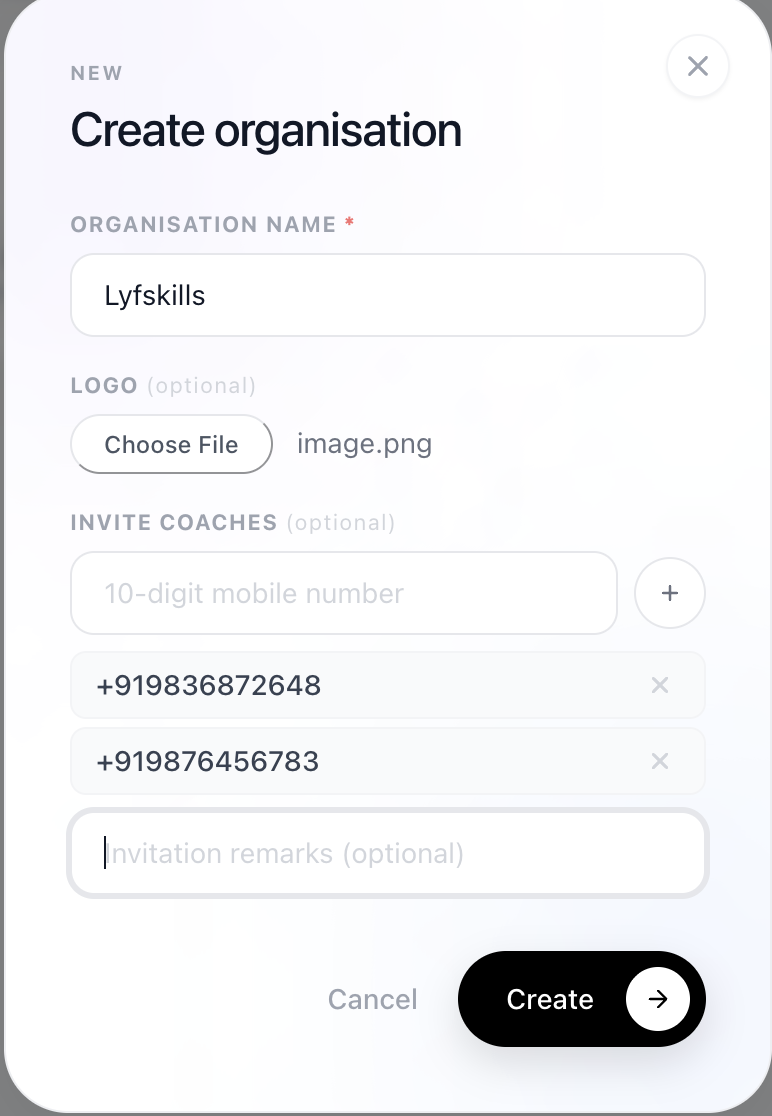
Fill in the required details:
Organisation Name (Required)
→ Enter your academy or organisation name
Logo (Optional)
→ Upload your academy logo for better branding
Invite Coaches (Optional)
→ Add coach mobile numbers to invite them directly
4. Click on “Create”
Once all details are added, click Create
Your organisation will be successfully created
What Happens Next?
After creating your organisation:
You become the Owner/Admin
You can start adding:
Coaches
Students
Batches
Invited coaches will receive an invite to join
Pro Tips
Add your logo to make your academy look more professional
Invite coaches during setup to save time later
You can always edit organisation details anytime
Conclusion
Creating an organisation in Lynk Tower is the first step towards building a structured and scalable coaching setup. With everything—from coaches to students—managed in one place, you can focus more on delivering great sessions while Lynk handles the operations seamlessly.