Inviting new coaches to your organisation
Easily onboard coaches and grow your academy team
Written by Swathi N
Adding coaches to your organisation helps you manage sessions, batches, and students more efficiently as your academy grows.
Why Invite Coaches?
Inviting coaches allows you to:
Assign them to batches and sessions
Let them manage students within your organisation
Collaborate and scale your academy operations
Track their activity and performance
Steps to Invite a Coach
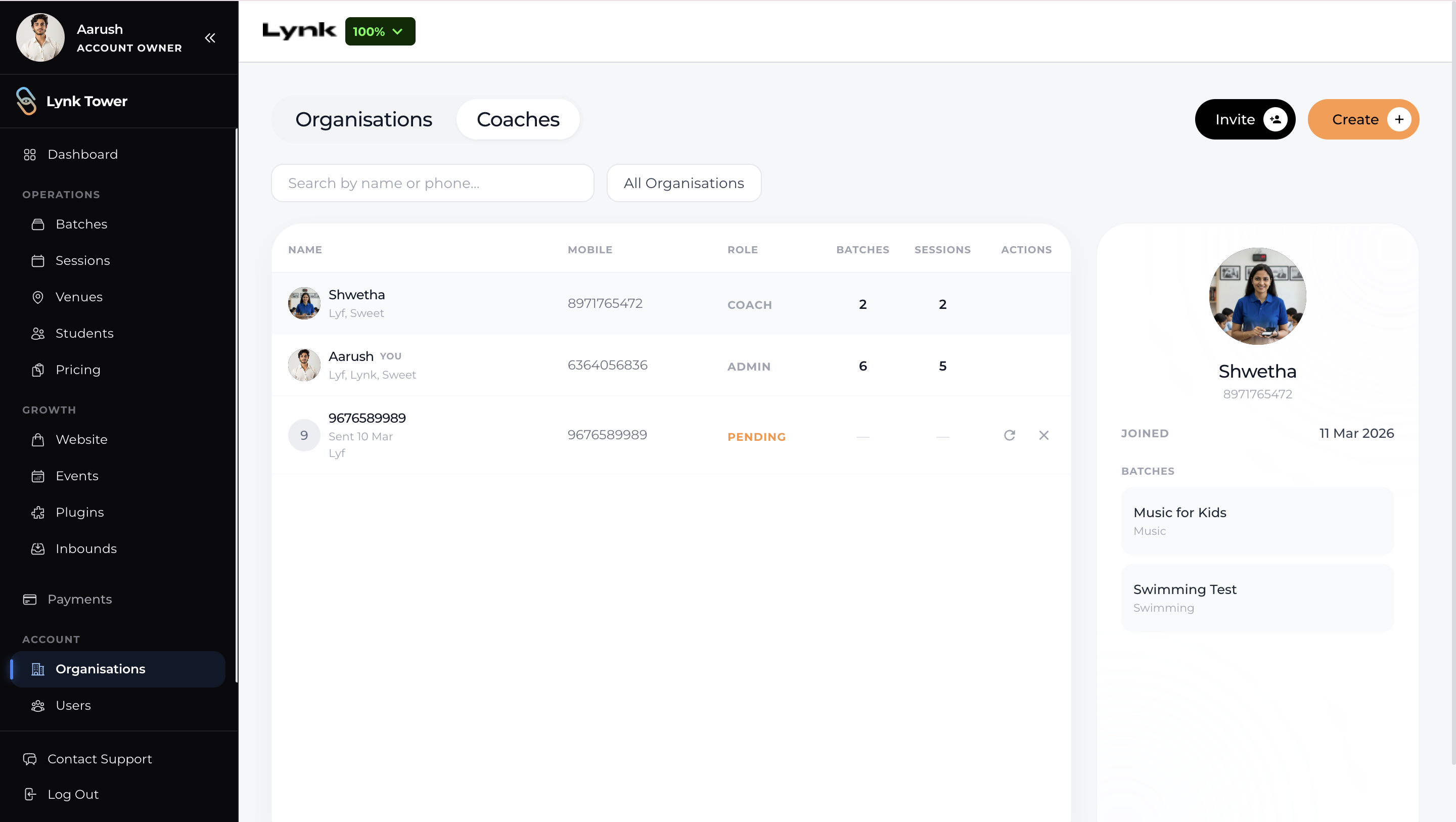
1. Go to the Coaches Tab
Log in to Lynk Tower
Navigate to the Organisations section
Click on the Coaches tab
2. Click on “Invite”
On the top right, click the Invite button
3. Enter Coach Details
Add the coach’s mobile number
Ensure the number is correct to avoid invite issues
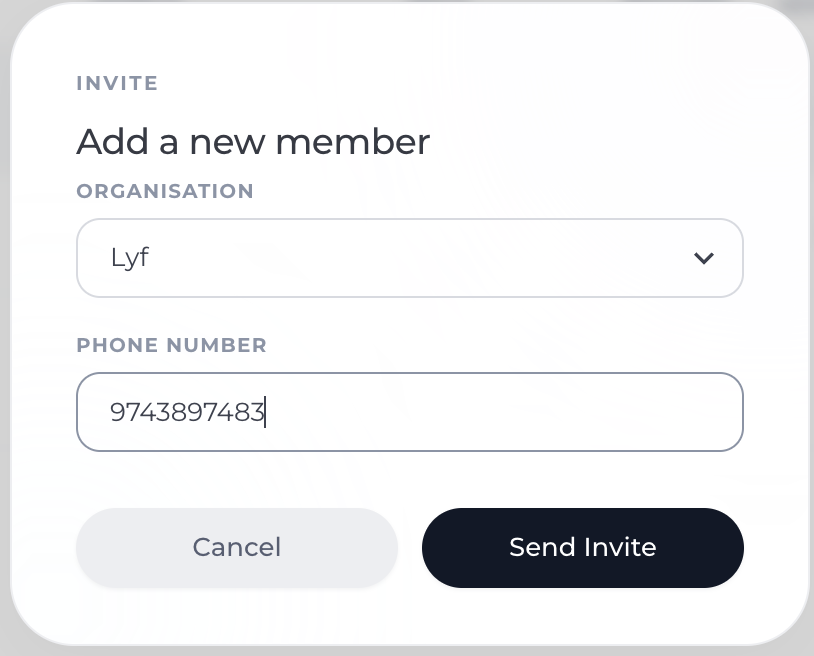
4. Send the Invite
Click on the Send Invite button
The coach will receive an invite to join your organisation on their Lynk profile.
Invite Status Explained
Pending → Invite sent but not yet accepted
Active (Coach) → Coach has accepted and joined
You can also:
Resend invite if not accepted
Cancel invite if needed
What Happens After Acceptance?
The coach gets access to the organisation
They can view assigned batches and students
They can start conducting sessions
Important Notes
Only invited coaches can access your organisation
Coaches must accept the invite to get access
Conclusion
Inviting coaches in Lynk Tower is a quick and effective way to build and manage your team. With simple invite tracking you can seamlessly onboard coaches and keep your academy running efficiently.