Understanding User Roles: Admin, Staff, and Viewer
How different user roles control access and permissions across your workspace.
Written by Swathi N
Managing a team often requires giving different levels of access to different members. Some users may need full control over the platform, while others only need limited access to perform specific tasks. In Lynk Tower, user roles help administrators manage these permissions effectively.
This guide explains the three main roles available in the platform: Admin, Staff, and Viewer, and what each role is allowed to do.
Why User Roles Matter
User roles help maintain both security and operational clarity within your workspace. By assigning the correct role to each team member, you can:
Control who can edit or manage key settings
Ensure staff members only access the tools they need
Prevent accidental changes to important data
Keep sensitive areas restricted to administrators
Each role in Lynk Tower comes with a different level of access.
Admin Role — Complete Access
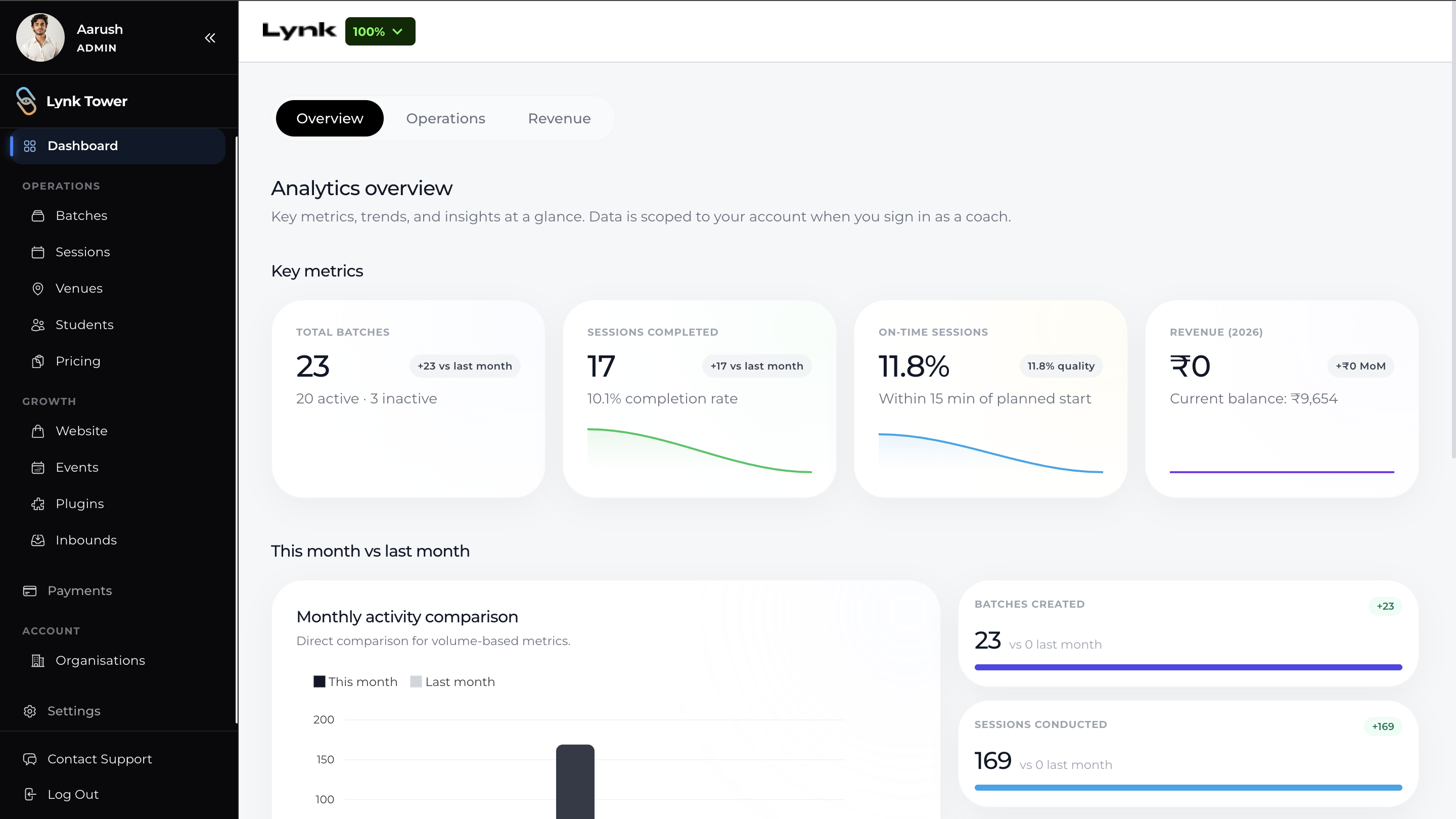
The Admin role provides full control over the workspace. Administrators can access and manage all features available in the platform.
Admins can manage areas such as:
Dashboard – View insights and performance data
Batches – Create, edit, and manage classes
Sessions – Manage session schedules
Venues – Add or edit locations
Students – Add, update, or manage student records
Pricing - Add or remove pricing plans
Website – Customize the public storefront
Inbound Leads – Manage incoming trial or inquiry requests
Events – Manage event-related features
Payments – Track payments and request fees
Plugins and Integrations
Organisation – Add or remove coach
Workspace Settings
Because admins have complete control, this role should typically be assigned to academy owners or senior administrators.
Staff Role — Operational Access
The Staff role is designed for team members who help run daily coaching operations but do not require full administrative control.
Staff members can access and manage operational areas such as:
Batches – Work with existing batches
Sessions – Edit or manage sessions
Venues - See venue details
Students – View student records
Inbound Leads – View incoming inquiries
However, staff members typically cannot manage platform-level settings like:
Store Builder
User management
Plugins or workspace settings
This ensures that core system configuration remains restricted to admins.

Viewer Role — View-Only Access
The Viewer role is intended for users who only need to monitor information without making changes.
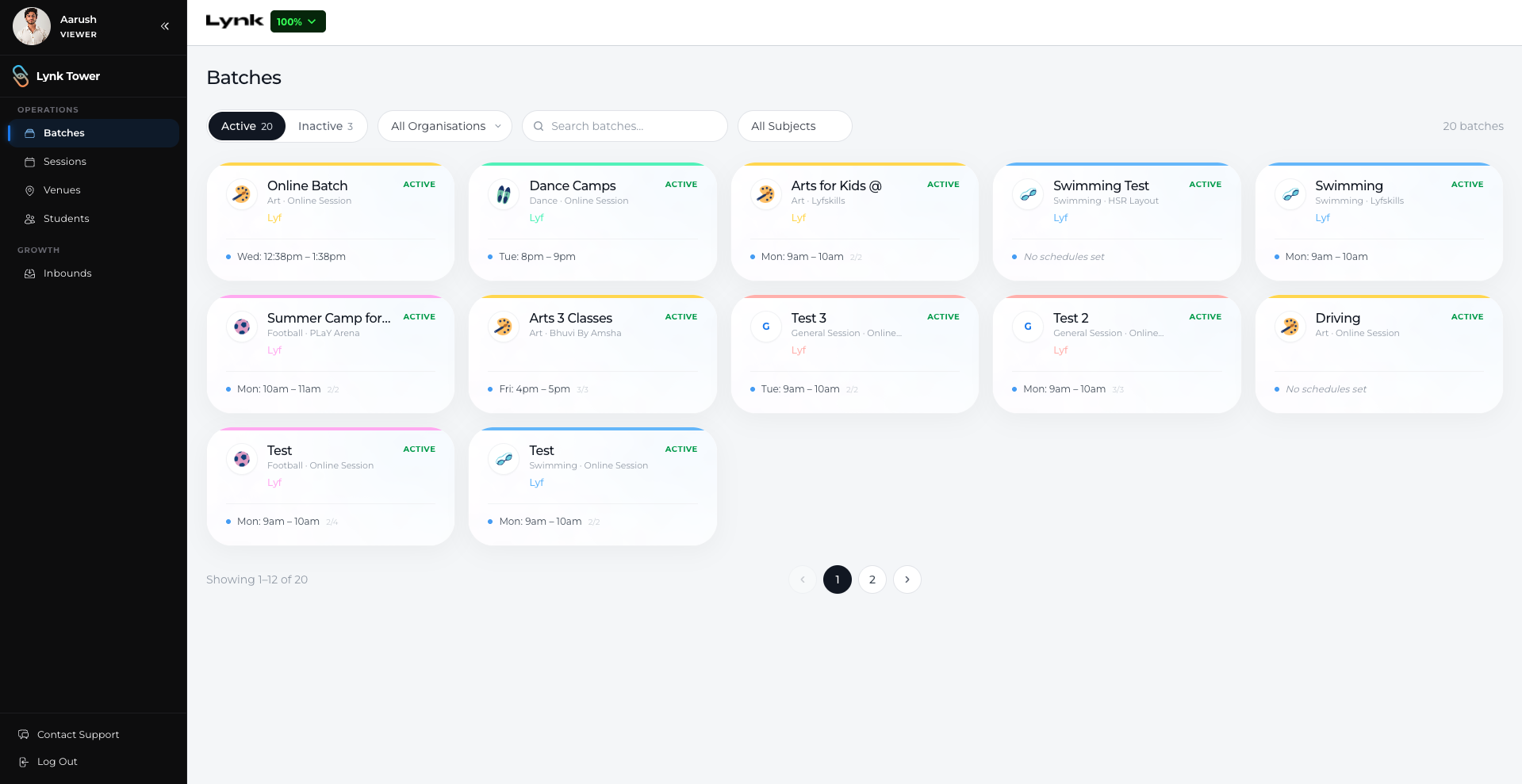
Viewers can access sections such as:
Batches – View existing classes
Sessions – View session schedules
Venues – See venue details
Students – View student records
Inbound Leads – View incoming inquiries
However, viewers cannot create, edit, or delete data.
This role is useful for:
Observers or stakeholders
Administrative assistants
Partners who need visibility into operations
Choosing the Right Role for Your Team
When assigning roles, consider each team member’s responsibilities.
For example:
Admin – Academy owners or senior managers
Staff – Coaches or operations staff managing sessions
Viewer – Team members who only need oversight or reporting access
Assigning the right role helps maintain security, clarity, and efficient teamwork.
Conclusion
User roles in Lynk Tower help organizations manage their teams effectively by controlling who can access and modify different parts of the system. By assigning the correct roles—Admin, Staff, or Viewer—you can ensure that your team members have the right level of access to perform their responsibilities while keeping critical settings secure.