How to change a team member's access level
Update a user’s role to adjust their permissions as responsibilities change.
Written by Swathi N
As your team grows, responsibilities may evolve. A staff member may take on more administrative duties, or a user may need reduced access after a role change. In Lynk Tower, administrators can easily update a team member’s role to adjust their access level.
Why You May Need to Change a User’s Role
Team responsibilities often change over time. Updating a user’s access level ensures they have the right permissions to perform their tasks.
Common reasons to update a role include:
Promoting a Staff member to Admin for greater management responsibilities
Changing an Admin to Staff to limit system access
Assigning Viewer access to someone who only needs to monitor data
Adjusting permissions as team members take on new roles within the organization
Keeping roles updated helps maintain security and operational clarity.
Accessing the User Management Section
To change a team member’s role:
Open Lynk Tower.
Navigate to the Users section from the dashboard.
Locate the team member whose access level you want to update.
Click the Edit icon next to their name.
This will open the Edit User window where you can modify their profile.
Updating the User’s Role
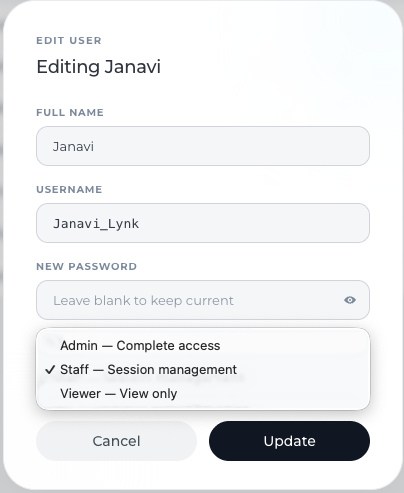
Inside the Edit User window, you will find the Role field.
To update the role:
Click the Role dropdown menu.
Select the new role you want to assign, such as:
Admin — Complete access
Staff — Operational access
Viewer — View-only access
Click Update to save the changes.
Once updated, the user’s permissions will immediately reflect the new role.
What Happens After the Role Is Changed
When a role is updated:
The user’s permissions automatically adjust to match the selected role
New sections or tools may become accessible
Certain editing or management capabilities may be restricted if access is reduced
The user does not need to create a new account—their existing account will continue to work with the updated permissions.
Best Practices for Managing User Roles
To maintain a secure and well-organized workspace:
Review roles regularly
Ensure each team member has the correct level of access.
Limit admin privileges
Assign admin access only to trusted team members responsible for managing the platform.
Adjust roles when responsibilities change
Update permissions whenever a user’s duties evolve within the organization.
Conclusion
Updating a team member’s role in Lynk Tower allows administrators to easily manage permissions as team responsibilities change. By adjusting access levels when needed, organizations can ensure that every user has the right tools to perform their role while maintaining platform security.