How to remove a user from your workspace
Revoke workspace access for former staff members by removing their user account.
Written by Swathi N
Managing your team also means ensuring that only the right people have access to your workspace. When a staff member leaves your organization or no longer needs access, administrators can easily remove them from the system. In Lynk Tower, removing a user revokes their ability to log in and access your workspace.
This guide explains how to safely remove a user from your team.
Why You May Need to Remove a User
There are several situations where an admin might need to remove a team member from the workspace:
A staff member has left the organization
A temporary team member or assistant no longer needs access
Duplicate or incorrect user accounts were created
You want to maintain security and limit platform access
Removing inactive users helps keep your workspace organized and secure.
Accessing the Users Section
To remove a team member:
Open Lynk Tower.
Navigate to the Users section in the dashboard.
Locate the team member you want to remove from the list.
Each user entry includes management options that allow administrators to edit or remove the account.

Removing a User from the Workspace
To revoke access for a team member:
Find the user you want to remove.
Click the Delete (trash can) icon next to the user’s name.
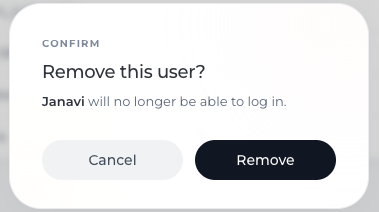
Confirm the removal when prompted.
Once confirmed, the user will immediately lose access to the workspace and will no longer be able to log in.
What Happens After a User Is Removed
When a user is deleted:
Their login access is revoked
They will no longer appear in the Users list
They cannot access the workspace or platform features
Removing a user does not affect existing data such as programs, batches, or storefront content already created in the system.
Best Practices Before Removing a User
Before removing a team member, administrators should:
Confirm the user no longer needs access
Ensure the team member has completed their work or transitioned responsibilities.
Transfer responsibilities if required
If the user managed programs, students, or storefront content, ensure another team member is responsible for those areas.
Avoid removing active administrators accidentally
Always confirm that another admin account exists to maintain full access to the workspace.
Conclusion
Removing a user in Lynk Tower is a simple way to maintain security and keep your workspace organized. By revoking access for former staff or inactive users, administrators can ensure that only the current team members can manage programs, storefronts, and operations.