Editing team member details and resetting passwords
Update user information or reset login credentials for team members.
Written by Swathi N
Managing your team effectively requires keeping user information accurate and ensuring everyone can access the system when needed. In Lynk Tower, administrators can easily update team member details, change roles, or reset passwords if a user is unable to log in.
This guide explains how to edit team member information and assign a new password when required.
Why Team Member Management Matters
As your academy or coaching organization grows, you may add multiple team members such as administrators, operations staff, or coaches who help manage day-to-day activities.
Keeping user profiles updated helps you:
Maintain accurate staff information
Ensure proper access control for different users
Quickly resolve login issues if someone forgets their password
Adjust roles as team responsibilities evolve
The Users section in Lynk Tower allows admins to manage these updates quickly from one place.
Accessing the User Management Section
To edit or update a team member:
Open the Users section from the dashboard.
Locate the team member whose information you want to update.
Click the Edit icon next to their name.
This opens the Edit User window where you can modify their details.
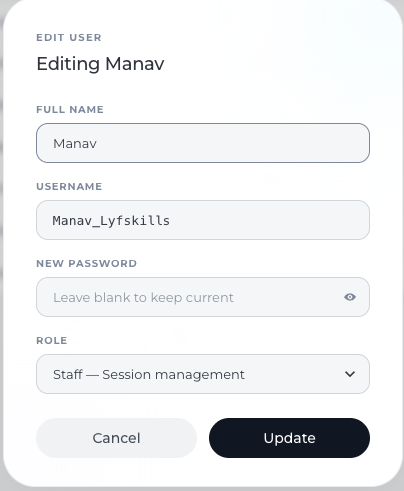
Editing Team Member Information
Inside the Edit User window, admins can update key user information.
Full Name
This is the name displayed across the platform for the user.
Example:
Jinny
Rahul Sharma
Priya Nair
Updating the name ensures accurate identification across the system.
Username
The Username is the login ID used by the team member to access the platform.
Admins can update this if:
The username needs to be standardized
The team member prefers a different login name
There was an error during account creation
Resetting a Team Member’s Password
If a team member forgets their password, the admin can assign a new one directly from the edit screen.
To reset the password:
Open the Edit User window.
Enter a new password in the New Password field.
Click Update to save the change.
Once updated, the admin can share the new password securely with the user so they can log in again.
Important:
If the New Password field is left blank, the user’s existing password will remain unchanged.
Updating User Roles
Admins can also change the role assigned to a team member.
Roles determine the level of access the user has within the platform.
Example role:
Admin — Complete access
Users with admin access can manage:
Platform settings
Team members
Storefront configurations
Classes and programs
Updating roles ensures that each user has the correct level of responsibility and access.
Best Practices for Managing User Accounts
To keep your system organized and secure:
Regularly update user information
Ensure names and usernames remain accurate.
Reset passwords when needed
If a team member is unable to access their account, quickly assign a new password.
Assign roles carefully
Provide admin access only to trusted team members responsible for platform management.
Conclusion
Managing team members in Lynk Tower is simple and flexible. By updating user information, resetting passwords when needed, and assigning the correct roles, admins can ensure their team has the right access to operate the platform smoothly.
Keeping your team accounts organized helps maintain security while ensuring everyone can collaborate effectively on managing your coaching operations.