How to add a new team member
Add coaches or staff to your organisation so they can help manage sessions and students.
Written by Swathi N
If you run an academy or organisation on Lynk, you can invite additional team members such as coaches or administrators. Each team member receives their own login credentials and can access the platform based on the permissions you assign.
Adding users helps distribute operational responsibilities like conducting sessions, managing batches, or viewing student lists while keeping control within your organisation.
Accessing the Users Section
To add a new team member:
Open Lynk Tower.
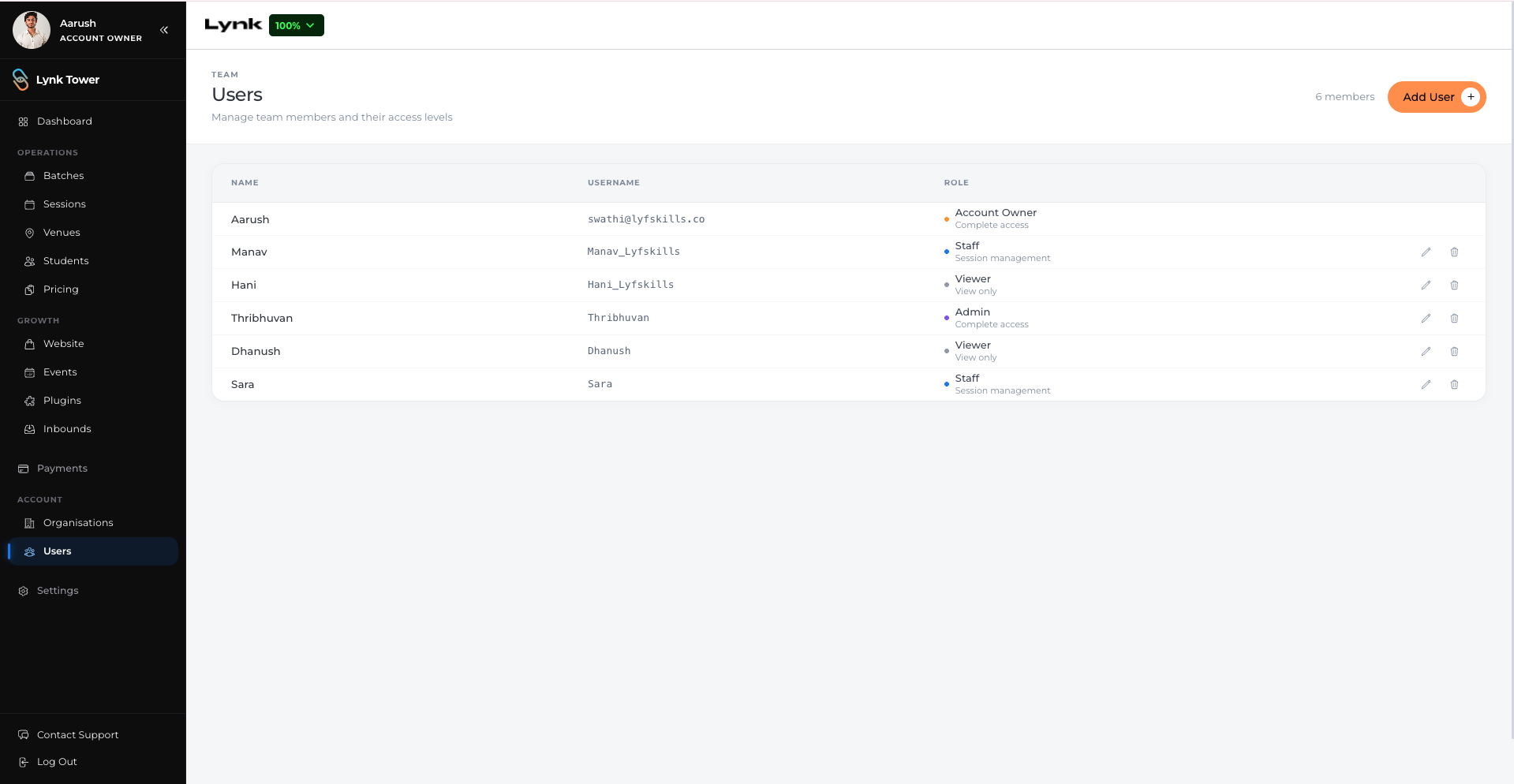
From the left sidebar, click Users.
This will open the team management dashboard where all current users are listed.
Here you can view existing users and manage access for your organisation.
Adding a New User
To create a new team member account:
Click the Add User button.
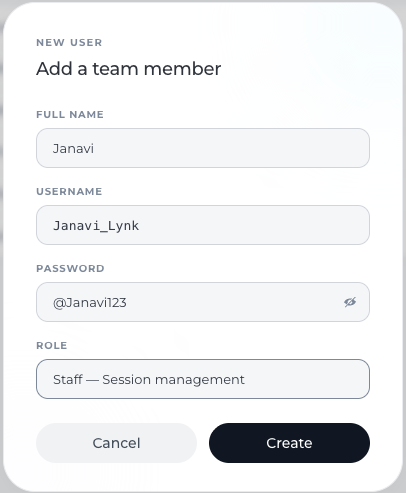
A form will appear where you can enter the user details.
You will need to provide the following information:
Name of the team member
Username – This will be used to log in to the platform.
Initial Password – A password for the login.
Make sure the username is unique and easy for the team member to remember.
Setting Login Credentials
When creating a user account, the admin sets the login credentials.
These include:
Username – The login ID used to access the platform.
Password – The password used to sign in.
You can share these credentials with the team member so they can access their account.
Saving the User
After entering the required information:
Review the details you have entered.
Click Create User.
The new team member will now appear in the Users list.
What Happens Next
Once the user account is created:
The team member can log in using the username and password provided.
They will gain access to the features available to them within the organisation.
Admins can update or manage user details later if needed.
Best practices when adding team members
Use clear usernames so accounts are easy to identify
Share login details securely with the team member
Add only coaches or staff who actively participate in operations
Review your team list periodically to keep access organised
Conclusion
Adding team members in Lynk Tower helps distribute responsibilities and allows coaches or staff to participate in managing sessions, students, and programs. By creating a user account through the Add User option, admins can quickly give their team the access they need to collaborate on the platform.