Archiving unengaged leads
Move inactive or irrelevant leads to the Archived status while keeping their data saved.
Written by Swathi N
Not every inquiry turns into a student. Some leads may stop responding, lose interest, or no longer be relevant. In such cases, you can move these leads to Archived status in Lynk Tower.
Archiving helps keep your Leads inbox organized without permanently deleting the lead’s information.
Why Archive Leads
Archiving is useful when a lead:
Is no longer interested in joining classes
Did not respond to follow-ups
Submitted an inquiry by mistake or duplicate
Is not relevant anymore
Instead of deleting the lead, archiving simply moves it out of the active pipeline.
How to Archive a Lead
To archive a lead:
Open the Inbound section.
Navigate to the Leads tab.
Locate the lead you want to archive.
Change the status of the lead to Archived.
Once updated, the lead will move out of the active list.
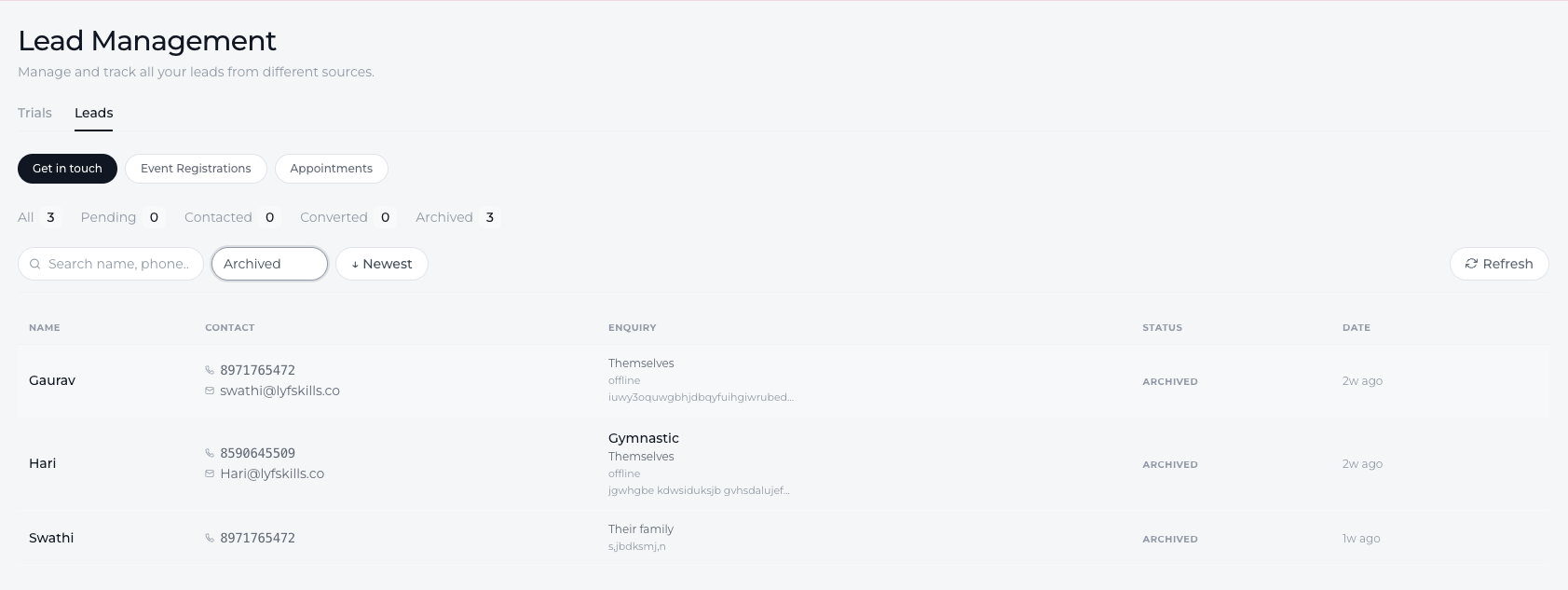
What Happens When a Lead Is Archived
When a lead is marked as Archived:
The lead is removed from the existing list
The information is still stored in the system
You can view archived leads later using filters
This allows you to maintain a clean inbox while keeping a record of past inquiries.
Viewing Archived Leads
If you need to review archived leads:
Go to the Leads section.
Use the status filter.
Select Archived to view all archived inquiries.
This helps you access older leads without cluttering the active lead pipeline.
Conclusion
Archiving leads in Lynk Tower helps you keep your lead pipeline organized by moving inactive or unengaged inquiries out of the active list. The Archived status ensures that the data remains available for future reference while keeping your workspace clean and manageable.