How to respond to a Trial Request
Manage incoming trial requests by accepting, rejecting, or archiving them.
Written by Swathi N
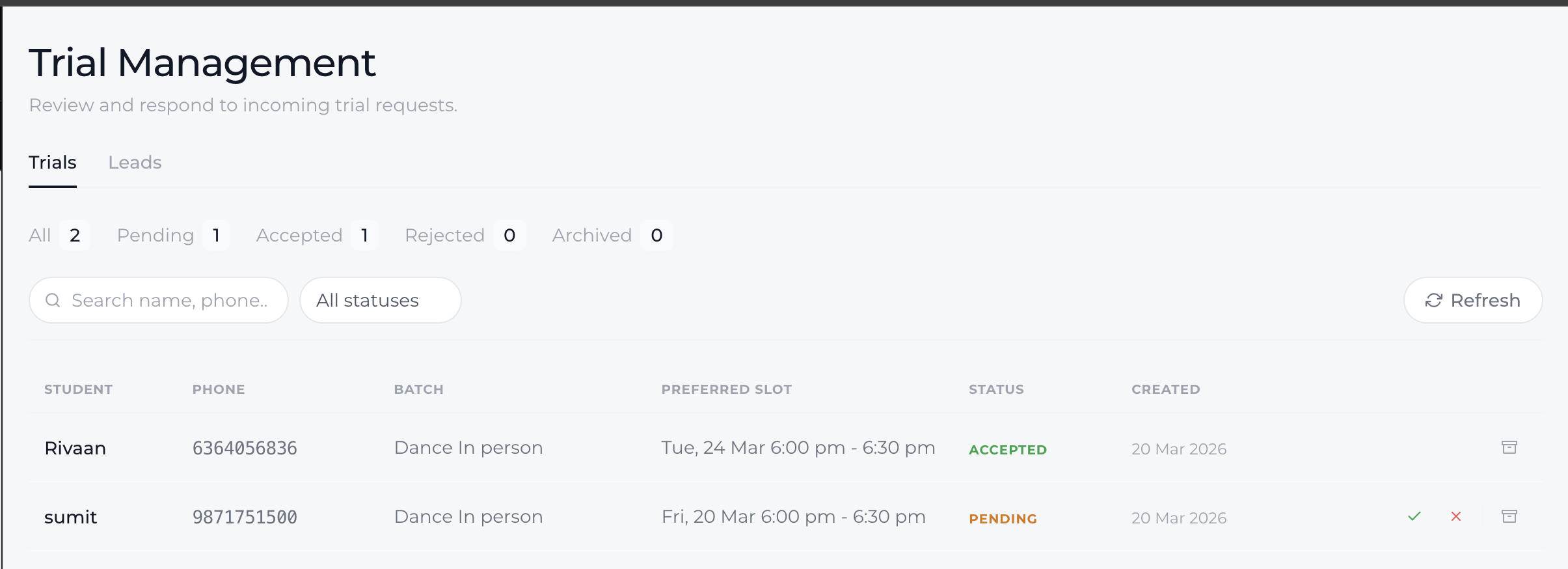
Trial requests submitted through your website appear in the Trials section of the inbound dashboard in Lynk Tower. From here, administrators or staff can quickly review each request and take action using the available quick-action icons.
This allows you to confirm trial bookings, decline requests if a slot is unavailable, or archive requests that no longer require action.
Accessing Trial Requests
To respond to a trial request:
Open Lynk Tower.
Navigate to the Inbound section.
Select the Trials tab.
All incoming trial bookings submitted from your website will be listed here.
Each request displays important information such as the student name, selected batch, and preferred session slot.
Accepting a Trial Request
If the requested session slot is available, you can accept the trial request.
To accept a trial:
Locate the trial request in the list.
Click the Accept icon in the quick actions.
What Happens After Accepting a Trial
Once a trial booked by a student or parent from your store/website is accepted:
The request moves to Accepted status under the Inbounds → Trial Management section
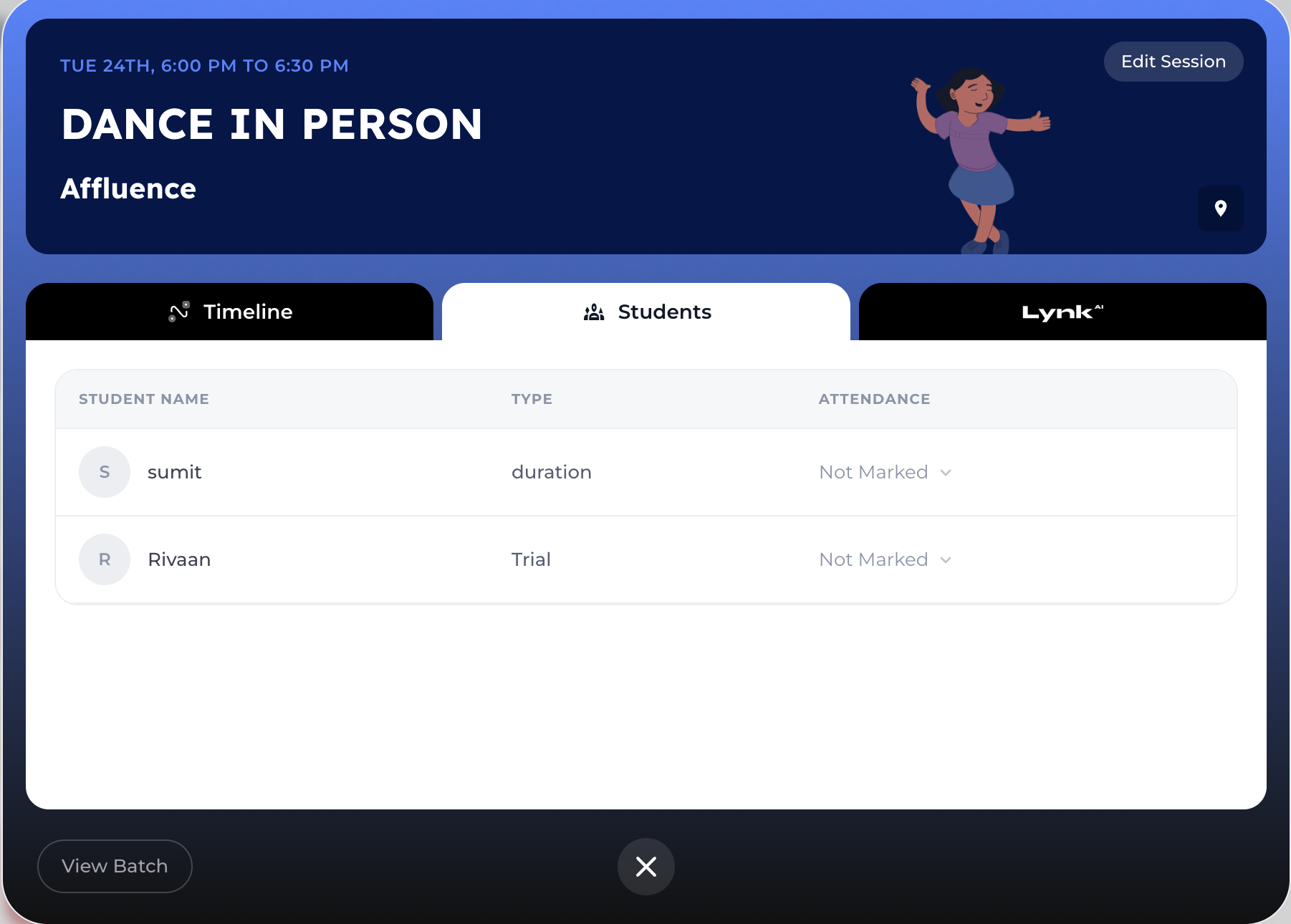
The trial appears in the session card on the selected date under the Students tab
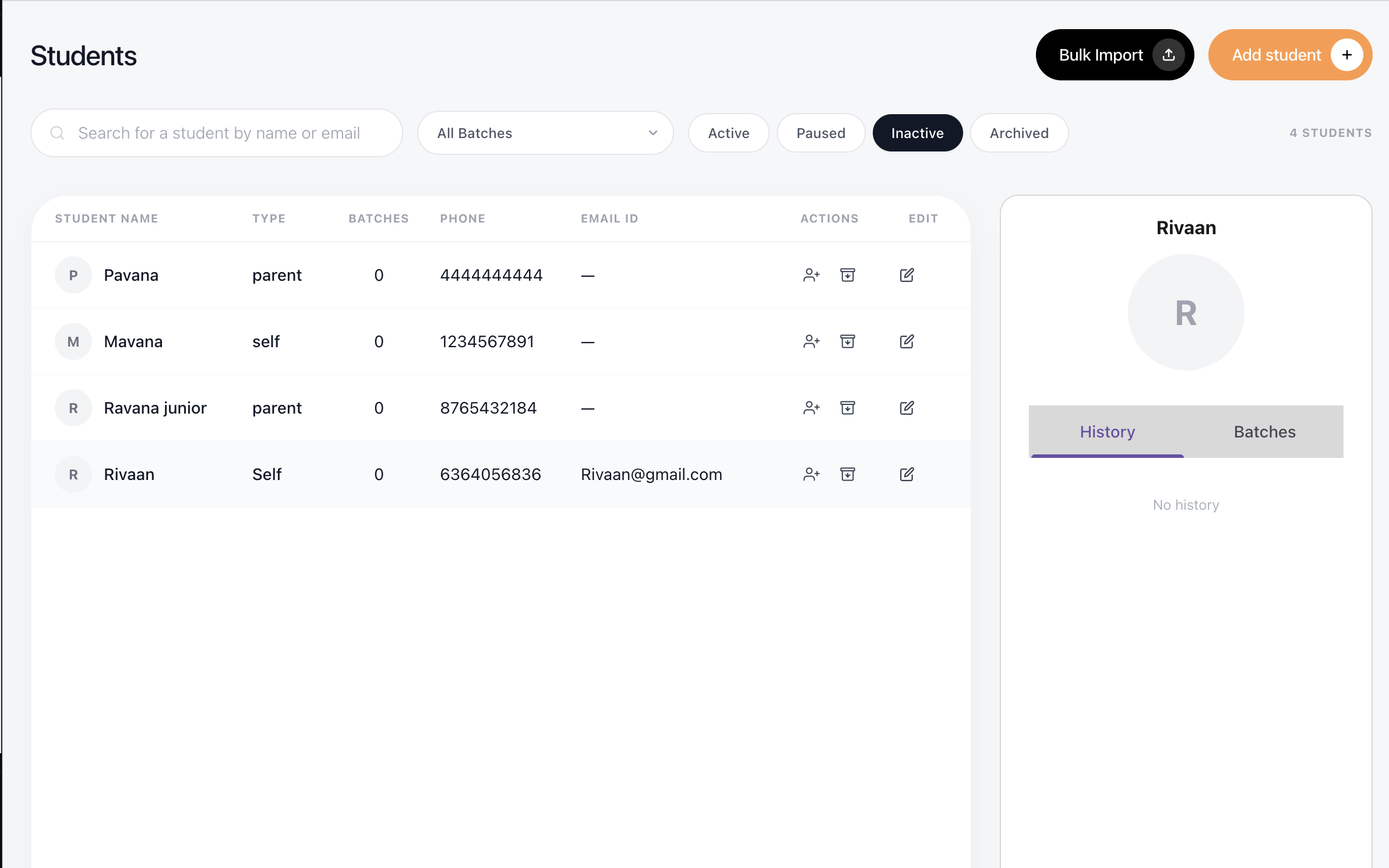
The student is automatically added to your Inactive Students list
This ensures that the trial is properly tracked across your system—from lead management to session execution.
Rejecting a Trial Request
Sometimes a trial request may need to be declined—for example, if the session slot is already full or unavailable.
To reject a request:
Find the trial request in the dashboard.
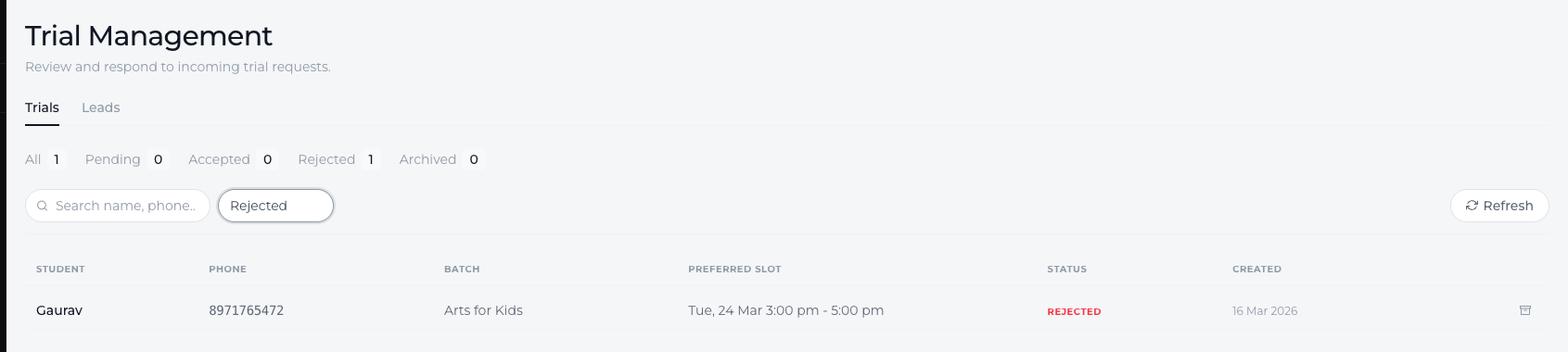
Click the Reject icon in the quick actions.
This marks the request as rejected in the system.
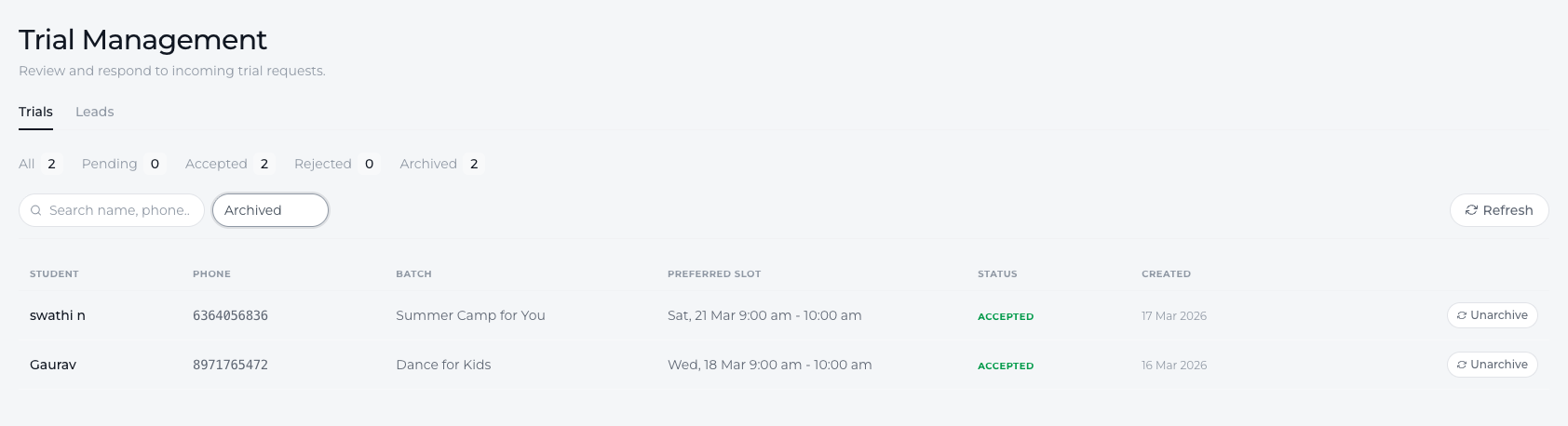
Archiving a Trial Request
If a request has already been handled or no longer requires action, it can be archived.
To archive a trial request:
Locate the request in the Trials list.
Click the Archive icon.
Archiving helps keep the dashboard organized by removing completed or inactive requests from the main list.
Conclusion
The Trials section in Lynk Tower allows you to quickly manage incoming trial bookings. Using the quick-action icons, you can accept, reject, or archive trial requests, making it easy to handle inquiries from potential students who book trials through your website.