How to Edit or Delete an Existing Pricing Plan
Update or remove pricing plans as your batches and fee structures evolve.
Written by Swathi N
In Lynk, you can easily edit or delete existing pricing plans from the Pricing tab. This allows you to keep your pricing accurate and aligned with your current offerings.
Where to Find Edit & Delete Options
Navigate to the Pricing section
Locate the plan you want to update
In the Action column, you will see:
Edit option
Delete option
How to Edit a Pricing Plan
Click on the Edit option to modify an existing plan.
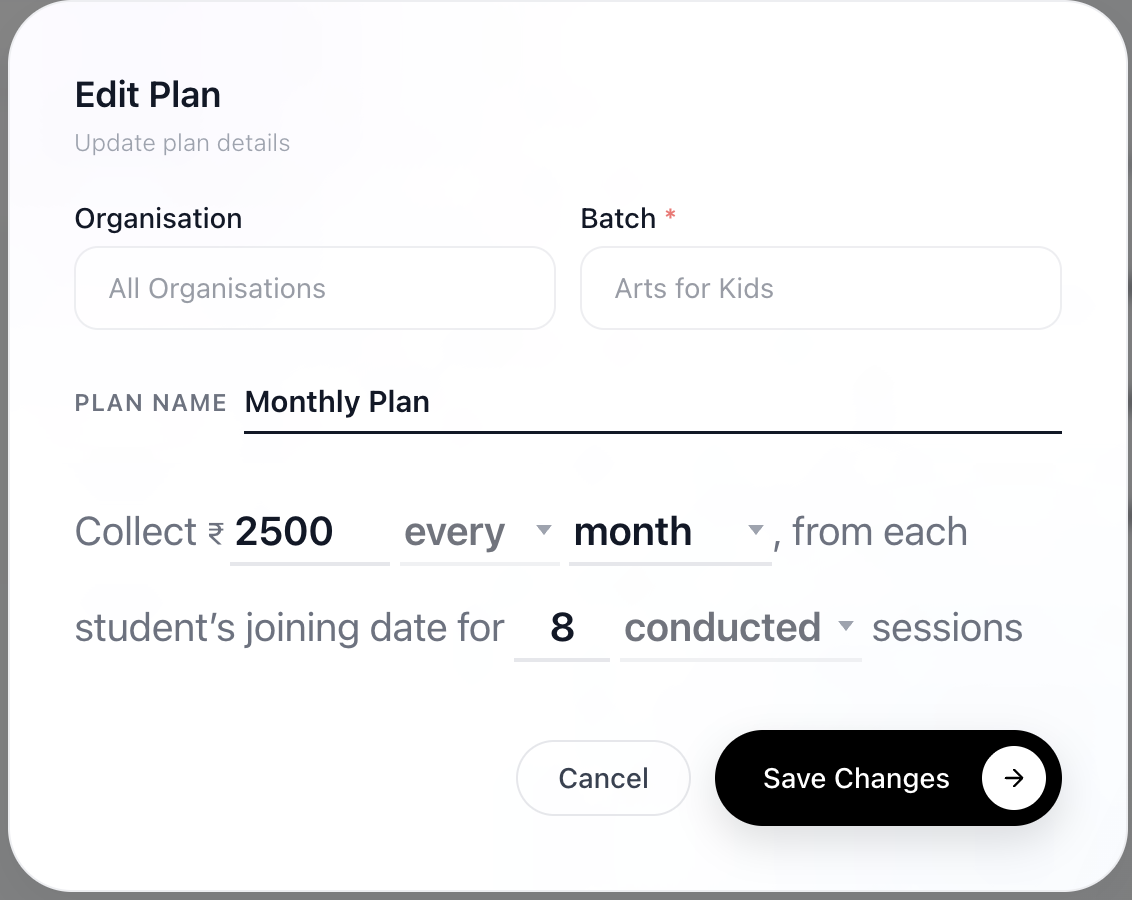
Editable Fields for Session-Based Plans
For session-based plans, you can update:
Plan Name
Amount
Number of Sessions
Editable Fields for Duration-Based Plans
For duration-based plans, editable fields depend on the billing type:
1. “On the” (Fixed Date Billing)
You can edit:
Plan Name
Amount
Day (specific date)
Frequency (monthly, quarterly, etc.)
2. “Every” (Joining Date Billing)
You can edit:
Plan Name
Amount
Frequency (monthly, quarterly, etc.)
Saving Changes
After making the required updates
Click Save Changes
The updated plan will immediately reflect across all linked batches.
Filtering Plans by Batch
To manage plans more efficiently:
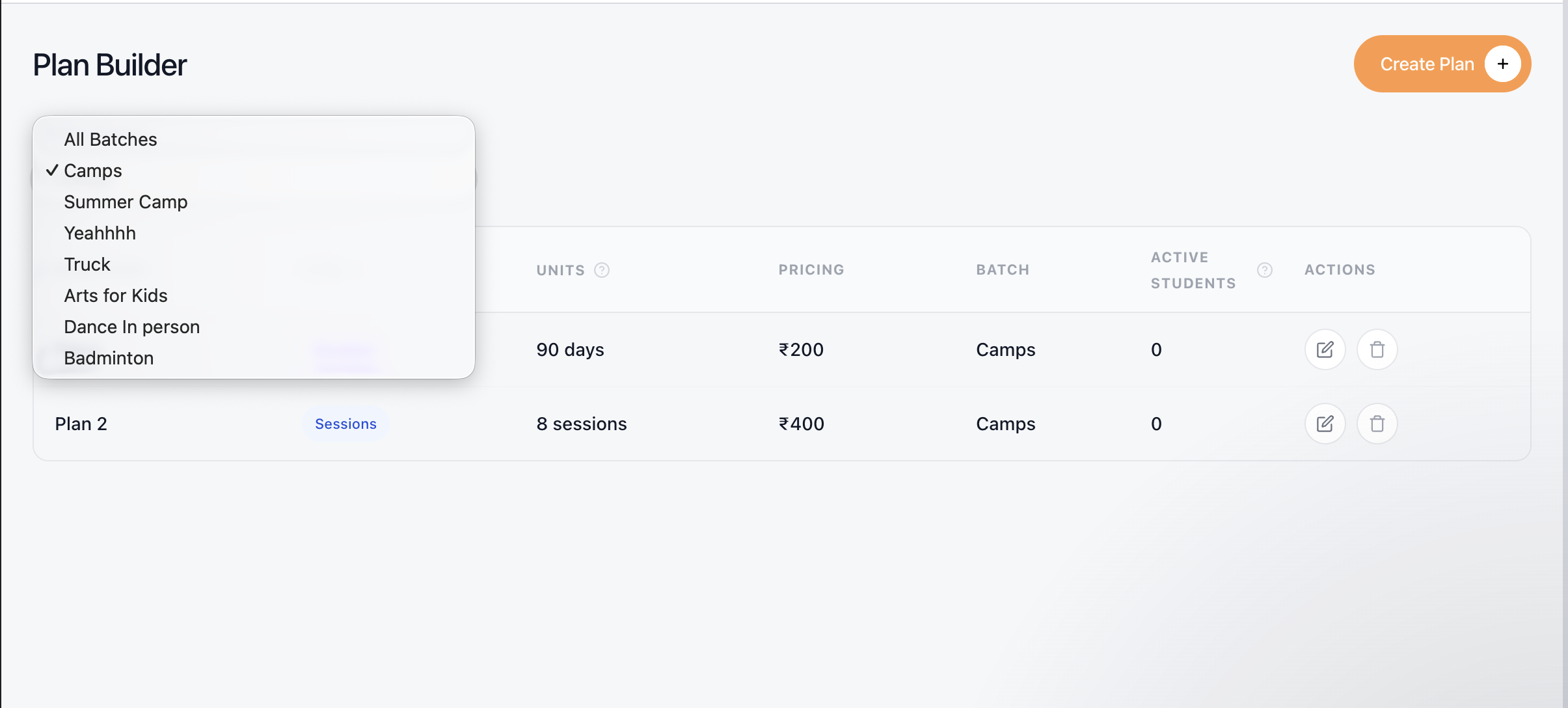
Use the Batch Filter in the Pricing tab
Select a specific batch
View all pricing plans associated with that batch
This helps you:
Quickly find relevant plans
Decide whether to edit, retain, or remove a plan
How to Delete a Pricing Plan
To remove a plan:
Go to the Pricing section
Locate the plan
Click the Delete icon in the Action column
Confirm the action in the popup

What Happens After Deletion
The plan is removed from the system
It will no longer be available for new enrollments
Existing usage (if any) remains unaffected
Best Practices
Review plans regularly to keep pricing updated
Use batch filters to avoid editing the wrong plan
Delete unused or outdated plans to keep your dashboard clean
Conclusion
Editing and deleting pricing plans in Lynk is simple and flexible. Whether you need to update pricing details or remove outdated plans, the Pricing tab gives you full control to manage your fee structure efficiently across all batches.