How to edit a batch's recurring schedule
How to update batch details and modify the recurring schedule by editing session days, timings, or adding and removing schedules.
Written by Swathi N
In Lynk Tower, you can update an existing batch whenever there are changes in the session schedule, class timings, or coach assignments. The Edit Batch option allows you to modify both the batch details and the recurring session schedule without needing to create a new batch.
This helps ensure that your future sessions follow the most up-to-date schedule.
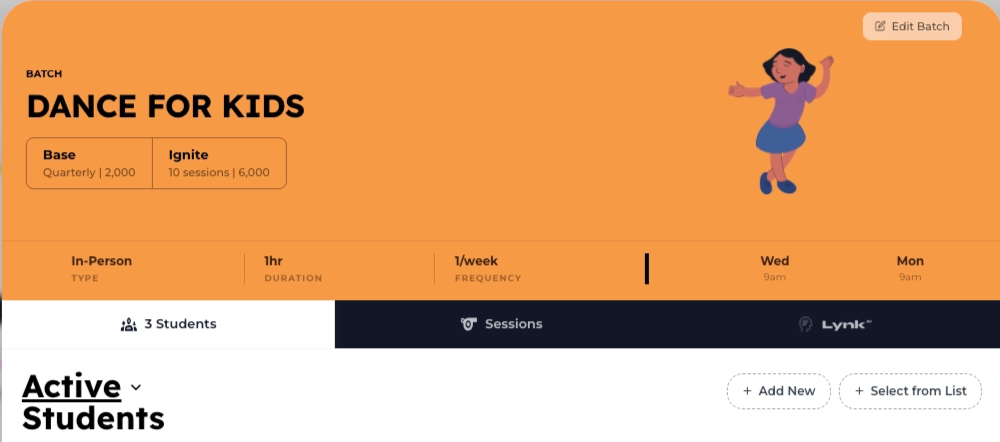
Editing Batch Details
You can edit certain basic details of a batch from the Details section.
Steps to Edit Batch Details
Go to the Batches tab in Lynk Tower.
Select the batch you want to update.
Click the Edit button.
This will open the Edit Batch window.
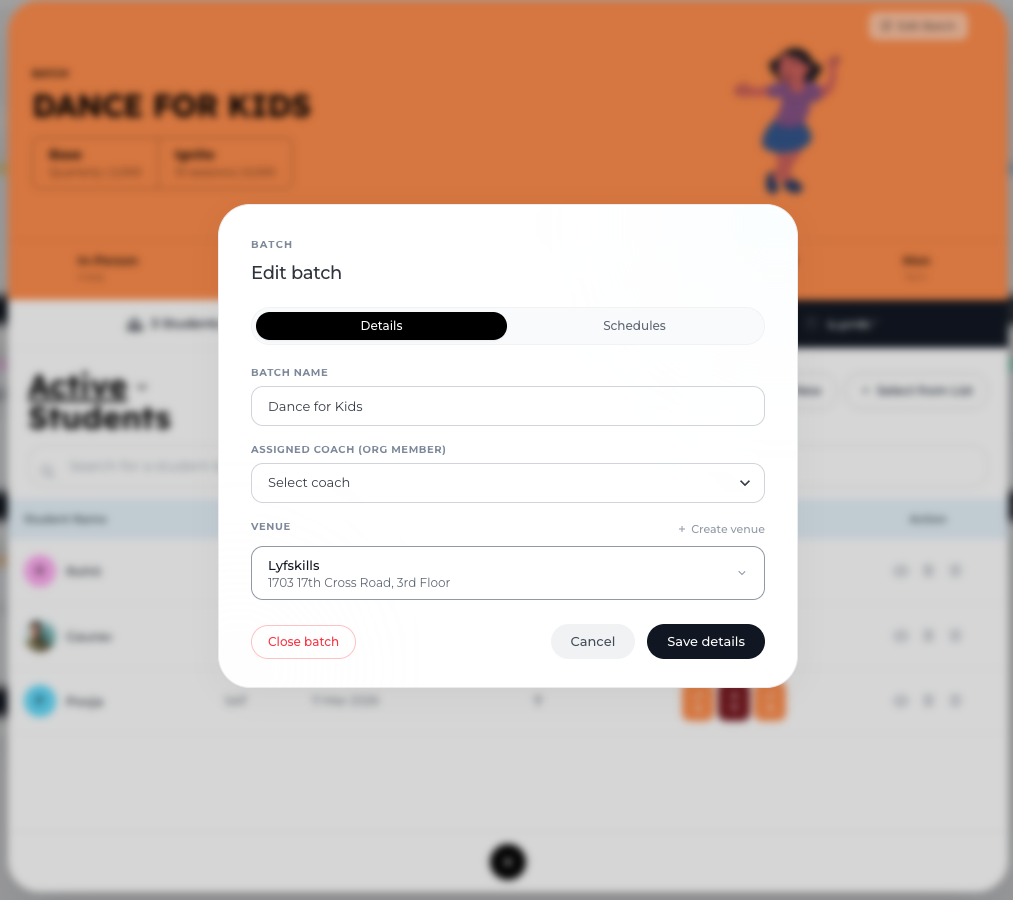
Under the Details section, you can update:
Batch Name – Modify the name of the batch if needed.
Assigned Coach – Available only for Organization batches, where admins can assign or change the coach conducting the sessions.
For Self batches, the coach is automatically assigned as the account owner, so the Assigned Coach option will not be available.
After making the required changes, click Save Details to update the batch information.
Editing the Recurring Schedule
If the batch is set up with a recurring schedule, you can modify the session timings or days from the Schedules tab.
Step 1: Open the Schedules Tab
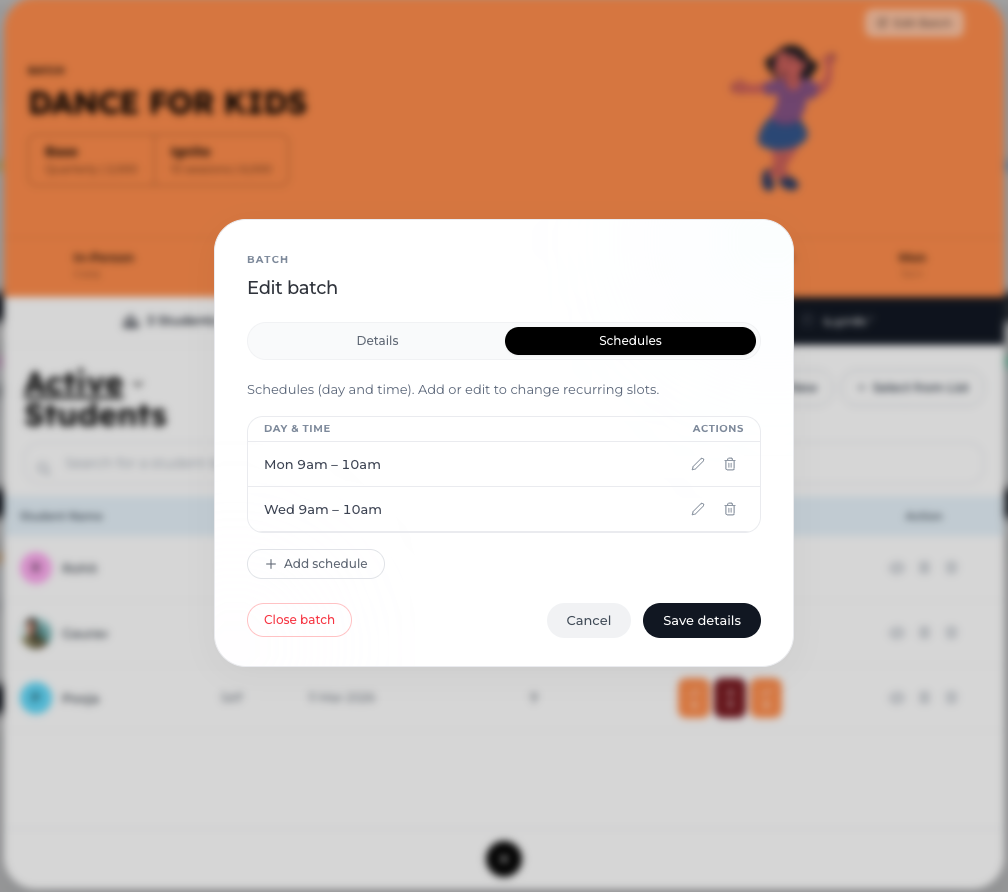
In the Edit Batch window, switch to the Schedules tab to view the list of scheduled session days.
Step 2: Edit an Existing Schedule
You can update the following details:
Day of the Week – Change the day the session is conducted.
Start Time and End Time – Adjust the session timing if the class schedule changes.
Valid From and Valid To (Optional) - Choose the start date for update schedule
These updates will apply to future sessions of the batch.
Step 3: Add a New Schedule
If the batch needs to run on additional days:
Click Add Schedule.
Select the day of the week.
Set the start and end time.
This allows you to conduct sessions on multiple days within the same batch.
Step 4: Delete a Schedule
If a particular session day is no longer required:
Click the Delete (trash icon) next to the schedule.
This removes that day from the recurring batch schedule.
Important Notes
Editing schedules updates upcoming sessions only.
Previously completed sessions remain unchanged.
Coach reassignment is only available for organization batches.
Conclusion
The Edit Batch feature in Lynk Tower allows you to easily manage and update your batch details and recurring schedules. By editing session days, adjusting timings, adding new schedules, or removing existing ones, you can keep your coaching programs flexible and aligned with your current class structure.