How to create a new batch
How to set up a new coaching batch by adding a batch name, subject, coach, schedule, and session settings in Lynk Tower.
Written by Swathi N
Batches help you organize your coaching sessions by grouping students under a schedule, subject, and coach. In Lynk Tower, creating a batch allows you to define how and when sessions will be conducted, who will teach them, and whether they are online or in-person.
You can create batches for yourself (self batches) or for an organization, depending on how your account is set up.
Steps to Create a New Batch
Go to the Batches tab in Lynk Tower.
Click the Create Batch button.
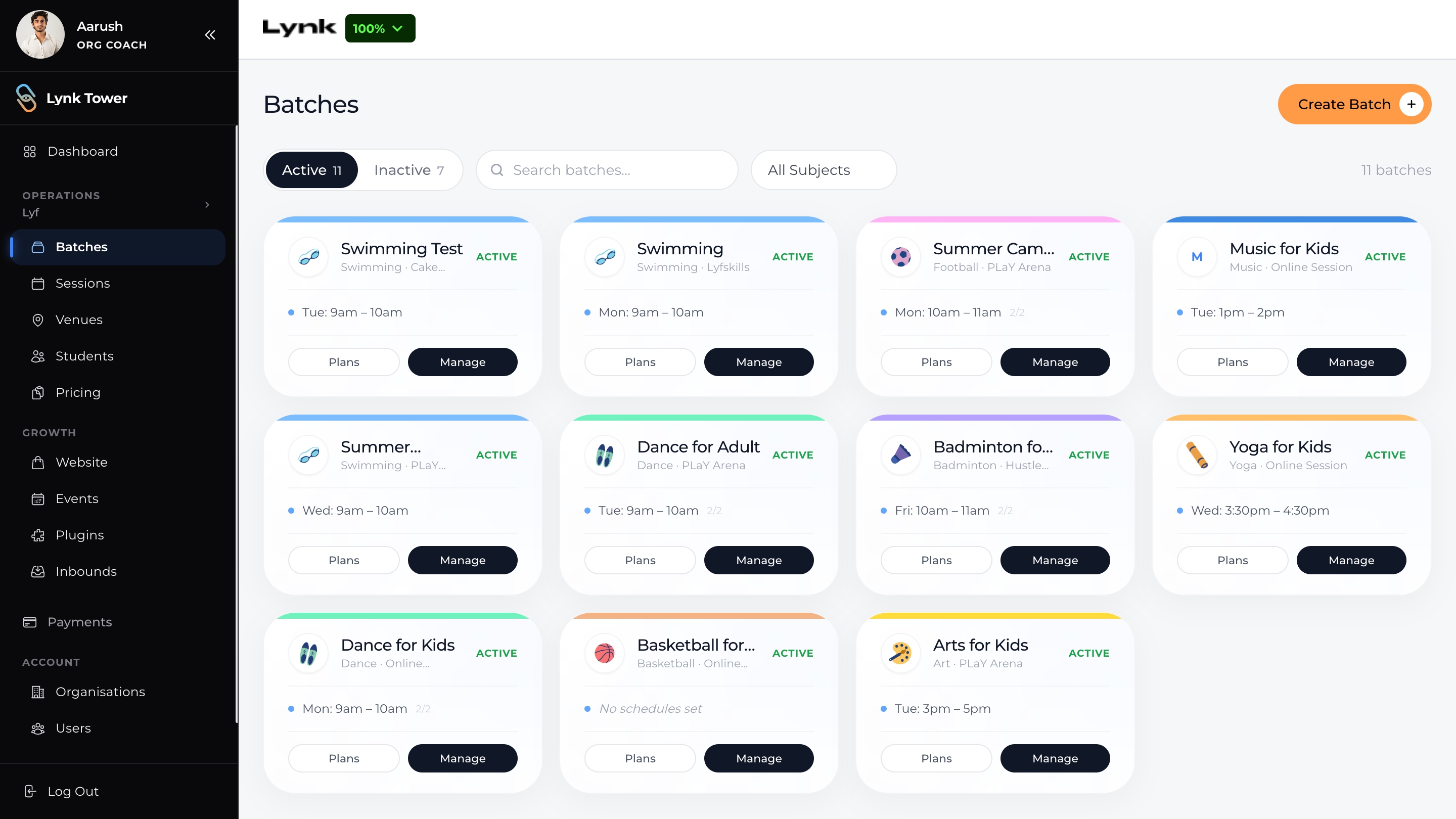
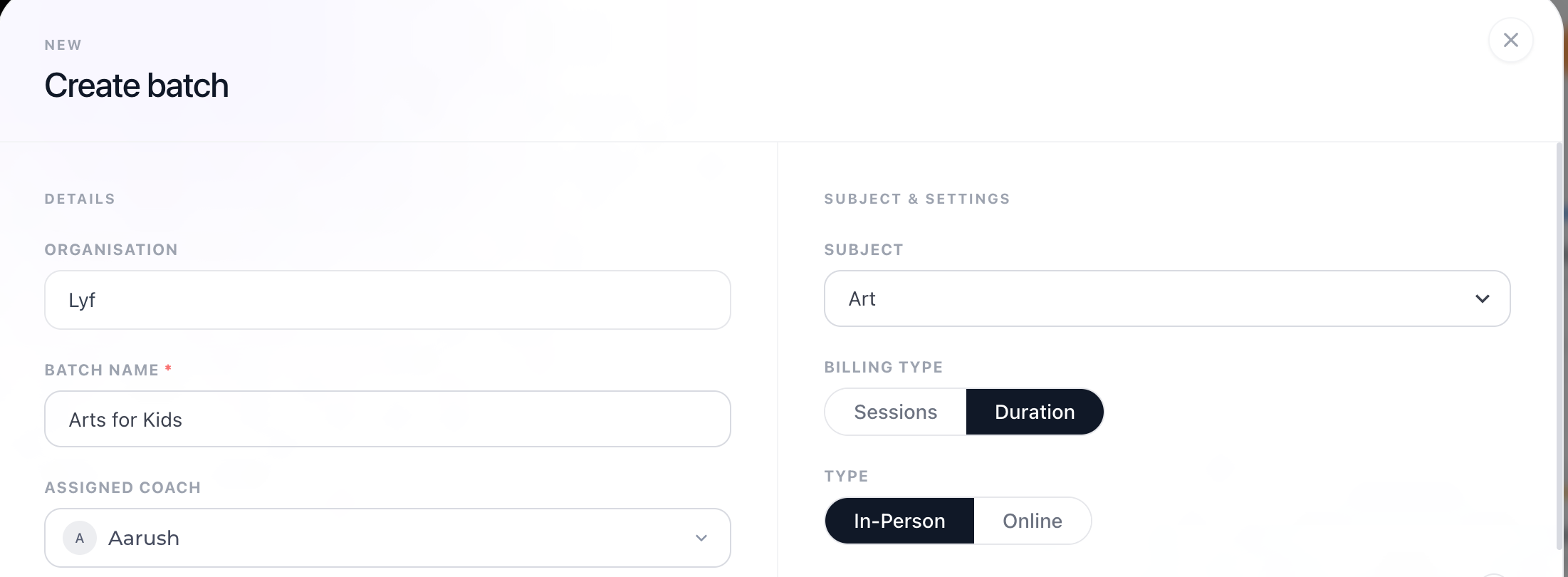
3. Enter a Batch Name for your class.
Example: Arts for Kids, Beginner Swimming, Evening Dance Batch.
4. Select the Subject for the batch from the dropdown.
5. Assign a Coach:
For Organization batches, select a coach from the list of available coaches.
For Self batches, the system automatically assigns you as the coach.
Configure Batch Details
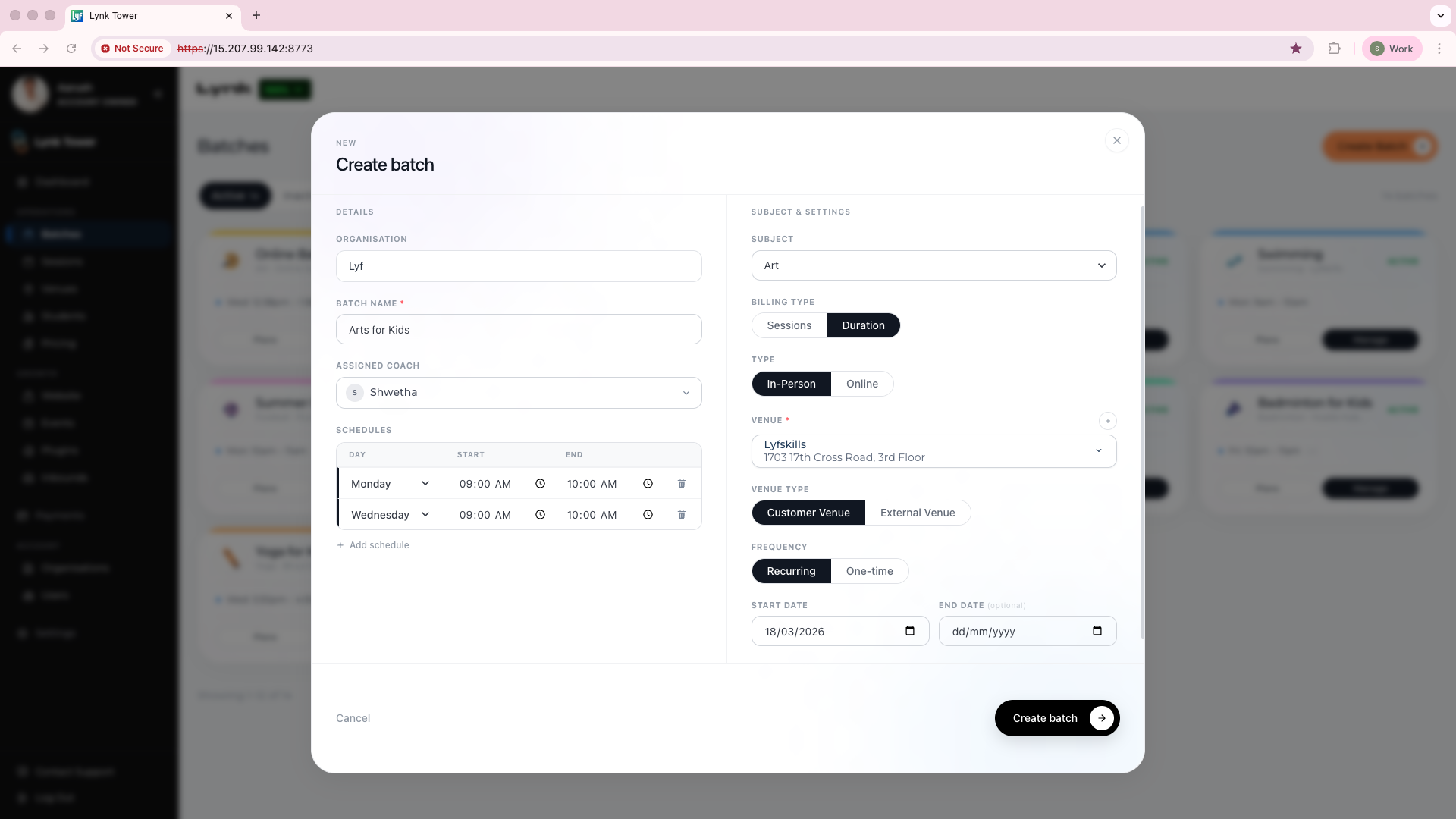
1. Select Billing Type
Choose how you want to structure your batch payments.
Sessions – Charge based on the number of classes. Students consume credits as sessions are conducted.
Duration – Charge for a fixed time period with unlimited sessions.
2. Choose the Session Type
Select how the sessions will be conducted:
In-Person – Sessions take place at a physical location.
Online – Sessions are conducted virtually.
If you choose In-Person, you will also need to select a Venue where the sessions will be held.
3. Set the Schedule
Define when the sessions will occur.
Select the Day of the week.
Set the Start Time and End Time.
Add multiple schedules if the batch runs on multiple days.
Click + Add schedule to include additional session days.
4. Set the Frequency
Choose how often the batch sessions should occur:
Recurring – Sessions repeat weekly according to the schedule.
One-time – The batch runs for a single session only.
5. Select Start and End Dates
Start Date – The date when the batch begins.
End Date (Optional) – The date when the batch will end.
If no end date is set, the batch will continue based on the recurring schedule.
Create the Batch
Once all details are added:
Review the batch configuration.
Click Create Batch.
The batch will now appear in the Batches tab, where you can:
Add students
Track attendance
Conduct sessions
Manage schedules
What Happens Next
After creating the batch:
Sessions are automatically generated based on the schedule.
You can enroll students into the batch.
You/Coaches can conduct sessions using the Lynk app.
Attendance and progress can be tracked for each session.
Conclusion
Creating a batch in Lynk Tower helps structure your coaching sessions efficiently. By defining the subject, coach, schedule, and session format, you can ensure that students are organized and sessions run smoothly.
After the batch is created, you can continue managing it by adding students, tracking attendance, and conducting sessions through the platform.