How batches are created under an organisation
In Lynk, batches created under an organisation represent structured programs owned by the organisation, not by an individual coach.
Written by Sumit Kapoor
Introduction
The organisation admin controls how batches are created, configured, and assigned, while coaches execute sessions within those assigned batches.
This model ensures:
Clear ownership of programs
Consistent batch structure
Seamless reassignment if a coach changes
Central operational control without disrupting sessions
Where Batch Creation Happens
All organisational batch creation happens from the Manage tab.
From here, the admin can:
Create new batches under the organisation
Assign or reassign coaches
Define batch structure, schedule, and delivery mode
Add students to the batch
Step-by-Step: Creating a Batch Under an Organisation
1. Start Batch Creation
Navigate to the Manage tab
Tap on Create New Batch
This initiates the batch setup flow.
2. Select Organisation
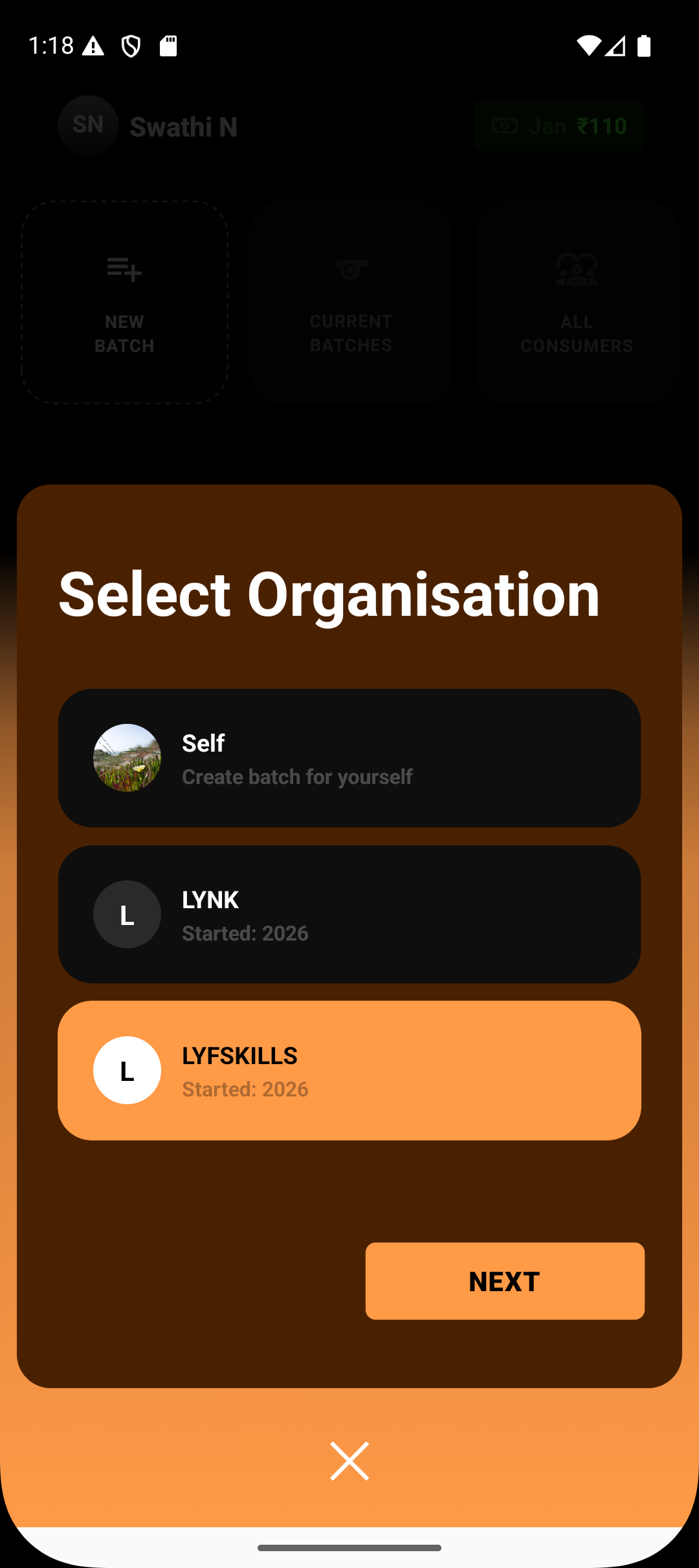
Choose the organisation under which the batch will be created
This step defines:
Who owns the batch
Which admin controls it
Which coaches can be assigned
3. Assign a Coach
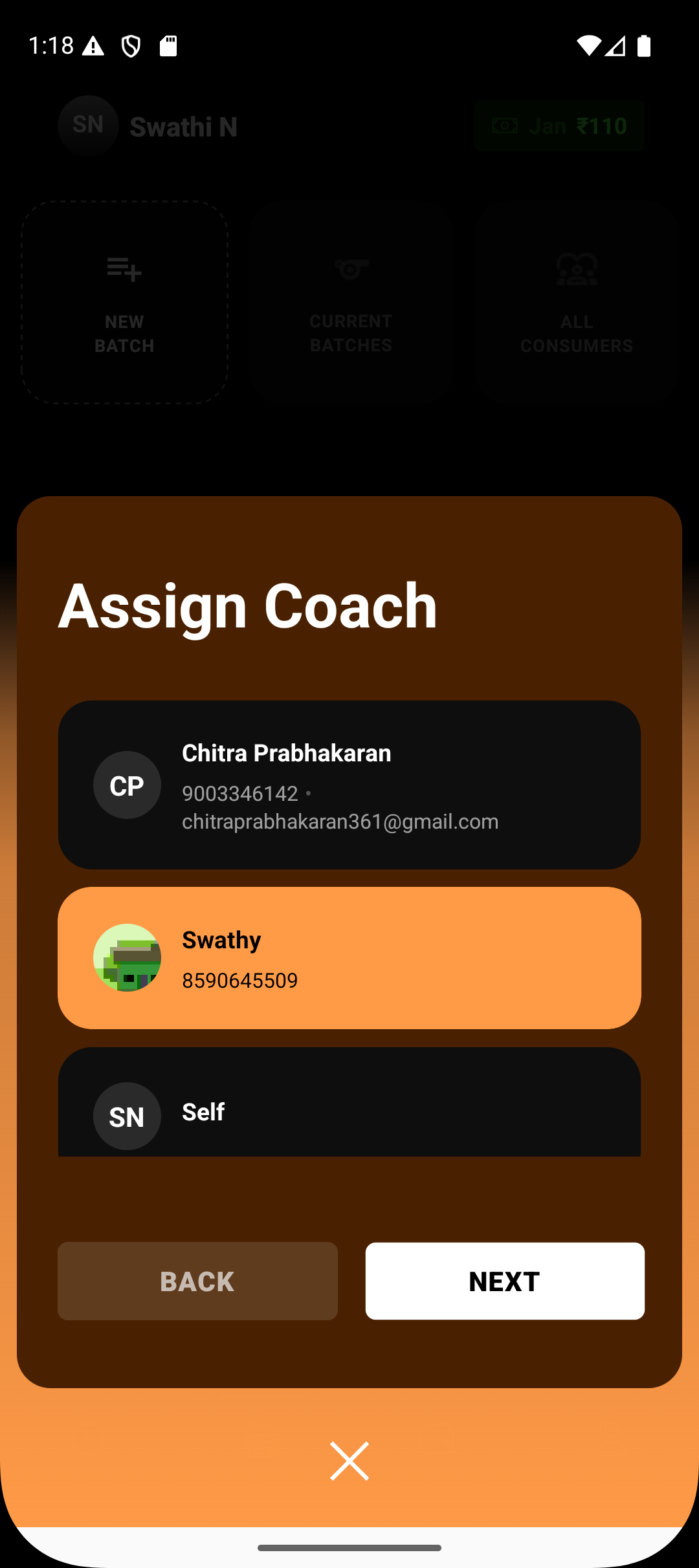
Select a coach from the organisation’s coach list
Once assigned:
The coach gets access to run sessions
The coach can mark attendance, add notes, and generate reports
The admin retains full operational control
Note: Admins can run sessions even if a coach is later removed or reassigned.
4. Define the Activity

Select the activity or discipline for the batch
This helps with:
Reporting
Coach context
Student progress tracking
5. Choose Batch Type & Delivery Mode
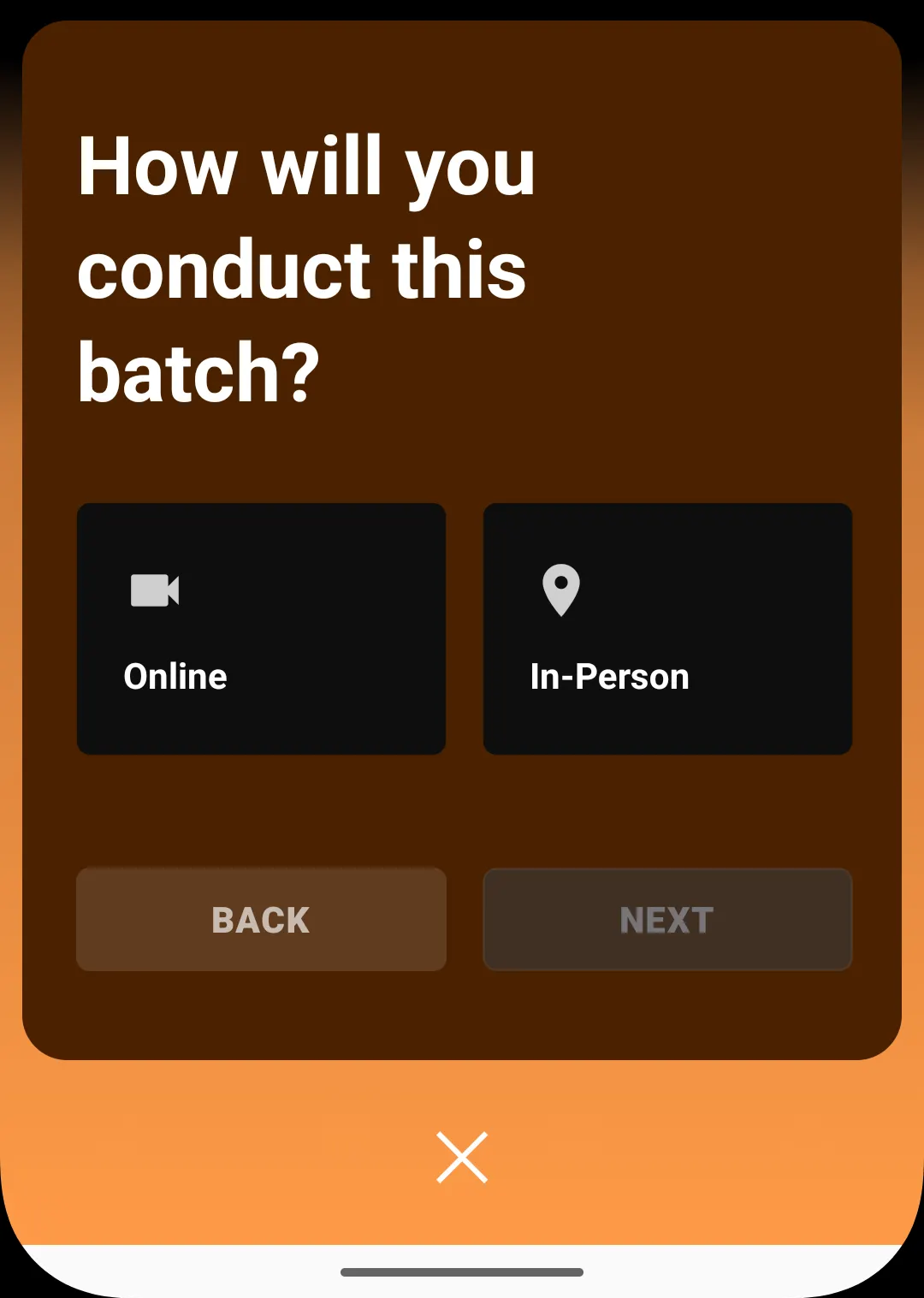
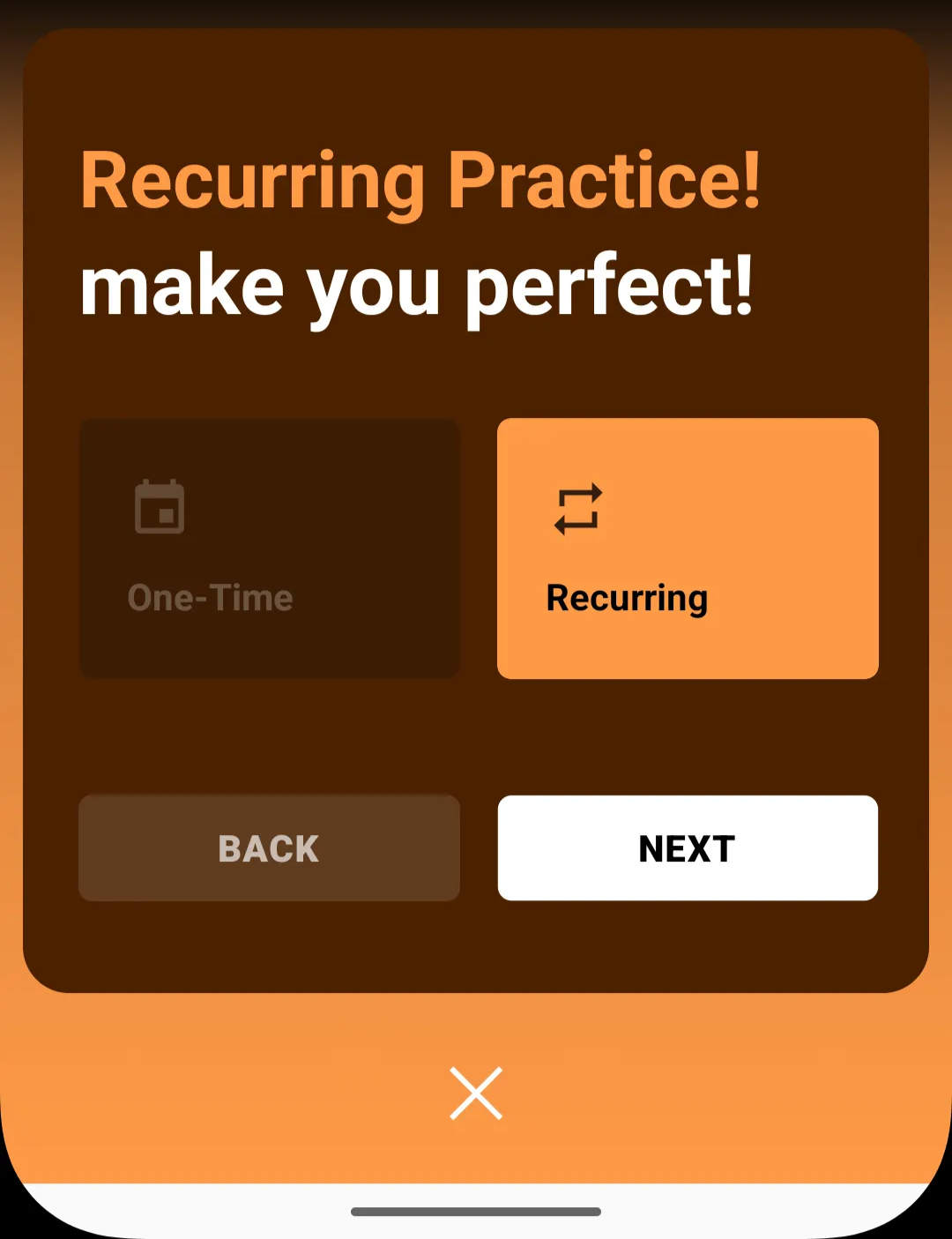
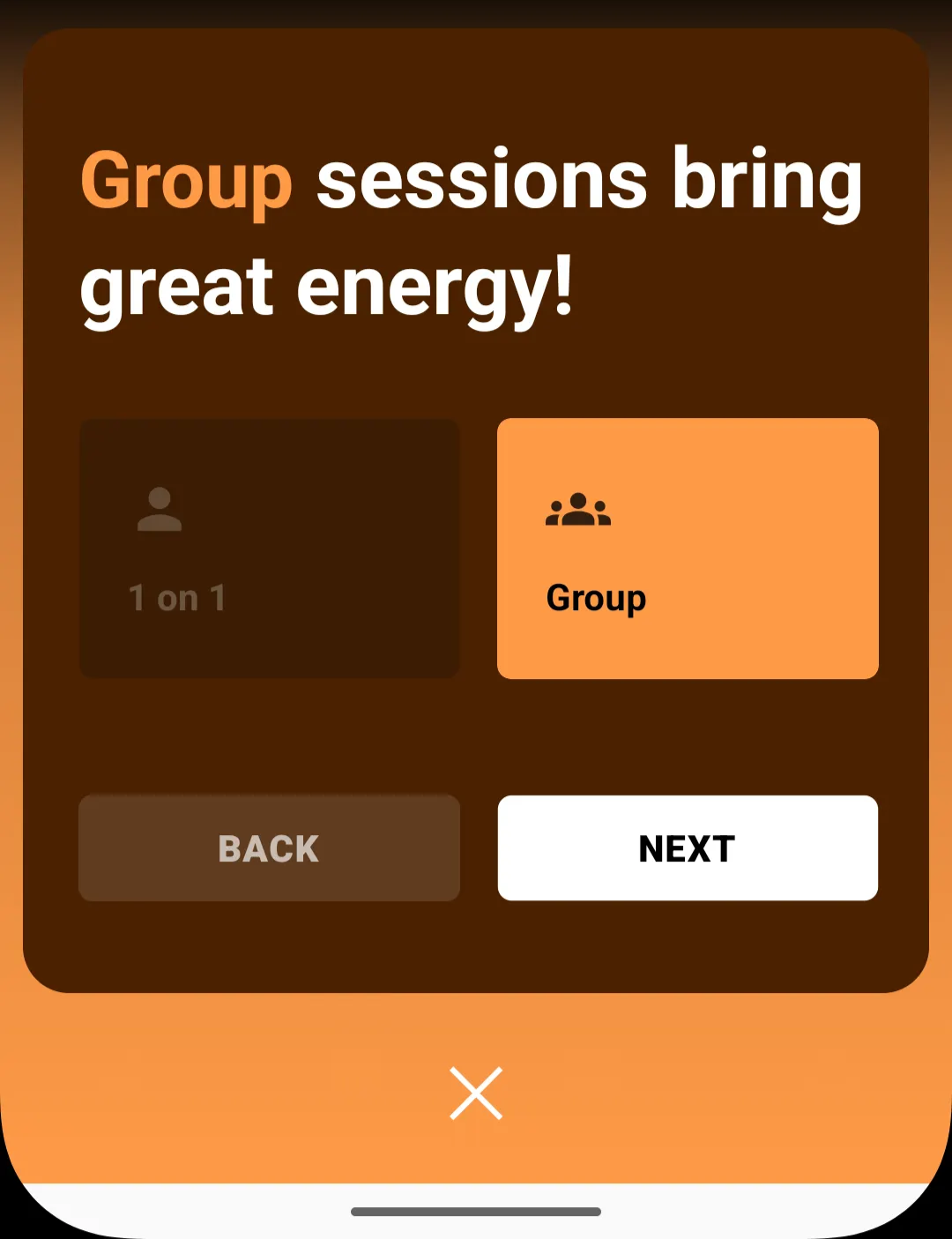
Configure how the batch will run:
Online or In-person
Group or One-to-One
One-time or Recurring
These selections determine:
Session behavior
Attendance rules
Scheduling structure
6. Configure Session Details
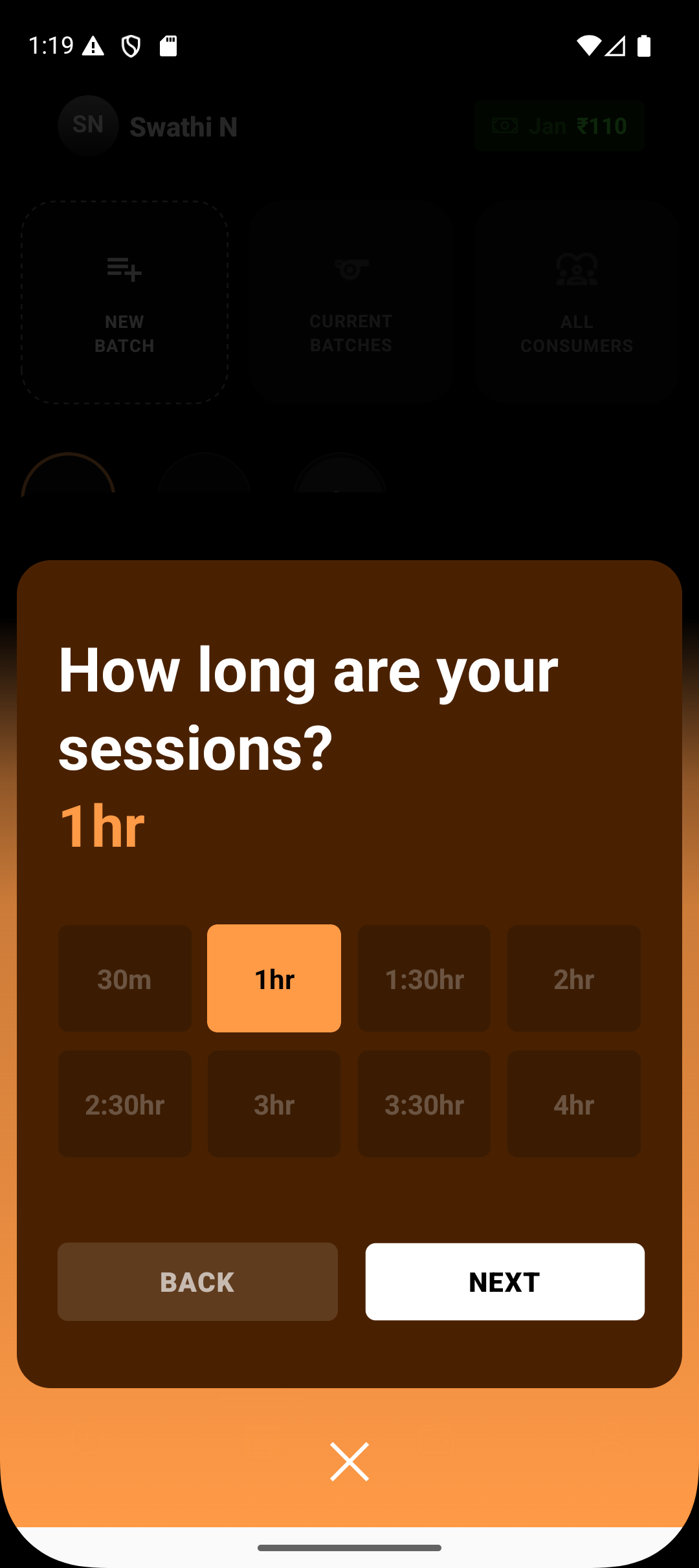
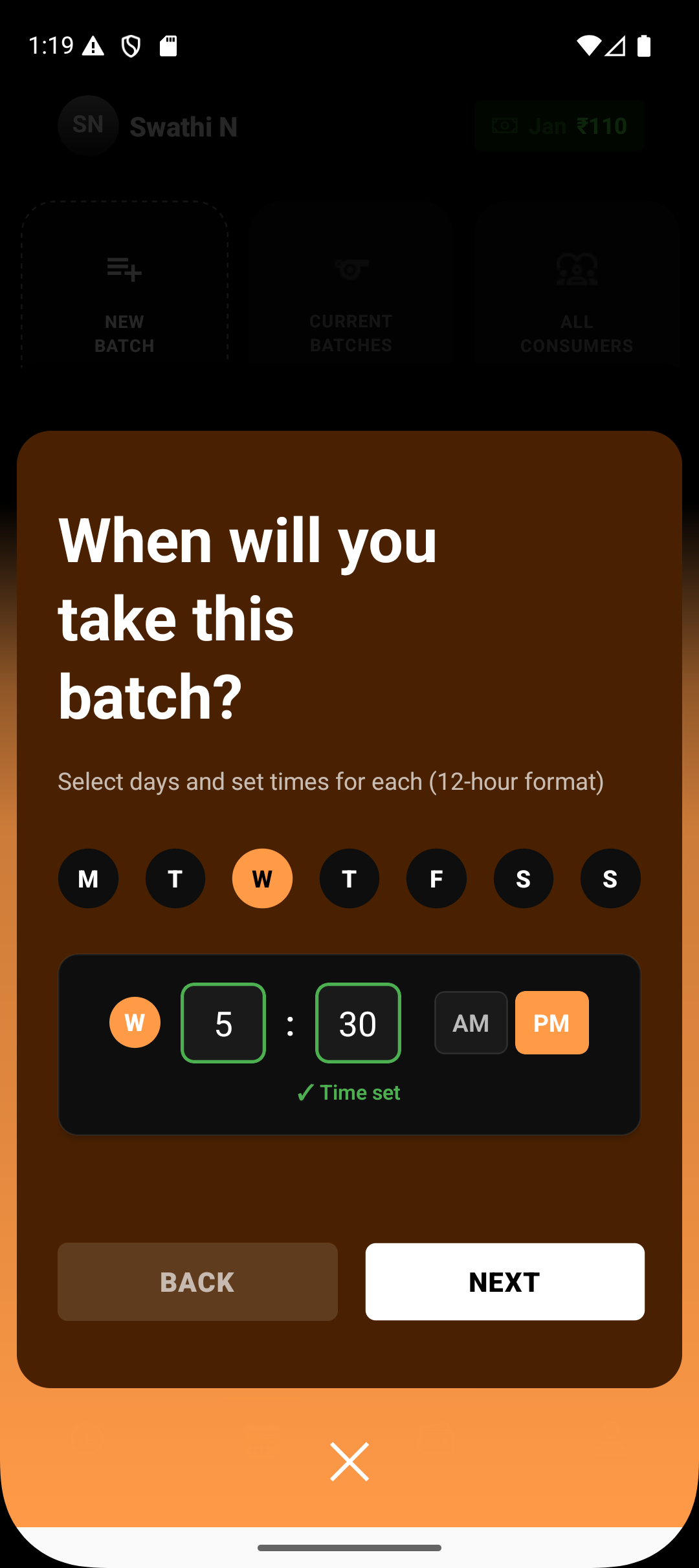
Set the operational details of the batch:
Session duration
Batch schedule (days and time)
Start date
End date
This creates the session framework that all future sessions follow.
7. Set Venue Details
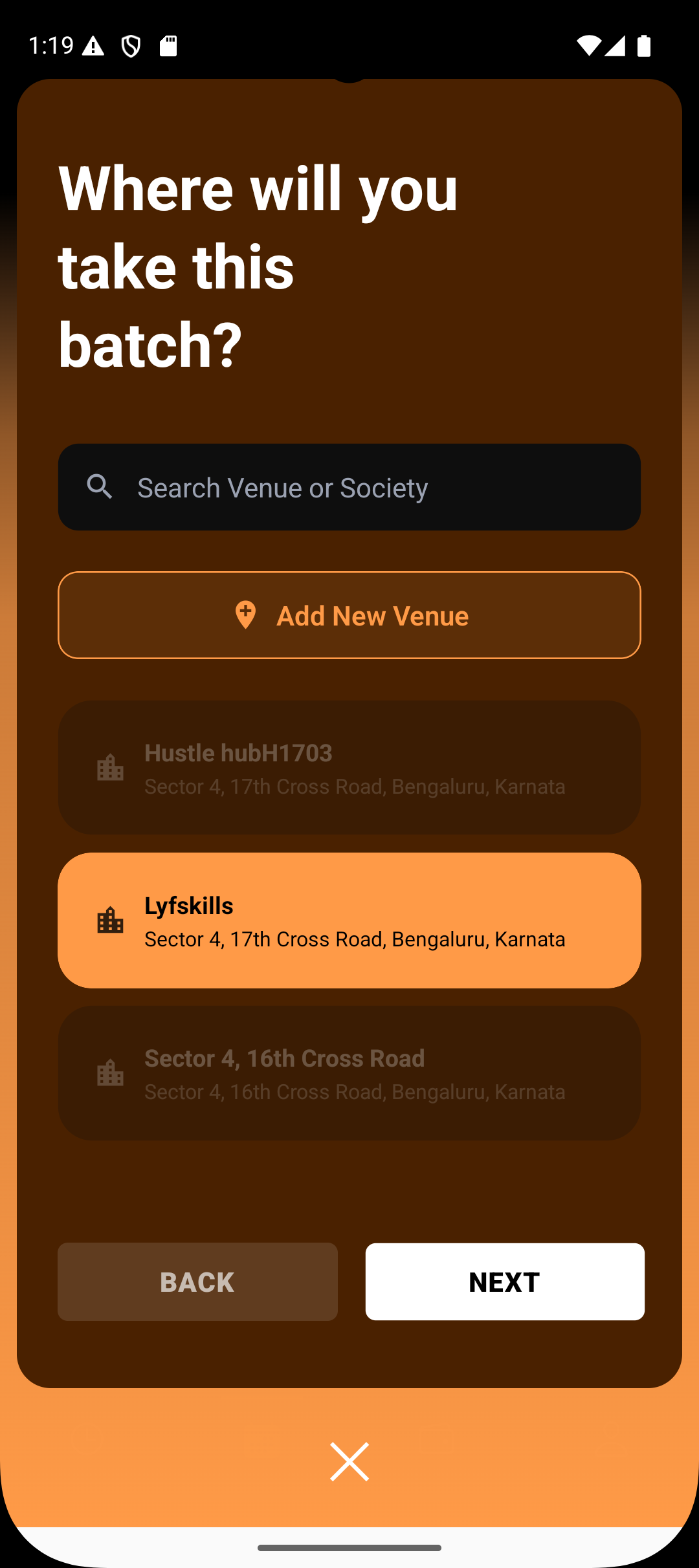
Choose where sessions will take place:
External venue
Consumer venue
Venue selection ensures clarity for both coaches and students.
8. Name the Batch
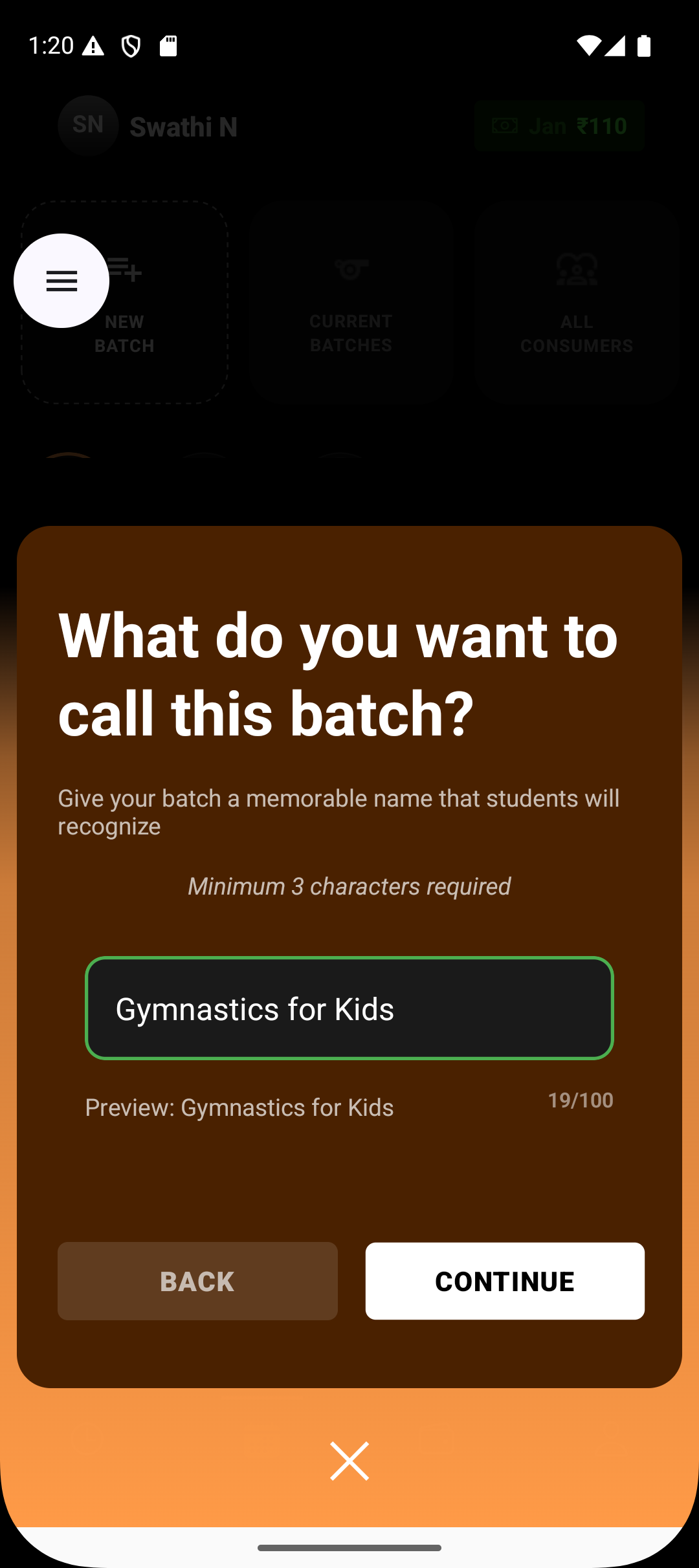
Provide a clear batch name to help identify:
Program type
Time slot
Coach or level (if required)
This name appears across:
Coach dashboards
Admin views
Reports and insights
10. Create the Batch
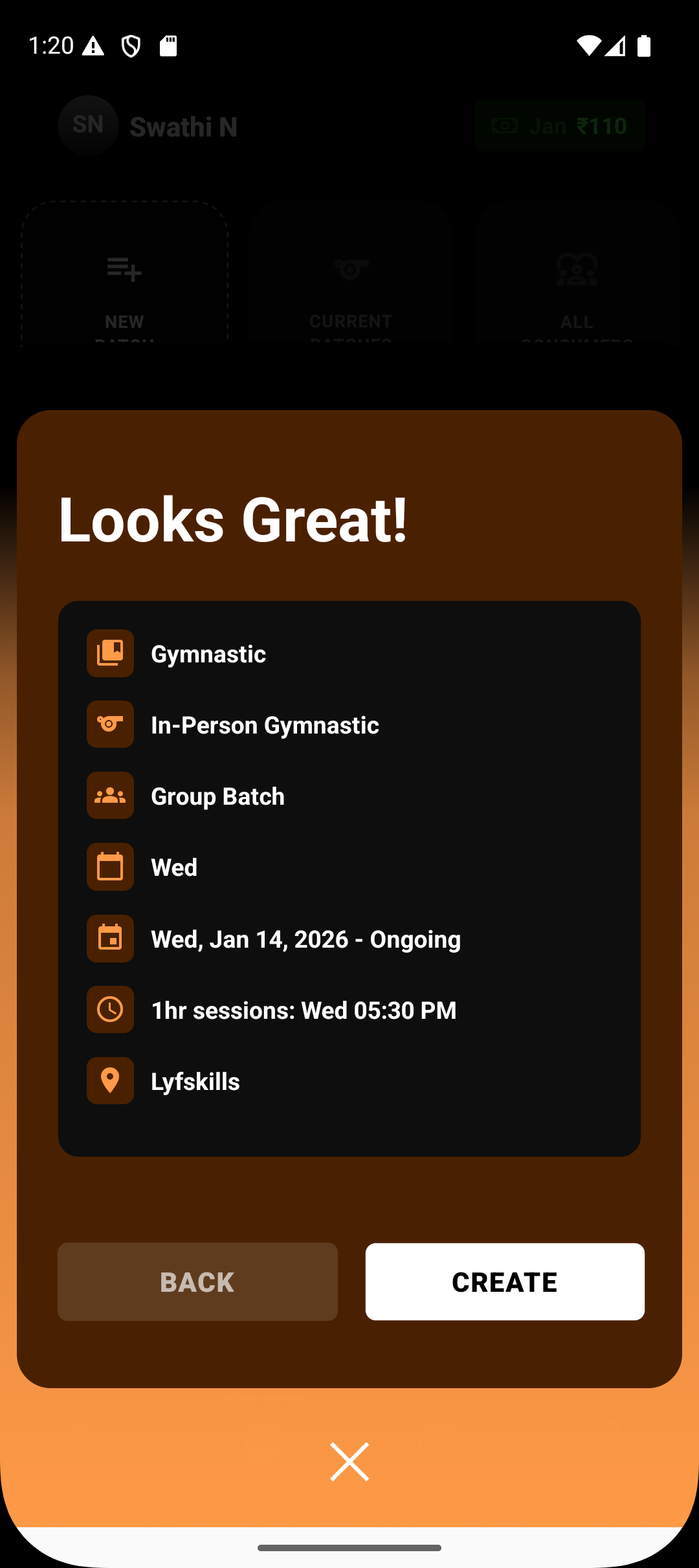
Once all details are confirmed:
Tap Create
The batch is now live under the organisation and ready to run.
What Happens After Creation
Once created:
The batch appears under the organisation’s batch list
The assigned coach gains access to conduct sessions
The admin can:
Edit batch details
Reassign coaches
Run sessions if needed
Monitor attendance, progress, and insights
The batch remains operational even if:
The coach leaves the organisation
The coach is removed before reassignment
Why Organisational Batch Creation Matters
Creating batches under an organisation ensures:
Operational continuity — sessions don’t stop if a coach changes
Clear ownership — batches belong to the organisation, not individuals
Scalability — multiple coaches, programs, and schedules managed centrally
Administrative control — admins oversee structure while coaches focus on delivery
Summary
Batches created under an organisation follow a structured, admin-controlled workflow.
Admins define the batch, assign coaches, configure schedules, and manage students, while coaches focus on executing sessions. This separation of control and execution keeps operations stable, scalable, and interruption-free.