Attaching pricing plans to your batches
How to create, manage, and attach pricing plans to a specific batch so students can enroll with clear subscription options.
Written by Swathi N
Create, manage, and attach flexible pricing plans to batches so students can enroll with clear payment options.
In Lynk, pricing plans define how and when students are charged for a batch. You can configure plans using duration-based, session-based, or a combination of both.
This helps you offer structured, transparent, and flexible pricing options.
Accessing Pricing Plans
You can create and manage plans in two ways:
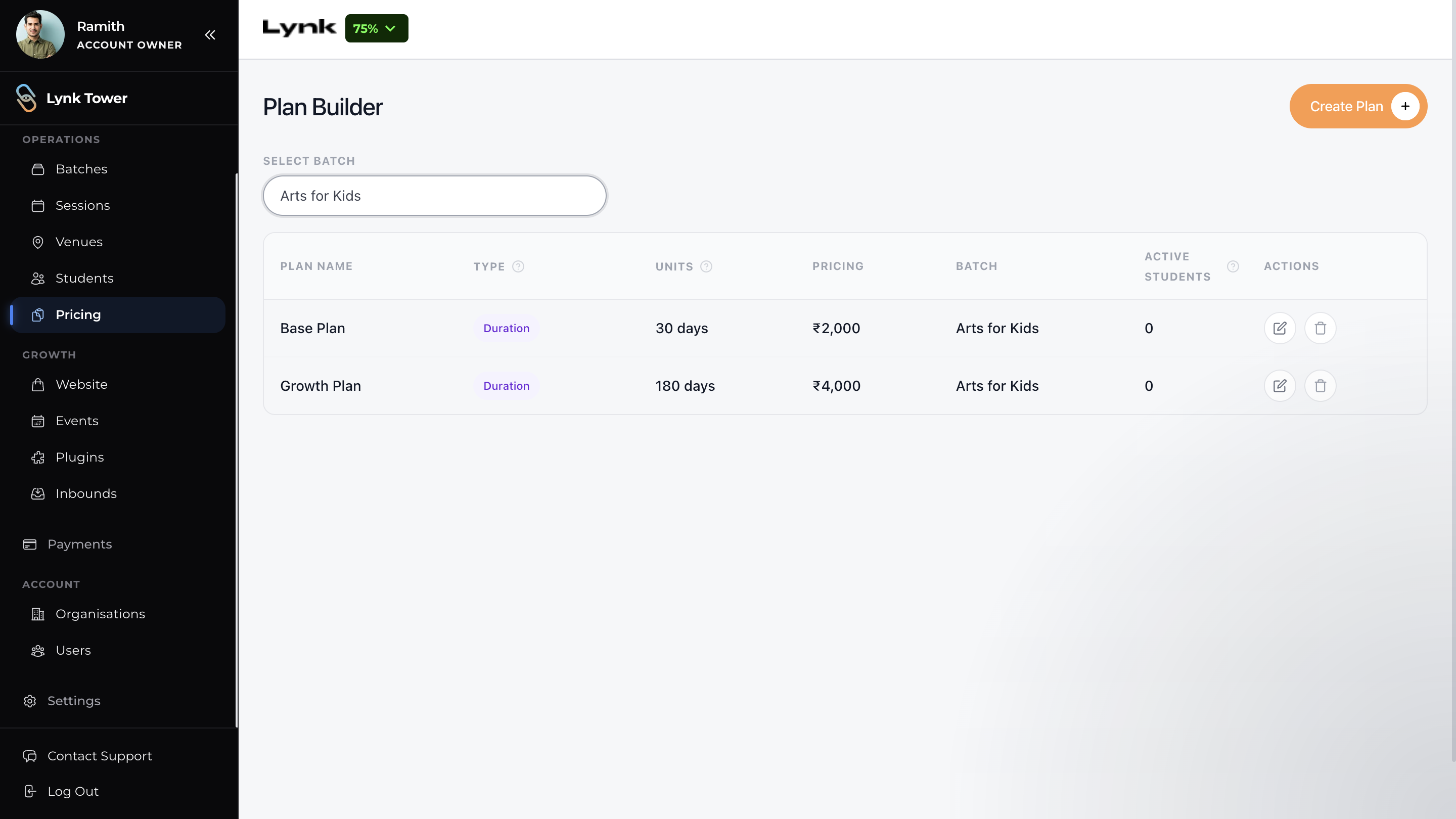
Option 1: From the Pricing Section (Recommended)
Go to the Pricing tab
Click Create Plan
Select one or multiple batches
Configure pricing and save
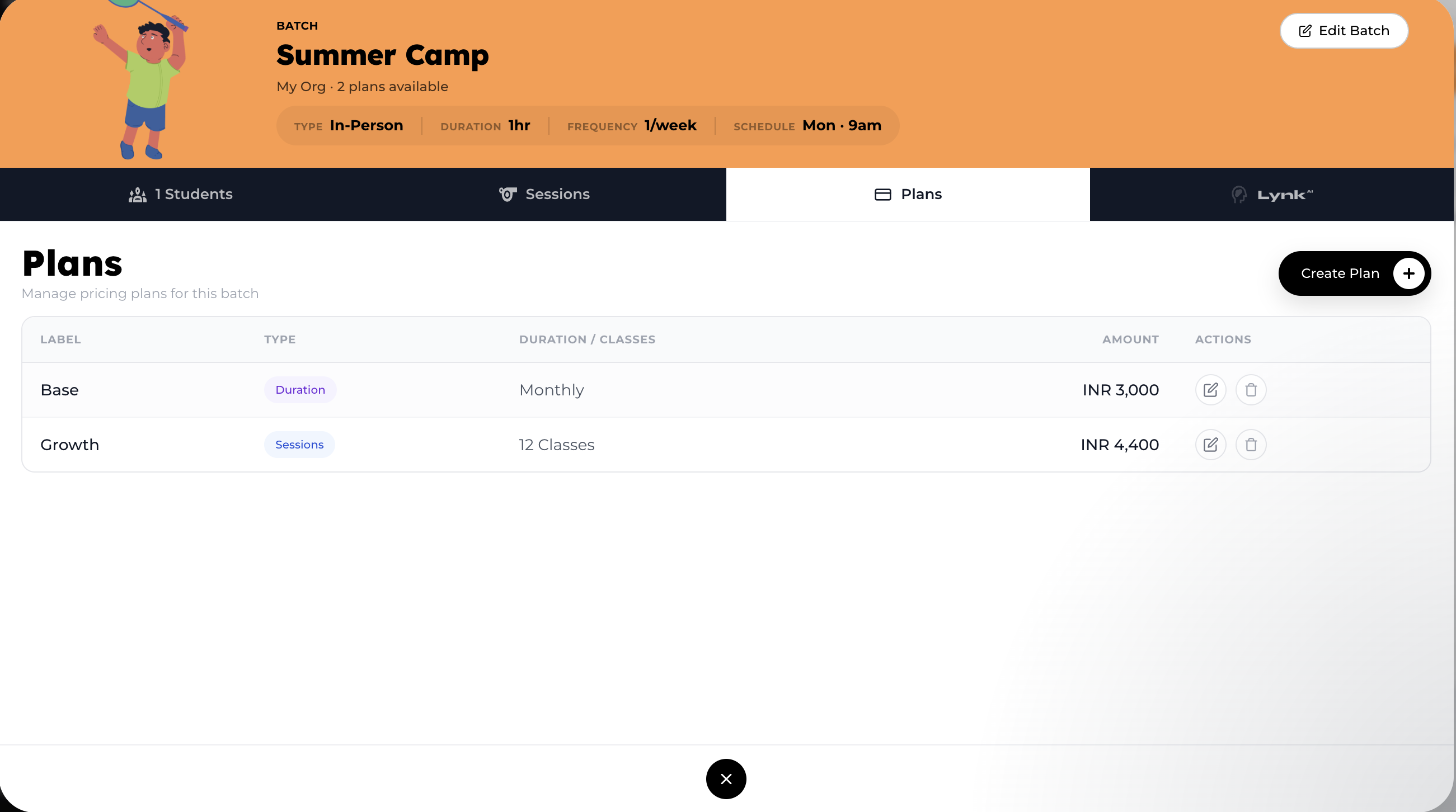
Option 2: From the Batch
Go to the Batches tab
Locate the batch
Click Plans on the batch card
This lets you view and manage plans associated with that batch.
Creating a Pricing Plan
You can create flexible pricing plans based on your coaching model.
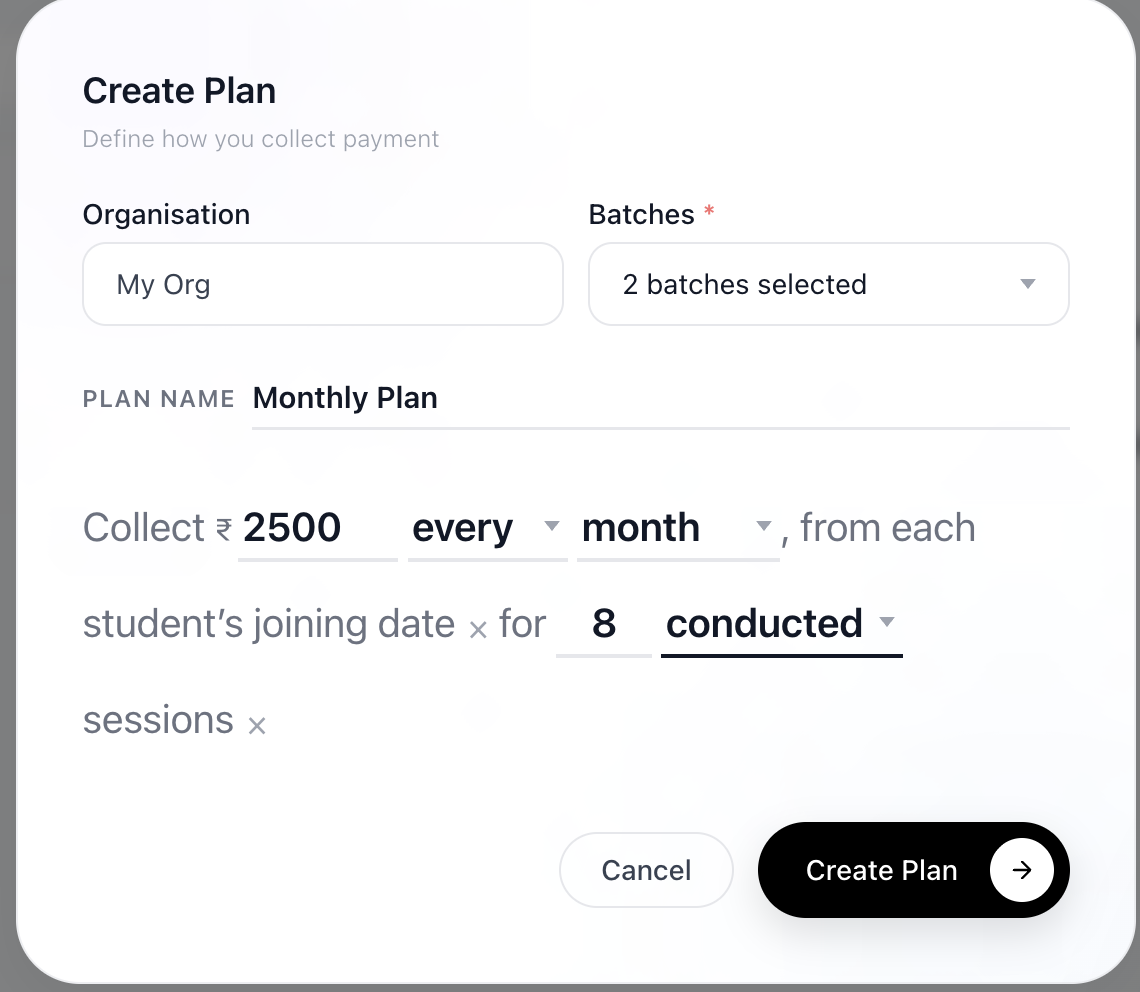
Steps to Create a Plan
Click Create Plan
Enter a Plan Name
Define your pricing logic:
Duration-Based (time-based billing)
Session-Based (fixed number of sessions)
Combination of both
Enter the Amount
Configure:
Billing frequency (monthly, quarterly, etc.)
Billing trigger (every from joining date or on the specific date)
Session count (mandatory for session-based plans)
Session rule (conducted or attended)
Click Create Plan
Managing Existing Pricing Plans
Once created, plans can be managed from the Pricing tab or within a batch.
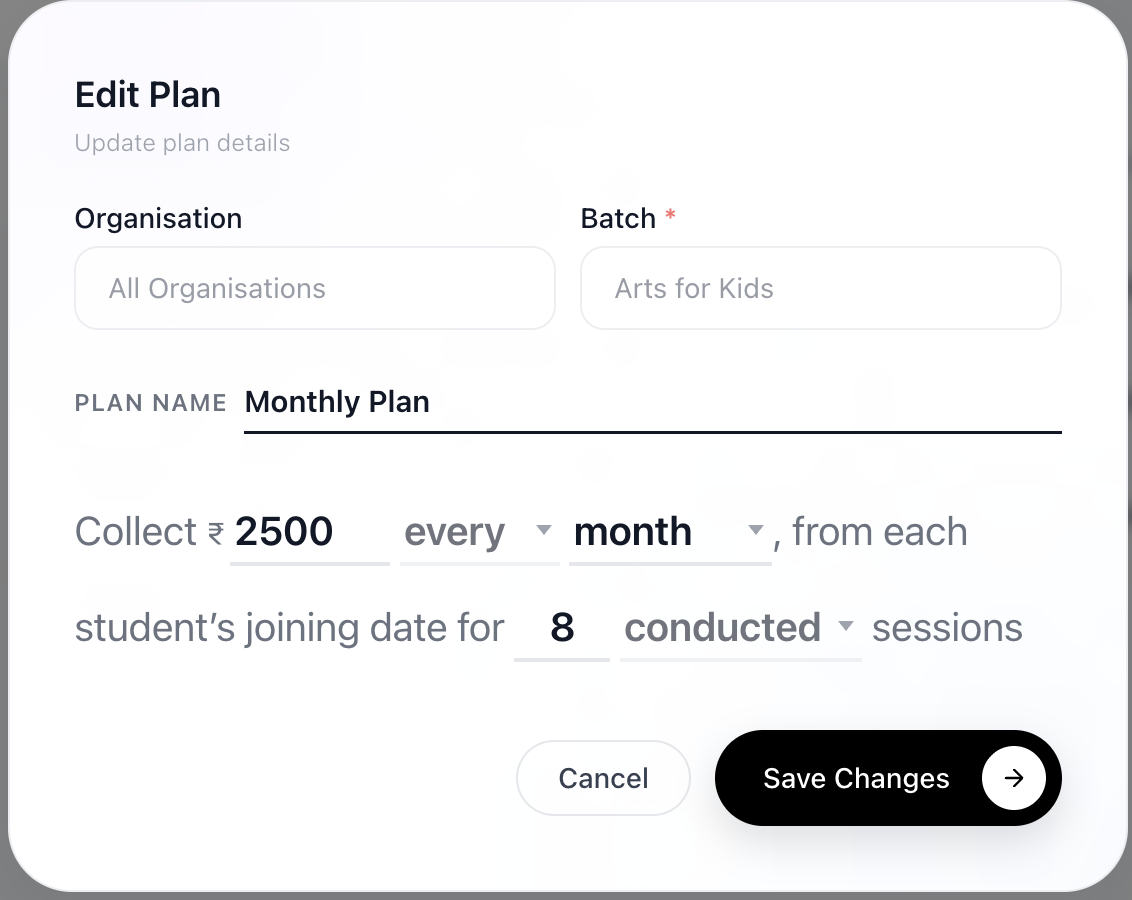
Edit Plans
You can update plan details such as:
Plan name
Amount
Frequency or billing type
Number of sessions (for session-based plans)
Changes apply to all linked batches.
Delete Plans
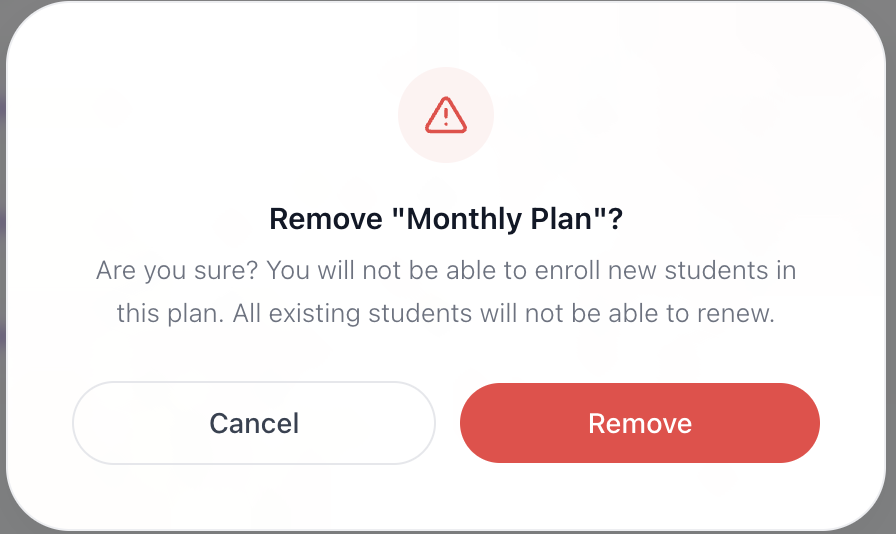
Remove plans using the delete option in the Action column
Confirm the action in the popup
Deleted plans are no longer available for new enrollments.
Why Attach Pricing Plans to Batches
Attaching plans directly to batches helps you:
Keep pricing organized and batch-specific
Avoid duplicate plan creation
Ensure students see accurate pricing options
Manage multiple programs efficiently
Best Practices
Use multi-batch selection for similar pricing structures
Combine duration and session rules for better control
Regularly review and clean up unused plans
Use clear plan names for easy identification
Conclusion
Pricing plans in Lynk are flexible and scalable. By attaching them to one or multiple batches and configuring duration, session, or hybrid logic, you can create pricing structures that match your teaching model while keeping the enrollment experience simple and transparent for students.