How to add a new coaching venue
How to create a venue for your coaching sessions using Google Maps and add contact details for easy coordination.
Written by Swathi N
If your coaching sessions take place at a physical location, you can add that location as a venue in Lynk Tower. Venues help you organize where your in-person batches are conducted and make it easier to assign locations while creating batches.
When creating a venue, you can use the Google Maps search feature to automatically capture the address and map coordinates, ensuring accurate location details for your sessions.
Why Add a Venue?
Adding venues helps you manage the locations where your coaching sessions take place.
A venue can represent:
A sports ground or academy
A dance or fitness studio
A training center
A student’s home location for personal coaching
Any place where your sessions are conducted
Once created, the venue can be selected when setting up in-person batches, making scheduling easier and more organized.
Steps to Add a New Coaching Venue
Follow these steps to create a venue in Lynk Tower.
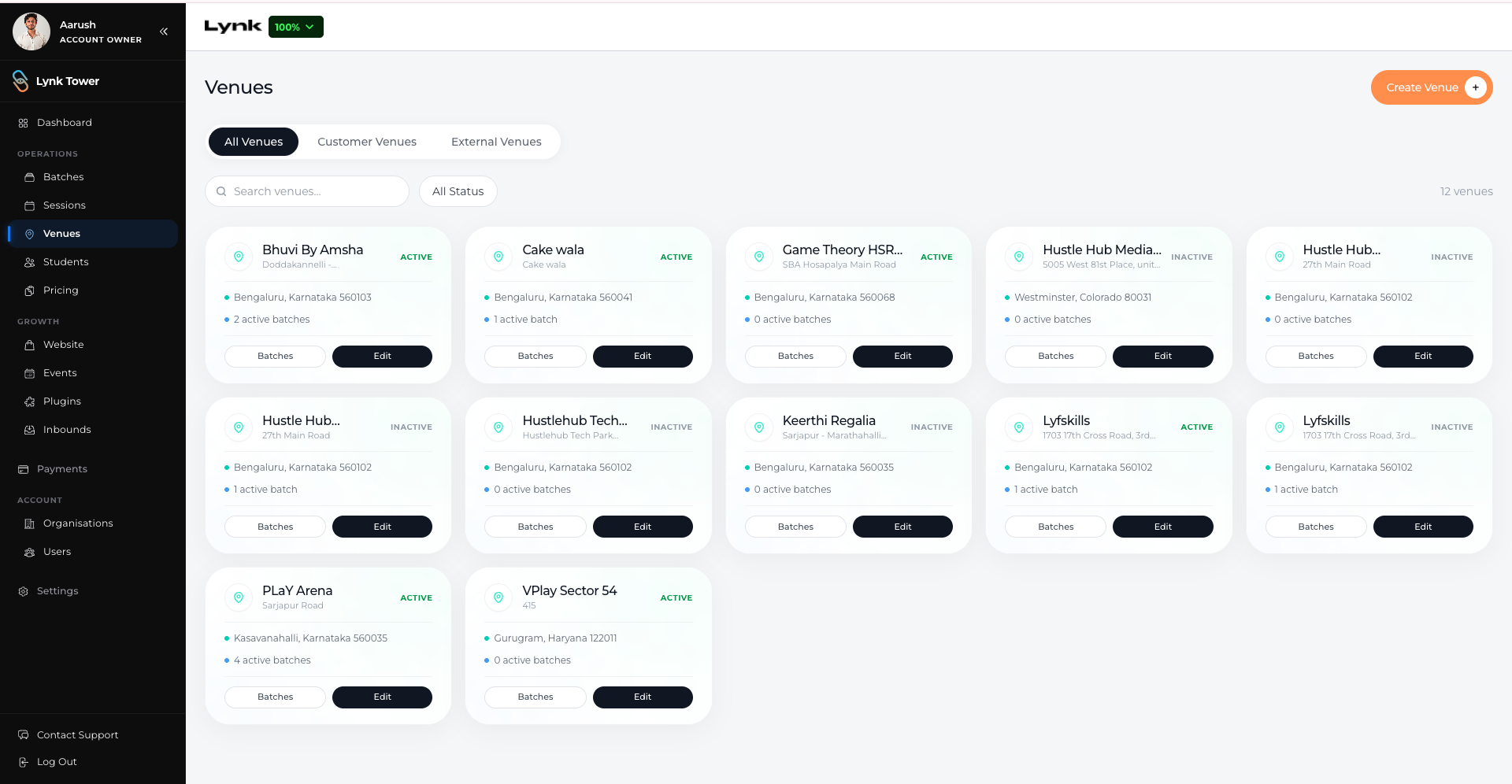
Step 1: Navigate to the Venues Tab
Go to the Venues tab inside Lynk Tower where all your coaching locations are managed.
Step 2: Click Create Venue
Click the Create Venue button to open the venue creation form.
Step 3: Enter the Venue Name
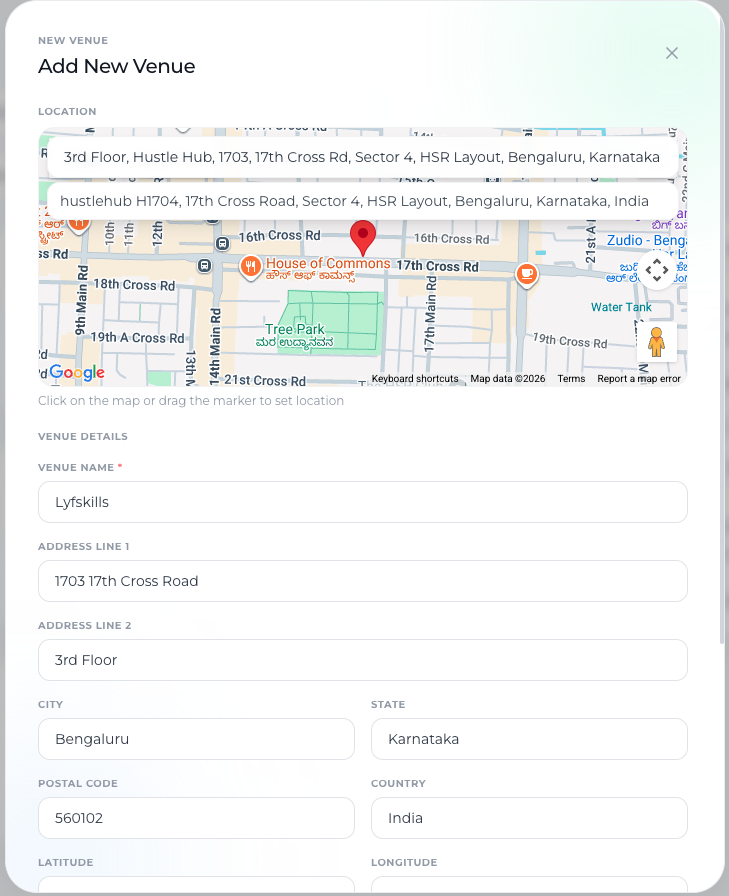
Provide a clear name for the location so it can be easily identified when selecting venues for batches.
Examples include:
Downtown Football Ground
Elite Dance Studio
ABC Sports Academy
Step 4: Search for the Location Using Google Maps
Use the Google Maps search bar to find the venue location.
Once you select the correct location, the system will automatically populate:
Address
Map marker
Latitude and longitude coordinates
This ensures that the venue location is accurate and easy to navigate.
Adding Venue Contact Details
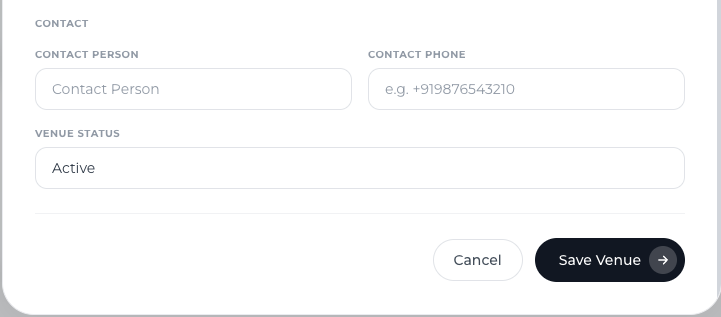
You can also include contact information for the venue for easy coordination if needed.
Add the following details:
Contact Person
Enter the name of the person responsible for the venue or the point of contact.
Examples:
Venue manager
Academy owner
Facility coordinator
Contact Phone Number
Adding contact details improves communication and helps avoid confusions.
Saving the Venue
After entering the venue information and contact details:
Review the details carefully.
Click Save Venue.
The venue will now appear in your Venues list and will be available to select when creating in-person batches.
Where Venues Are Used
Once a venue is created, it can be used in multiple parts of the platform, including:
Assigning locations while creating in-person batches
Managing coaching locations across your academy
Organizing sessions conducted at different venues
This helps keep all your coaching locations centralized in one place.
Conclusion
Adding venues in Lynk Tower allows you to manage and organize the physical locations where your coaching sessions take place. By using the Google Maps search feature to automatically capture address details and adding contact information for the venue, you ensure that coaches have clear and accurate location information for every session.