How to cancel a single class session
How to cancel an individual session from the scheduler when a class cannot take place.
Written by Swathi N
In Lynk Tower, you can cancel a specific class session without affecting the rest of the batch schedule. This is useful when a particular session cannot take place due to reasons such as coach unavailability, venue issues, or holidays.
Instead of deleting the session, you can simply update the Session Status to Cancelled.
How to Cancel a Session
Follow these steps to cancel a single session:
Go to the Scheduler tab.
Locate the session you want to cancel in the calendar.
Click on the session card to open the session details.
In the session window, click Edit Session at the top right corner.
The Edit Session panel will open.
Find the Session Status field.
Change the status from Active to Cancelled.
Click Save Changes to update the session.
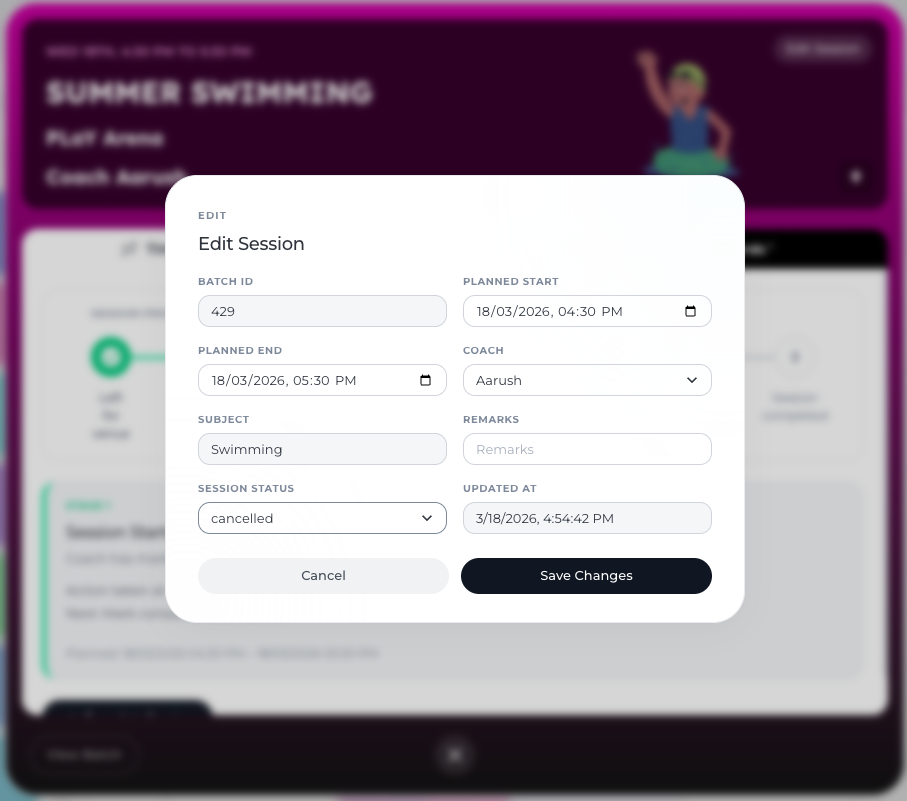
Once saved, the session will be marked as Cancelled in the schedule.
Session Status Options
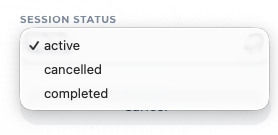
When editing a session, you may see different status options:
Active – The session is scheduled and will run normally.
Cancelled – The session will not take place.
Completed – The session has already been conducted and finished.
When to Use the Cancel Option
Cancelling a session is helpful when:
The coach is unavailable.
The venue is not available.
The class is rescheduled or postponed.
The organisation decides to skip that specific session.
This allows you to maintain the batch schedule history without deleting the session.
Conclusion
The session management tools in Lynk Tower allow organisations to easily handle changes in the schedule. By updating the Session Status to Cancelled, you can quickly cancel a single class while keeping the rest of the program schedule intact.