How to filter your schedule
How to use the scheduler filters to quickly find sessions by batch, subject, coach, type, or venue.
Written by Swathi N
The Scheduler in Lynk Tower can display many sessions across different batches, coaches, and locations. To help you focus on the sessions that matter most, you can use the Filter option to narrow down the calendar view.
Using filters allows you to quickly display only the sessions that match specific criteria such as batch name, subject, assigned coach, session type, or venue.
Where to Find the Filter Option
To filter your schedule:
Go to the Scheduler tab.
Look for the Filter (funnel) icon near the search bar.
Click the icon to open the filter panel.
From here, you can select the filters you want to apply to your calendar.
Available Scheduler Filters
The scheduler allows you to filter sessions based on several criteria.
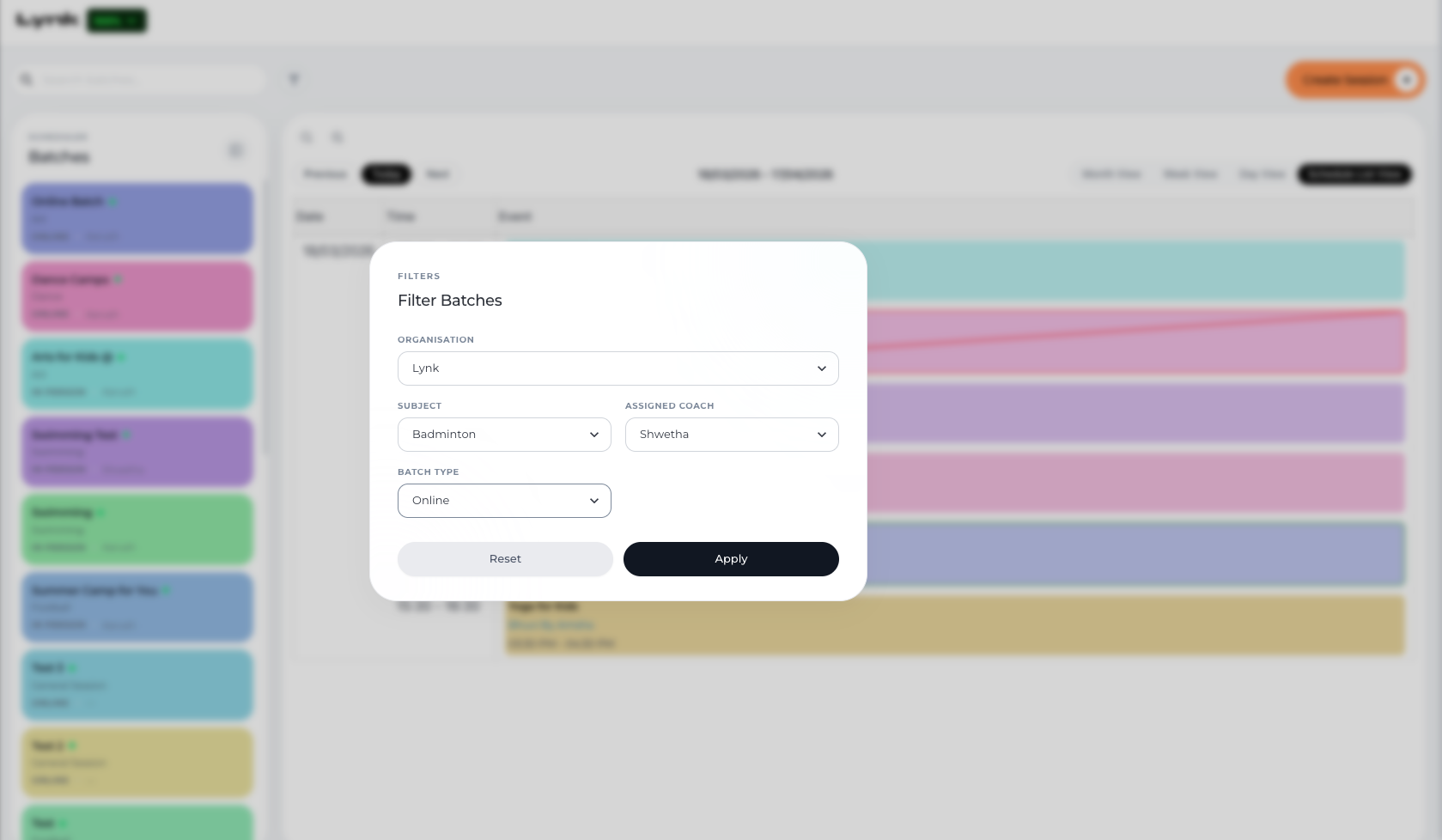
Batch Name
Use this filter to display sessions from a specific batch.
This is helpful when you want to view the schedule for only one program, such as:
Summer Swimming
Dance for Adults
Yoga for Kids
Subject
Filter sessions based on the activity or subject being taught.
For example:
Dance
Football
Yoga
Music
This makes it easier to review sessions related to a particular activity.
Assigned Coach
You can filter the calendar to see sessions conducted by a specific coach.
This is useful for:
Monitoring a coach’s schedule
Managing instructor availability
Reviewing sessions assigned to a team member
Batch Type
Filter sessions by the type of class being conducted.
Available options include:
In-Person Sessions – Classes conducted at a physical venue
Online Sessions – Classes conducted virtually
This helps you quickly separate online classes from physical sessions.
Why Use Scheduler Filters?
Using filters helps you manage your schedule more efficiently.
Some benefits include:
Quickly finding specific sessions
Viewing schedules for individual coaches
Managing sessions by venue or subject
Reducing clutter in a busy calendar
Filters help you focus only on the sessions that are relevant to you.
Conclusion
The scheduler filters in Lynk Tower make it easy to organize and navigate your calendar. By filtering sessions by batch name, subject, assigned coach, session type, or venue, you can quickly find the classes you need and manage your coaching schedule more effectively.