Choosing your layout: Month, Week, Day, and Schedule List Views
How to switch between different calendar layouts to view your coaching sessions in the way that works best for you.
Written by Swathi N
The Sessions in Lynk Tower helps you visualize and manage all your upcoming sessions in one place. To make scheduling easier, the platform offers multiple calendar layouts so you can view sessions at different levels of detail.
You can switch between Month, Week, Day, and Schedule List views using the layout options available at the top-right of the scheduler.
Each layout is designed to help you manage your sessions depending on how much detail you want to see.
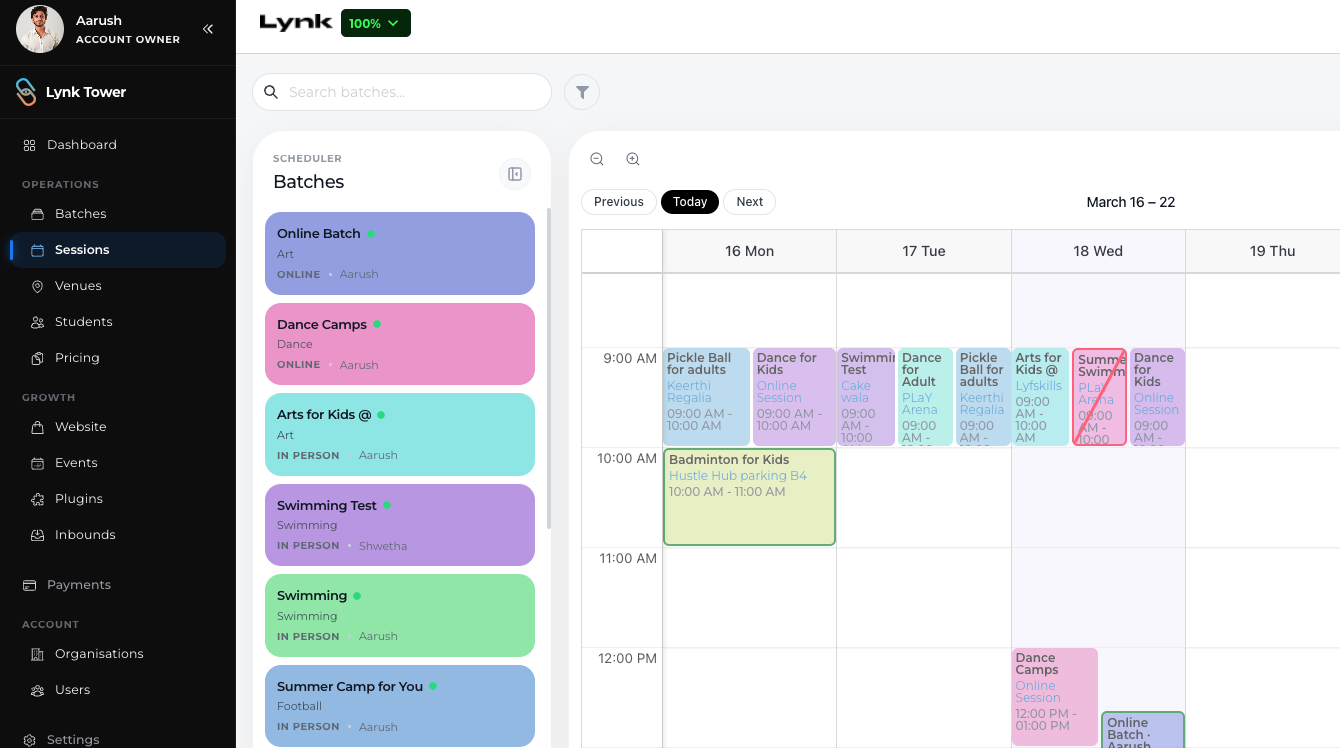
Where to Change the Calendar Layout
To switch between different calendar views:
Go to the Sessions tab in Lynk Tower.
Look at the top-right section of the calendar.
Select one of the available layout options:
Month View
Week View
Day View
Schedule List View
The calendar will instantly update to show your sessions in the selected format.

Understanding Each Calendar View
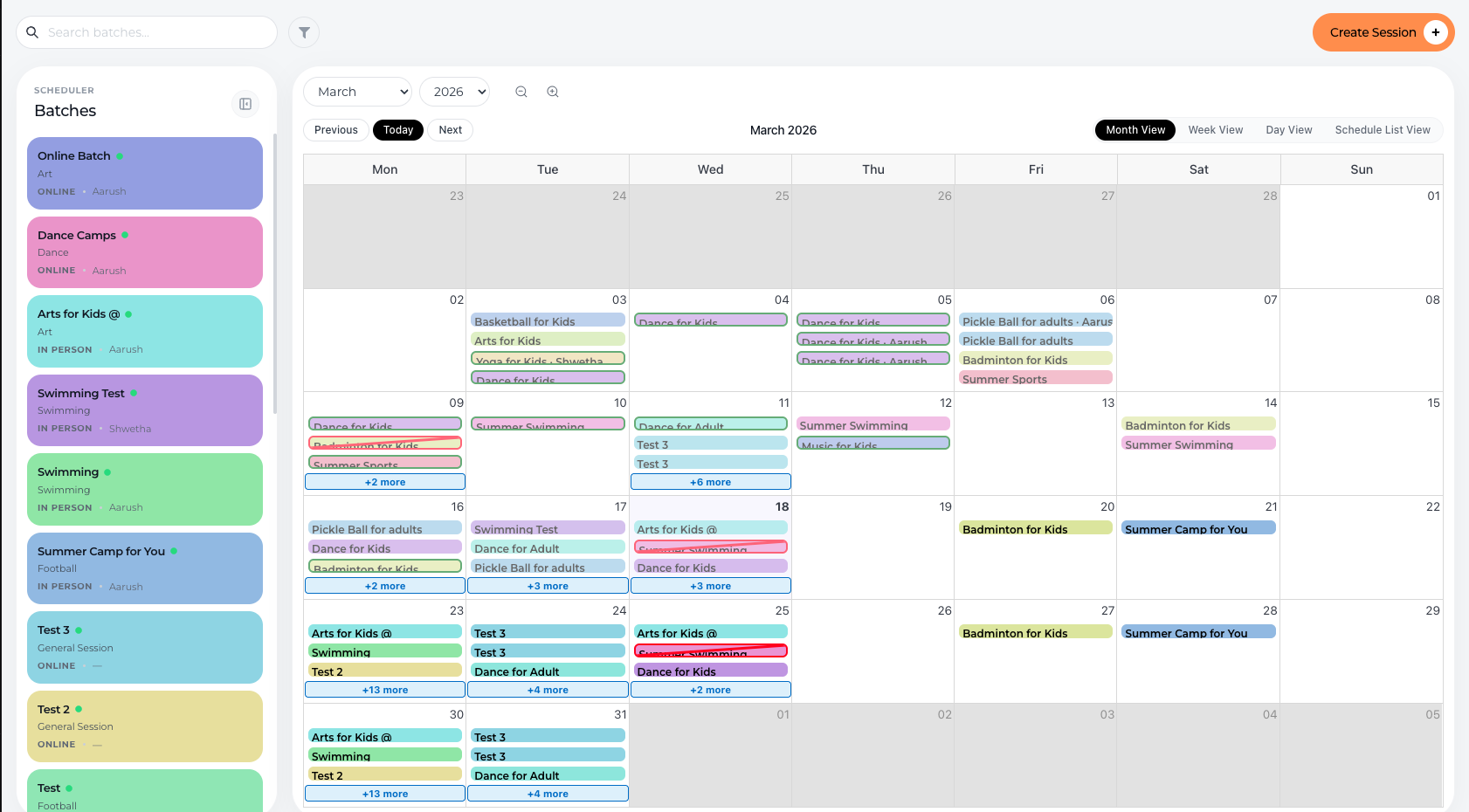
Month View
The Month View shows your sessions across the entire month.
This view is useful when you want to:
Plan your long-term schedule
See how busy each week is
Get a high-level overview of all upcoming sessions
It helps you quickly understand your overall coaching schedule.
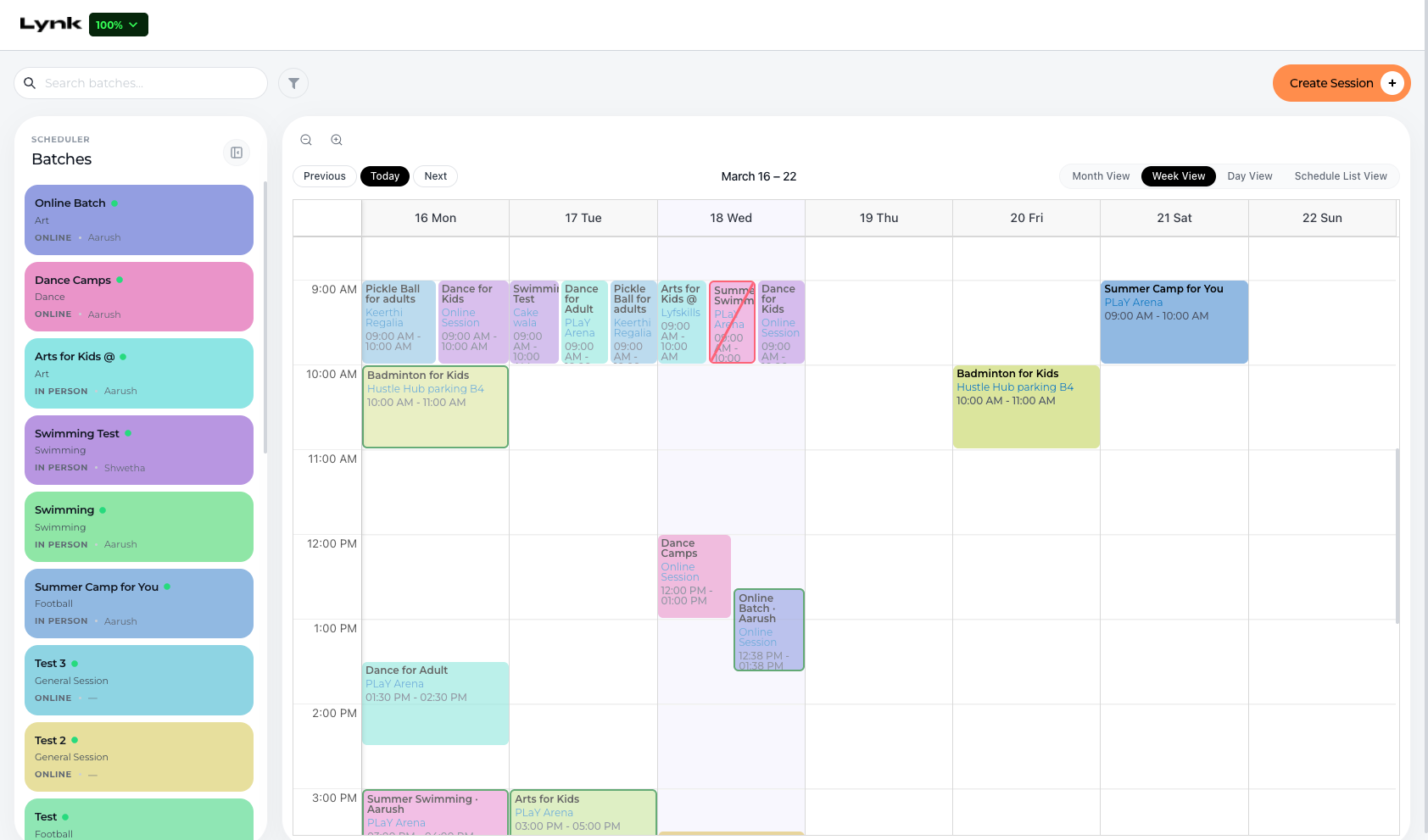
Week View
The Week View displays sessions for the current week, organized by day and time.
This view is ideal for:
Tracking multiple sessions happening in a week
Managing overlapping sessions
Reviewing weekly class schedules
Many coaches use this as their primary scheduling view.
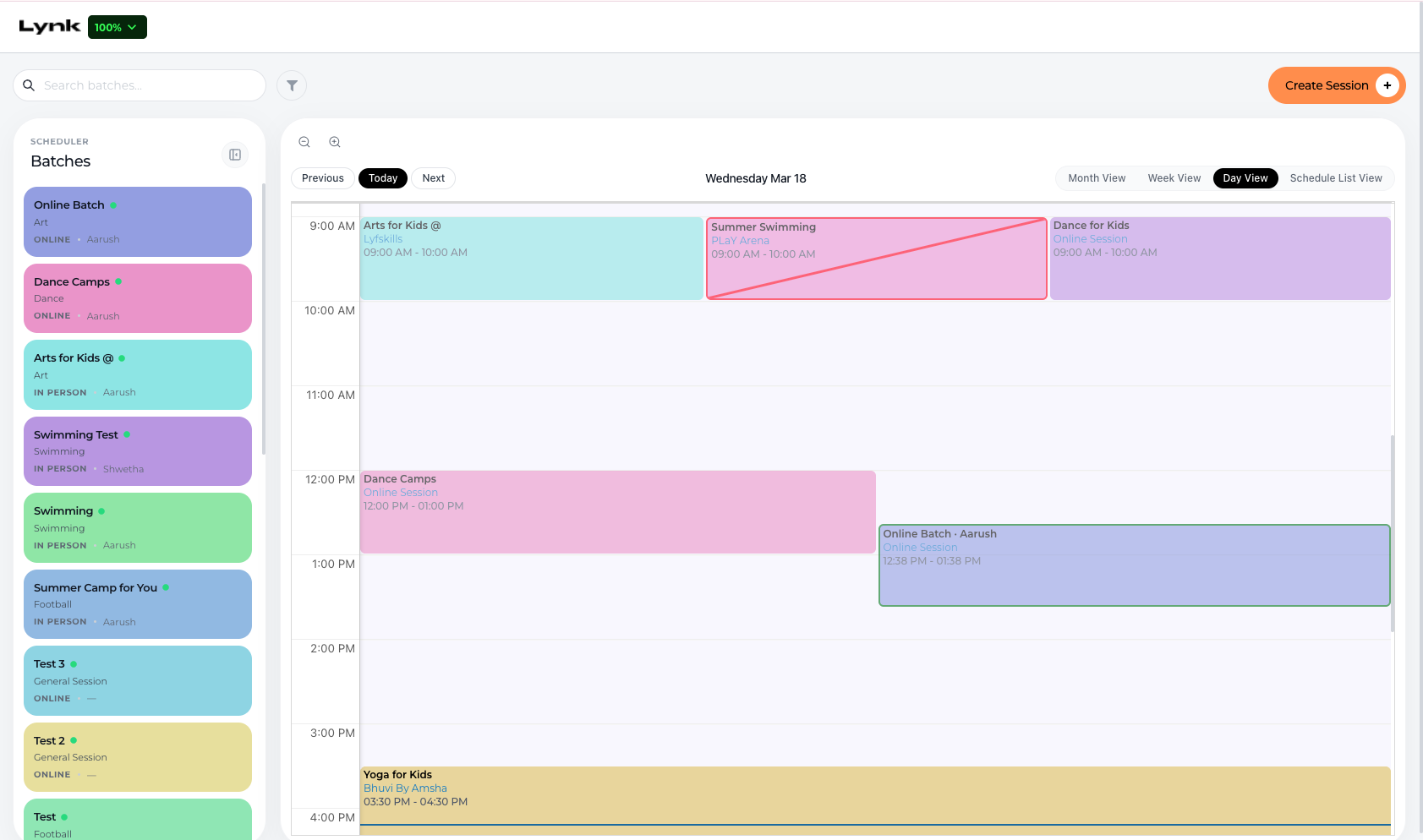
Day View
The Day View focuses on sessions scheduled for a single day.
This layout is helpful when you want to:
See your daily coaching schedule
Prepare for sessions happening today
Check exact time slots for classes
It provides a clear timeline of your sessions for that day.
Schedule List View
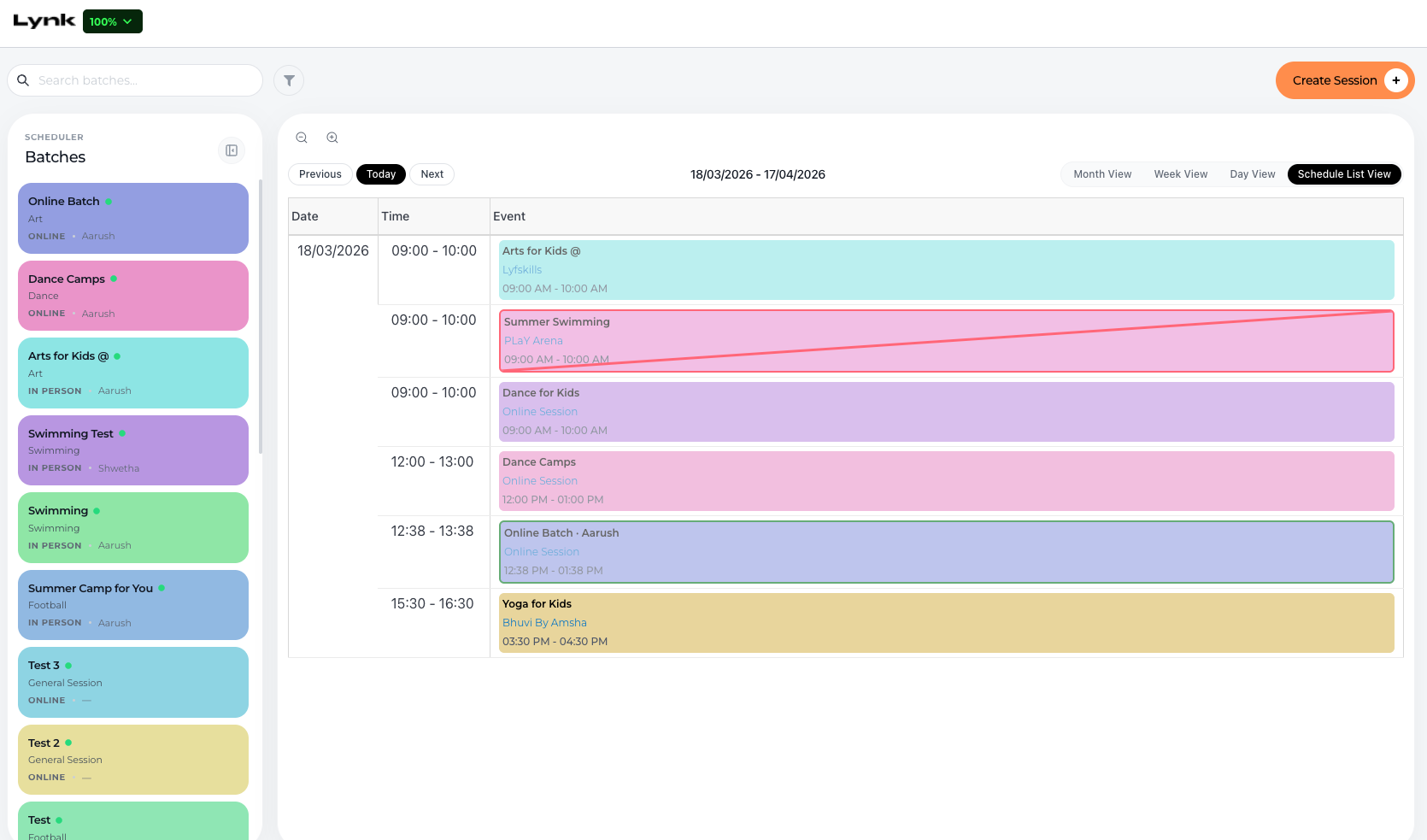
The Schedule List View displays sessions in a simple list format rather than a calendar grid.
This view is useful when you want to:
Quickly scan through all upcoming sessions
View sessions in a chronological list
Manage sessions without using a calendar layout
It provides a straightforward way to review your session schedule.
Why Use Different Calendar Views?
Switching between views helps you manage your coaching sessions more efficiently.
For example:
Use Month View for long-term planning
Use Week View for managing weekly sessions
Use Day View for daily preparation
Use Schedule List View for quick scanning of sessions
Each view gives you a different perspective on your schedule.
Conclusion
The Sessions layout in Lynk Tower allow you to customize how you view and manage your coaching sessions. By switching between Month, Week, Day, and Schedule List views, you can plan long-term schedules, monitor weekly programs, and stay organized with your daily classes more effectively.