Closing or archiving an old batch
How to close a completed batch and move it to the inactive list, and how to reactivate it when needed.
Written by Swathi N
When a coaching program or training cycle is completed, you may want to stop scheduling future sessions while still keeping the batch data for reference. You can use the Close Batch option to archive a batch and move it to the Inactive list.
This helps keep your active batches organized while preserving past batch records such as schedules and session history.
When to Close a Batch
Closing a batch is useful when:
A training program has been completed
The batch is no longer running sessions
You want to stop generating future sessions
The class cycle has ended but you want to keep the records
Closed batches remain accessible in the Inactive list and can be reactivated later if needed.
How to Close a Batch
Follow these steps to close an existing batch:
Go to the Batches tab in Lynk Tower.
Select the batch you want to close.
Open the Edit Batch option for that batch.
Click the Close Batch button.
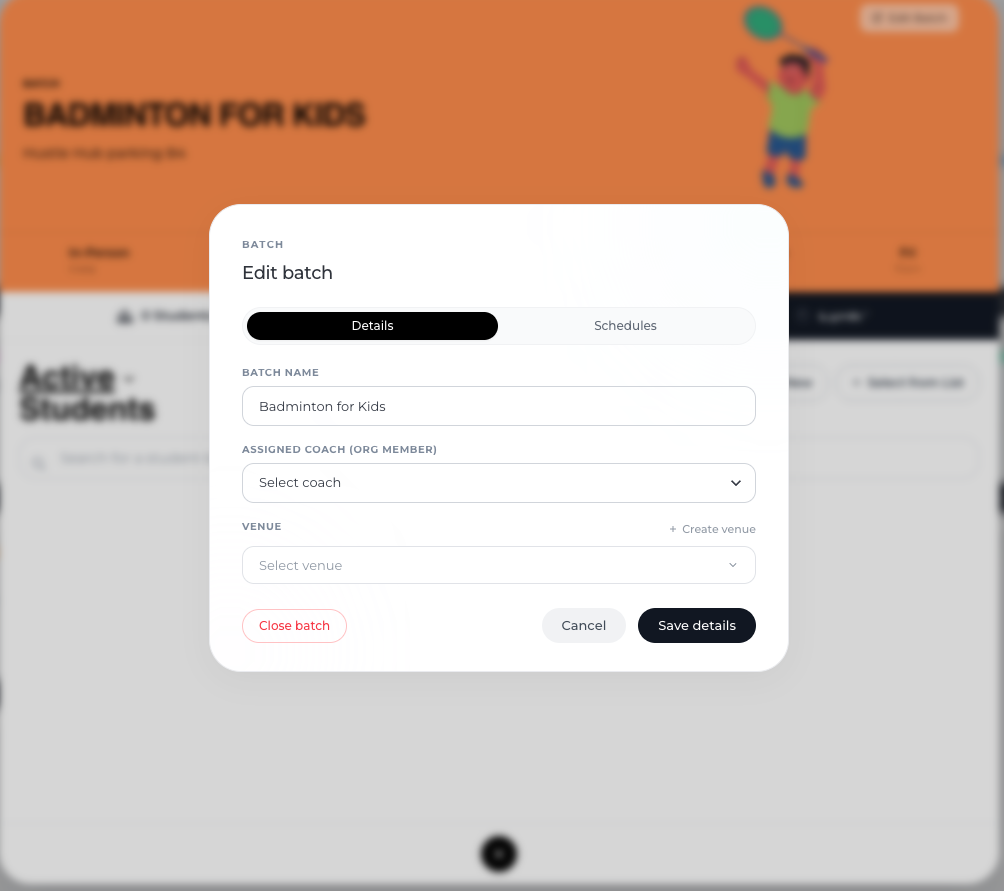
Once closed, the batch will be moved from the Active batches list to the Inactive list.
No new sessions will be generated for this batch.
Viewing Closed Batches
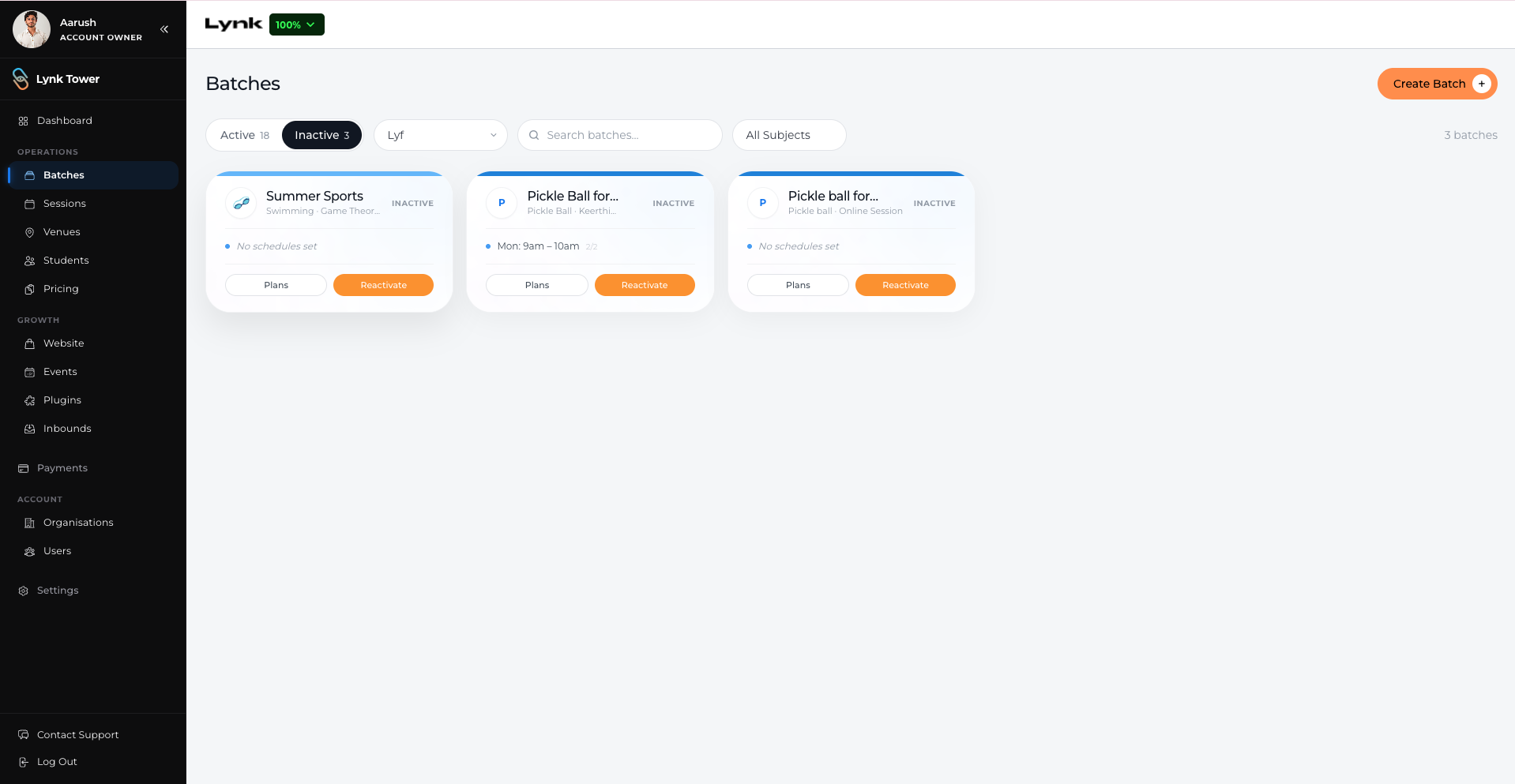
Closed batches can still be accessed from the Inactive section of the Batches tab.
From here, you can:
View past session details
Check batch information and schedules
Reactivate the batch if the program needs to continue
Reactivating a Closed Batch
If you want to start the batch again, you can reactivate it.
Steps to Reactivate a Batch
Go to the Inactive batches list.
Select the batch you want to reactivate.
Choose one of the following options:
Reuse the previous schedule – Continue with the same schedule that was used earlier.
Create a new schedule – Add a new schedule for the batch before restarting it.
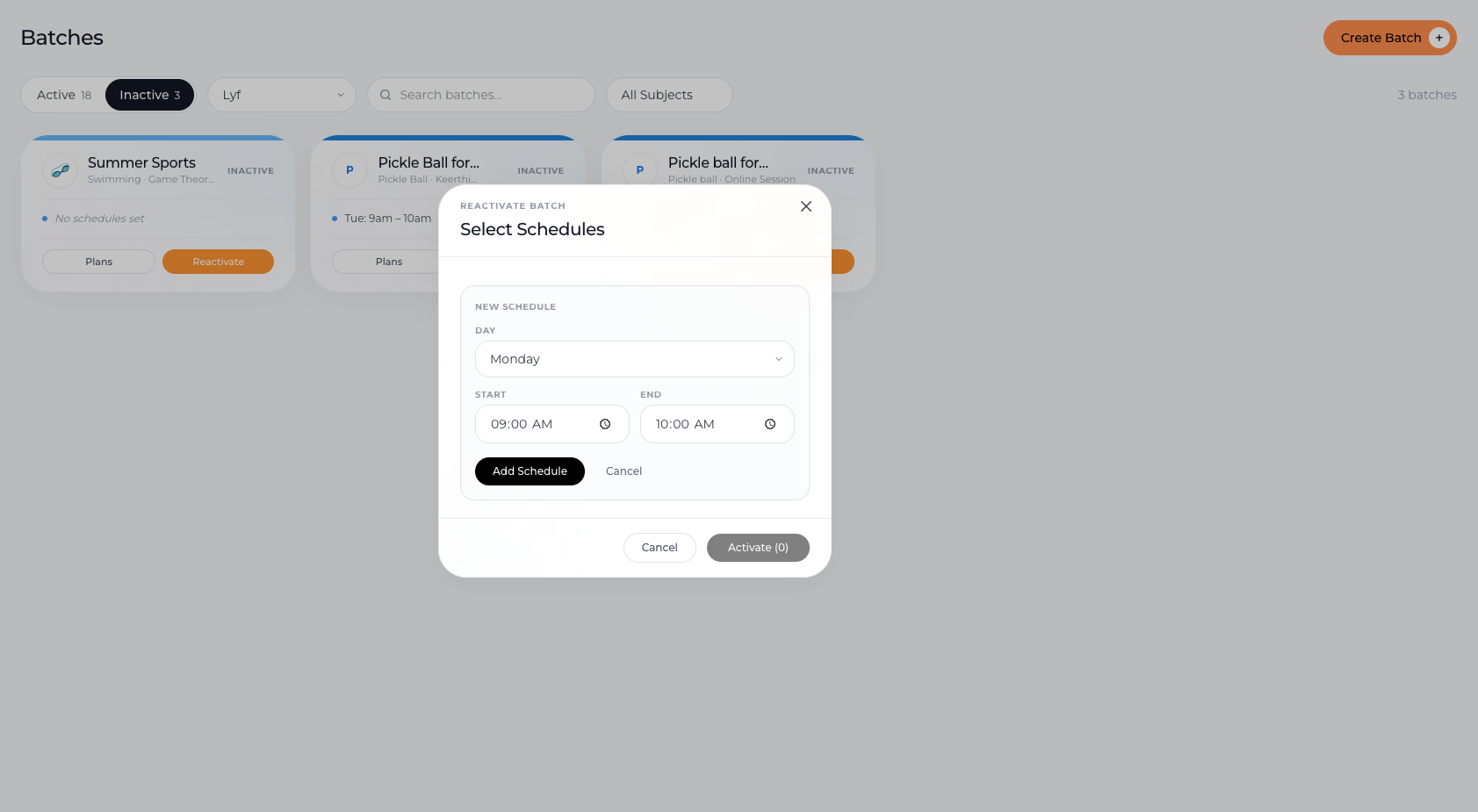
After reactivation, the batch will move back to the Active batches list, and sessions can continue as per the selected schedule.
Important Notes
Closing a batch stops future sessions from being generated.
All past sessions and batch data remain saved.
Reactivated batches can either continue with the previous schedule or start with a new schedule.
Conclusion
The Close Batch feature helps you manage completed coaching programs by moving them to an inactive state while keeping their records intact. If needed, you can easily reactivate the batch later by reusing the existing schedule or creating a new one, allowing you to continue the program without creating a new batch from scratch.