Creating an Individual Session Within a Batch
Create an individual session for a specific date and time without affecting your regular batch schedule.
Written by Swathi N
In Lynk Tower, batches with recurring schedules automatically create sessions based on the defined days and times. However, you may sometimes need to add an extra session to accommodate makeup classes or special sessions.
Using the Manage option inside a batch, you can easily generate future sessions or create individual sessions when needed.
Accessing Session Management
To generate or create sessions:
Go to the Batches tab in Lynk Tower.
Select the batch you want to manage.
Click the Manage button.
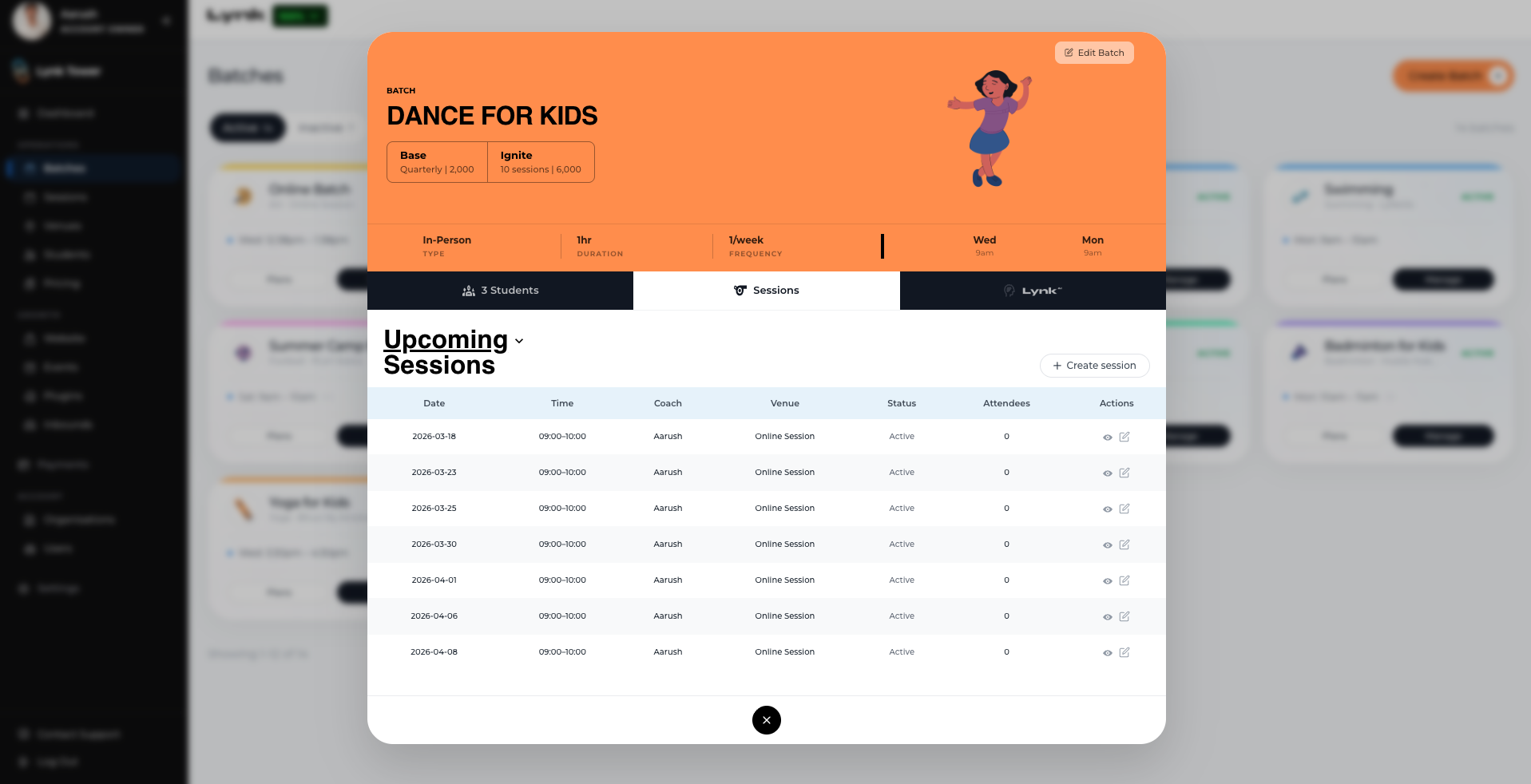
This opens the Manage Sessions window, where you can view upcoming sessions and create additional ones.
Creating a Single Session
Sometimes you may need to add an extra session outside the regular schedule. This is useful for makeup classes or special training sessions.
Steps to Create a Single Session
In the Manage Sessions view, click + Create session.
Select the date for the session.
Set the start and end time.
Save the session.
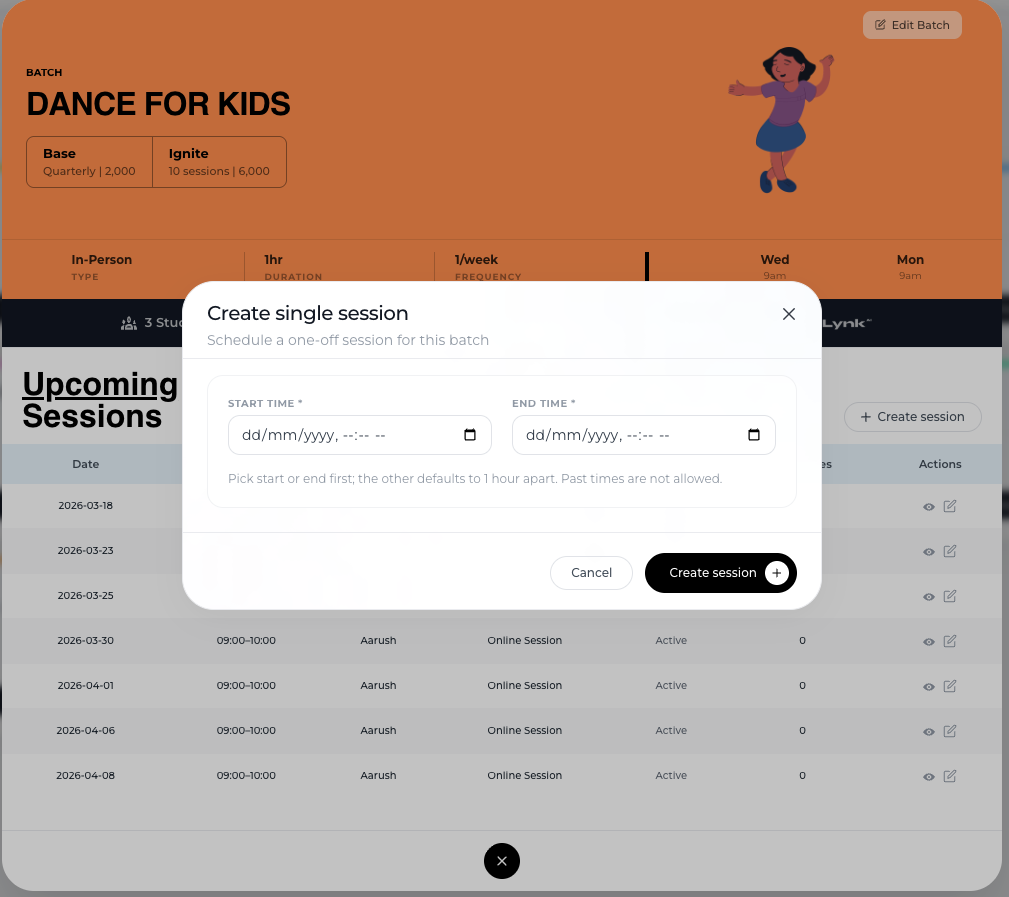
The new session will appear in the list of upcoming sessions for that batch.
When to Use Single Sessions
Creating a single session is helpful when:
A class was canceled and needs to be rescheduled
Students require a makeup class
An extra practice or training session is needed
A special session is added outside the regular schedule
Conclusion
Lynk Tower allows you to easily add individual sessions within a batch whenever needed. Using the Create Single Session option, you can quickly schedule one-off classes for special requirements without affecting the existing schedule.