How to view payment details and fee breakdown
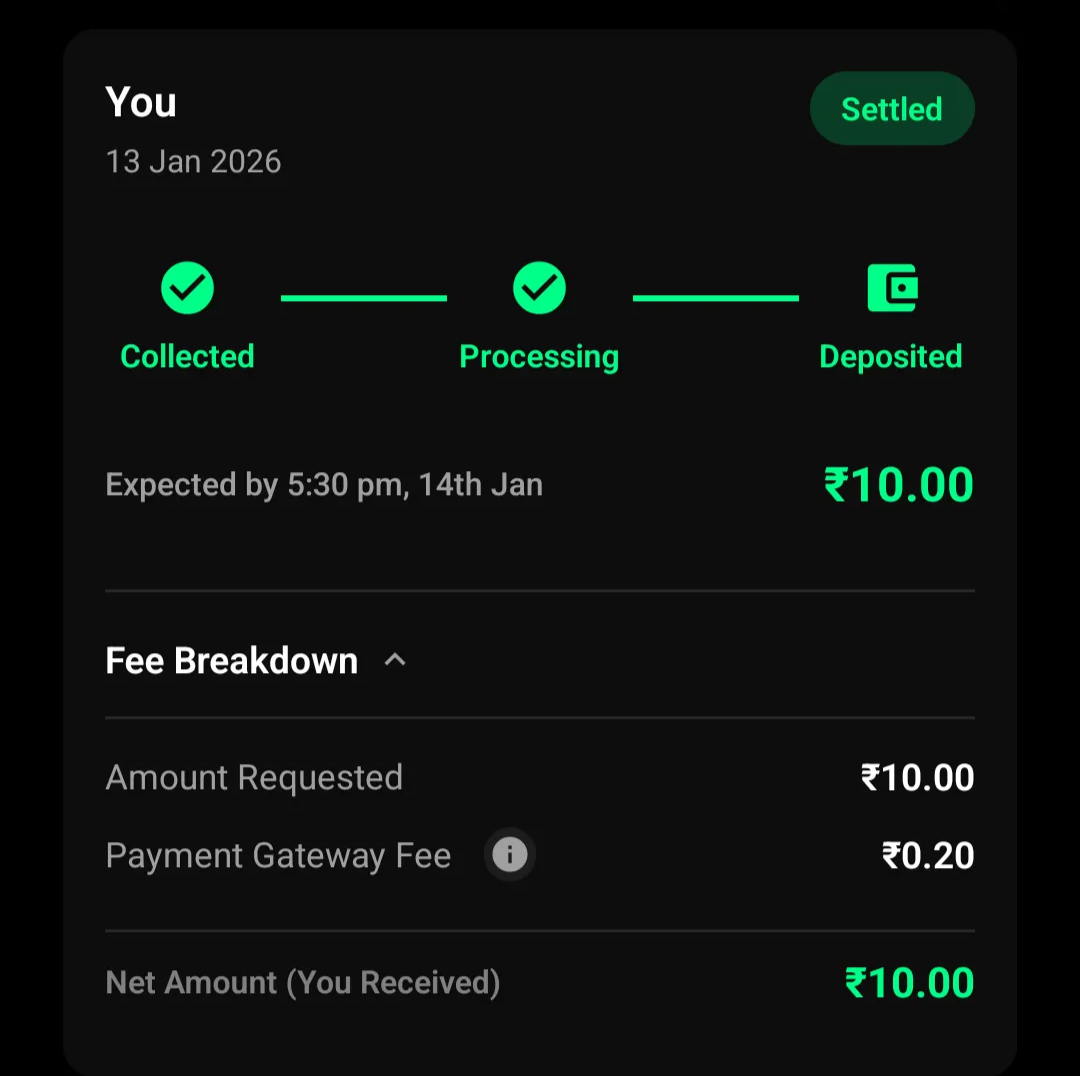
Breakdown can be expanded on payment request details.
Written by Sumit Kapoor
Introduction
Every online payment processed through Lynk includes a base requested amount with clear breakdown of fees and net payout. The Fee Breakdown view helps you understand exactly how much was requested, what gateway charges were applied, and what amount was finally credited to you.
This breakdown is available only after a payment is completed, ensuring accuracy and finality of amounts.
Where Fee Breakdown Is Available
Fee breakdown details can be viewed for payments that are in one of the following states:
Paid – The customer has completed the payment successfully
Settled – The amount has been fully processed and deposited to your account
Fee breakdown is not shown for:
Pending payment requests
Expired or unpaid requests
This ensures that only finalized transactions show financial details.
How to Access Fee Breakdown
Follow these steps to view the fee breakdown for any completed payment:
Go to the Payments tab
Select Requests
Use the status filters to switch to Paid or Settled
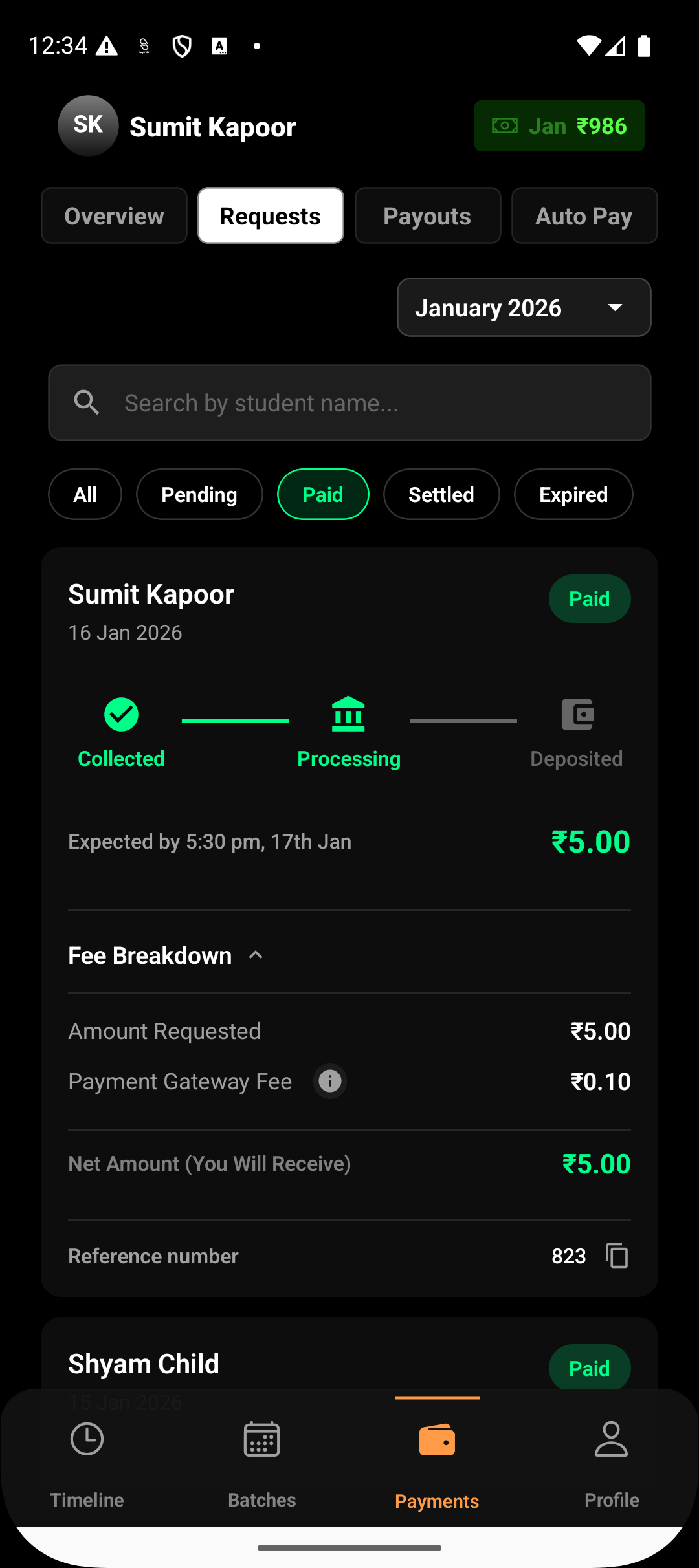
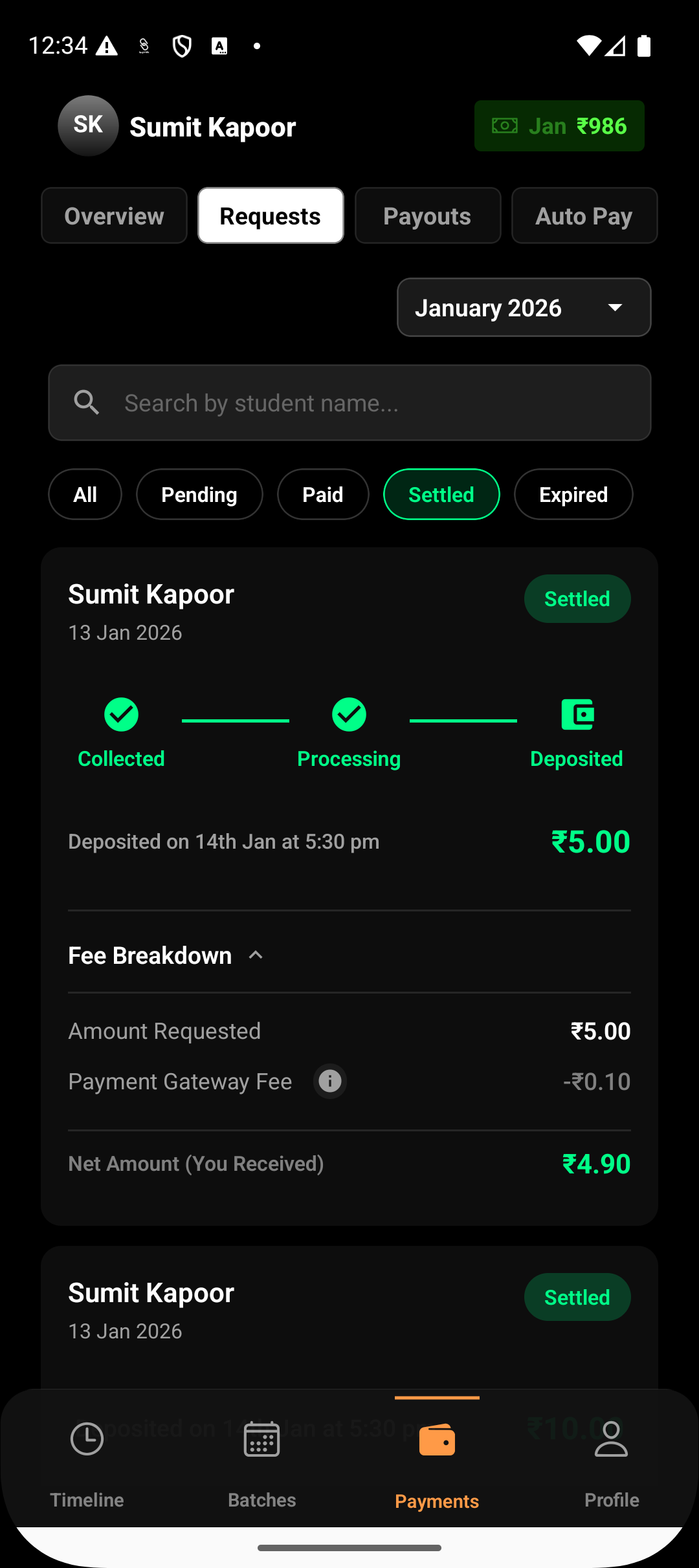
Tap on the specific payment request you want to review
Expand the Fee Breakdown section in the payment details view
The breakdown opens inline and shows a clear split of charges and payout.
What Information the Fee Breakdown Shows
The Fee Breakdown section includes:
Base Amount Requested
The base amount entered and requested from the customer
Payment Gateway Fee
The processing fee applied by the payment gateway
Net Amount (Coach Received)
The final amount credited to you after fee deduction
All values are calculated automatically and reflect the exact settlement outcome.
How Fee Breakdown Helps You
Viewing fee breakdown helps you:
Verify gateway charges on each transaction
Understand how fee settings affect your payout
Reconcile collected payments with settlements
Answer customer questions about payment differences
Maintain transparent financial records
This is especially useful when comparing pass-to-customer vs coach-paid fee setups.
Important Notes
Fee breakdown is visible only after payment completion
Breakdown values cannot be edited or adjusted
All calculations shown are system-generated and final
Offline or manual payments do not show gateway fee details
Summary
The Fee Breakdown view gives you full transparency into every completed payment. By accessing it from the Payments → Requests section for paid or settled transactions, you can confidently track fees, payouts, and settlements — all in one place.