How to change a venue
Venue changes let you update where sessions take place when a batch permanently moves to a new offline location. This ensures coaches, students, and records reflect the correct venue going forward.
Written by Sumit Kapoor
Steps to change a venue
Select the batch whose venue you want to update.
Tap Edit Batch.
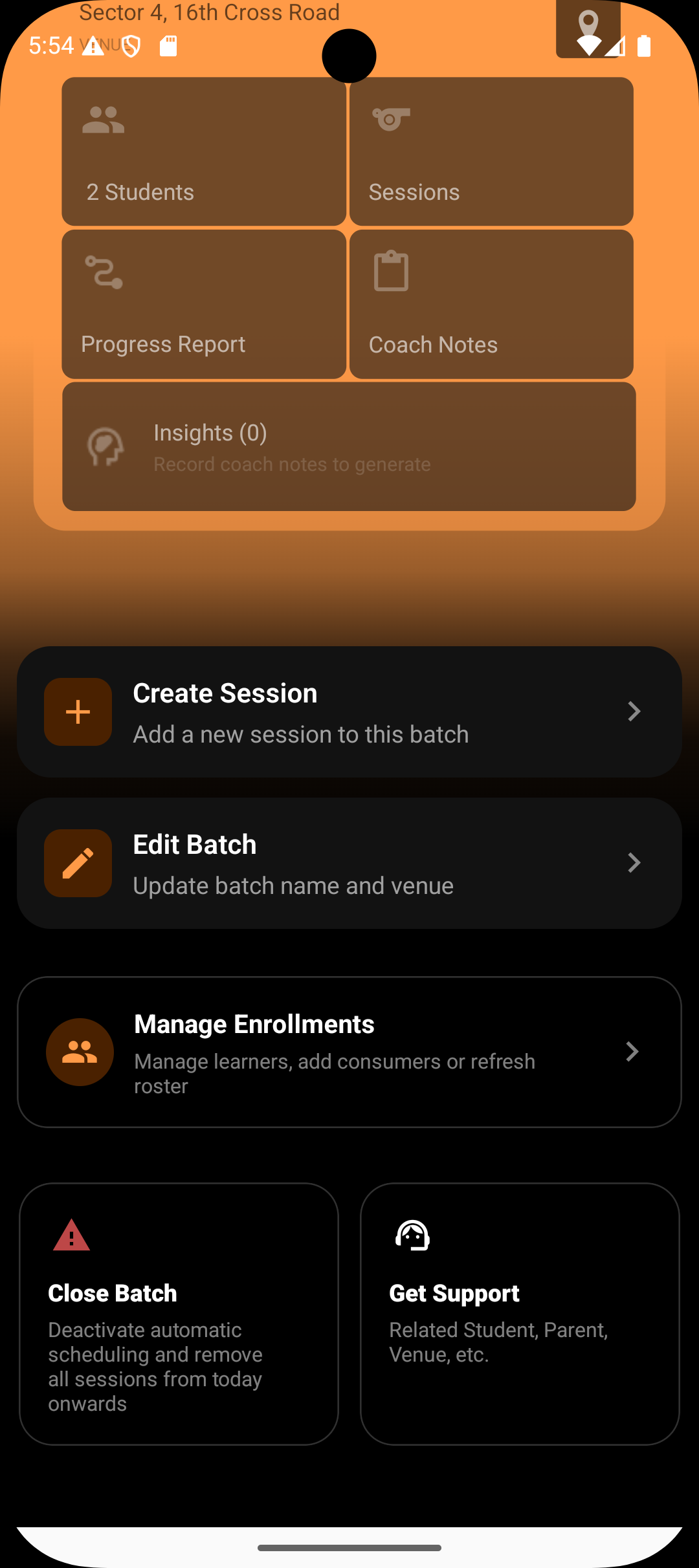
Change the venue to the new location.
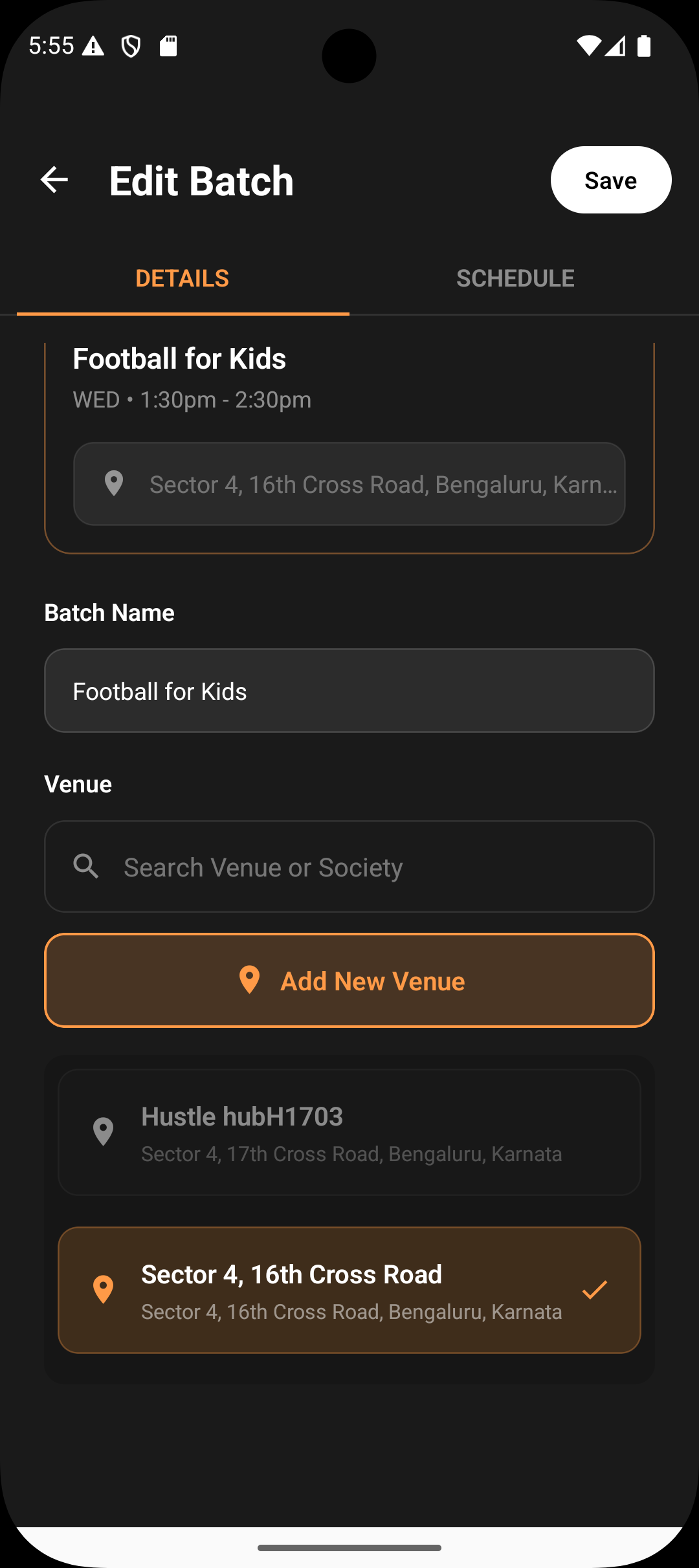
Tap Save to confirm the update.
What happens after changing the venue
The venue is updated at the batch level.
All future sessions created from this batch will use the new venue.
Past and completed sessions continue to show their original venue to preserve history.
Important notes
Venues apply only to offline sessions in Lynk.
Online sessions do not use venue information.
Summary
Updating a venue ensures future sessions reflect the correct location without affecting past records. This keeps scheduling, navigation, and session history accurate and trustworthy.