How to assign a venue
Assigning a venue at the batch level links a physical location to the batch, ensuring all offline sessions happen at a consistent place. This helps coaches know where to go and keeps session records accurate.
Written by Sumit Kapoor
How venue assignment works
Venues are assigned while creating a batch.
The selected venue becomes the default location for all sessions generated from that batch.
Venue applies only to offline sessions in Lynk.
Steps to assign a venue
Start creating a new batch.
When prompted, choose where the batch will take place.
Search for an existing venue or society.
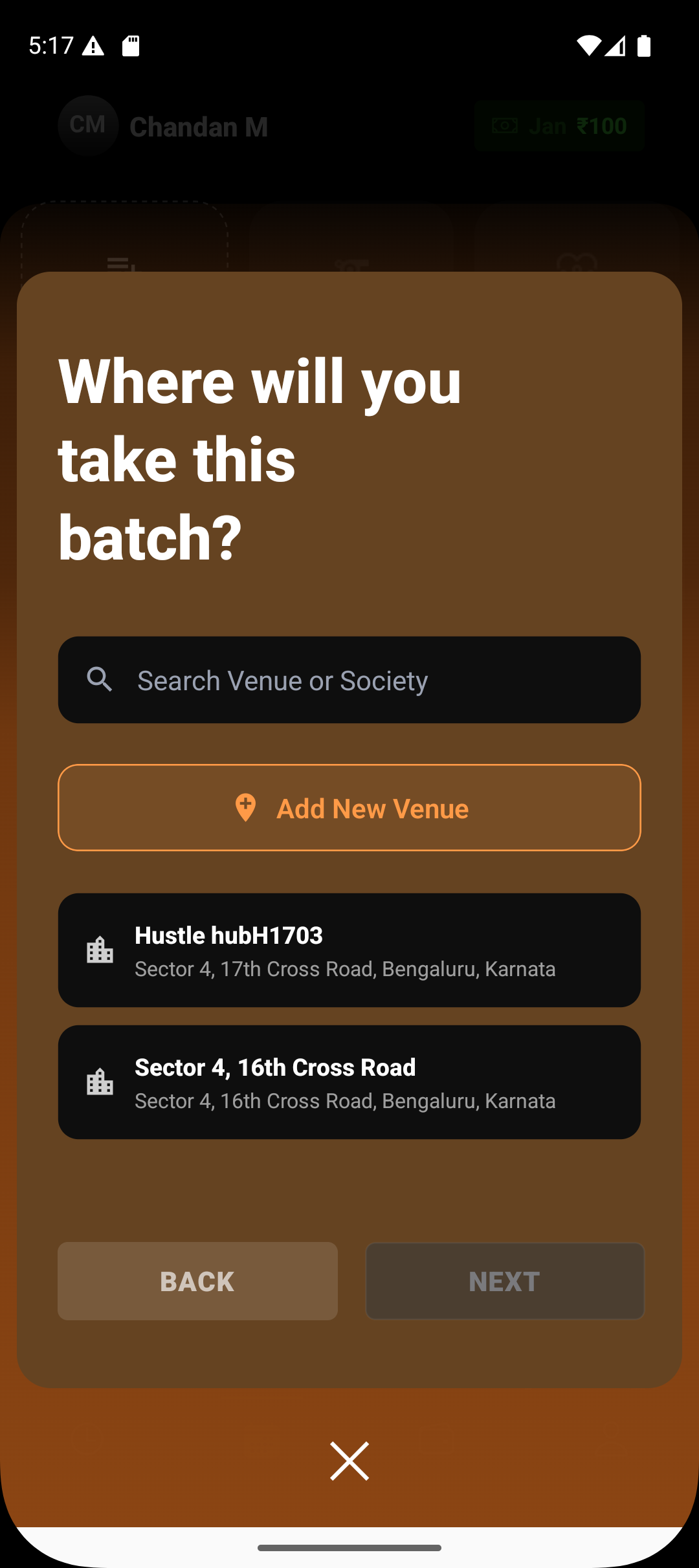
Select the appropriate venue from the list
or tap Add New Venue to create one.
Continue batch creation and save.
What happens after assigning a venue
All future sessions for the batch inherit the selected venue.
Coaches can navigate to the venue directly from the session card.
Venue details remain consistent across schedules and reports.
Summary
Assigning a venue at batch creation ensures every offline session is tied to the correct location. This keeps navigation, scheduling, and session history accurate without requiring repeated setup.