How attendance can be edited
Attendance edits are allowed after a session is completed to correct genuine marking mistakes. This keeps records accurate without changing the session’s core history.
Written by Sumit Kapoor
Step-by-step: Editing attendance
Open the completed session from your session history
Tap on Attendance
Select Edit Attendance
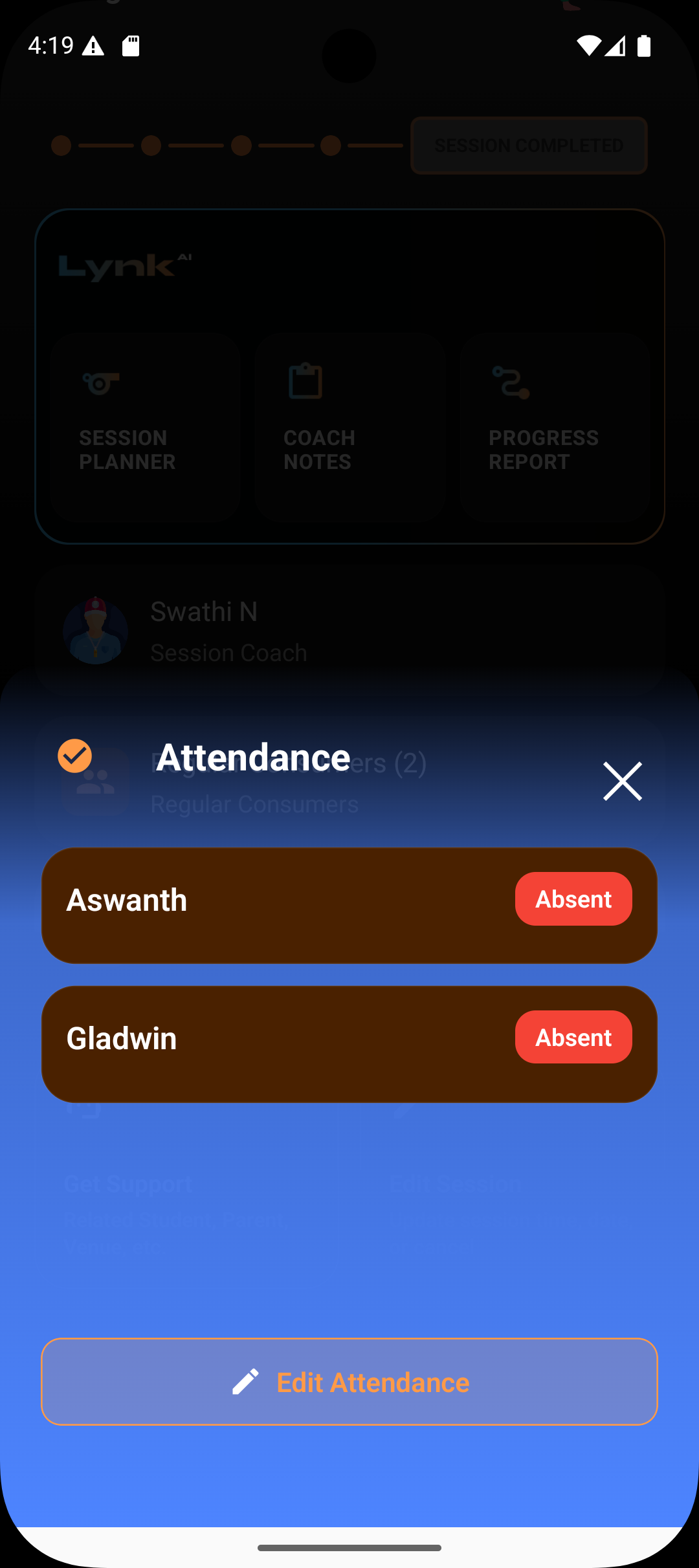
Update the student’s status to Present or Absent as needed
Review the changes for accuracy
Tap Save Changes to confirm
What happens after editing
The corrected attendance is saved to the session record
Reports, progress, and insights reflect the updated data
The session remains completed and historically intact
Summary
Attendance can be edited only for completed sessions
Edits are meant strictly for correcting mistakes
Session status, coach, date, and time remain unchanged
Saving changes updates all downstream reporting
Accurate attendance preserves trust in progress and billing records