How to edit a session
Session edits are mainly for updating timing schedule or calling off an upcoming session without affecting the batch or other scheduled sessions.
Written by Sumit Kapoor
How to edit a session
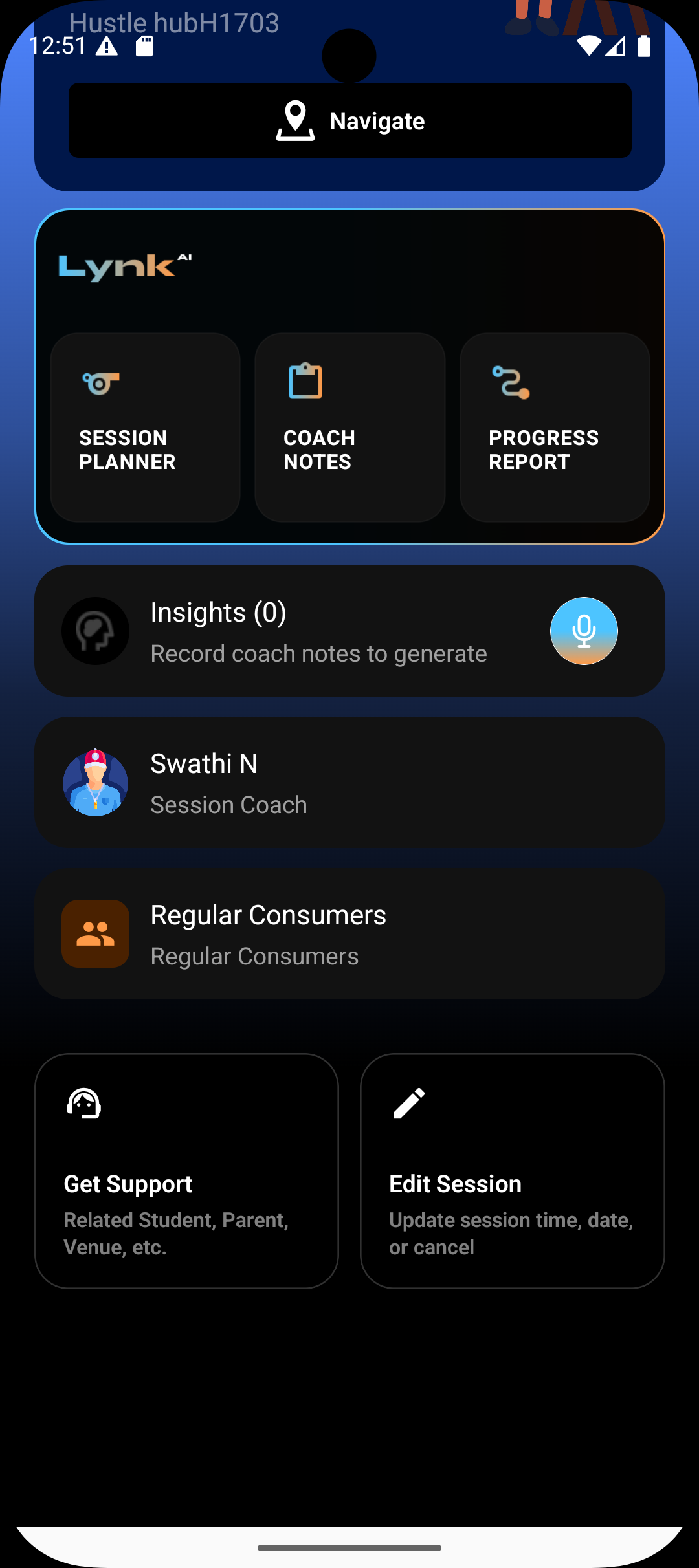
Open the relevant session card
Tap Edit Session
Make your changes
Update the date or time of the session
Adjust the duration using quick presets or manual selection
Review the summary to confirm the changes apply only to this session
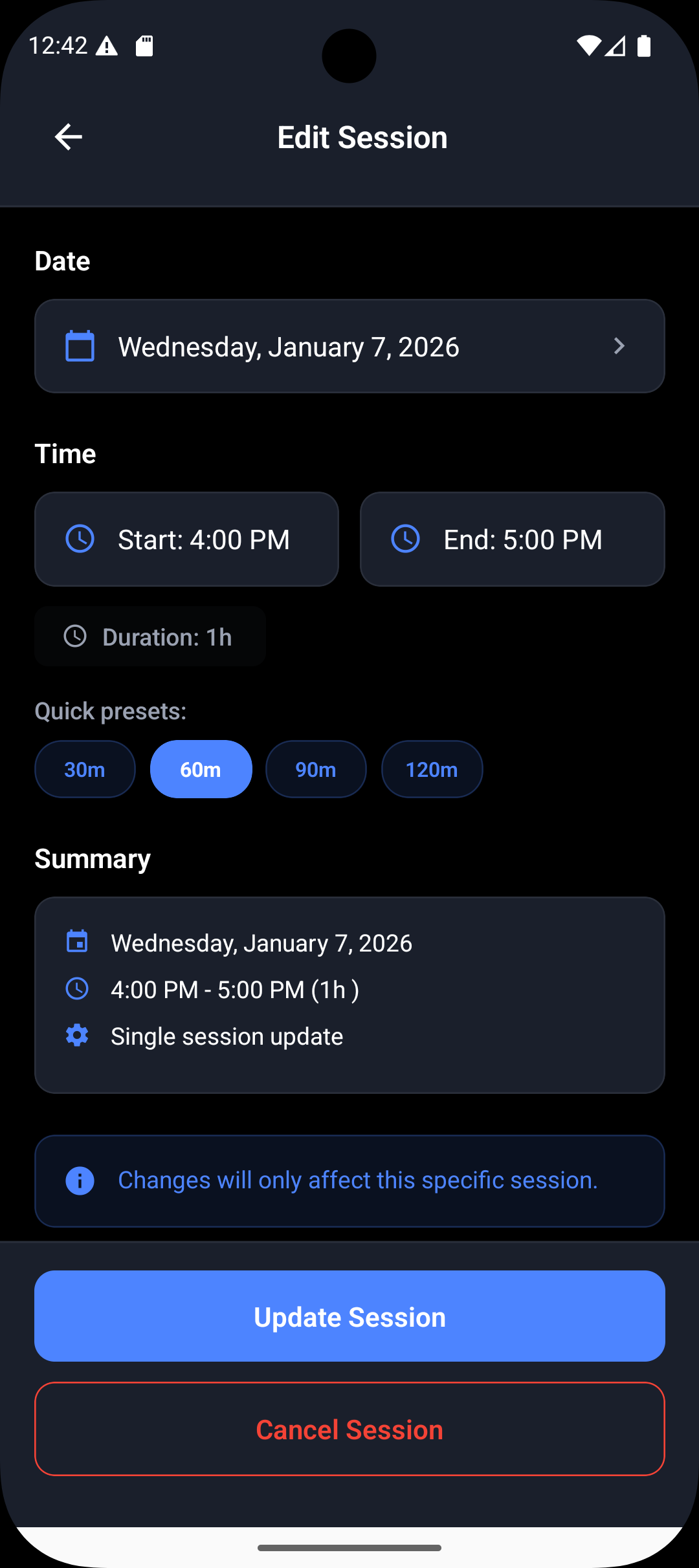
Update or cancel
Tap Update Session to save your changes
Tap Cancel Session if the session should no longer take place
Changes made here affect only this specific session and do not modify the batch schedule or future sessions.
Summary
Sessions can be edited individually for accuracy and corrections
Edits do not impact past records or future scheduled sessions
Session-level updates help preserve operational trust and clarity
Use session edits for fixes, not structural batch changes