How to view batch details
Batch details show your full batch setup and the controls to manage it daily. From students and schedule to insights and actions, everything you need to run and edit a batch is in one place.
Written by Sumit Kapoor
Step-by-step: Viewing Batch Details in Lynk
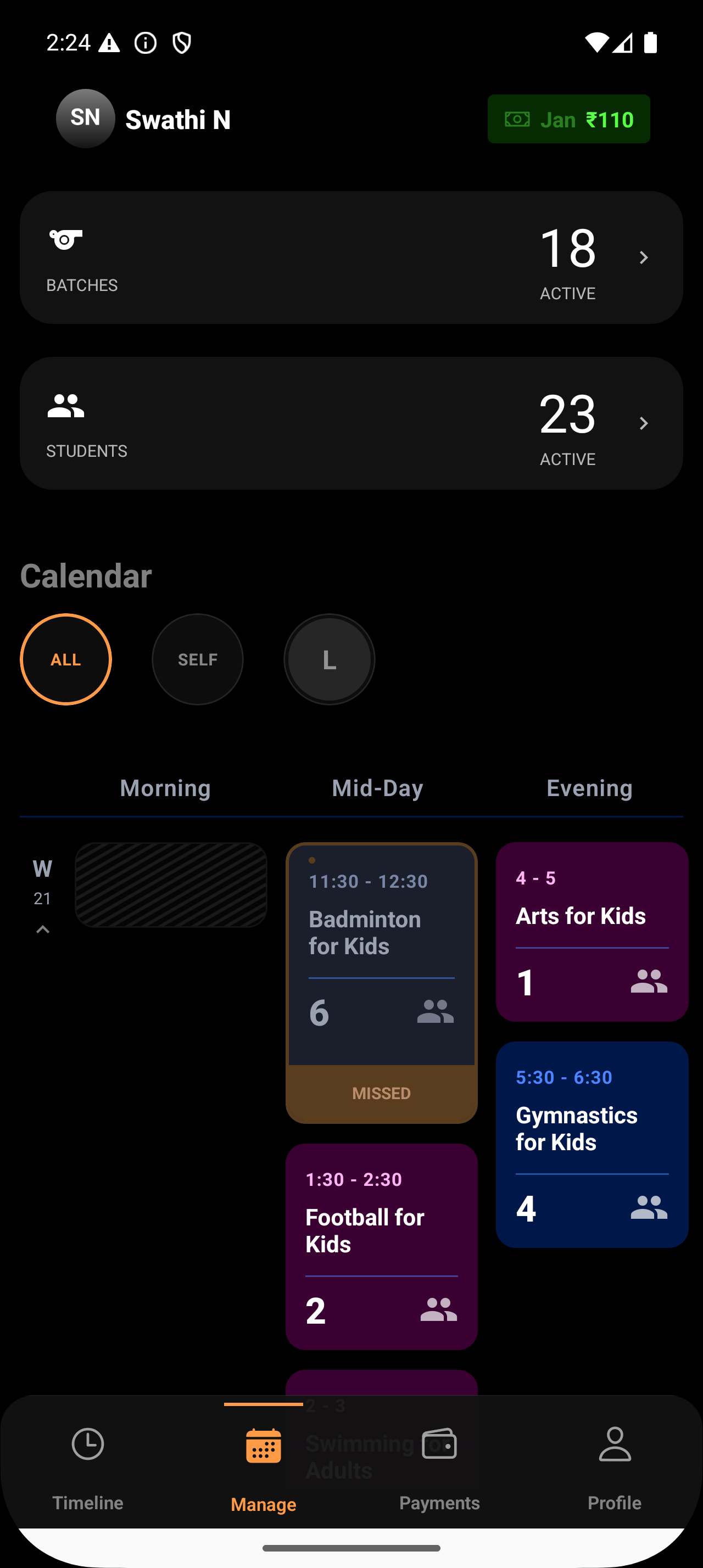
1. Open the Manage tab
From the home screen, go to the Manage tab.
2. View your batches
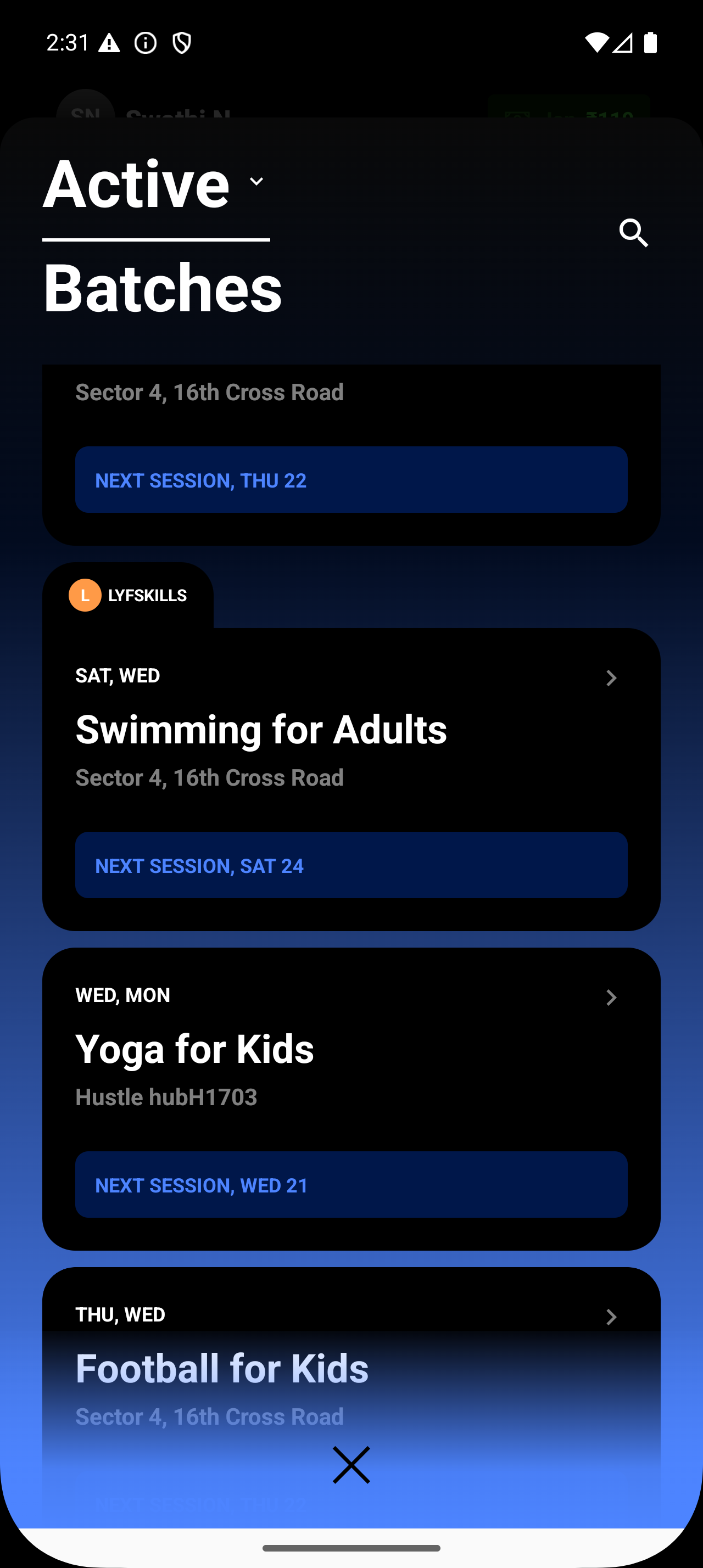
You’ll see:
Current Batches (actively running) - Access to all batches you’ve created
Each batch card shows basic info like timing and batch name.
3. Open a batch
Tap on any batch to open its Batch Details screen.
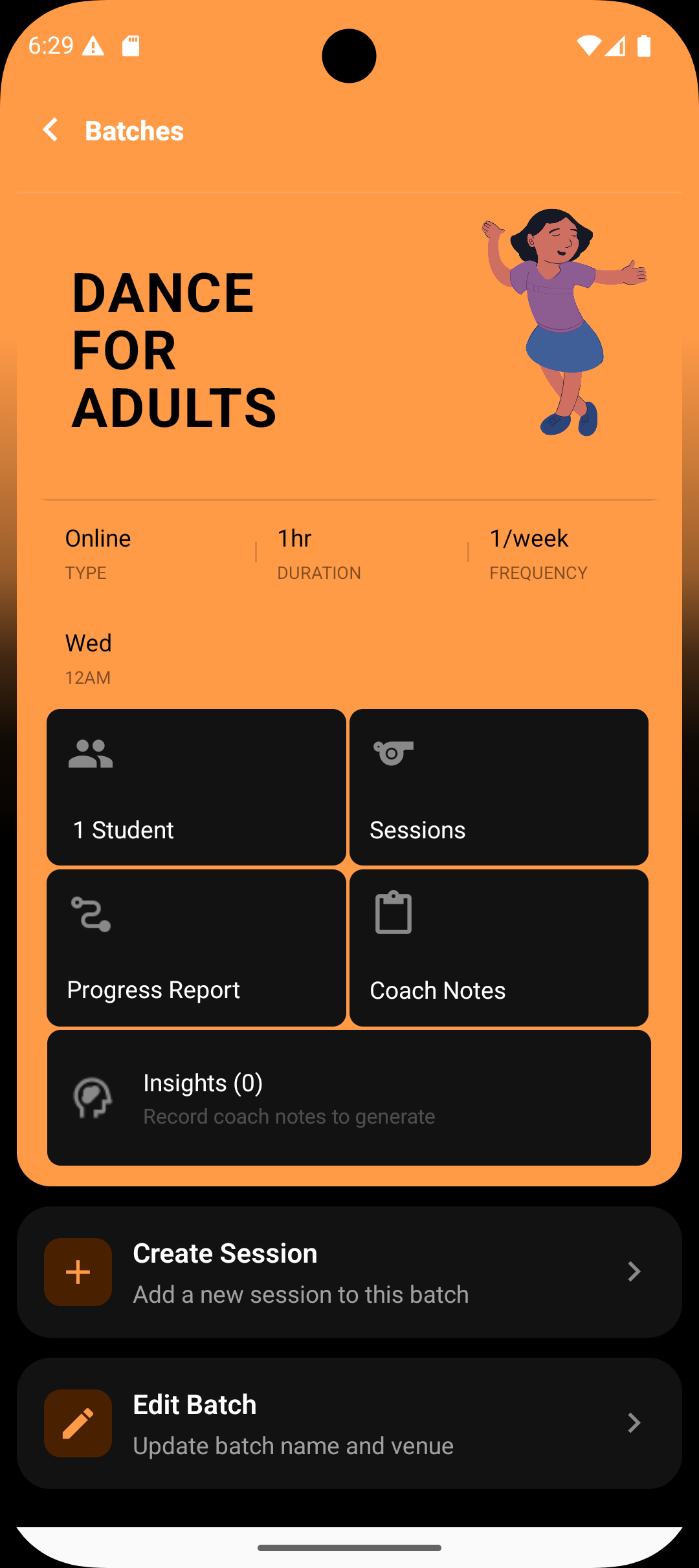
What you can see inside Batch Details
👥 Students
📍 Venue or Online Setup
🗓️ Schedule
📊 Insights
📝 Coach Notes
📈 Progress Records
Batch-level actions & controls
From the Batch Details screen, you can:
Edit batch details (schedule, venue, timing, etc.)
Manage enrollments
Access related sessions created from the batch
Close the batch when it’s completed
Summary
Batch Details is your control center.
It combines:
Setup visibility (students, venue, schedule)
Operational tools (edits, enrollments)
Performance tracking (insights, progress)
Session access and lifecycle management
Everything needed to run and manage a batch—clearly and in one place.