How to create a batch
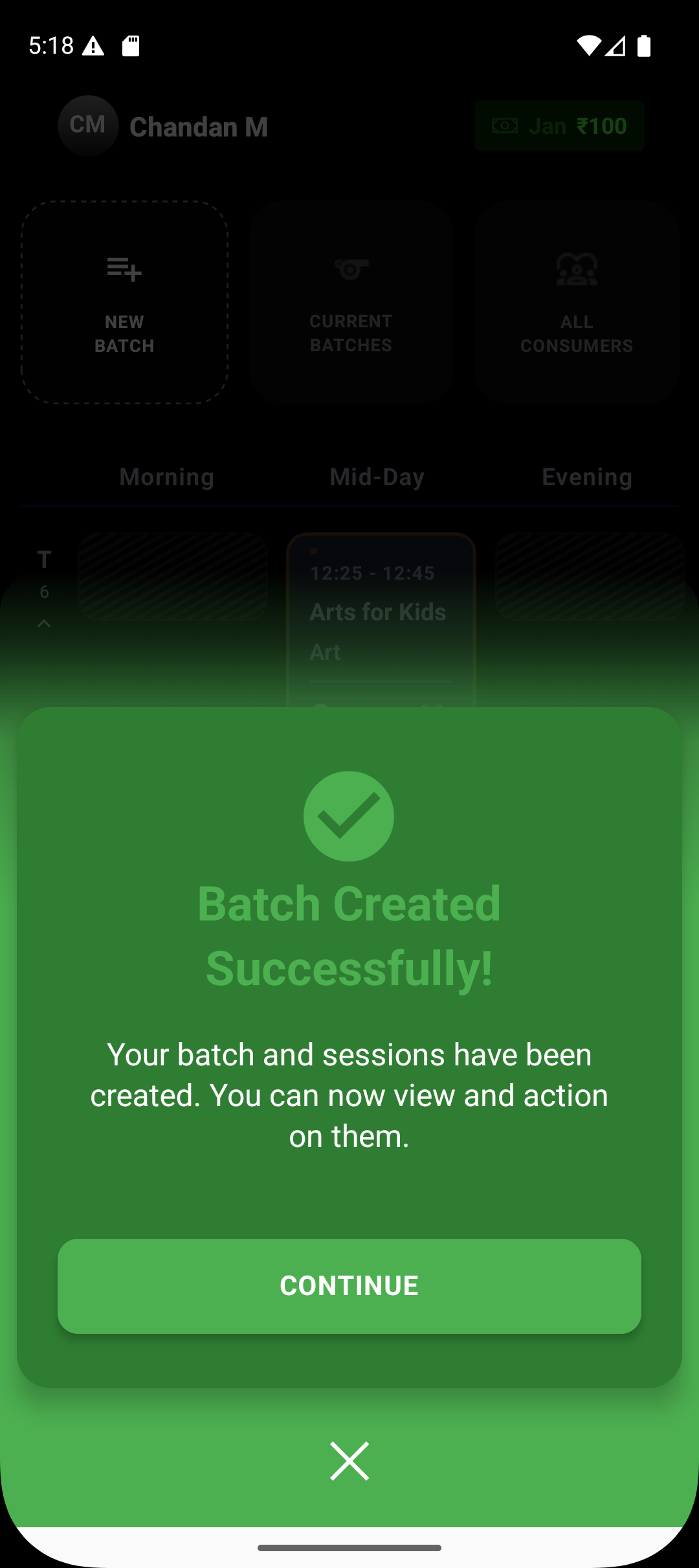
Create a batch by defining the core setup: type, venue, schedule, and students. A batch is the starting point for all sessions—once created, it automatically drives your timetable and attendance flow.
Written by Sumit Kapoor
Step-by-step: Creating a Batch in Lynk
1. Start a new batch
Tap Add / Create New Batch from the Manage section.
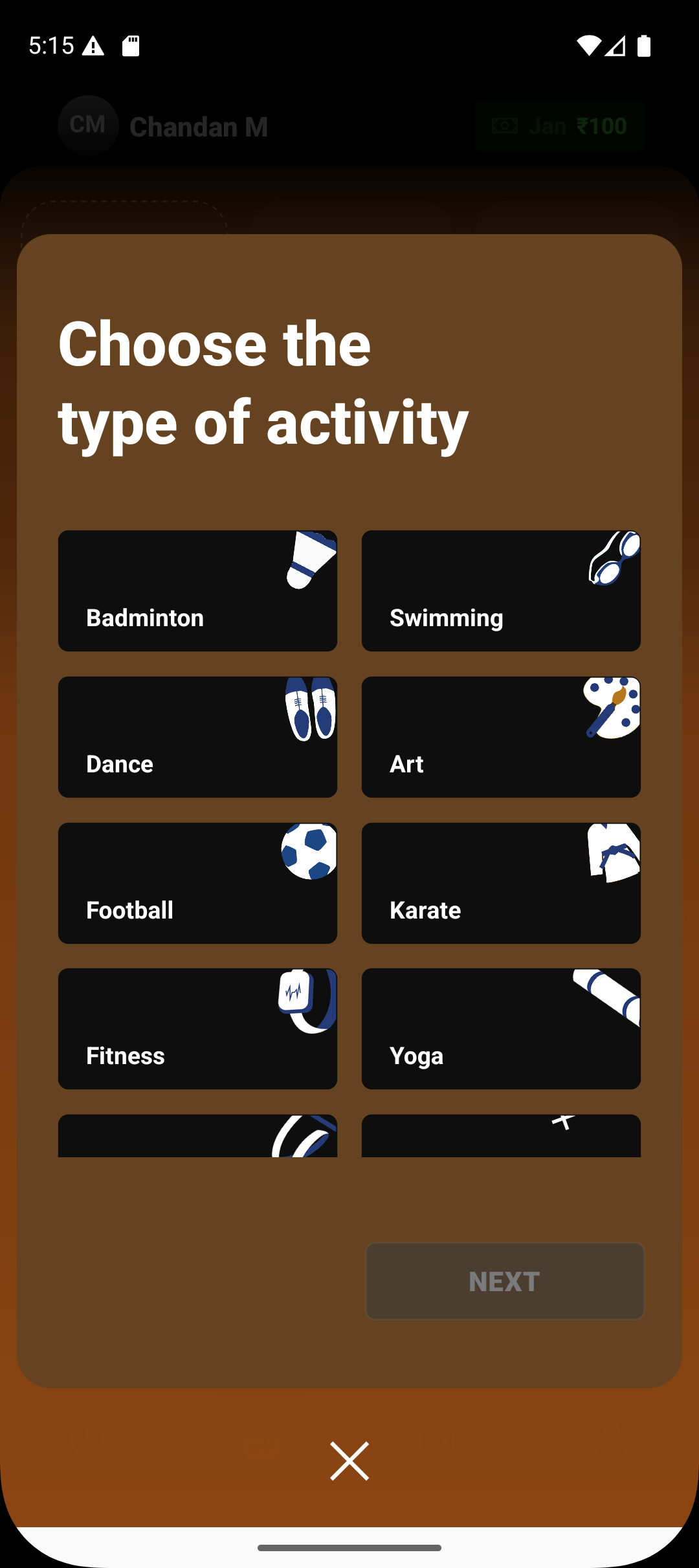
2. Choose the type of activity
Select the activity you’ll be teaching (e.g., Art, Swimming, Dance, Football, Yoga).
This helps categorize the batch and keeps your sessions organized.If your category is not listed, simply select Others and then enter the activity name.
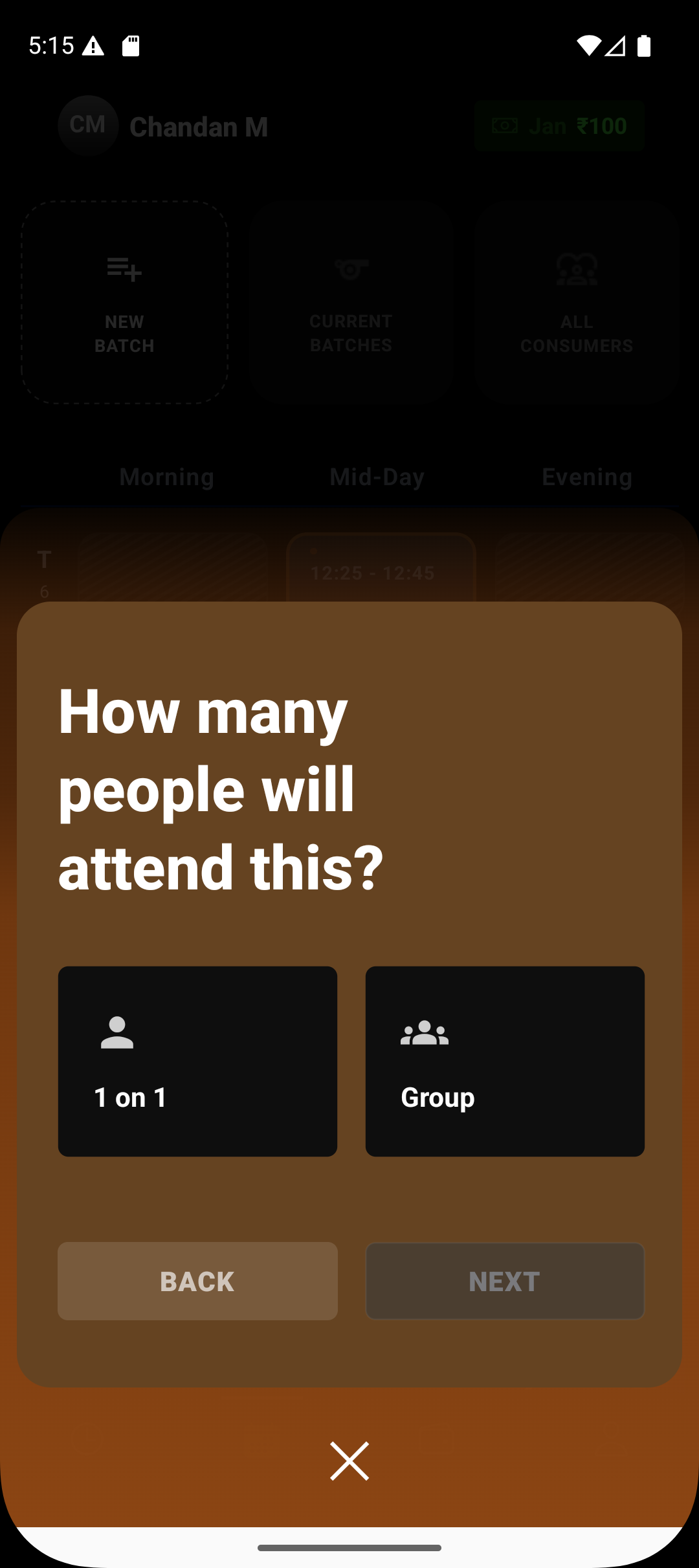
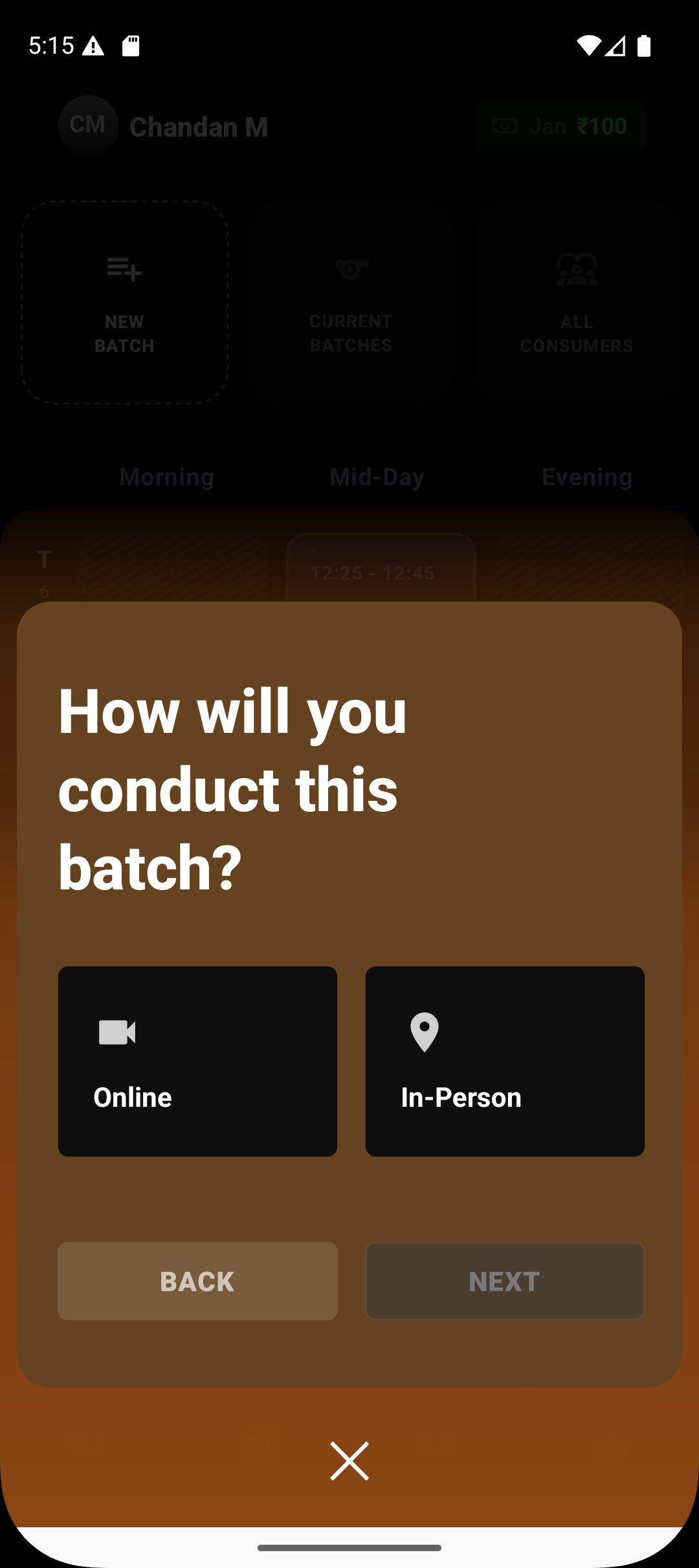
3. Choose batch type
Define how the batch will run:
Online or Offline
Individual (1:1) or Group
This selection determines session behavior, attendance flow, and venue requirements.
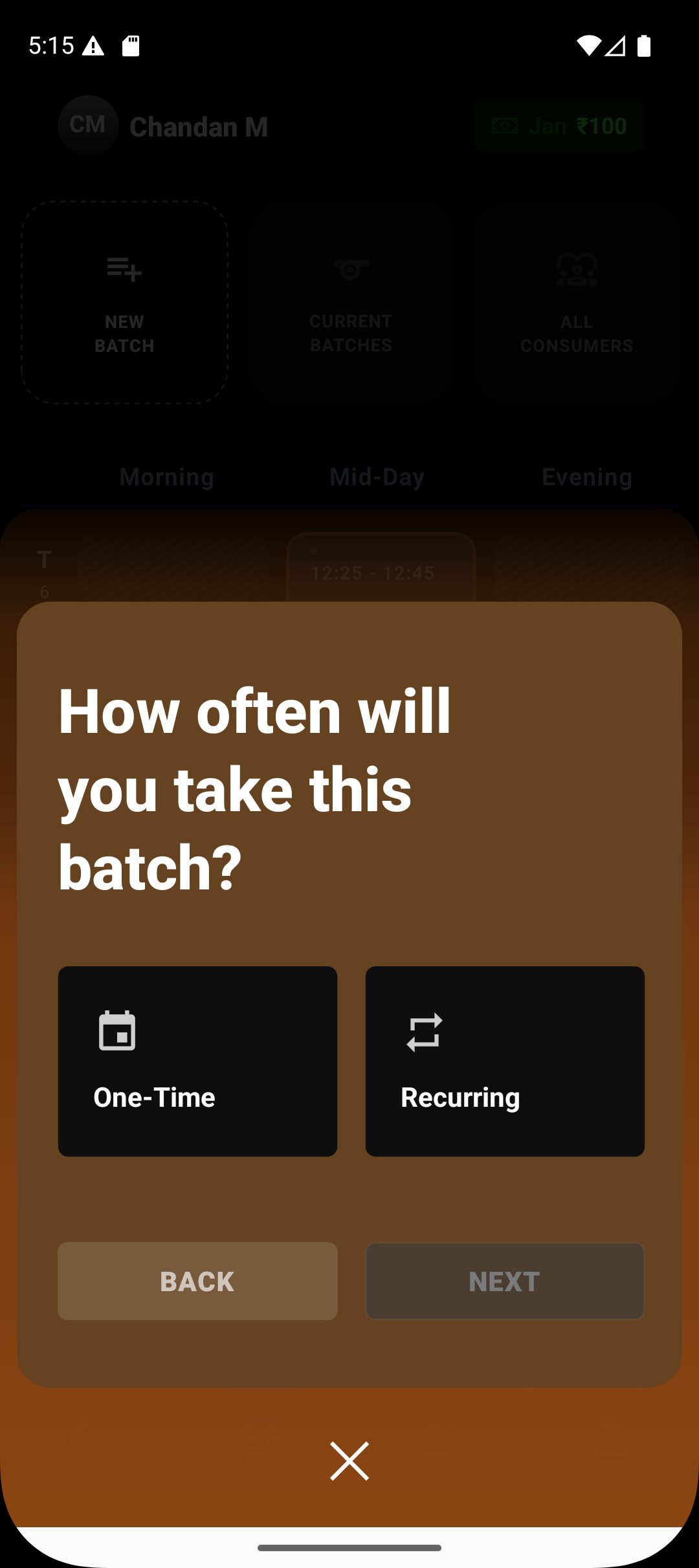
4. Choose batch frequency
Decide whether the batch is:
One-time (single occurrence), or
Recurring (repeats weekly on selected days)
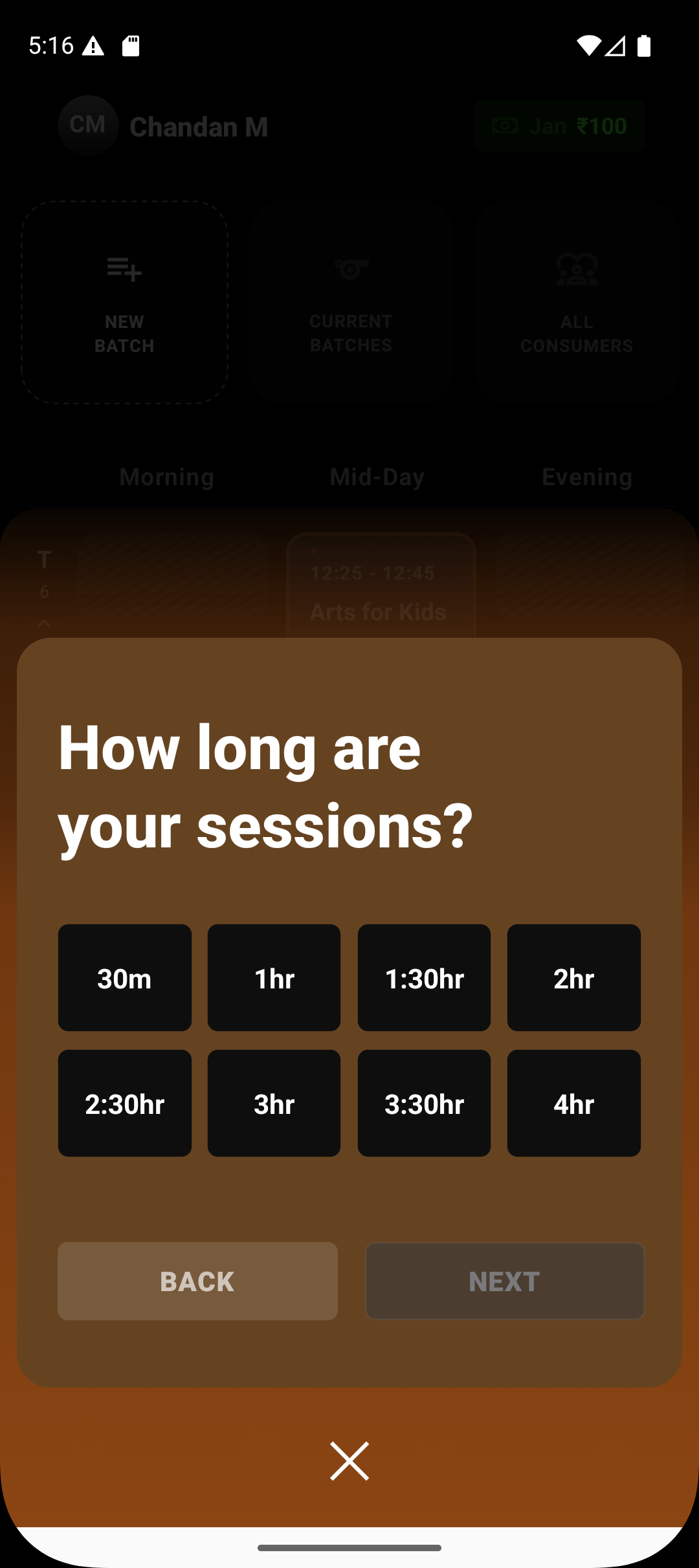
5. Set session duration
Choose how long each session will be:
30 minutes, 1 hour, 1.5 hours, 2 hours, and more.
This duration will apply to all sessions generated under the batch.
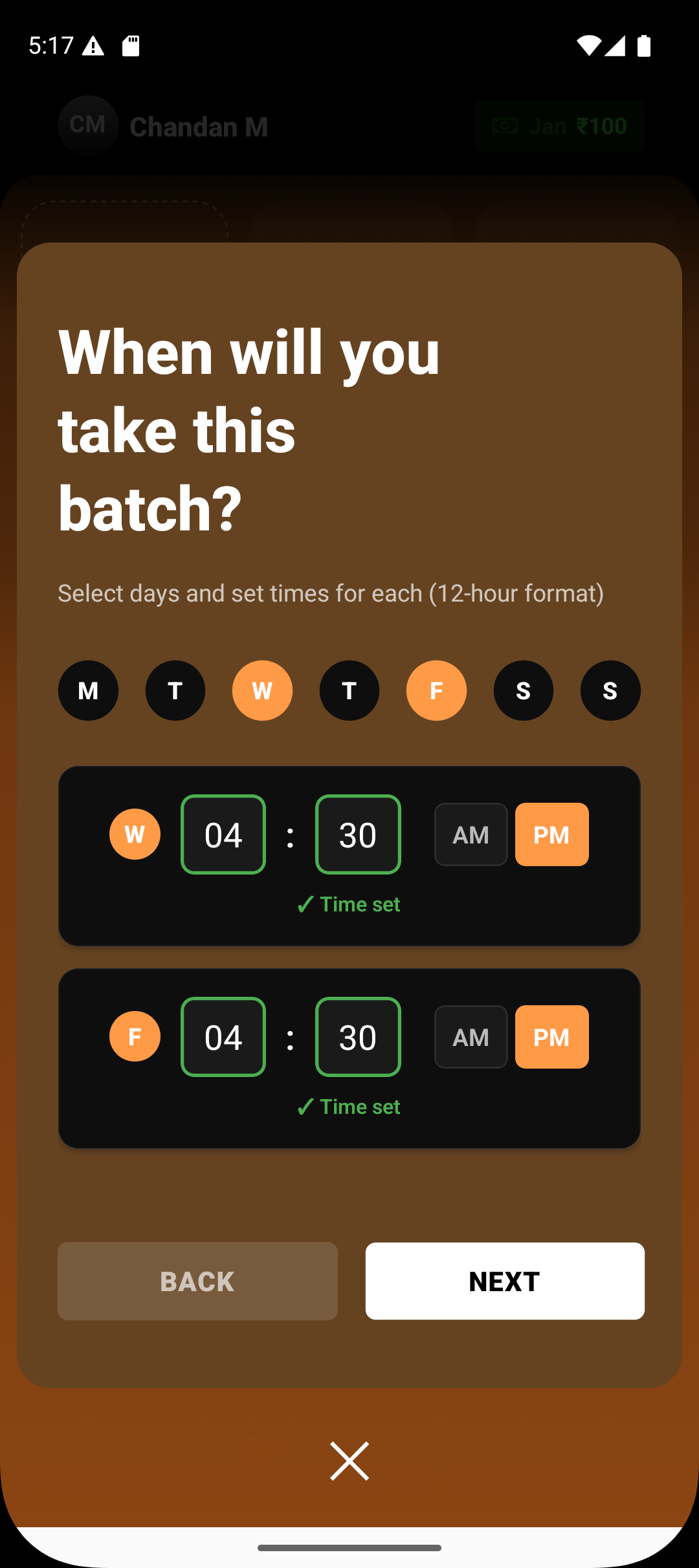
6. Set batch timing (days & time)
Select:
The days of the week the batch runs
Start time for each selected day
This defines your recurring session schedule.
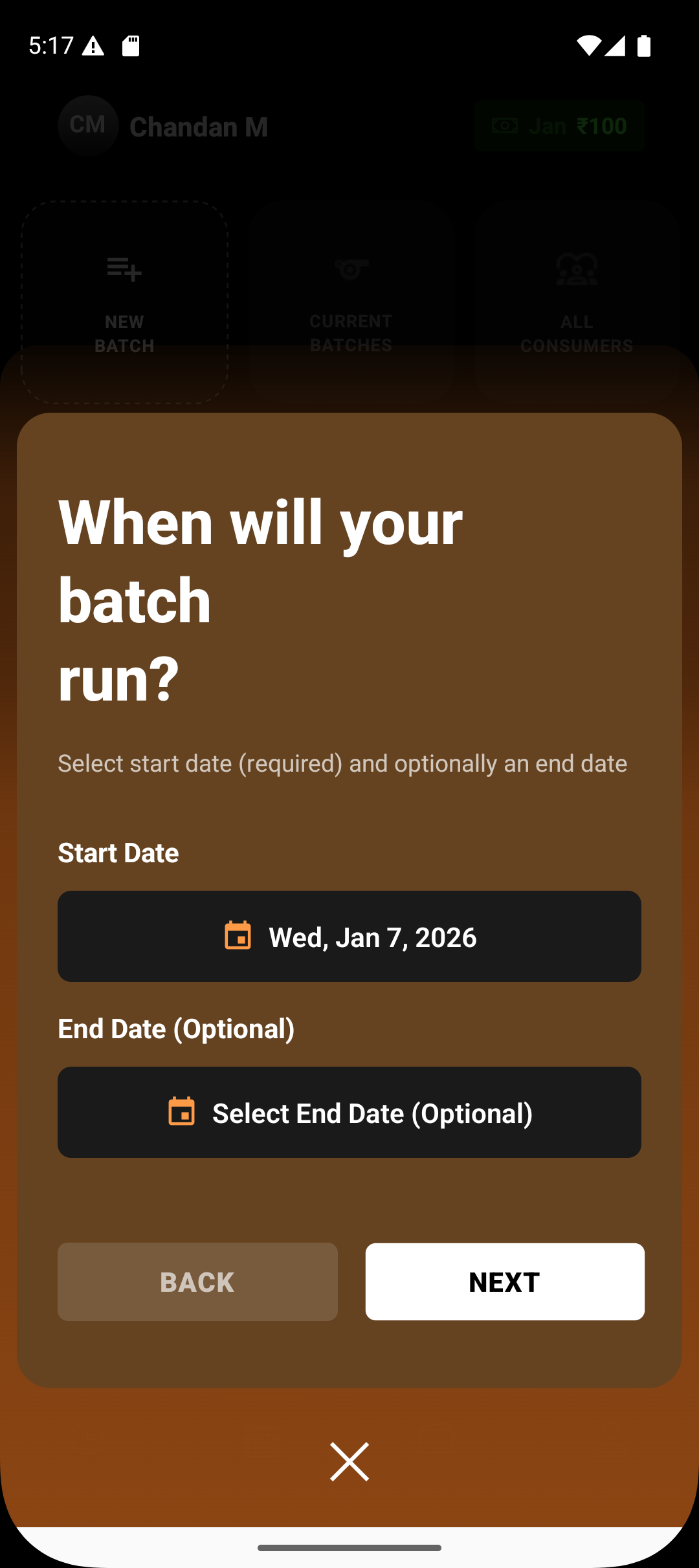
7. Set batch start date
Choose when the batch should begin.
You can optionally set an end date if the batch is time-bound.
8. Batch delivery setup
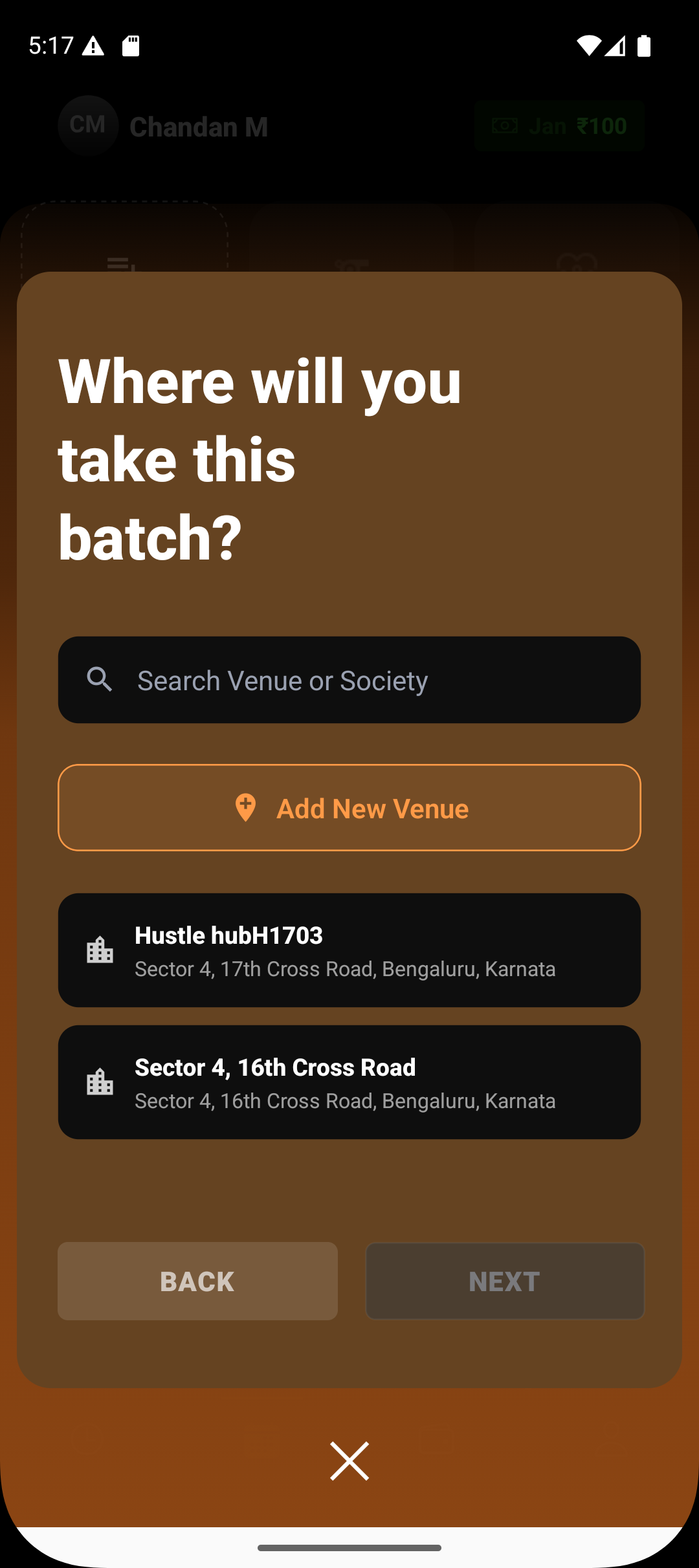
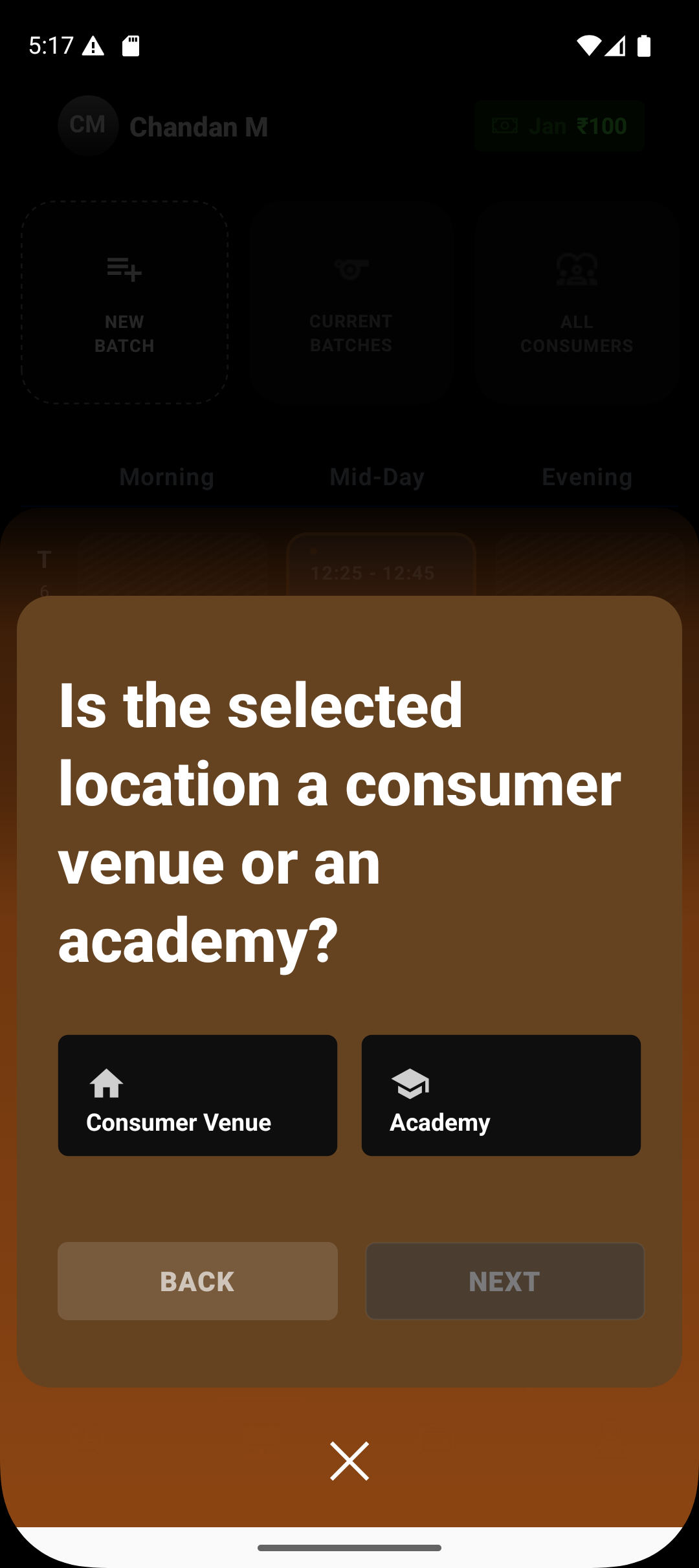
For offline batches, choose:
Academy venue, or
Consumer venue (home, society, etc.)
For Online batches
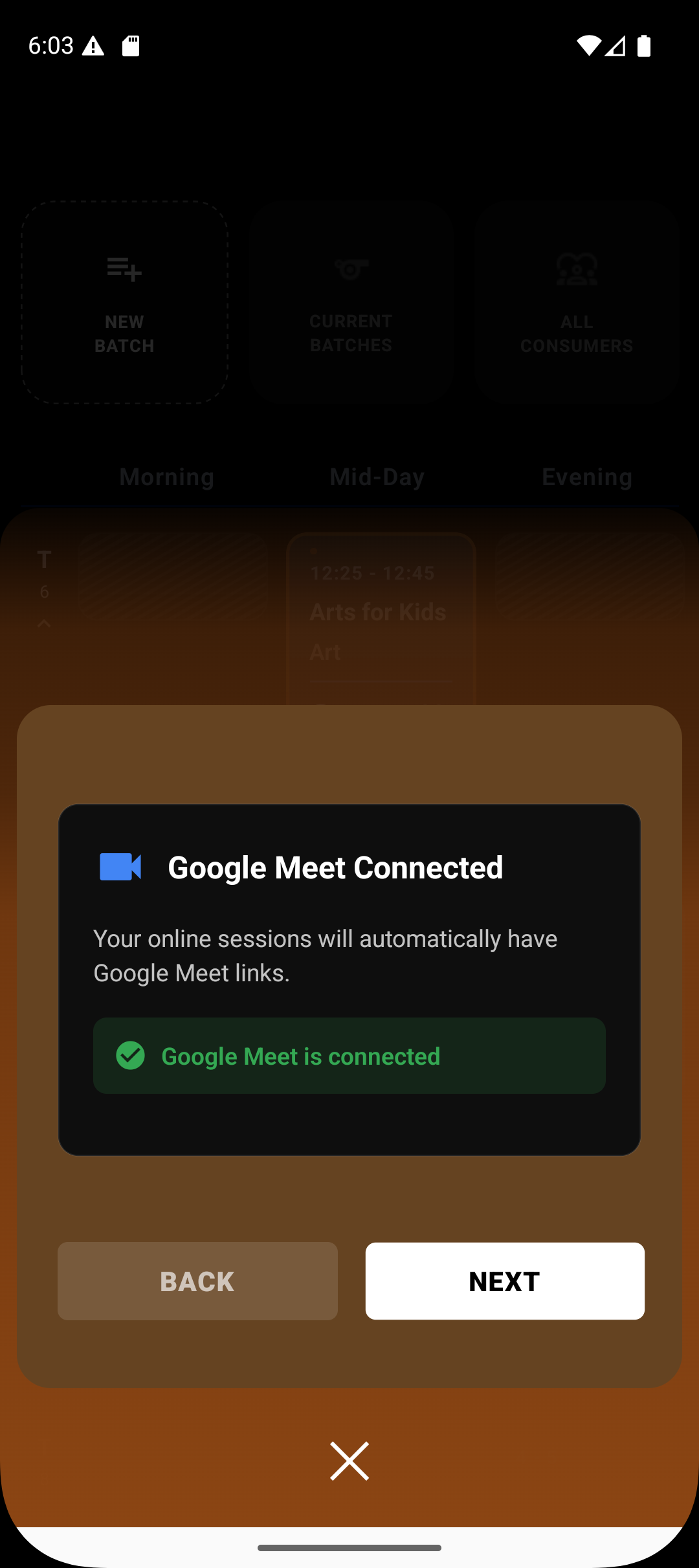
You will see Connect to Google Meet
Once connected, Lynk automatically:
Generates a Google Meet link
Attaches it to every session in the batch
No physical location is required.
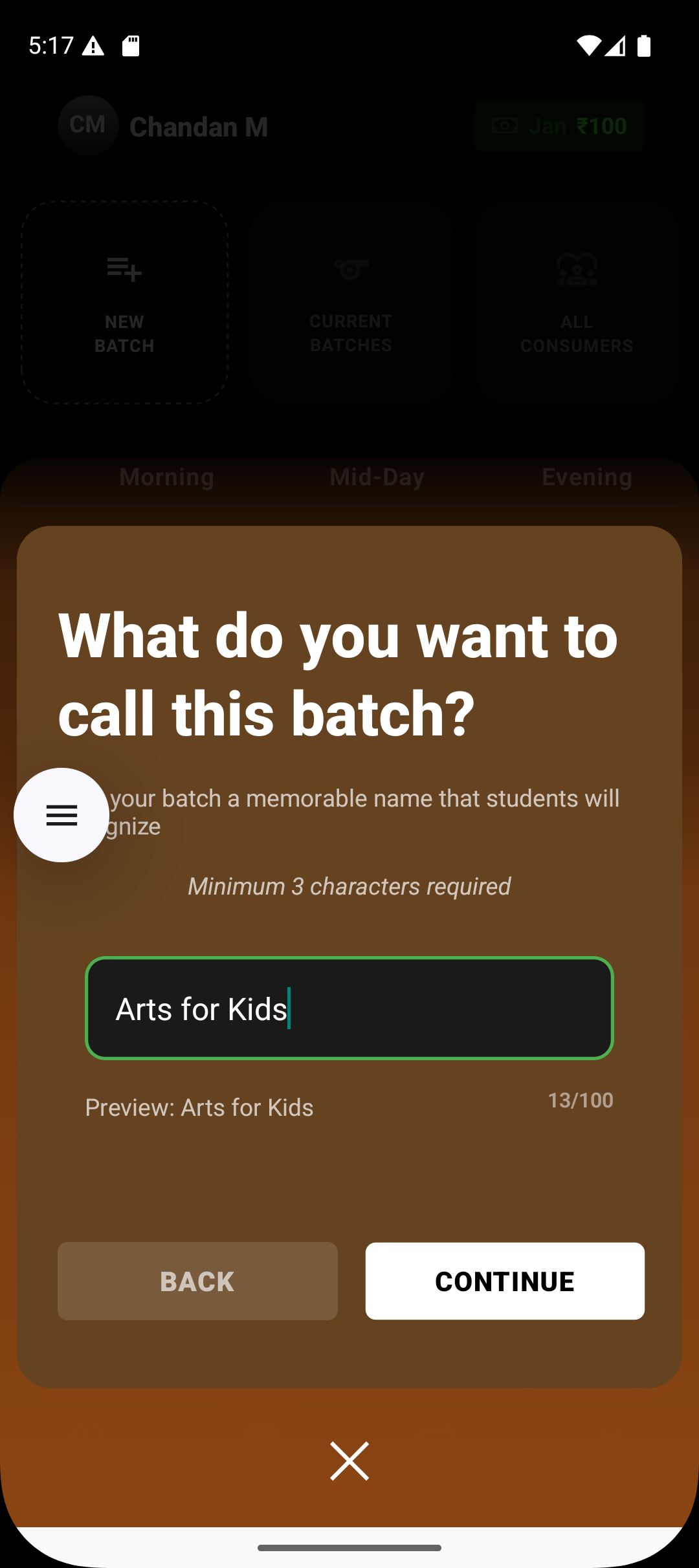
9. Name the batch
Give the batch a clear, recognizable name (e.g., Arts for Kids – Evening).
10. Save the batch
Tap Save.
The batch now:
Appears in the Manage section
Automatically creates and feeds upcoming sessions
Is ready for attendance and tracking