How to generate a progress report
Reports can be generated from the Progress Report module in Lynk.
Written by Swathi N
Progress reports help coaches communicate a student’s development clearly and consistently to parents or learners. In Lynk, progress reports are generated using coach-entered evaluations, supported by attendance records and previous notes, ensuring that every report reflects real participation and observed growth—not generic feedback.
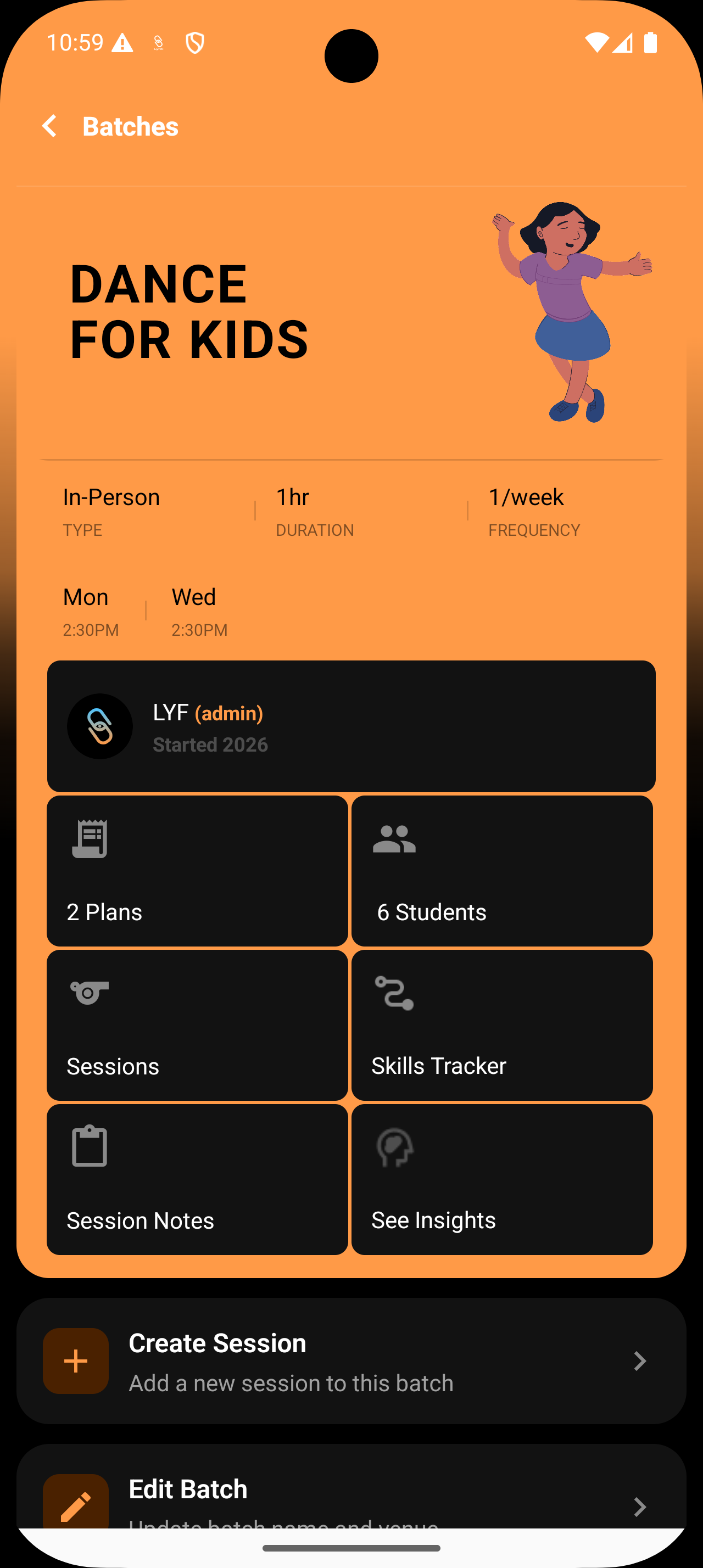
The Progress Report module is accessible directly from both the session card and the batch card, allowing coaches to generate reports at the right time with full context.
Where Progress Reports Live
Progress reports can be accessed and generated from:
The Batch Card, where reports can be created for any student enrolled in that batch
The Session Card, when reviewing or summarizing learning outcomes for recent sessions
This ensures reports stay tightly connected to actual sessions and batch activity.
How to Generate a Progress Report
Step 1: Open the relevant batch or session
Navigate to the batch or session for which you want to generate a progress report.
Step 2: Open the Progress Reports module
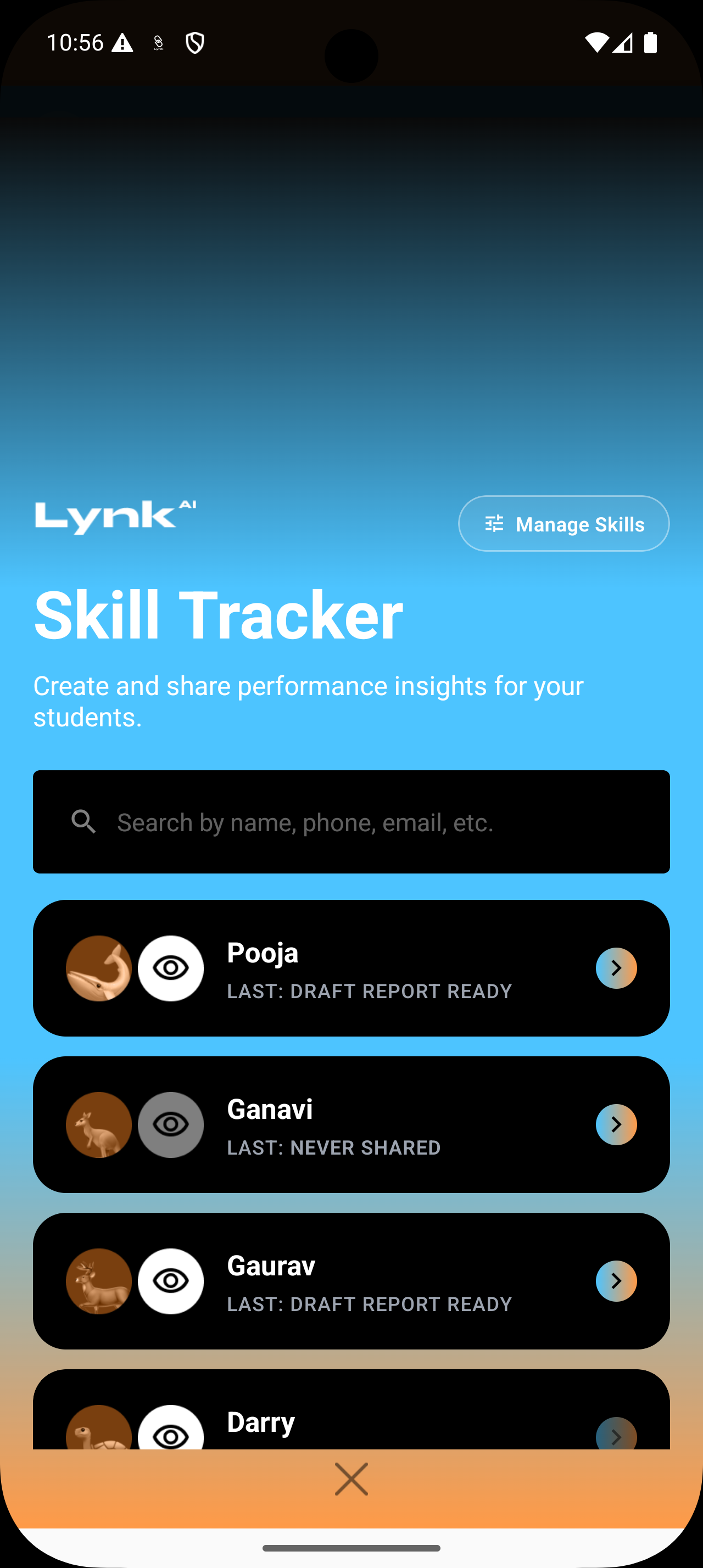
Tap on Skill Tracker from the batch or session card.
Step 3: Select the student
Choose the student for whom the report is being created. Each report is generated individually to ensure personalized feedback.
Lynk will begin generating a draft report using available session data. This may take a few seconds as the system compiles insights.
Step 4: Review and Edit the Draft
Once the draft is ready, you can review and customize it.
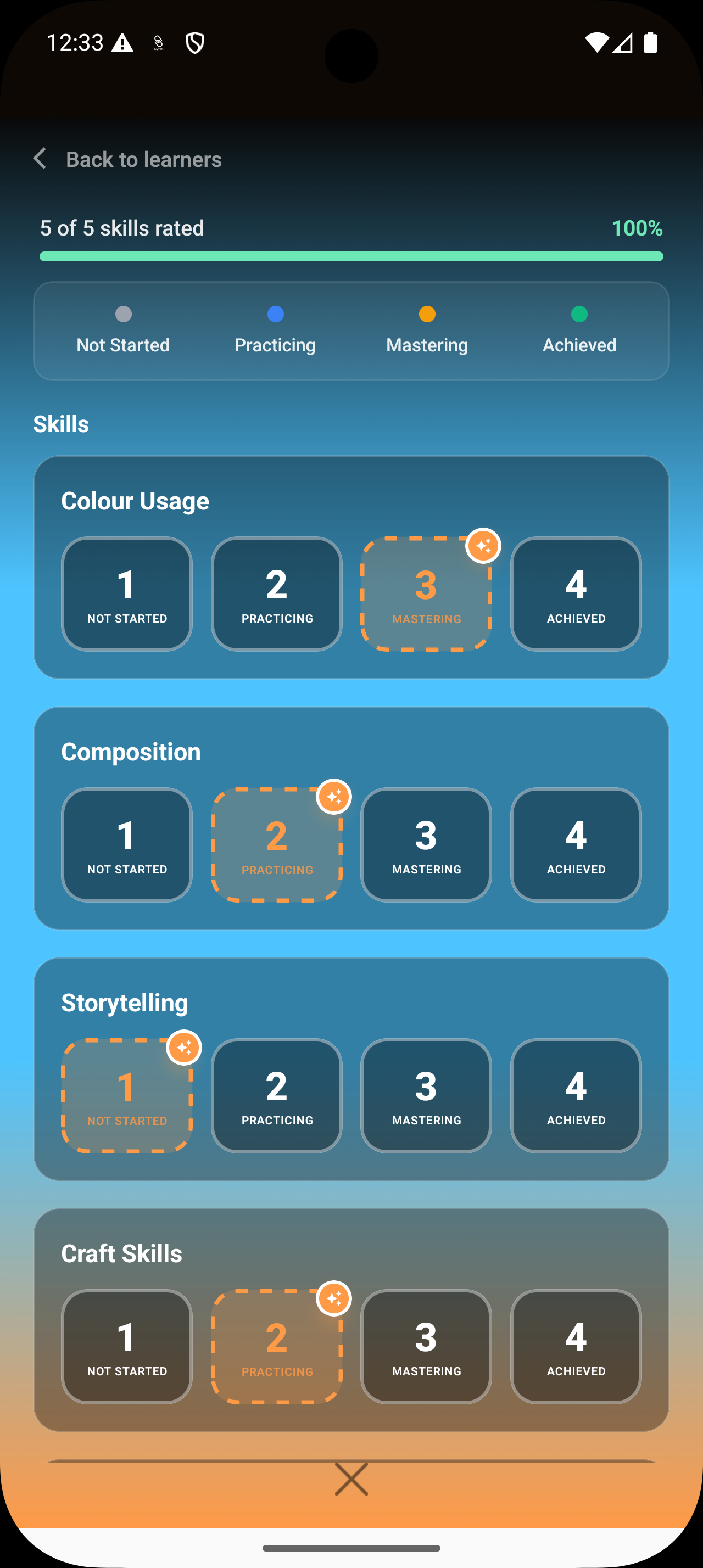
Adjust Skill Stages
Each skill will have a suggested stage (e.g., Not Started, Practicing, Mastering, Achieved)
Tap on a stage to update it based on your judgment
Adding Coach Feedback
Step 5: Write the coach message
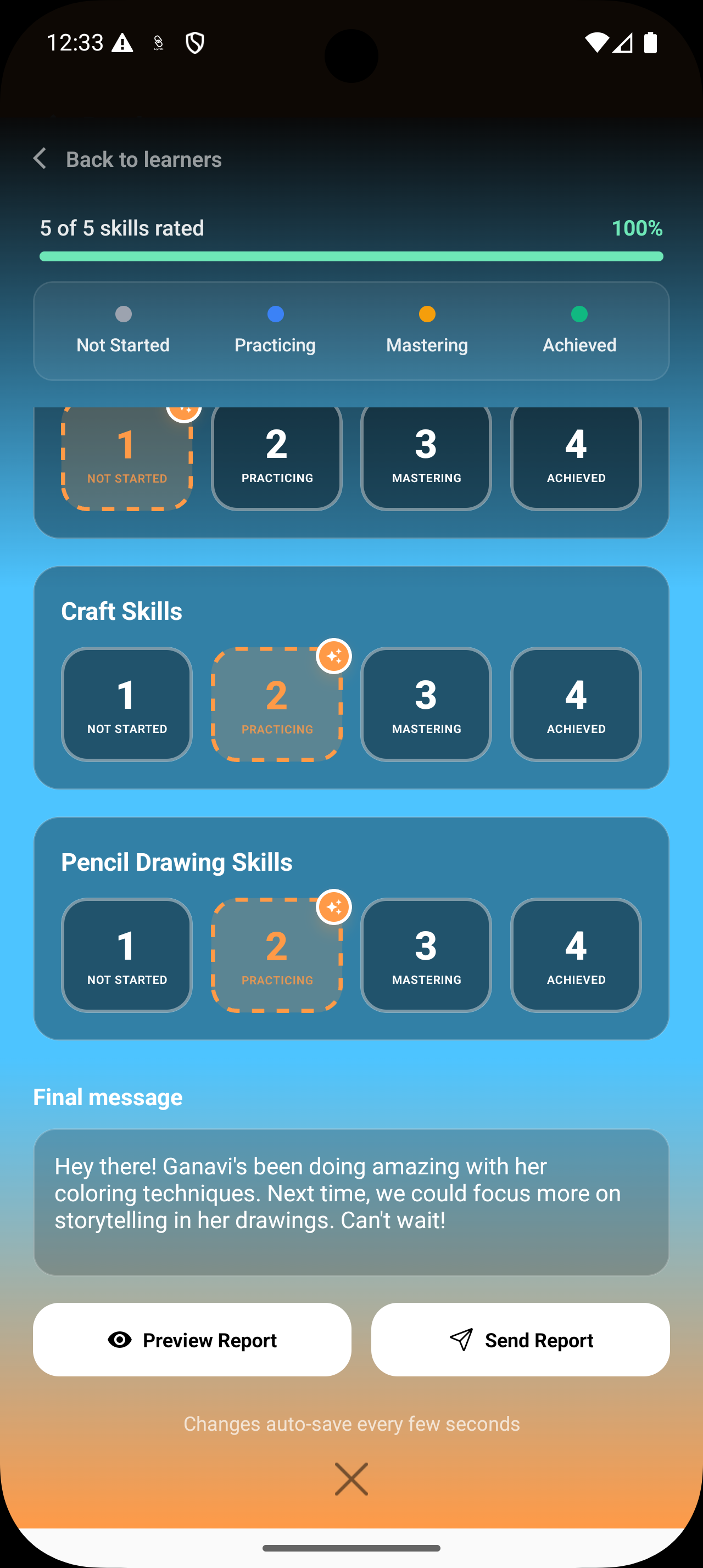
Add a personalized message summarizing the student’s progress, strengths, and areas to focus on next.
A suggested feedback message will be generated
Tap into the text box to:
Add personal observations
Refine the tone
Rewrite the message if needed
This step ensures the report reflects your actual coaching perspective.
Reviewing and Sending the Report
Step 6: Preview the report
Use Preview Report to review the full layout, ratings, and coach message before sending.
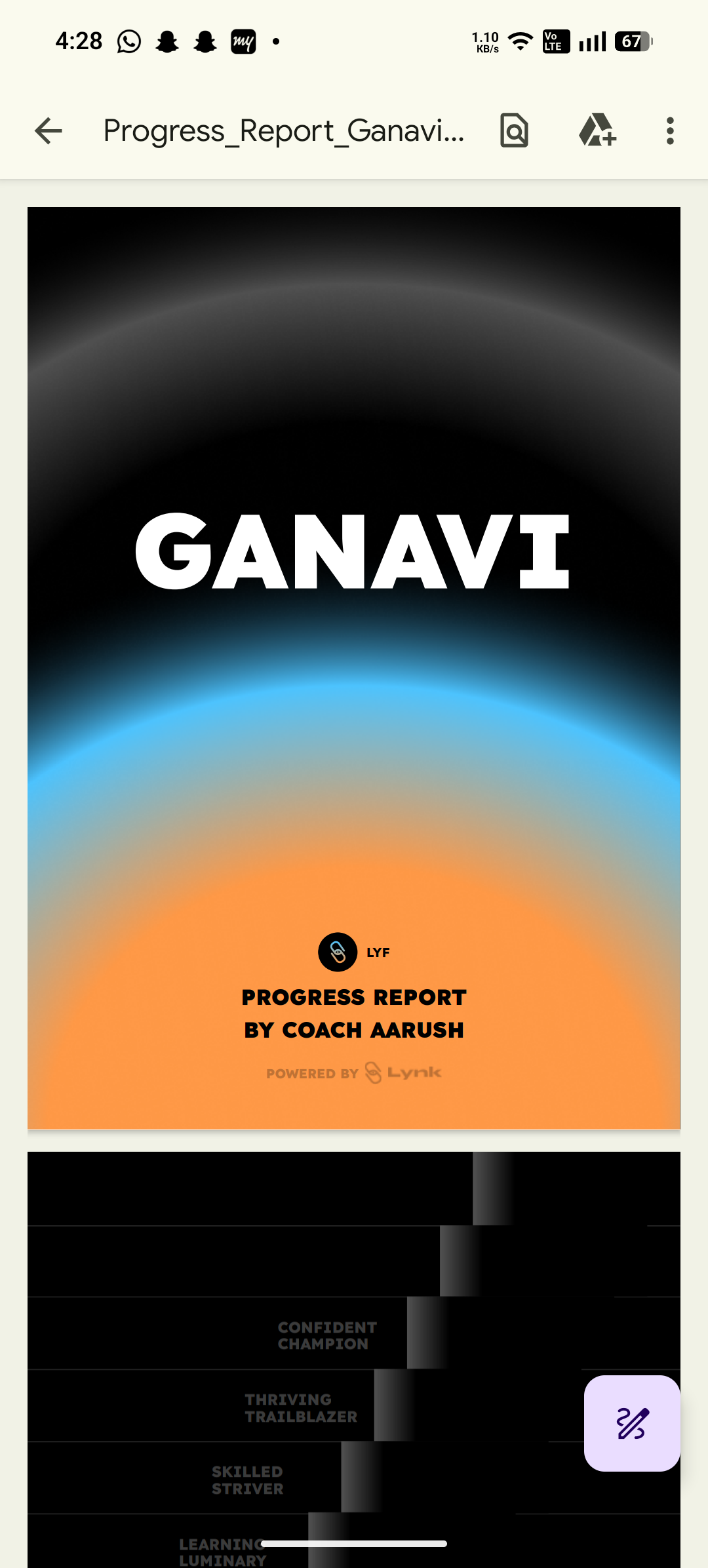
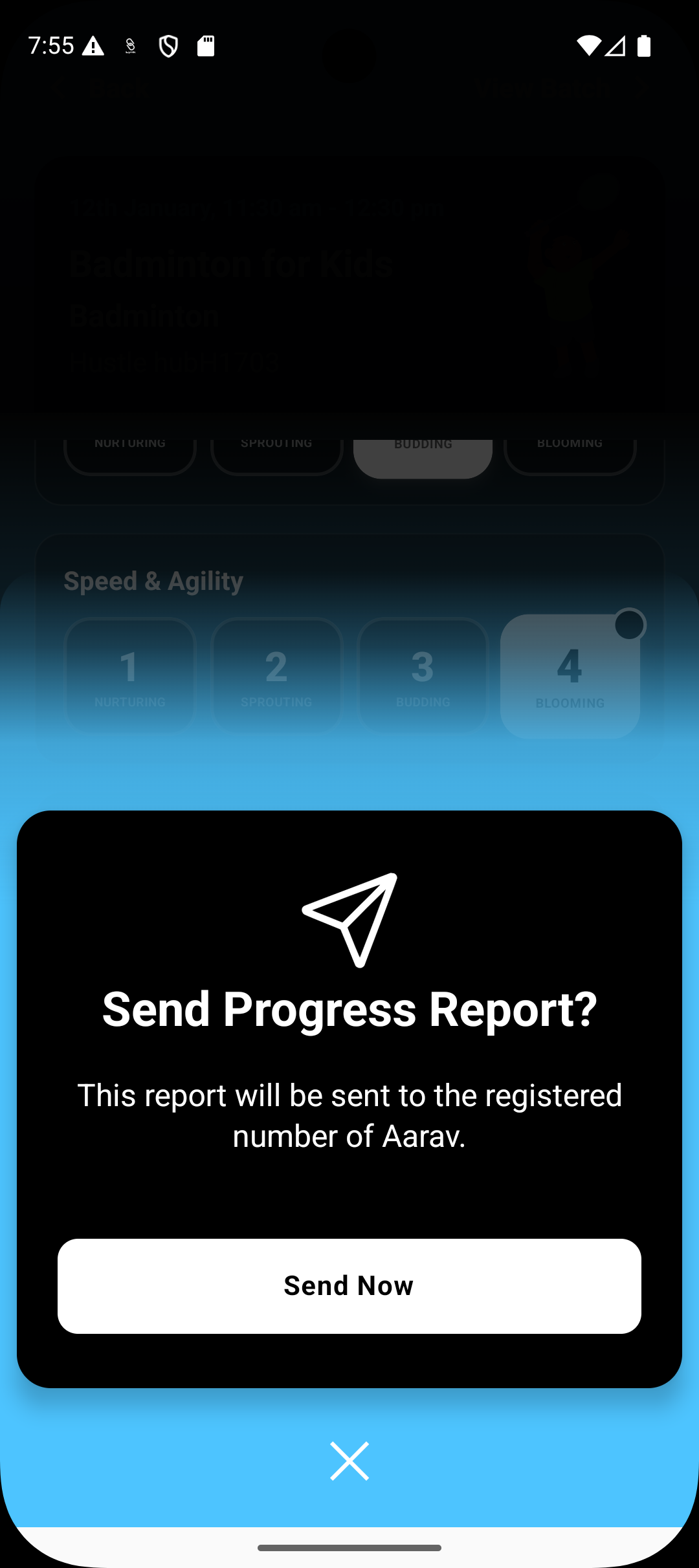
Step 7: Send the report
Tap Send Now to share the progress report.
The report is delivered to the registered phone number of the student or parent.
What Happens After Sending
The report is marked as shared in the Progress Report module
Coaches can view previously sent reports for reference
Reports remain tied to the batch and student history for future comparisons
Summary
Generating a progress report in Lynk is a guided, structured process that combines coach judgment with real session data. By selecting the student, evaluating skills, adding personalized feedback, and previewing before sending, coaches can create meaningful reports that accurately reflect growth.
Progress reports are designed to support transparency, trust, and continuous improvement—without adding administrative complexity to the coaching workflow.