How to conduct a session
Conducting a session means completing the guided workflow so attendance, coaching notes, and completion status are saved correctly. This ensures each class is properly recorded and feeds into insights, progress tracking, and reports.
Written by Sumit Kapoor
Step 1: Open the session
Tap the session card from your timeline
Review the batch name, time, and venue (or online mode)
The session opens in an upcoming or arriving state
Step 2: Start the session journey
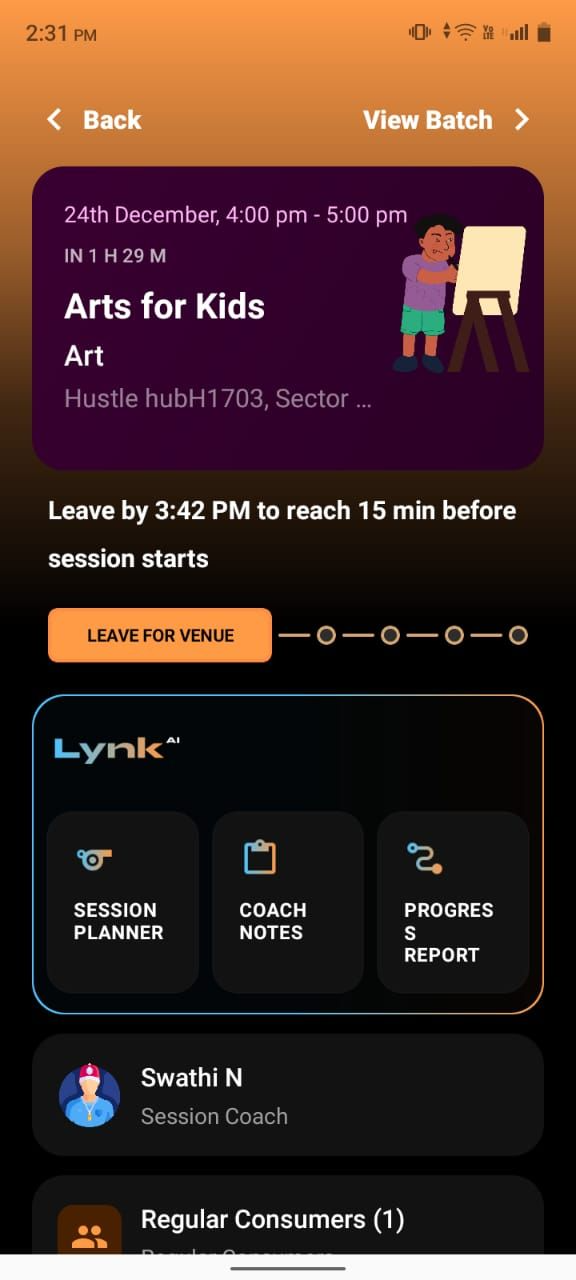
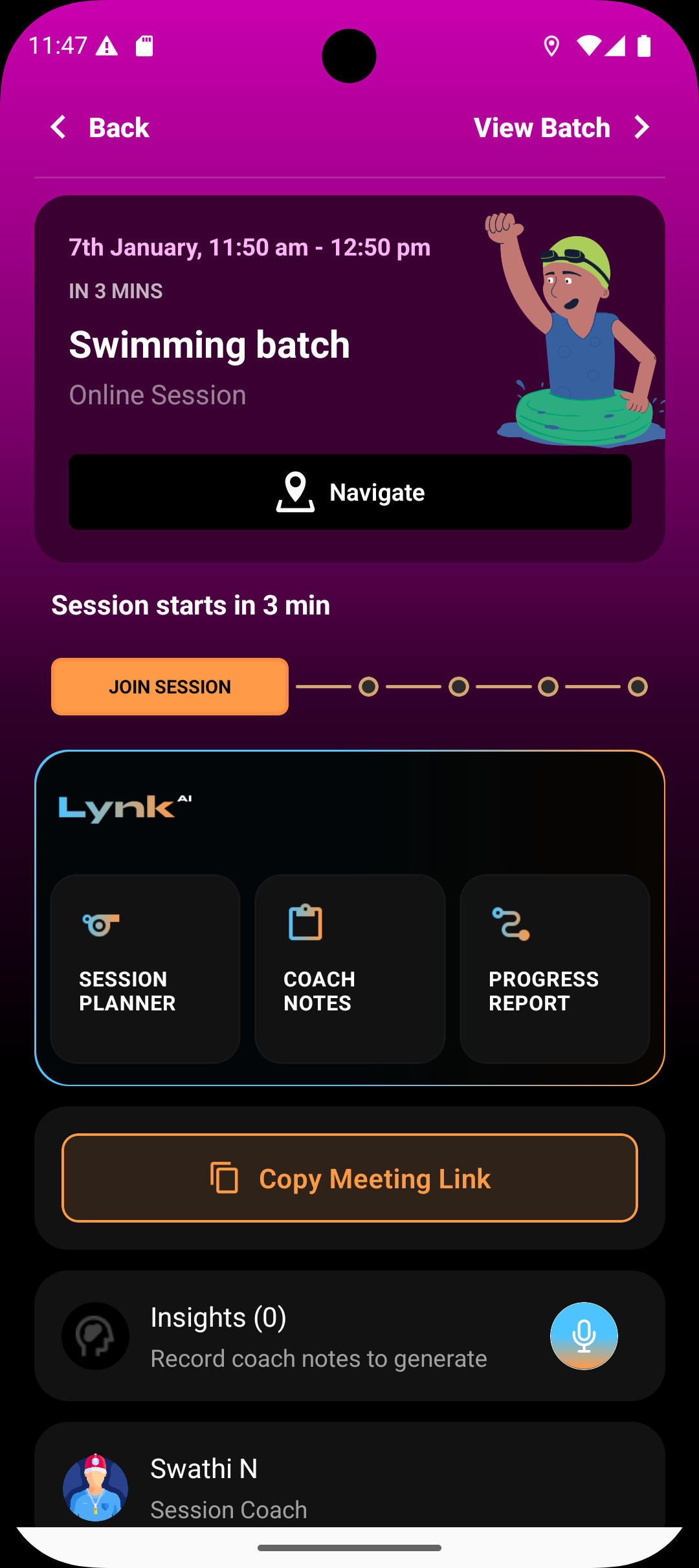
This marks the intent to run the session and can be initiated within two hours of the scheduled start time. Once within the window the session card turns pink on which the following actions can be taken
For offline sessions: tap Leave for venue
For online sessions: tap Join Session
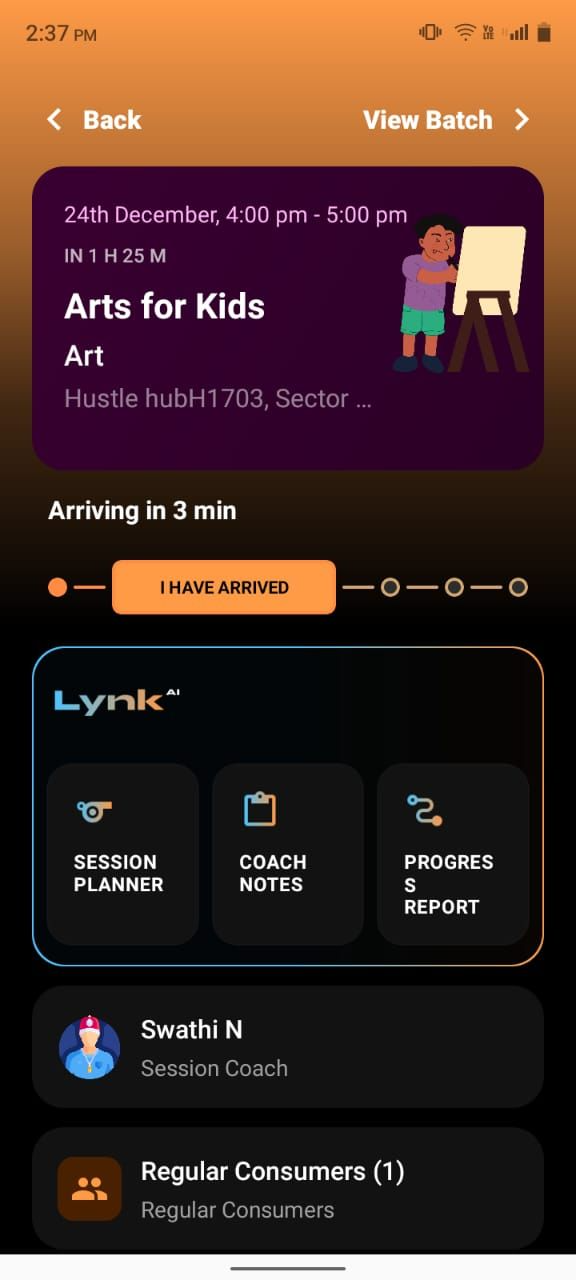
Step 3: Mark arrival
The session status moves to ongoing
For offline sessions: tap Start session once you reach the venue and are about to begin your session
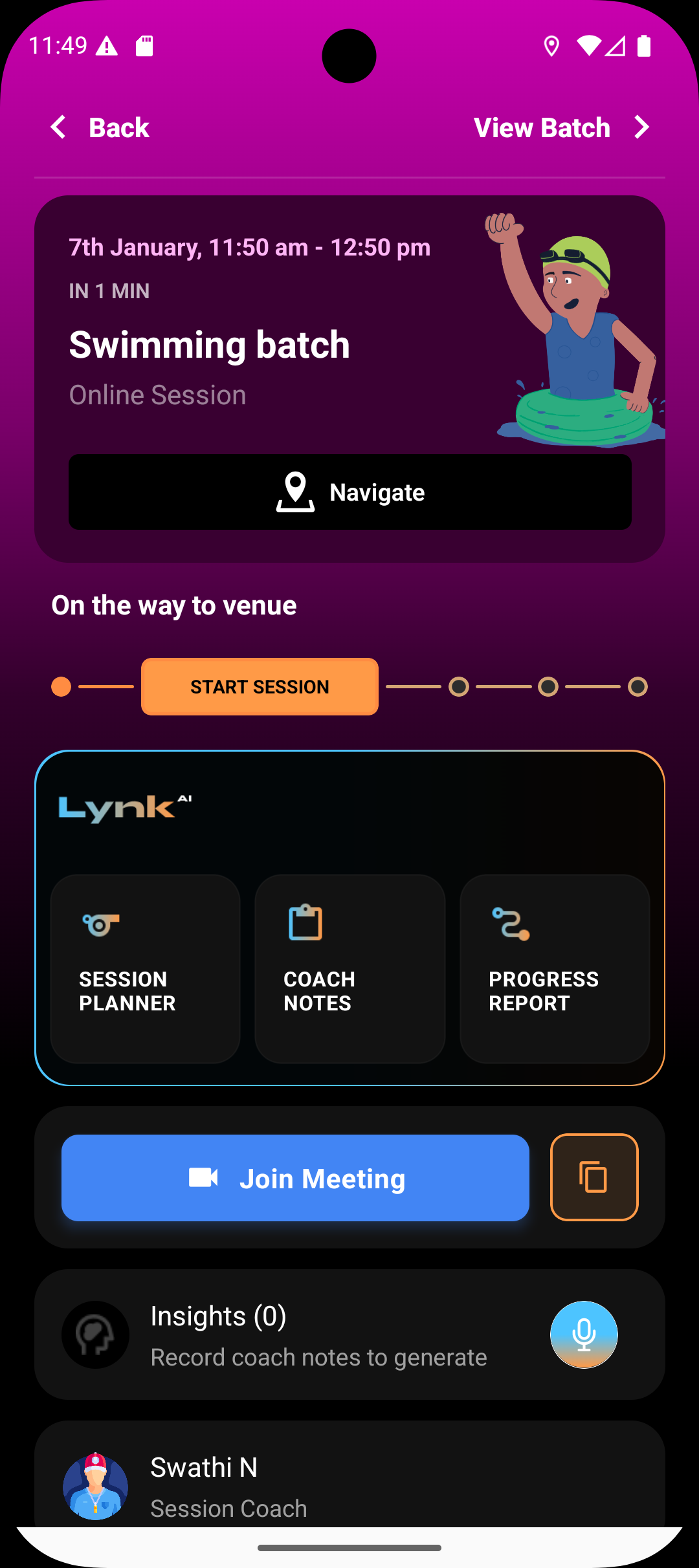
For online sessions: tap Start Session
Step 4: Mark attendance
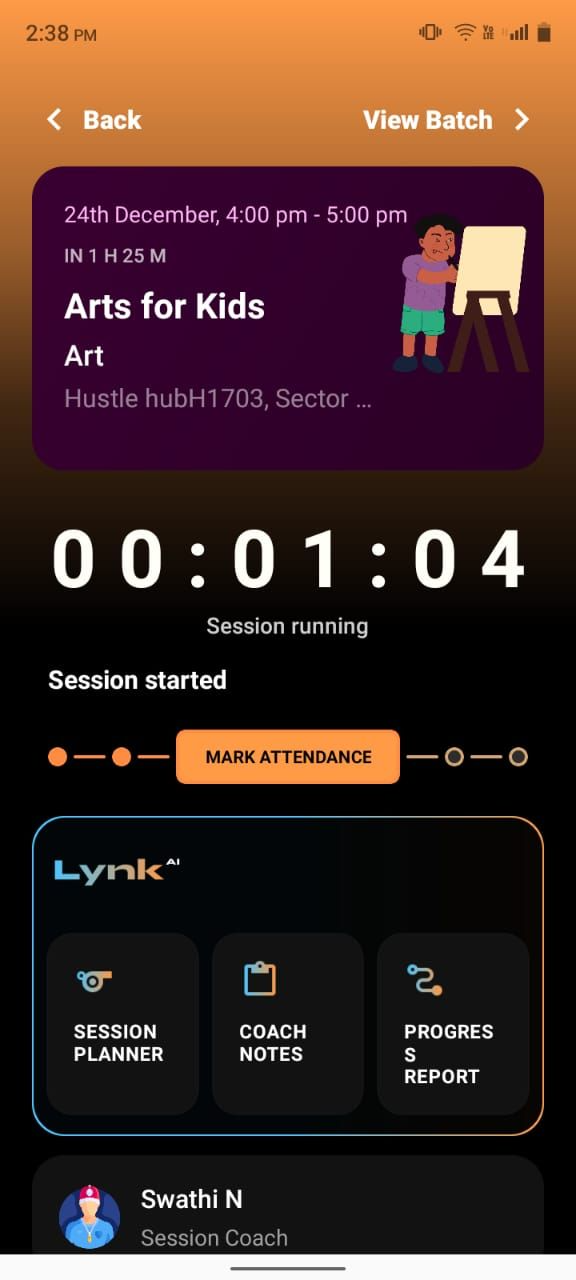
The student list is auto-loaded from the batch
Mark each student as present or absent
Attendance is recorded specifically for this session
Step 5: Add coach notes (optional)
Capture observations, learning outcomes, or behavior notes
Notes feed into insights and progress reports
This step is optional but highly recommended for quality tracking
Step 6: Complete the session
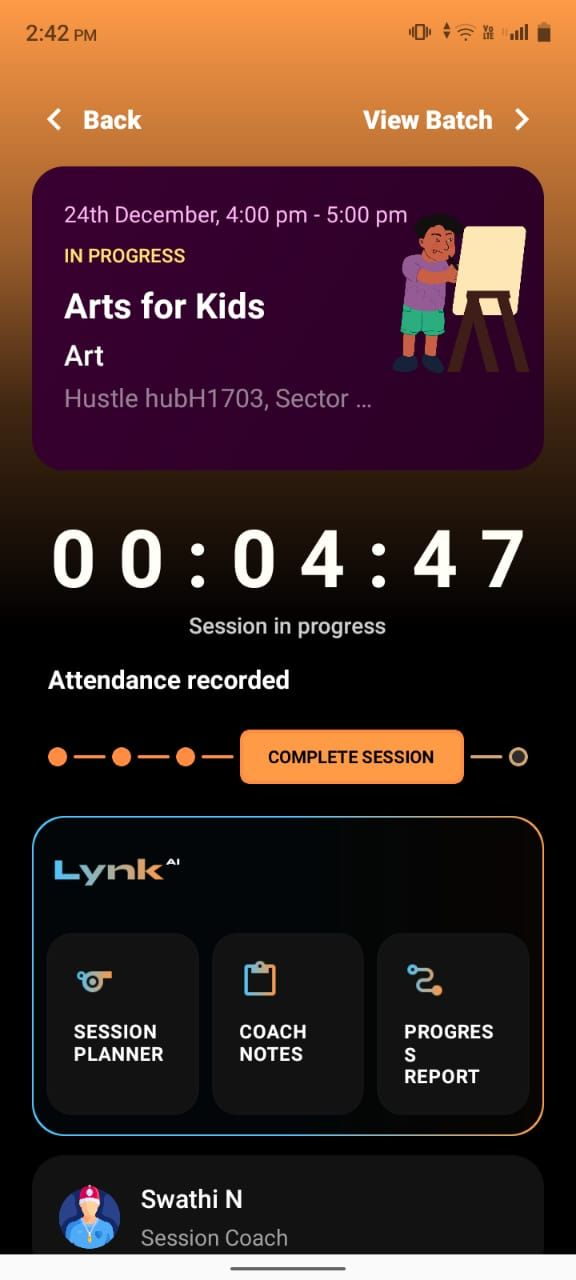
Tap Complete Session after the class ends
The session moves to completed state
Attendance and notes are finalized and stored as history
Summary
Sessions follow a clear start → attend → complete flow
Attendance and notes are tied to each individual session
Completed sessions become part of your permanent delivery record
Following the flow ensures accurate tracking, insights, and reporting