Session Status
Each session moves through clear states so you can instantly see what’s pending vs completed. Your timeline view lists all sessions generated from batches, organized by time and status so you can act quickly.
Written by Sumit Kapoor
Session cards
Each card represents one session
Cards are grouped by morning, mid-day, and evening
Shows activity name, batch, time, and student count
Online sessions are clearly marked as virtual
Where to view Session Status
Once a session has crossed the planned started time, the status can be viewed in the
Manage tab under the calendar view for the current day.
Default Timeline view or Previous Sessions for the day post end time.
Next day onwards the status can be viewed under the Batch>Sessions>Previous Sessions
Manage Tab view
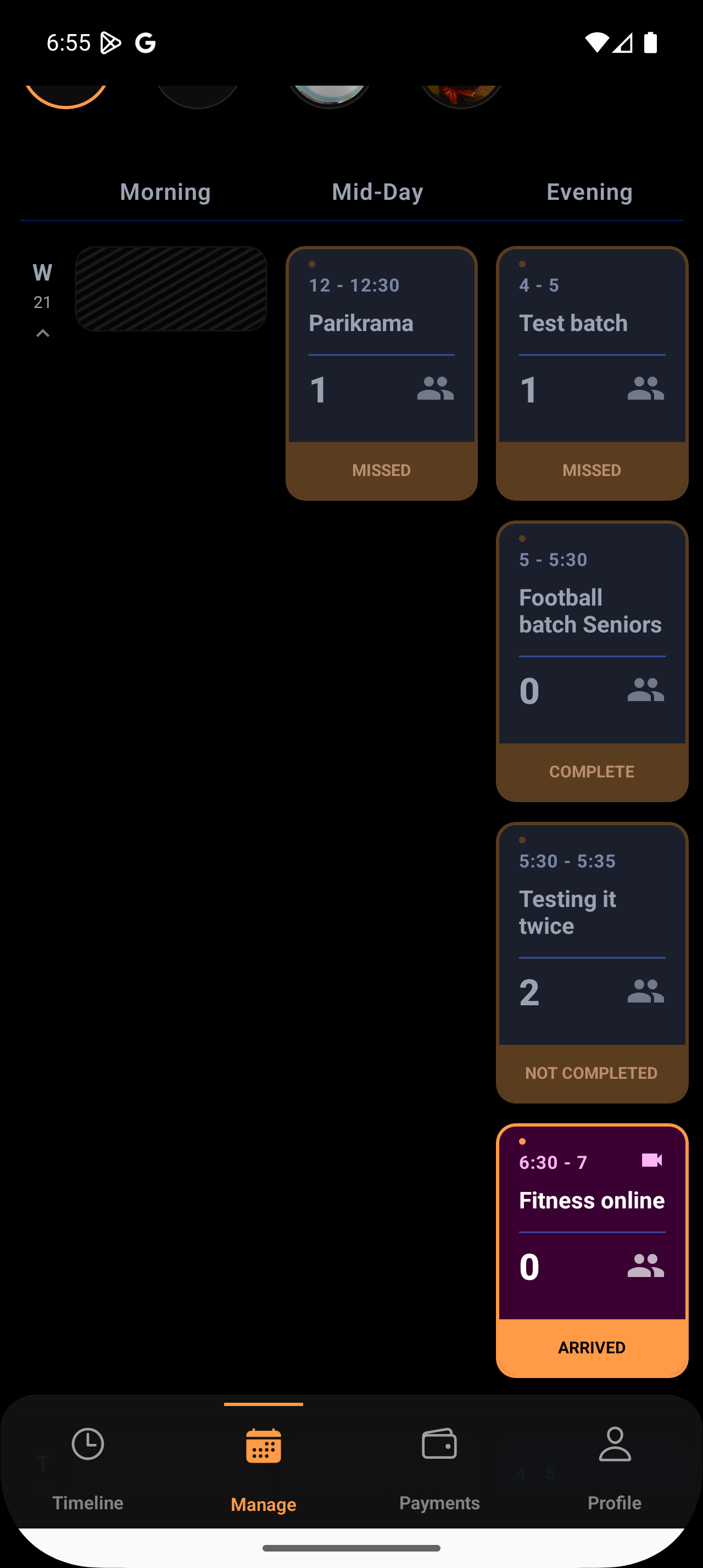
Depending on weather session has been started/ended, the following status are possible
Within the session period
Started/Arrived
Once coach initiates the session by clicking on start class
Complete
A started session turns to complete if closed within the session time
Missed
A session is marked as missed if not started by the scheduled end time
Not Completed
A started session turns to Not completed if not closed within session time
Why this view matters
Gives you a clear operational day plan
Prevents missing or overlapping sessions
Keeps batch-driven delivery structured and predictable